
1. Introduction
The AVerMedia PW313D DualCam is a versatile 2-in-1 webcam designed for enhanced online communication, teaching, and content creation. It features two cameras, allowing for simultaneous capture of different perspectives, along with advanced audio and video capabilities. This manual provides essential information for setting up, operating, and maintaining your DualCam.
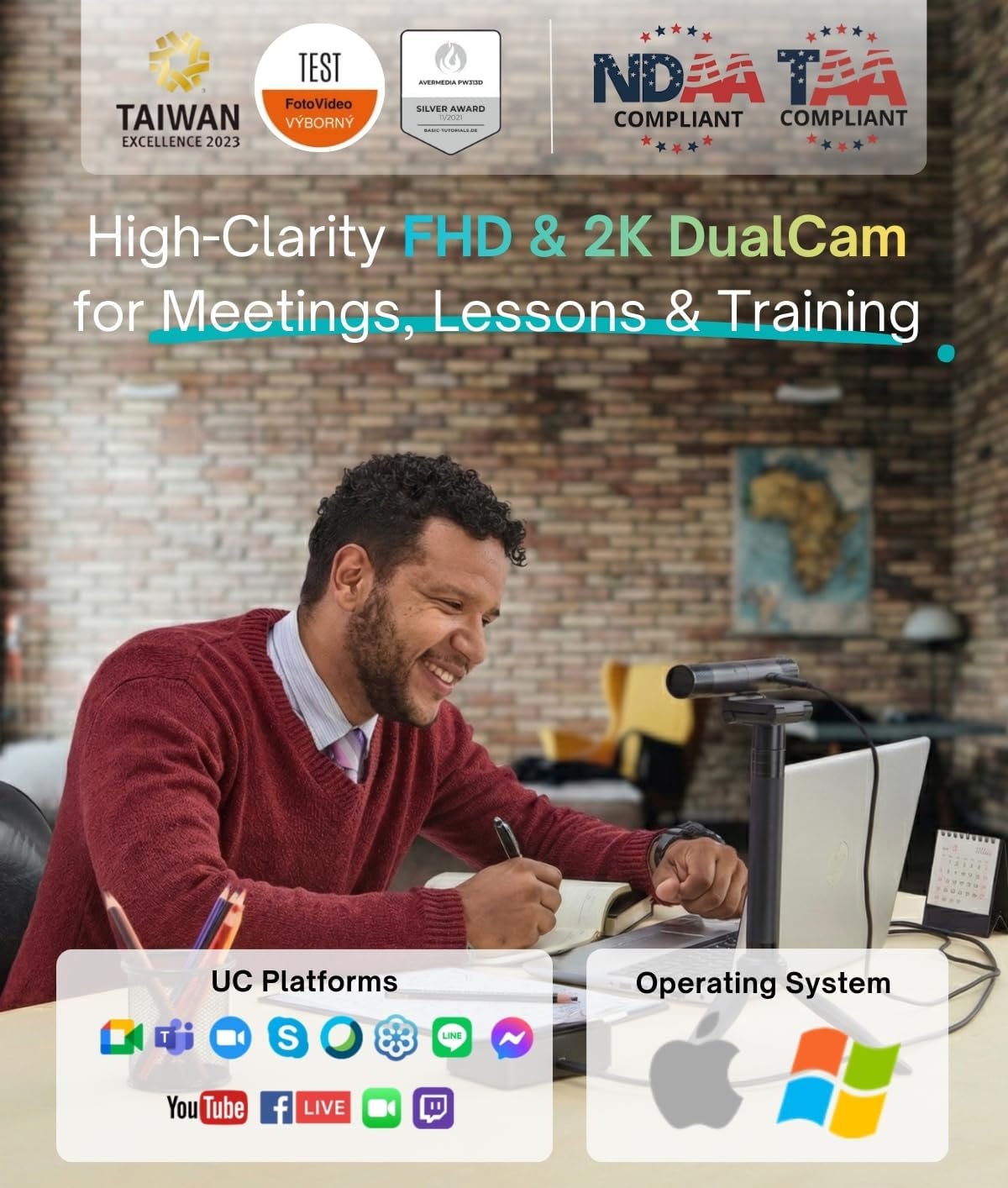
Image: The AVerMedia PW313D DualCam in a professional setting, demonstrating its use for online teaching or presentations.
2. What's in the Box
- PW313D DualCam Unit
- Tripod
- Quick Guide
- USB-A to USB-C cable (2 m/6.56 ft.)

Image: The AVerMedia PW313D DualCam, its included tripod, and USB cable, laid out on a surface.
3. Product Overview
The PW313D DualCam features a unique design with two independent cameras and integrated microphones, offering flexibility for various applications.
Key Components:
- Left Camera: 1080p Full HD Optical Lens (2 Megapixel)
- Right Camera: 5 Megapixel Optical Lens (2K resolution)
- Dual Omnidirectional Microphones: With AI Noise Reduction
- Dual Privacy Shutters: For both cameras
- LED Power Indicators: For Left and Right Cameras
- Flexible Base: For monitor mounting or tripod attachment
- USB Type-C Port: For connectivity
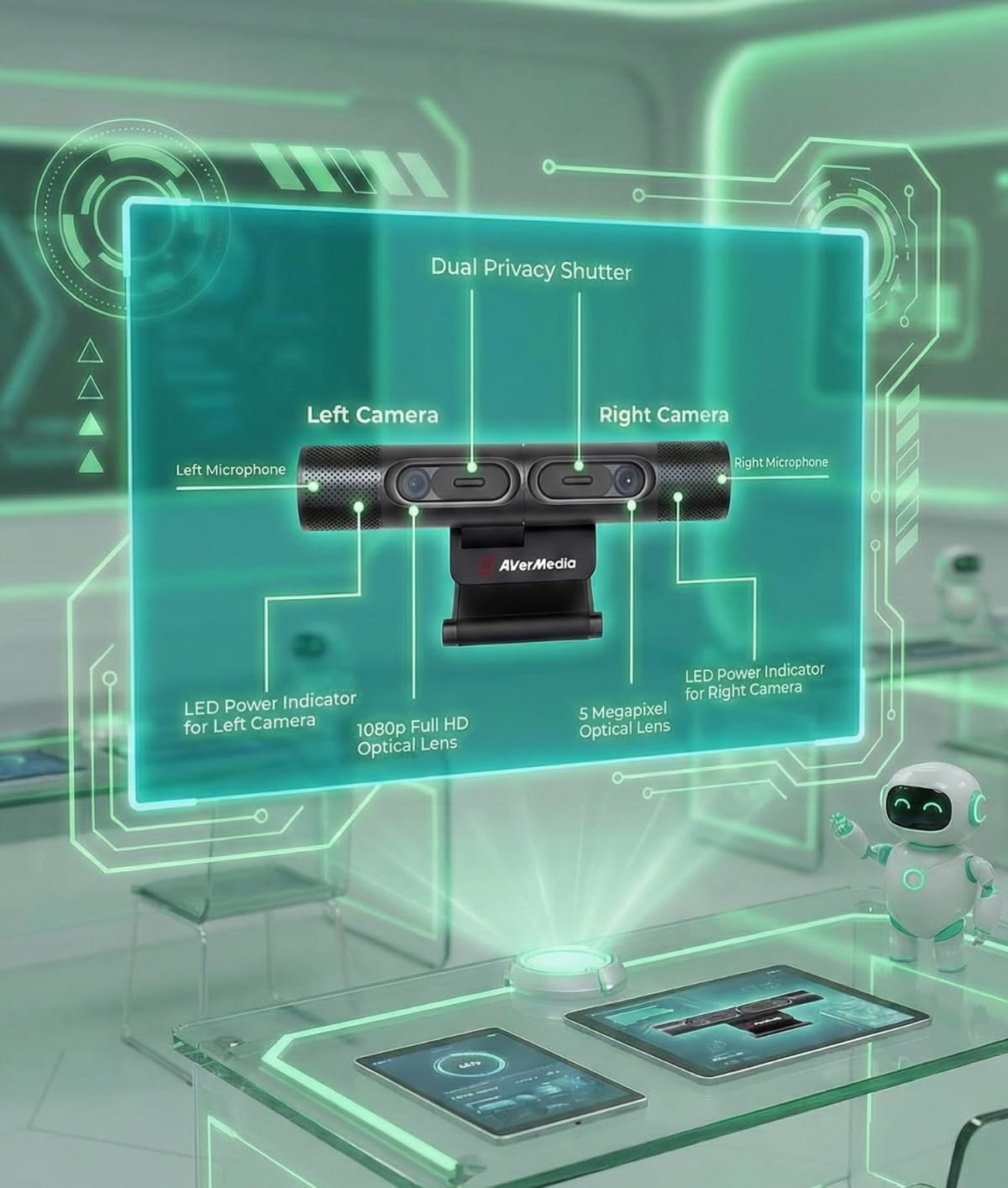
Image: A detailed view of the AVerMedia PW313D DualCam, labeling its various components including the dual cameras, microphones, and privacy shutters.
Dual Microphones with AI Noise Reduction:
The integrated dual omnidirectional microphones capture clear audio up to 3 meters. AI noise reduction technology suppresses ambient sounds like typing and room noise, ensuring clear communication in various environments.

Image: The AVerMedia PW313D DualCam with visual representations of sound waves, emphasizing its dual microphones and AI noise reduction feature.
Flexible Rotation and Privacy Shutters:
The camera unit offers flexible rotation for optimal positioning. Each camera is equipped with a built-in privacy shutter, allowing you to physically cover the lens when not in use for enhanced privacy.

Image: The AVerMedia PW313D DualCam demonstrating its flexible camera rotation and the use of its built-in privacy shutters.
Official Product Video: AVerMedia DualCam PW313D Trailer
Video: An official trailer showcasing the key features and benefits of the AVerMedia PW313D DualCam.
4. Setup
The PW313D DualCam is designed for plug-and-play convenience.
Connecting to your Computer:
- Connect the provided USB-A to USB-C cable to the USB Type-C port on the DualCam.
- Plug the USB-A end of the cable into an available USB port on your PC, Mac, or laptop.
- The device is plug-and-play for basic webcam functionality. For advanced features and dual-camera operation, install the AVerMedia Streaming Center software.
Mounting Options:
- Monitor Mount: The flexible base allows the DualCam to securely rest on top of most monitors or laptop screens. Adjust the base to fit your screen thickness.
- Tripod Mount: Use the included tripod for stable placement on a desk or other flat surface. The tripod can be extended for varying heights.
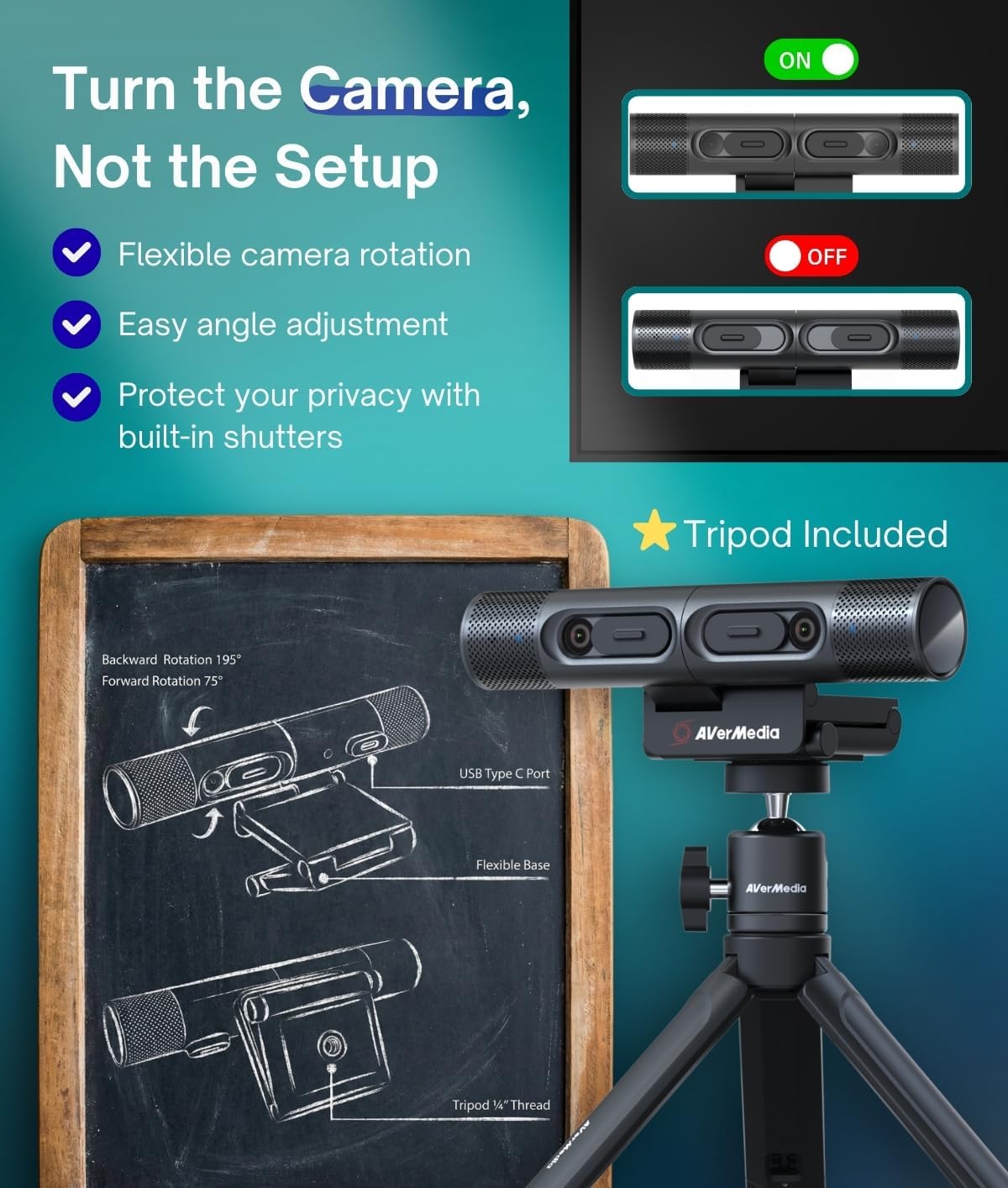
Image: The AVerMedia PW313D DualCam mounted on its included tripod, demonstrating its adjustable base and connectivity.
5. Operating Instructions
Maximize your DualCam's potential with its versatile features.
Dual-Camera Functionality:
- Switch between the 2K 30FPS document-view camera (Right Camera) and the 1080p webcam (Left Camera).
- Use both cameras simultaneously for a comprehensive view, ideal for teaching, training, or hybrid meetings.

Image: The AVerMedia PW313D DualCam in action, demonstrating its document camera mode with simultaneous display of the user and a document.
Autofocus and Keystone Correction:
- Real-time autofocus ensures crisp images for documents, products, and faces.
- Keystone Correction (Right Camera only) automatically flattens angled views, providing a clear, undistorted tabletop perspective.
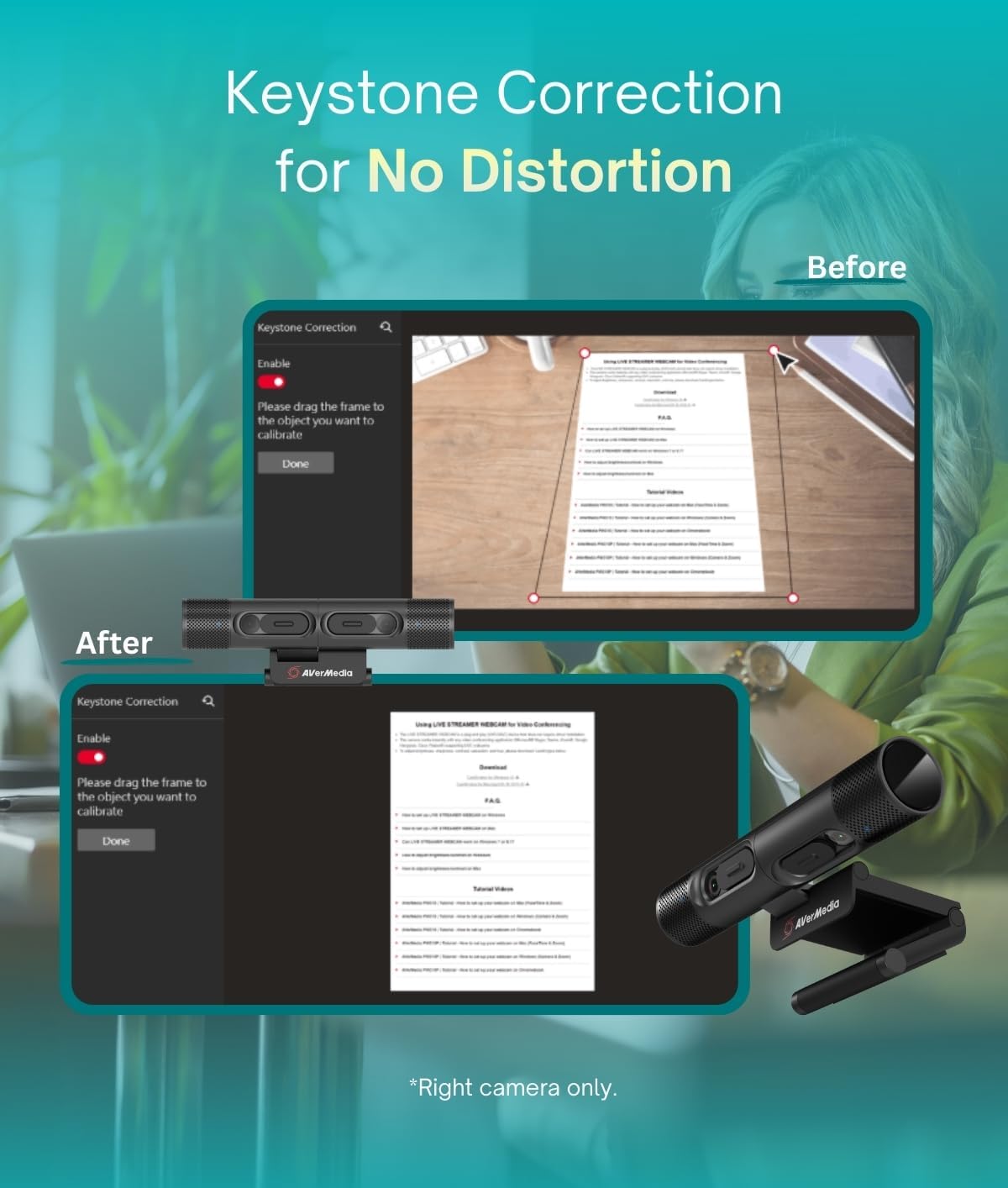
Image: The AVerMedia PW313D DualCam illustrating its Keystone Correction feature, which rectifies distorted angles for a flat, clear view of documents.
Picture-in-Picture (PiP) Mode:
Utilize PiP mode via the AVerMedia Streaming Center software to display both your face and your materials concurrently. This is ideal for presentations, tutorials, and interactive lessons.

Image: The AVerMedia PW313D DualCam displaying its Picture-in-Picture mode on a monitor, combining a document view with a presenter's face.
6. Software: AVerMedia Streaming Center / CamEngine
To unlock the full potential of your PW313D DualCam, including dual-camera functionality, Picture-in-Picture mode, Keystone Correction, and advanced video/audio settings, download and install the AVerMedia Streaming Center software (also known as CamEngine). This software is compatible with both PC and Mac operating systems.
- Download the latest version from the official AVerMedia website.
- The software provides controls for brightness, focus, white balance, and other image adjustments.
- It also enables AI-powered features like noise reduction and virtual backgrounds.
7. Maintenance
To ensure the longevity and optimal performance of your AVerMedia PW313D DualCam, follow these maintenance guidelines:
- Cleaning: Gently wipe the camera lenses and body with a soft, dry, lint-free cloth. Avoid using harsh chemicals or abrasive materials.
- Storage: When not in use, store the DualCam in a cool, dry place. Use the privacy shutters to protect the lenses from dust and scratches.
- Cable Care: Avoid bending or twisting the USB cable excessively to prevent damage.
8. Troubleshooting
If you encounter issues with your AVerMedia PW313D DualCam, refer to the following common troubleshooting steps:
- Camera Not Detected: Ensure the USB cable is securely connected to both the DualCam and your computer. Try a different USB port or restart your computer.
- Poor Video Quality: Check your lighting conditions. Ensure the camera lenses are clean and the privacy shutters are fully open. Adjust settings within the AVerMedia Streaming Center software (brightness, contrast, focus).
- No Audio/Poor Audio Quality: Verify that the DualCam's microphones are selected as the input device in your computer's sound settings and in your video conferencing application. Ensure AI Noise Reduction is configured correctly in the software.
- Dual-Camera Features Not Working: Make sure the AVerMedia Streaming Center software is installed and running. Update the software to the latest version.
For further assistance, visit the official AVerMedia support website.
9. Specifications
| Feature | Specification |
|---|---|
| Brand Name | AVerMedia |
| Item Model Number | PW313D |
| Item Weight | 1.3 pounds |
| Product Dimensions | 7.48 x 2.6 x 8.03 inches |
| Color Name | black |
| Photo Sensor Technology | CMOS |
| Video Capture Resolution | 2K |
| Maximum Focal Length | 1 |
| Maximum Aperture | 2 f |
| Video Capture Format | ASF |
| Supported Audio Format | WAV, MP3 |
| Connectivity Technology | USB |
10. Warranty and Support
For detailed warranty information and technical support, please visit the official AVerMedia website. You can find FAQs, driver downloads, and contact information for customer service.
Online Resources: www.avermedia.com


