
Donerton Q20 Pro
Donerton Wireless Earbuds Q20 Pro - Instruction Manual
Model: Q20 Pro
Introduction
Welcome to the Donerton Wireless Earbuds Q20 Pro manual. This guide provides essential information for setting up, operating, and maintaining your new earbuds, ensuring you get the best experience from your device.
What's in the Box
- Donerton Wireless Earbuds (Left and Right)
- Wireless Charging Case
- USB Charging Cable
- User Manual
- Multiple sizes of Gel Eartips (Small, Medium, Large)
Product Overview
The Donerton Q20 Pro earbuds are designed for comfort and high-quality audio, featuring ear hooks for a secure fit during activities. The charging case includes an LED display for convenient battery status monitoring.
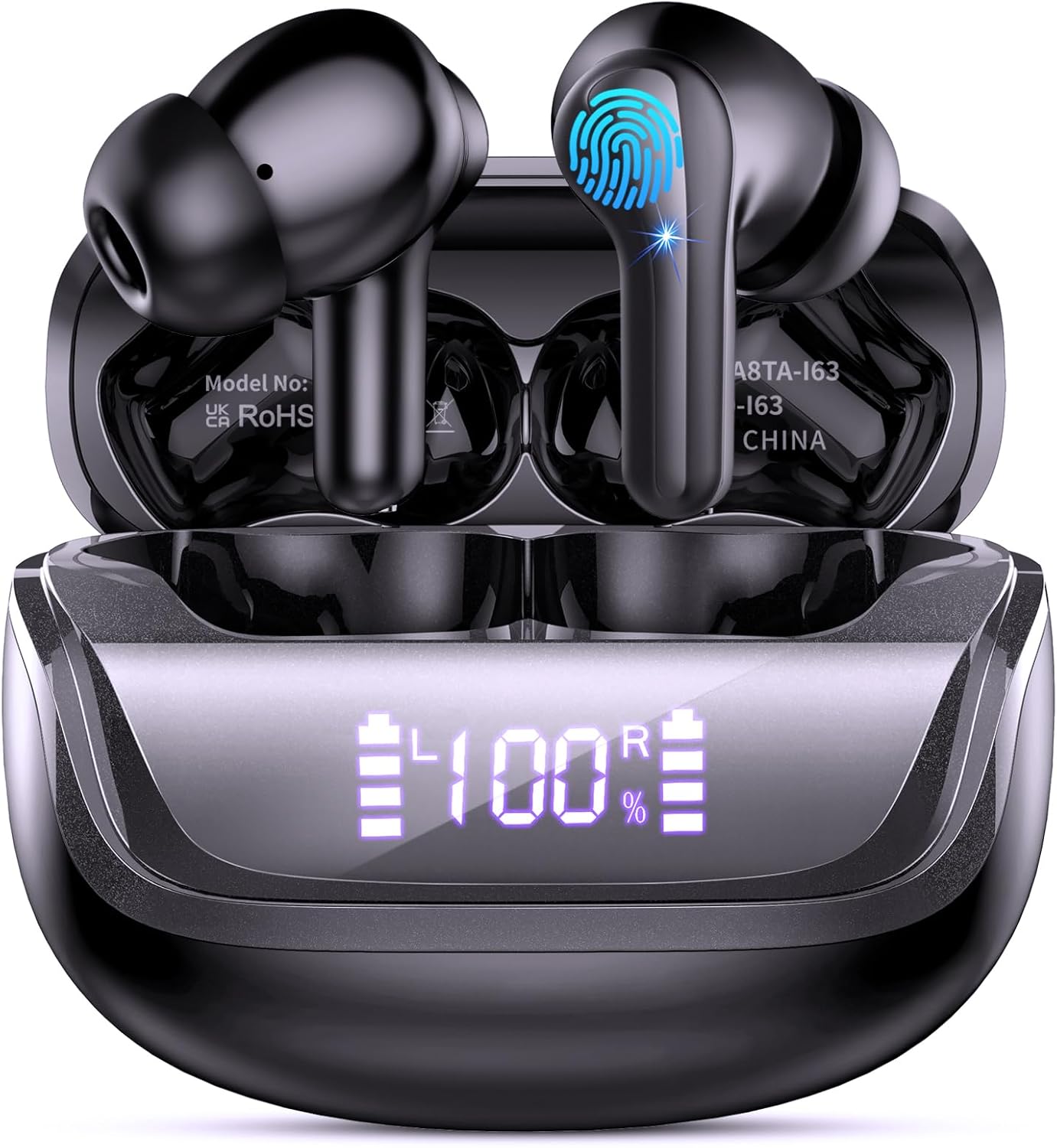
Front view of the Donerton Q20 Pro Wireless Earbuds in their charging case, displaying the digital battery percentage.

Close-up view of the Donerton Q20 Pro earbuds inside their charging case, showing the digital battery display.

A pair of Donerton Q20 Pro earbuds, highlighting their ergonomic earhook design.
Setup
Initial Charging
Before first use, fully charge the earbuds and the charging case.
- Place the earbuds into the charging case. Ensure they are properly seated.
- Connect the charging case to a power source using the provided USB cable.
- The LED display on the charging case will show the current battery percentage.
A video demonstrating the charging process and LED display of the Donerton Q20 Pro earbuds.
Bluetooth Pairing
The earbuds support Chipset 5.3 for fast and stable connections.
- Open the charging case. The earbuds will automatically enter pairing mode.
- On your smartphone (iOS 9.0+, Android 5.0+ with Bluetooth 5.0+), go to Bluetooth settings.
- Select "Donerton Q20 Pro" from the list of available devices.
- Once connected, you will hear a confirmation prompt.

A person wearing the Donerton Q20 Pro earbuds, demonstrating their secure fit.
Operating Instructions
Controls
The earbuds feature control buttons for easy management of music and calls.
- Play/Pause Music: Single press on either earbud.
- Adjust Volume: Use your connected device or refer to the full manual for detailed volume controls.
- Skip Tracks: Double-press or long-press on either earbud for next/previous track.
- Answer/End Calls: Single press on either earbud.
- Activate Voice Control: Long-press on either earbud to activate your phone's voice assistant.

Close-up of a Donerton Q20 Pro earbud, showing the power button and design.
Usage Modes
The earbuds support both single and twin mode operation.
- Twin Mode: Use both earbuds for stereo sound and immersive music.
- Single Mode: Use one earbud independently for calls or mono audio.

An illustration showing the flexibility of using Donerton Q20 Pro earbuds in both twin (stereo) and single (mono) modes.
Maintenance and Care
Waterproofing
The earbuds are IP7 waterproof, protecting them from heavy rains and sweat.
- Do not submerge the earbuds in water for extended periods.
- Dry the earbuds thoroughly after exposure to sweat or water before placing them back in the charging case.

An image illustrating the IP7 waterproof feature of the Donerton Q20 Pro earbuds with water splashing.
Cleaning
Regularly clean the earbuds and charging case with a soft, dry cloth.
- Remove ear tips and clean them separately with mild soap and water if necessary. Ensure they are completely dry before reattaching.
- Avoid using abrasive cleaners or solvents.
Troubleshooting
Earbuds not pairing
- Ensure both earbuds are charged.
- Place earbuds back in the case, close the lid, then open it again to reset pairing mode.
- Delete "Donerton Q20 Pro" from your device's Bluetooth list and try pairing again.
Only one earbud working
- Ensure both earbuds are charged.
- Place both earbuds back in the charging case, close the lid, and then open it. This should re-sync them.
- If the issue persists, try resetting the earbuds (refer to full manual for specific reset instructions if available).
Sound quality issues
- Ensure ear tips are correctly sized and seated for a proper seal.
- Check for obstructions in the earbud nozzles.
- Ensure your device is within the 10-meter Bluetooth range.
Specifications
| Feature | Detail |
|---|---|
| Model Name | Q20-Pro |
| Connectivity | Wireless (Bluetooth 5.3) |
| Bluetooth Range | Up to 10 meters |
| Single Playtime | 8 Hours |
| Total Playtime (with case) | Up to 40 Hours |
| Charging Time | 1 Hour (Earbuds), 2 Hours (Charging Case) |
| Waterproof Rating | IP7 |
| Noise Control | Sound Isolation, CVC 8.0 Noise Cancellation |
| Control Type | Touch, Voice |
| Compatible Devices | Smartphones with iOS 9.0+, Android 5.0+ (Bluetooth 5.0+) |
| Item Weight | 6.7 ounces |
| Manufacturer | Donerton |
Warranty and Support
For warranty information and customer support, please refer to the official Donerton website or contact your retailer.
Warning: Do not disassemble, hit, or burn the device.

The official Donerton brand logo.
Related documentsQ20 Pro


Ask a question about this manual
Ask about setup, troubleshooting, compatibility, parts, safety, or missing instructions. Manuals+ will review the question and use this page’s manual context to help answer it.