1. Introduction
This manual provides comprehensive instructions for the TOPXCDZ LED Smart WiFi Controller. This device allows you to control single color LED strip lights via a smartphone application, voice commands, and a remote control. It is compatible with Android and iOS devices, and supports integration with Amazon Alexa and Google Assistant for enhanced control.
Please read this manual carefully before installation and operation to ensure proper use and to maximize the product's functionality.

Image 1.1: TOPXCDZ LED Smart WiFi Controller with included user instruction sheet.
2. Product Parameters
| Parameter | Value |
|---|---|
| Category | LED Controller |
| Domination Principle | WiFi |
| APP | Magic Home Pro |
| Operation Platform | Android 6.0 or iOS 11.0 or later |
| Channels | Single Color |
| Input Voltage | DC 5-28V |
| Max Output Power | 96W |
| Connect Method | Common Anode |
| Working Temperature | -20 to +55°C |
| Control Distance | Visible distance 30M |
| Certification | CE, RoHS, FCC |
| Net Weight | 24g |
| Dimensions (L*B*H) | 53mm * 24mm * 11mm |
3. Installation and Setup
3.1. Wire Connection
Ensure all power is disconnected before making any connections. The controller connects between your power adapter and the LED strip light.

Image 3.1: Connection schematic diagram showing power adapter, controller, and LED strip.
- Connect the power adapter output to the input side of the WiFi controller.
- Connect the output side of the WiFi controller to your single color LED strip or other constant voltage lights.
- Ensure correct polarity (positive to positive, negative to negative) for all connections.

Image 3.2: Close-up view of controller connections, indicating connection to transformer and light strip.
3.2. App Download and Installation
The controller operates using the "Magic Home Pro" application. You can download it by scanning the QR code or visiting the provided link.

Image 3.3: Instructions for downloading the Magic Home Pro app and connecting to Wi-Fi.
- Download the free "Magic Home Pro" APP by scanning the QR code on the product packaging or manual, or by visiting http://app.magichue.net/download/mgchomepro/AppDown.aspx.
- Install the device and switch on the power.
3.3. Connecting to Wi-Fi Network
To enable smart control features, connect the controller to your home Wi-Fi network (2.4GHz Wi-Fi only).
- Open your smartphone's Wi-Fi settings and connect to the signal named "LEDnetxxxxxx".
- Run the "Magic Home Pro" APP.
- Register or log in to your Magic Home account.
- In the app, tap the "+" button on the top right corner, then select "connect device to Wi-Fi network".
- The app will prompt you to enable Bluetooth for direct connection to Wi-Fi router. Confirm by selecting "OK" to turn on Bluetooth.
- Select your device and add it to your Wi-Fi router. Follow the corresponding device from the pop-up list and complete the prompts to add the device to the router.
For a detailed user guide on app setup, scan the QR code provided in the manual or visit https://faqsys.magichue.net:4489/wifi/controller/monochrome.
4. Operating Instructions
4.1. Remote Control Functions
The controller may come with a remote control for basic functions. The remote control is configured by the manufacturer.
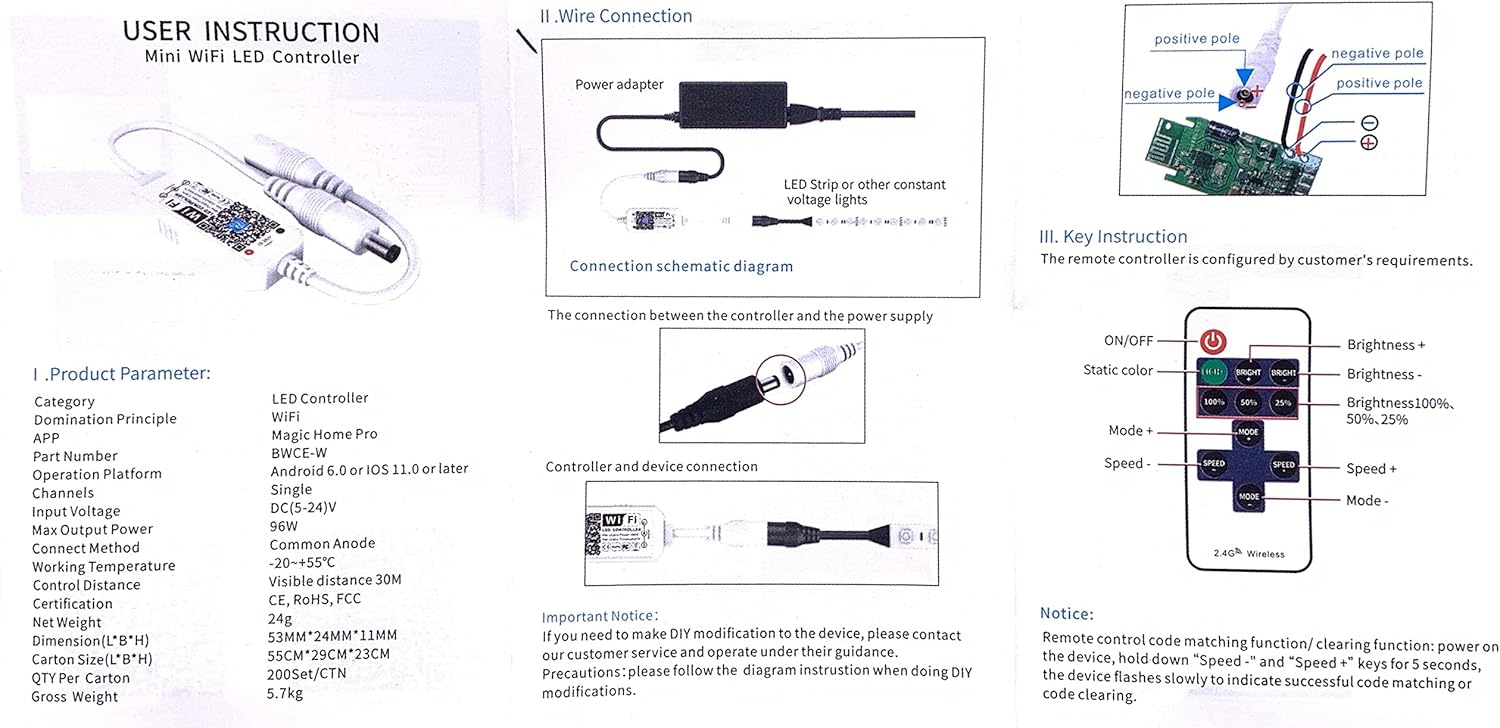
Image 4.1: Remote control layout with buttons for ON/OFF, brightness adjustment, static color selection, mode changes, and speed control.
- ON/OFF: Power on or off the LED strip.
- Brightness +/-: Adjust the light brightness.
- Static Color Buttons: Select preset static colors (if applicable for single color controllers, this might refer to different shades of white or intensity levels).
- Brightness %: Quick selection for 100%, 50%, 25% brightness.
- Mode +/-: Cycle through different lighting modes (e.g., flashing, fading).
- Speed +/-: Adjust the speed of dynamic lighting modes.
Remote Control Code Matching/Clearing: Power on the device, then hold down "Speed-" and "Speed+" keys for 5 seconds. The device flashes slowly to indicate successful code matching or clearing.
4.2. App Control
Once connected to the "Magic Home Pro" app, you can access advanced control features:
- Brightness Adjustment: Precisely control the brightness level of your LED strip.
- Timer Mode: Set schedules for your lights to automatically turn on or off at specified times.
- Voice Control: Integrate with Amazon Alexa or Google Assistant to control your lights using voice commands (e.g., "Alexa, turn on the lights", "Hey Google, dim the lights to 50%").
- Remote Access: Control your LED strip from anywhere using your smartphone, as long as both your phone and the controller are connected to the internet.
5. Maintenance
The TOPXCDZ LED Smart WiFi Controller requires minimal maintenance. Follow these guidelines:
- Keep the controller in a dry environment, away from moisture and extreme temperatures.
- Avoid exposing the device to direct sunlight for prolonged periods.
- Clean the exterior with a soft, dry cloth if necessary. Do not use liquid cleaners or solvents.
- Ensure proper ventilation around the device to prevent overheating.
6. Troubleshooting
If you encounter issues with your TOPXCDZ LED Smart WiFi Controller, refer to the following troubleshooting steps:
| Problem | Possible Cause | Solution |
|---|---|---|
| LED strip does not light up. | No power, incorrect wiring, faulty LED strip. | Check power adapter connection. Verify all wiring connections for correct polarity. Test LED strip with a different power source if possible. |
| Cannot connect to "LEDnetxxxxxx" Wi-Fi. | Controller not powered on, out of range. | Ensure controller is powered. Move closer to the controller. Reset the controller by power cycling. |
| App cannot find the device after connecting to "LEDnetxxxxxx". | Bluetooth not enabled, app permissions. | Ensure Bluetooth is enabled on your smartphone. Check app permissions for location and Bluetooth access. |
| Device fails to connect to home Wi-Fi (2.4GHz). | Incorrect Wi-Fi password, 5GHz network, weak signal. | Double-check Wi-Fi password. Ensure your router is broadcasting a 2.4GHz network. Move controller closer to the router. |
| Voice control not working. | Incorrect integration setup, device offline. | Verify that the controller is successfully linked in your Amazon Alexa or Google Home app. Ensure the controller is connected to Wi-Fi. |
| Remote control not responding. | Battery low/dead, remote not paired. | Replace remote battery. Perform remote control code matching as described in Section 4.1. |
If issues persist, please refer to the support section for further assistance.
7. Warranty and Support
7.1. Warranty Information
Please retain your proof of purchase for warranty claims. The warranty period and terms are subject to the retailer's policy where the product was purchased. For specific warranty details, please contact your point of purchase.
7.2. Customer Support
For technical support, troubleshooting assistance, or general inquiries, please contact TOPXCDZ customer service through the retailer's platform or refer to the official Magic Home Pro app support resources.
Additional resources and FAQs can be found at: https://faqsys.magichue.net:4489/wifi/controller/monochrome
