
1. Introduction
1.1 Product Overview
The Cisco Refresh SG250-08HP is an 8-port Gigabit Power over Ethernet (PoE) Smart Switch designed to provide reliable network connectivity for small and midsize businesses. This remanufactured unit offers essential security, performance, and ease-of-use features to support a robust business network infrastructure. It includes 8 10/100/1000 ports with high-powered PoE capabilities.
1.2 Package Contents
Verify that your package contains the following items:
- Cisco Refresh SG250-08HP 8-Port GB PoE Smart Switch
- External Power Adaptor
- Power Cable
- Screw Kit (for mounting, if applicable)
- Quick Start Guide (physical or digital)
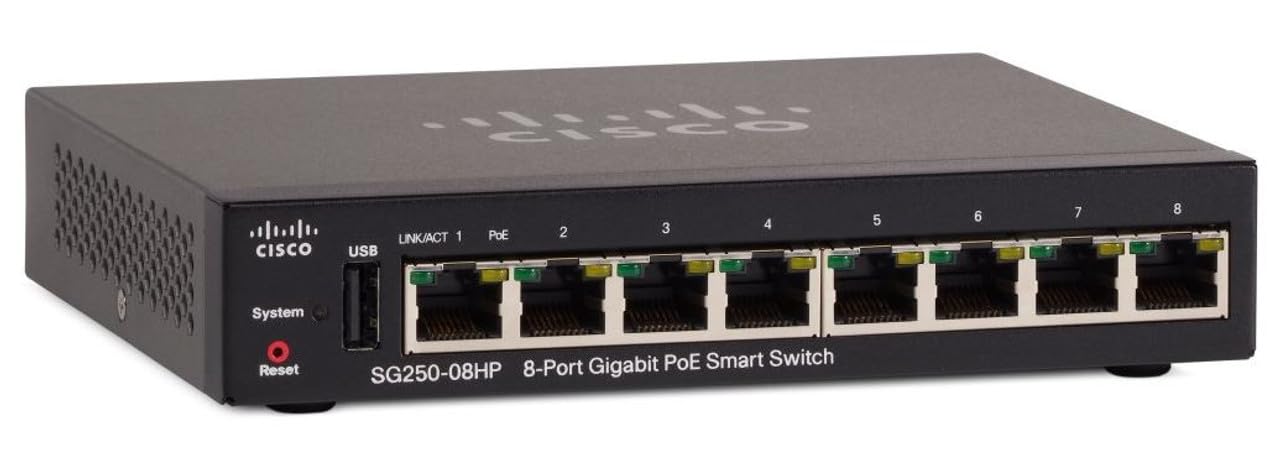
Image 1.1: Front view of the Cisco Refresh SG250-08HP Smart Switch, showing its compact design and port layout.
2. Safety Information
Please read and understand all safety instructions before installing or operating this device. Failure to do so may result in injury or damage to the equipment.
- Power Source: Use only the power adapter supplied with the device. Ensure the power outlet is properly grounded.
- Ventilation: Do not block any ventilation openings. Ensure adequate airflow around the device to prevent overheating.
- Environment: Avoid exposing the device to water, moisture, high humidity, or extreme temperatures. Operate within the specified environmental conditions.
- Servicing: Do not attempt to service this product yourself. Refer all servicing to qualified service personnel.
3. Setup
3.1 Physical Installation
The SG250-08HP switch is designed for desktop placement or wall mounting. Choose a location that is:
- Flat, stable, and away from direct sunlight.
- Well-ventilated and free from obstructions.
- Within reach of necessary power and network cables.
If wall mounting, use the provided screw kit and ensure the mounting surface can support the device's weight.
3.2 Power Connection
- Connect the external power adapter to the power input port on the switch.
- Plug the power cable into the power adapter.
- Connect the other end of the power cable to a suitable electrical outlet.
- Verify that the power LED on the switch illuminates, indicating power is supplied.
3.3 Network Connection
Connect your network devices (computers, servers, access points, IP cameras, etc.) to the Ethernet ports on the front panel of the switch using standard Ethernet cables. The switch supports auto-negotiation for speed and duplex settings.
For devices requiring Power over Ethernet (PoE), simply connect them to any of the 8 ports. The switch will automatically detect and provide power to compatible PoE devices.
4. Operating the Switch
4.1 Basic Configuration
The SG250-08HP is a Smart Switch, offering advanced management capabilities. Initial setup and configuration can be performed using:
- Smart Network Application: A user-friendly interface for simplified network deployment.
- FindIT Network Manager: A tool for discovering, monitoring, and managing Cisco Small Business devices.
- Network Plug and Play (PnP) Support: Facilitates automated deployment and configuration.
Refer to the detailed user guide available on the Cisco support website for comprehensive configuration instructions, including VLAN setup, QoS, and security features.
4.2 PoE Functionality
The switch's 8 ports support Power over Ethernet (PoE), allowing it to deliver both data and electrical power to compatible devices over a single Ethernet cable. This eliminates the need for separate power supplies for devices like IP phones, wireless access points, and network cameras.
- Ensure connected devices are PoE-compatible.
- The switch automatically detects PoE devices and supplies the necessary power.
- Monitor PoE power consumption through the management interface to ensure total power budget is not exceeded.
5. Maintenance
5.1 Cleaning
To maintain optimal performance and extend the lifespan of your switch:
- Periodically clean the exterior of the switch with a soft, dry cloth.
- Do not use liquid or aerosol cleaners directly on the device.
- Ensure ventilation openings are free from dust and debris.
5.2 Firmware Updates
Cisco periodically releases firmware updates to improve performance, add features, and address security vulnerabilities. It is recommended to regularly check the Cisco support website for the latest firmware for your SG250-08HP switch and follow the provided instructions for updating.
6. Troubleshooting
This section provides solutions to common issues you might encounter.
6.1 No Power
- Verify the power cable is securely connected to the switch and the electrical outlet.
- Ensure the power adapter is functioning correctly.
- Check if the electrical outlet is active by plugging in another device.
6.2 No Network Connectivity
- Check that Ethernet cables are securely connected to both the switch and the network device.
- Observe the link/activity LEDs on the switch ports. A solid or blinking green LED indicates a valid connection and activity.
- Ensure the connected device is powered on and configured correctly.
- Try using a different Ethernet cable or port.
6.3 PoE Device Not Receiving Power
- Confirm that the connected device is PoE-compatible.
- Check the PoE status LEDs on the switch (if available) or through the management interface.
- Ensure the total power budget of the switch is not exceeded by all connected PoE devices.
- Try connecting the PoE device to a different port.
For more advanced troubleshooting, consult the comprehensive user manual or Cisco's online support resources.
7. Specifications
| Model Number | SG250-08HP-K9NA-RF |
| Brand | CISCO DESIGNED |
| Number of Ports | 8 |
| Interface Type | Gigabit Ethernet, PoE |
| Case Material | Plastic |
| Item Weight | 3.23 pounds (1.46 kg) |
| Package Dimensions | 12.5 x 9.25 x 4 inches (31.75 x 23.5 x 10.16 cm) |
| Manufacturer | Cisco |
| UPC | 889728349789 |
8. Warranty and Support
8.1 Warranty Information
This Cisco Refresh product comes with a manufacturer's warranty. For specific details regarding the warranty period and coverage, please refer to the documentation provided with your purchase or visit the official Cisco website. Keep your proof of purchase for warranty claims.
8.2 Technical Support
For technical assistance, product documentation, or to report issues, please visit the Cisco support website. You can find resources such as knowledge bases, FAQs, and contact information for customer support.
Cisco Support Website: https://www.cisco.com/go/support


