
Introduction
This manual provides essential information for setting up, operating, maintaining, and troubleshooting your Acer Aspire 5 A515-45-R74Z Slim Laptop. Please read it thoroughly to ensure optimal performance and longevity of your device.
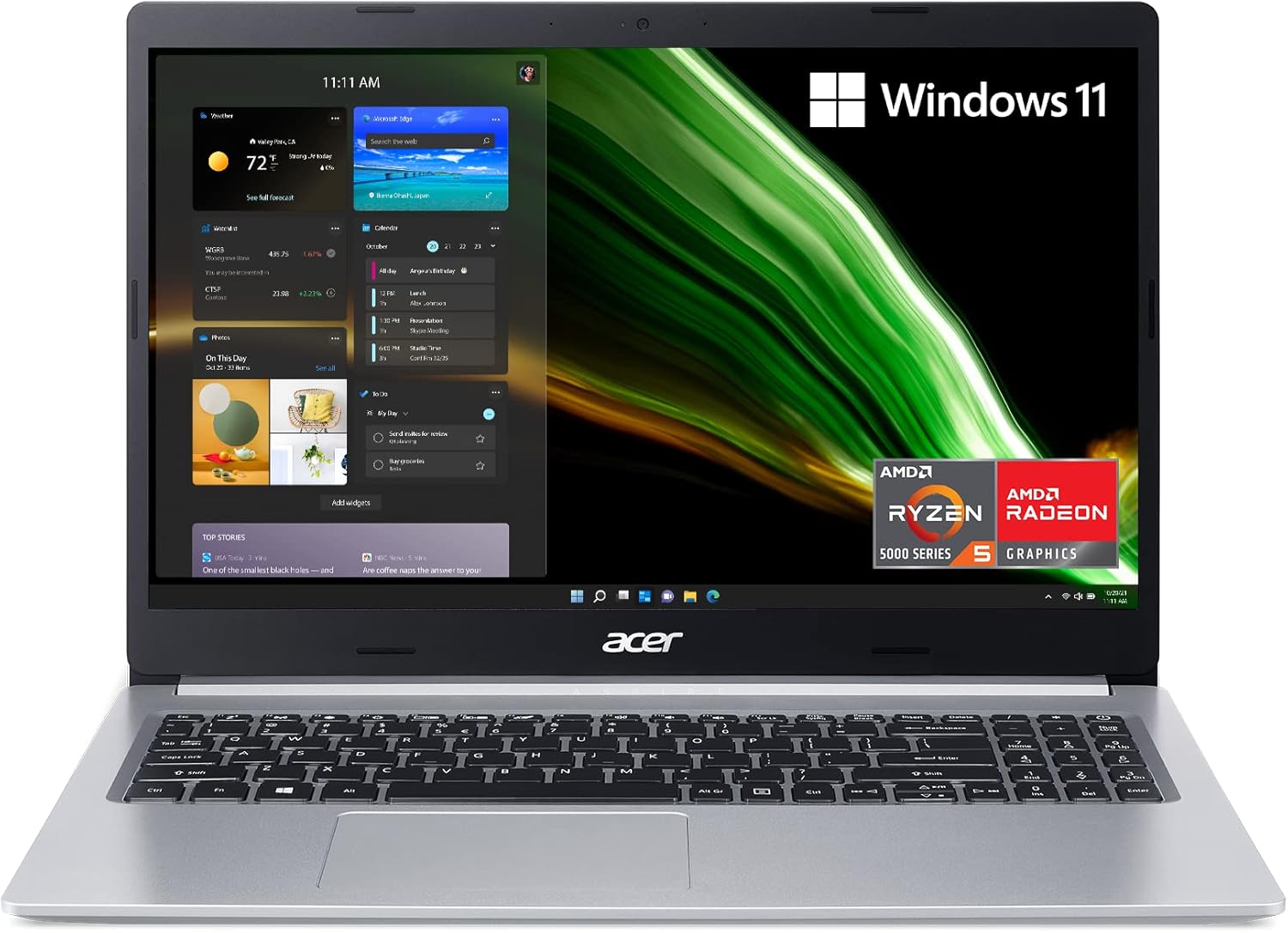
Image: The Acer Aspire 5 A515-45-R74Z laptop displaying the Windows 11 desktop with widgets, highlighting its sleek design and integrated AMD Ryzen 5000 series graphics.
1. Setup
1.1 Unboxing and Initial Inspection
Carefully remove all components from the packaging. Ensure the following items are present:
- Acer Aspire 5 A515-45-R74Z Laptop
- AC Adapter
- Power Cord
Inspect the laptop for any physical damage. If any damage is found, contact your retailer immediately.
1.2 Connecting to Power
Connect the AC adapter to the laptop's power input port and then plug the power cord into a wall outlet. The laptop can be used while charging.
1.3 Initial Power On and Windows 11 Setup
Press the power button located on the keyboard deck to turn on the laptop. Follow the on-screen instructions to complete the Windows 11 Home setup process. This includes selecting your region, connecting to a Wi-Fi network, and creating a user account.

Image: A user working on the Acer Aspire 5 laptop in a cafe setting, demonstrating its portability and suitability for various environments.
2. Operating the Laptop
2.1 Keyboard and Touchpad
The laptop features a full-size keyboard with a numeric keypad and a backlit function for improved visibility in low-light conditions. The touchpad supports multi-touch gestures for navigation.

Image: A top-down view of the Acer Aspire 5 laptop's keyboard and touchpad, showcasing the full layout including the numeric keypad.
2.2 Port Overview
The Acer Aspire 5 A515-45-R74Z is equipped with various ports for connectivity:
- USB 3.2 (Type-C) Gen 1: 1 port (up to 5 Gbps)
- USB 3.2 Gen 1: 2 ports (one with Power-off Charging)
- USB 2.0: 1 port
- HDMI 2.0: 1 port with HDCP support
- Ethernet (RJ-45): 1 port for wired network connection
- Headphone/Microphone Combo Jack: 1 port

Image: A side view of the Acer Aspire 5 laptop, illustrating the arrangement of its various ports including USB, HDMI, and Ethernet.
2.3 Wireless Connectivity
The laptop supports Intel Wireless Wi-Fi 6 AX200 (802.11ax) for high-speed internet access and Bluetooth 5.0 for connecting wireless peripherals.
2.4 Battery Management
The integrated Lithium-Ion battery provides up to 11 hours of battery life under typical usage conditions. To maximize battery lifespan, avoid frequently discharging the battery completely and store the laptop in a cool, dry place.

Image: A family using the Acer Aspire 5 laptop, with an overlay indicating an 11-hour battery life, emphasizing its endurance for extended use.
3. Maintenance
3.1 Cleaning the Laptop
Use a soft, lint-free cloth slightly dampened with water or a specialized screen cleaner to clean the display. For the keyboard and chassis, use a soft cloth. Avoid harsh chemicals or abrasive materials.
3.2 Software Updates
Regularly update your Windows operating system and device drivers to ensure optimal performance, security, and compatibility. Windows Update can be accessed via the Settings menu.
3.3 Storage and Memory Upgrades
The laptop comes with a 256GB NVMe SSD. It also includes an available hard drive bay for a 2.5" hard drive, allowing for storage expansion. The 8GB DDR4 memory is onboard, with one additional expansion slot available for memory upgrades.
Note: Opening the laptop for upgrades may require specific tools and technical knowledge. Consult a professional if you are unsure.
4. Troubleshooting
If you encounter issues with your laptop, refer to the following common solutions:
- No Power: Ensure the AC adapter is securely connected to both the laptop and a working power outlet. Try a different outlet.
- Display Issues: If the screen is blank, try connecting an external monitor to verify if the issue is with the laptop's display or graphics output. Restart the laptop.
- Connectivity Problems: For Wi-Fi issues, ensure Wi-Fi is enabled and try restarting your router. For Bluetooth, ensure the device is discoverable and within range.
- Slow Performance: Close unnecessary applications, check for malware, and ensure sufficient free storage space. Consider performing a system restore or reinstalling Windows if issues persist.
For more detailed troubleshooting or persistent problems, visit the official Acer support website or contact Acer customer service.
5. Specifications
| Feature | Specification |
|---|---|
| Processor | AMD Ryzen 5 5500U Hexa-Core Mobile Processor (up to 4.0GHz) |
| Graphics | AMD Radeon Graphics |
| Display | 15.6" Full HD (1920 x 1080) Widescreen LED-backlit IPS Display |
| Memory (RAM) | 8GB DDR4 On-Board Memory (expandable) |
| Storage | 256GB NVMe SSD (with 1 available Hard Drive Bay) |
| Wireless | Intel Wireless Wi-Fi 6 AX200 (802.11ax), Bluetooth 5.0 |
| Ports | 1x USB 3.2 Type-C Gen 1, 2x USB 3.2 Gen 1 (1 with Power-off Charging), 1x USB 2.0, 1x HDMI 2.0, 1x RJ-45, Headphone/Mic Combo |
| Operating System | Windows 11 Home |
| Battery Life | Up to 11 hours |
| Weight | 3.88 lbs (1.76 kg) |
| Dimensions (LxWxH) | 14.31 x 9.86 x 0.71 inches |
6. Warranty and Support
Your Acer Aspire 5 A515-45-R74Z laptop is covered by Acer's standard limited warranty. For specific warranty terms and conditions, please refer to the warranty card included with your product or visit the official Acer support website.
For technical assistance, driver downloads, or service requests, please visit the Acer Support website: