
KERUI W204
KERUI W204 Home Alarm System User Manual
Comprehensive Guide for Installation, Operation, and Maintenance
1. Introduction
The KERUI W204 is an advanced home alarm system designed to provide comprehensive security for your home, office, or business. It features dual GSM and WiFi connectivity, allowing for flexible communication and remote control via the Tuya Smart App. The system supports a wide range of wireless sensors, including door/window sensors and PIR motion detectors, and offers convenient arming/disarming options such as keypad, remote control, app, and RFID tags.
This manual will guide you through the setup process, explain the various functions, and provide troubleshooting tips to ensure optimal performance of your KERUI W204 alarm system.

Figure 1.1: Complete KERUI W204 Home Alarm System Kit, including the main panel, power adapter, siren, door/window sensor, PIR motion detector, remote controls, and RFID tags.
2. System Components
The KERUI W204 system typically includes the following components:
- Main Control Panel: The central unit with a 2.4-inch TFT color display and touch keypad.
- Power Adapter: For powering the main control panel.
- Wireless Door/Window Sensor: Detects opening and closing of doors or windows.
- Wireless PIR Motion Detector: Detects movement within its range.
- Remote Controls: For arming, disarming, and SOS functions.
- RFID Tags: For convenient disarming.
- Wired Siren: Provides an audible alarm.
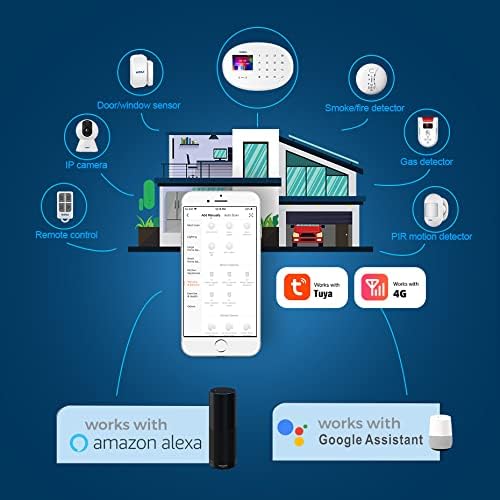
Figure 2.1: Overview of KERUI W204 system components and their integration, including door/window sensor, IP camera (optional), remote control, smoke/fire detector (optional), gas detector (optional), and PIR motion detector, all controllable via the Tuya App and compatible with Amazon Alexa and Google Assistant.
3. Setup and Installation
3.1 Initial Power-Up and SIM Card Installation
- Connect the power adapter to the main control panel and plug it into a power outlet.
- If using GSM functionality, insert a standard SIM card into the designated slot on the main panel. Important: Ensure the PIN code of the SIM card is deactivated before insertion.
- The system will power on and display the main interface.
3.2 Connecting to WiFi
- On the main panel, navigate to the "System" or "Settings" menu.
- Select "WiFi Settings" and choose your 2.4GHz WiFi network.
- Enter your WiFi password using the keypad.
- Confirm the connection. The WiFi icon on the display should indicate a successful connection.
3.3 Tuya App Setup
- Download the "Tuya Smart" or "Smart Life" app from your mobile device's app store (iOS/Android).
- Register or log in to your account.
- Add a new device: Select "Security & Sensor" > "Alarm (Wi-Fi)".
- Follow the in-app instructions to connect the alarm panel to your Tuya account. This usually involves putting the panel into pairing mode.
3.4 Pairing Wireless Sensors and Accessories
The system supports up to 99 wireless zones. Follow these general steps to pair sensors:
- On the main panel, navigate to "Sensors" or "Accessories" menu.
- Select "Add Sensor" or "Add Detector".
- Trigger the sensor (e.g., separate the door/window sensor, wave hand in front of PIR, press a button on the remote). The panel will detect and register the sensor.
- Assign the sensor to a specific zone and configure its zone type (e.g., normal, home arm, 24-hour, delay).
- Repeat for all sensors and remote controls.
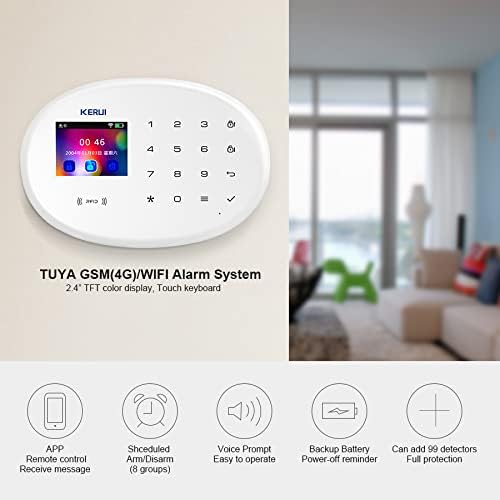
Figure 3.1: Close-up view of the KERUI W204 main control panel, showing the 2.4-inch TFT color display and touch keypad, essential for system setup and configuration.
4. Operating the System
4.1 Arming and Disarming
The KERUI W204 offers multiple methods for arming and disarming the system:
- Keypad: Enter your user password on the main panel's touch keypad and press the arm/disarm button.
- Remote Control: Press the arm or disarm button on the provided remote control.
- Tuya App/SMS: Use the Tuya Smart App on your smartphone to remotely arm or disarm the system. You can also send specific SMS commands to the system's SIM card number.
- RFID Card: Gently swipe an authorized RFID tag over the RFID reader area on the main panel to disarm the system. This is convenient for users who do not know the password.

Figure 4.1: Illustration of the four primary methods to arm and disarm the KERUI W204 alarm system: via the keypad, remote controller, smartphone app/SMS, and by reading an RFID card.
4.2 Zone Configuration and Detector Integration
The system supports up to 99 zones, each configurable with different types:
- Normal Zone: Triggers alarm immediately when armed.
- Home Arm Zone: Active when the system is in "Home Arm" mode (e.g., for perimeter sensors while you are inside).
- 24-Hour Zone: Always active, regardless of arming status (e.g., smoke detectors, gas leak detectors).
- Delay Zone: Provides an entry/exit delay before triggering the alarm.
- And other specific types for emergency, doorbell, etc.
You can customize each zone's settings via the main panel or the Tuya App. The KERUI W204 system is designed to work with various detectors to provide comprehensive protection against burglaries, fire alarms, gas leakage, and to facilitate emergency rescue.

Figure 4.2: The KERUI W204 system's capability to integrate with various detectors to protect against burglaries, fire, gas leaks, and to provide emergency alerts, with notifications sent to your smartphone.
4.3 Scheduled Arm/Disarm
The KERUI W204 allows you to set up to 8 groups of scheduled arming and disarming times. This feature automates your security routine, ensuring the system is armed or disarmed at specific times on chosen days of the week.
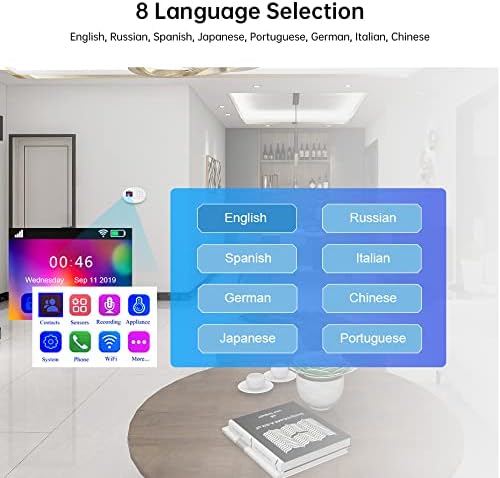
Figure 4.3: Demonstration of the KERUI W204's 8-group scheduling function for automatic arming and disarming, allowing users to set specific times for security activation and deactivation on chosen days.
4.4 Emergency (SOS) Function
In case of an emergency, pressing the SOS button on the main panel or remote control will immediately trigger the alarm and dial pre-set emergency numbers. The system can dial up to 6 standard numbers and 2 CID help numbers.
4.5 Language Selection
The system supports 8 languages, including English, Russian, Spanish, Japanese, Portuguese, German, Italian, and Chinese. You can change the display language through the system settings menu.

Figure 4.4: The KERUI W204 alarm system offers a selection of 8 languages for its interface, including English, Russian, Spanish, Japanese, Portuguese, German, Italian, and Chinese.
5. Maintenance
- Battery Backup: The main control panel has a built-in backup battery to ensure continuous operation during power outages. Ensure the panel is regularly connected to power to keep the backup battery charged.
- Sensor Batteries: Wireless sensors are powered by batteries. When a sensor's battery is low, the system may indicate a low battery warning. Replace batteries promptly according to the sensor's specific type (e.g., CR2032 for small sensors, AA/AAA for PIR detectors).
- Cleaning: Clean the main panel and sensors with a soft, dry cloth. Avoid using abrasive cleaners or solvents.
- Firmware Updates: Periodically check the Tuya App for any available firmware updates for your alarm system to ensure optimal performance and security.
6. Troubleshooting
| Problem | Possible Cause | Solution |
|---|---|---|
| System does not power on. | Power adapter not connected or faulty; backup battery depleted. | Check power connection. Ensure adapter is working. Allow time for backup battery to charge. |
| SIM card not recognized. | SIM card PIN is active; SIM card not inserted correctly; incompatible SIM card. | Deactivate SIM card PIN on a mobile phone before inserting. Reinsert SIM card correctly. Ensure it's a standard SIM card from a supported carrier. |
| Cannot connect to WiFi. | Incorrect WiFi password; 5GHz network selected; weak signal. | Verify WiFi password. Ensure you are connecting to a 2.4GHz network. Move panel closer to router. |
| Sensors not triggering alarm. | Sensor not paired; low sensor battery; incorrect zone type. | Re-pair the sensor. Replace sensor battery. Check zone type settings (e.g., ensure it's not set to "disabled" or "delay" when immediate alarm is expected). |
| Tuya App not receiving notifications. | App notification settings disabled; phone's notification settings disabled; no internet connection on panel. | Check notification settings within the Tuya App and on your phone. Verify panel's WiFi/GSM connection. |
7. Specifications
| Feature | Detail |
|---|---|
| Model Number | W204 |
| Connectivity Technology | Wired, Wireless (GSM, WiFi 2.4GHz) |
| Display | 2.4-inch TFT Color Display |
| Keypad | Touch Keypad |
| Supported Zones | Up to 99 Wireless Zones |
| RFID Tags Capacity | Up to 20 RFID Tags |
| Emergency Call Numbers | Up to 6 standard numbers, 2 CID help numbers |
| Scheduled Arm/Disarm | 8 Groups |
| Dimensions (L x W x H) | 18.6 x 14.2 x 9.6 cm |
| Compatible App | Tuya Smart / Smart Life |
| Supported Languages | English, Russian, Spanish, Japanese, Portuguese, German, Italian, Chinese |
8. Warranty and Support
KERUI products are designed for reliability and performance. For warranty information, please refer to the documentation included with your purchase or contact your retailer. For technical support, product inquiries, or to explore additional compatible accessories, please visit the official KERUI store or contact their customer service department.
You can find more information and compatible accessories at the KERUI Store on Amazon.
Ask a question about this manual
Ask about setup, troubleshooting, compatibility, parts, safety, or missing instructions. Manuals+ will review the question and use this page’s manual context to help answer it.