1. Introduction
Thank you for purchasing the UHURU Wireless Keyboard and Mouse Combo Bundle. This product provides a reliable 2.4G wireless connection for efficient and comfortable computing. This manual will guide you through the setup, operation, and maintenance of your new device.

Image: The UHURU Wireless Keyboard and Mouse Combo Bundle, featuring a black keyboard, a black and grey mouse, and a USB receiver.
2. Package Contents
Please check the package contents to ensure all items are present:
- 1 x Wireless Keyboard
- 1 x Wireless Mouse
- 1 x USB Nano Receiver (stored in the mouse battery compartment)
- 1 x AA Battery (for keyboard)
- 1 x AAA Battery (for mouse)
- 1 x Mouse Pad
- 1 x User Manual (this document)
3. Product Overview
The UHURU Wireless Keyboard and Mouse Combo features a full-size keyboard with Crater-Switch keys and a 6-button optical mouse. Both devices connect wirelessly via a single USB receiver.
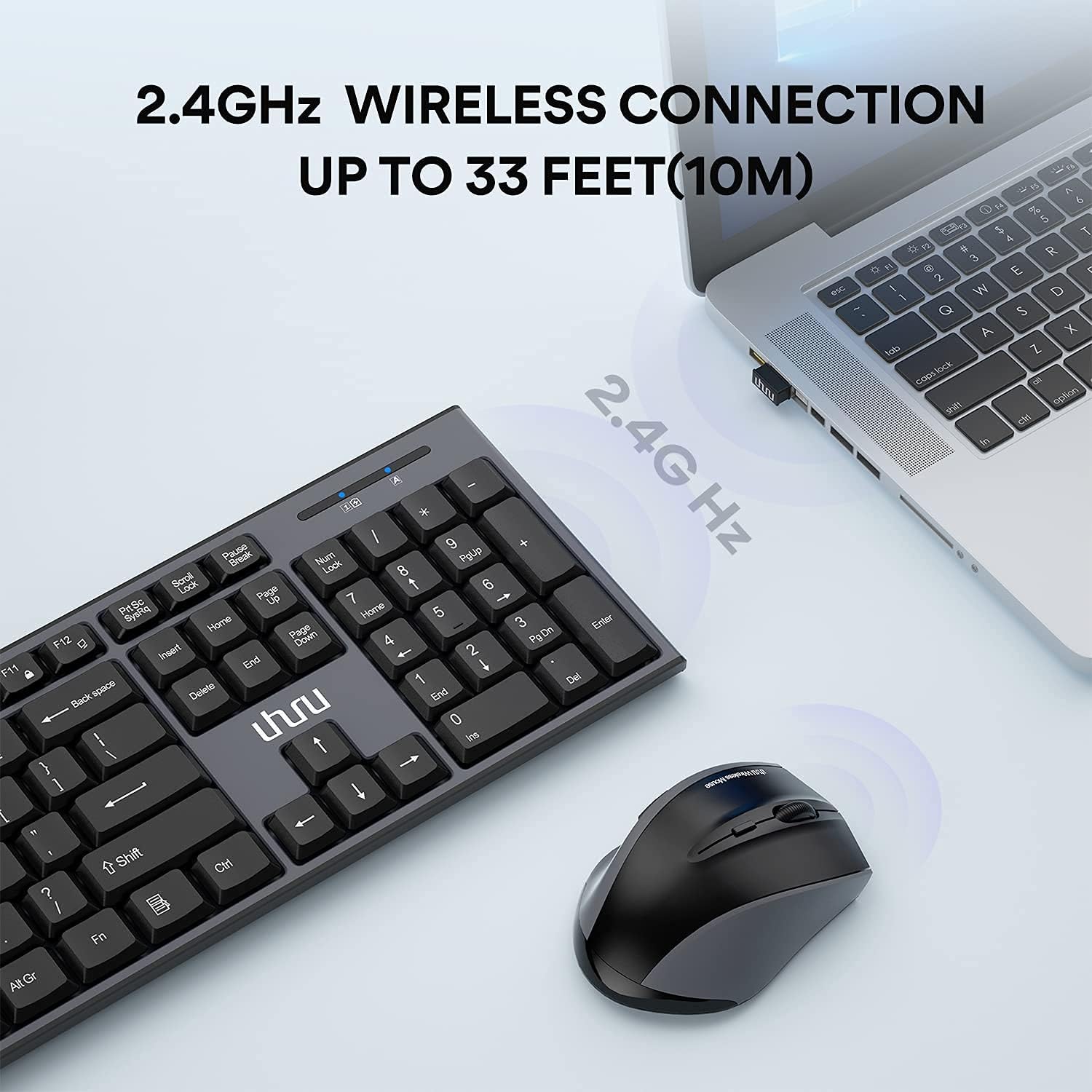
Image: A close-up of the wireless keyboard and mouse next to a laptop, illustrating the 2.4GHz wireless connection with a range of up to 33 feet (10 meters).
3.1 Keyboard Features
- Full-size layout with numeric keypad.
- Crater-Switch keys for smooth and quiet typing.
- Foldable stands for adjustable typing angle.
- 13 multimedia shortcut keys for quick access to functions.
3.2 Mouse Features
- Ergonomic design with frosted sides for comfortable grip.
- 6 buttons, including two side buttons for navigation.
- 3 adjustable DPI levels (800/1200/1600) for precise control.
4. Setup Guide
4.1 Battery Installation
- For the Mouse: Open the battery compartment cover on the underside of the mouse. Insert 1 AAA battery, ensuring correct polarity (+/-). Remove the small sticker from the battery if present.
- For the Keyboard: Open the battery compartment cover on the underside of the keyboard. Insert 1 AA battery, ensuring correct polarity (+/-). Remove the small sticker from the battery if present.

Image: Diagram showing the battery compartments for the mouse (1x AAA battery) and keyboard (1x AA battery), and the location of the USB receiver inside the mouse.
4.2 Connecting the USB Receiver
- Locate the USB Nano receiver. It is stored in the battery compartment of the mouse.
- Remove the USB receiver from the mouse.
- Plug the USB receiver into an available USB port on your computer (PC, Laptop, Smart TV, Surface Pro).
- The keyboard and mouse will automatically connect to your device. No additional drivers are required.
Note: The 2-in-1 Nano receiver unifies both keyboard and mouse connections into a single USB port.
5. Operating Instructions
5.1 2.4G Wireless Connection
The advanced 2.4G wireless technology provides a stable connection up to 33 feet (10 meters) without delays or dropouts. Ensure the USB receiver is securely plugged into your device.
5.2 Ergonomic Design and Typing
The keyboard features Crater-Switch keys designed for a smooth and quiet typing experience. Utilize the foldable stands on the underside of the keyboard to adjust the typing angle for optimal comfort.

Image: Illustration highlighting the ergonomic design of the keyboard, specifically the Crater-Switch keys for smooth typing and the foldable stand for adjustable angle.
5.3 Multimedia Shortcuts (Keyboard)
The keyboard includes 13 hotkeys for quick access to various functions. Press the Fn key simultaneously with the corresponding F-key (F1-F12) or other designated keys to activate these shortcuts:
- Media Control: Play/Pause, Stop, Previous Track, Next Track
- Volume Control: Mute, Volume Down, Volume Up
- Internet/Email: Web Browser, Email
- Other: Search, My Computer, Calculator, Lock Screen
Note: The 13 multimedia shortcuts are not compatible with the Mac operating system.
5.4 Mouse DPI Adjustment
The mouse offers 3 adjustable DPI (Dots Per Inch) levels to control cursor sensitivity. Press the DPI button (usually located behind the scroll wheel) to cycle through the settings: 800 DPI, 1200 DPI, and 1600 DPI. Choose the sensitivity that best suits your task.
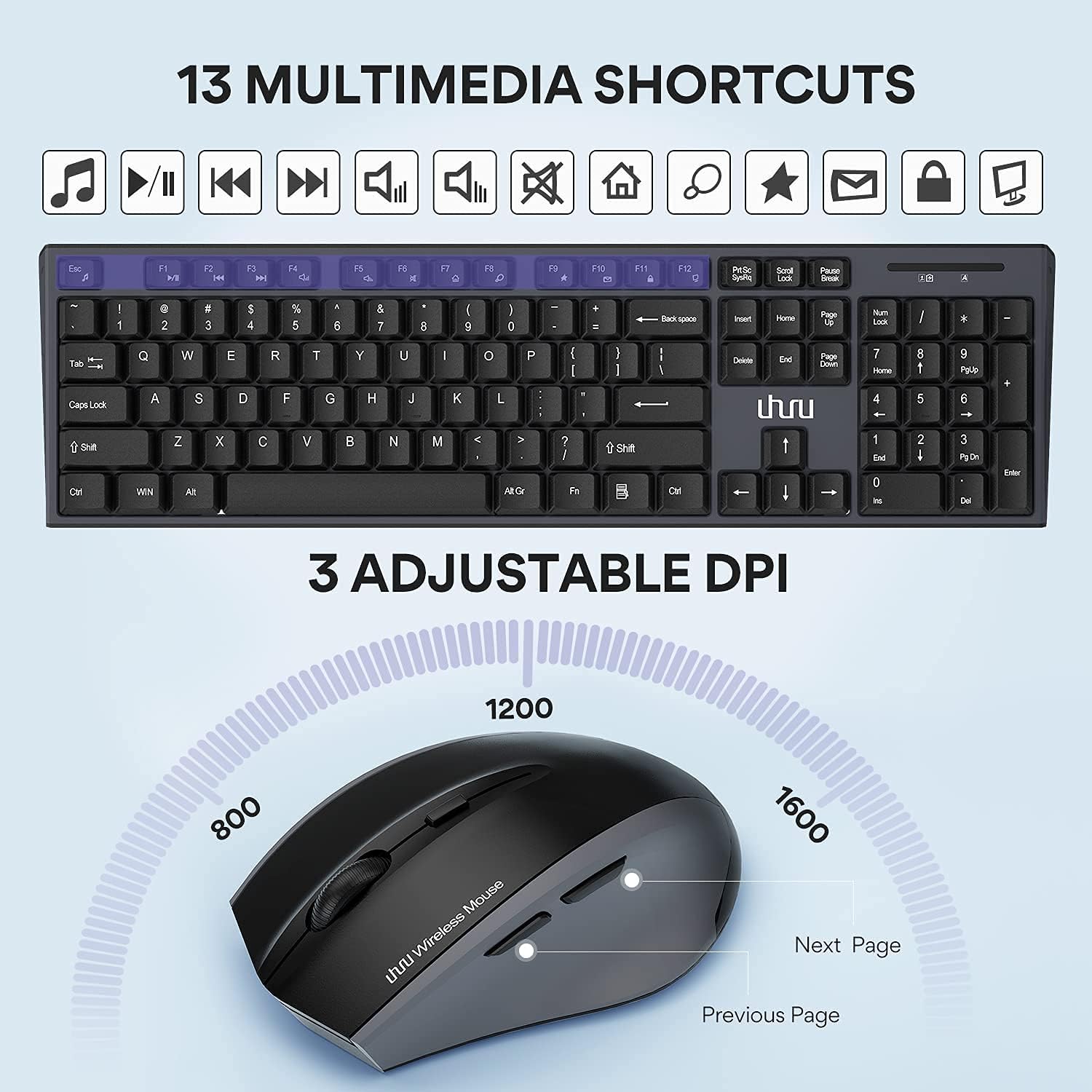
Image: Visual representation of the keyboard's 13 multimedia shortcuts and the mouse's 3 adjustable DPI settings (800, 1200, 1600).
5.5 Auto Sleep Mode
To conserve battery life, both the keyboard and mouse will automatically enter an energy-saving sleep mode after 8 minutes of inactivity. To wake them up, simply click any key on the keyboard or move/click the mouse. The devices will resume operation in several seconds.
6. Maintenance
- Cleaning: Use a soft, dry cloth to clean the surfaces of the keyboard and mouse. For stubborn dirt, a slightly damp cloth can be used, but ensure no liquid enters the devices.
- Battery Replacement: Replace batteries when performance degrades. Use 1 AA battery for the keyboard and 1 AAA battery for the mouse. Dispose of used batteries responsibly.
- Storage: When not in use for extended periods, remove the batteries to prevent leakage. Store the devices in a cool, dry place.
- USB Receiver: Keep the USB receiver in a safe place, preferably in the mouse's battery compartment, when transporting the devices.
7. Troubleshooting
| Problem | Solution |
|---|---|
| Keyboard/Mouse not responding. |
|
| Lag or intermittent connection. |
|
| Multimedia shortcuts not working on Mac. | The 13 multimedia shortcuts are not compatible with the Mac operating system. This is expected behavior. |
8. Specifications
| Feature | Detail |
|---|---|
| Connectivity Technology | 2.4G Wireless (Radio Frequency) |
| Wireless Range | Up to 33 feet (10 meters) |
| Keyboard Battery | 1 x AA Battery |
| Mouse Battery | 1 x AAA Battery |
| Mouse DPI Levels | 800 / 1200 / 1600 |
| Keyboard Key Type | Crater-Switch |
| Keyboard Dimensions | Approximately 17.2in x 5.0in |
| Mouse Dimensions | Approximately 4.12in x 2.81in |
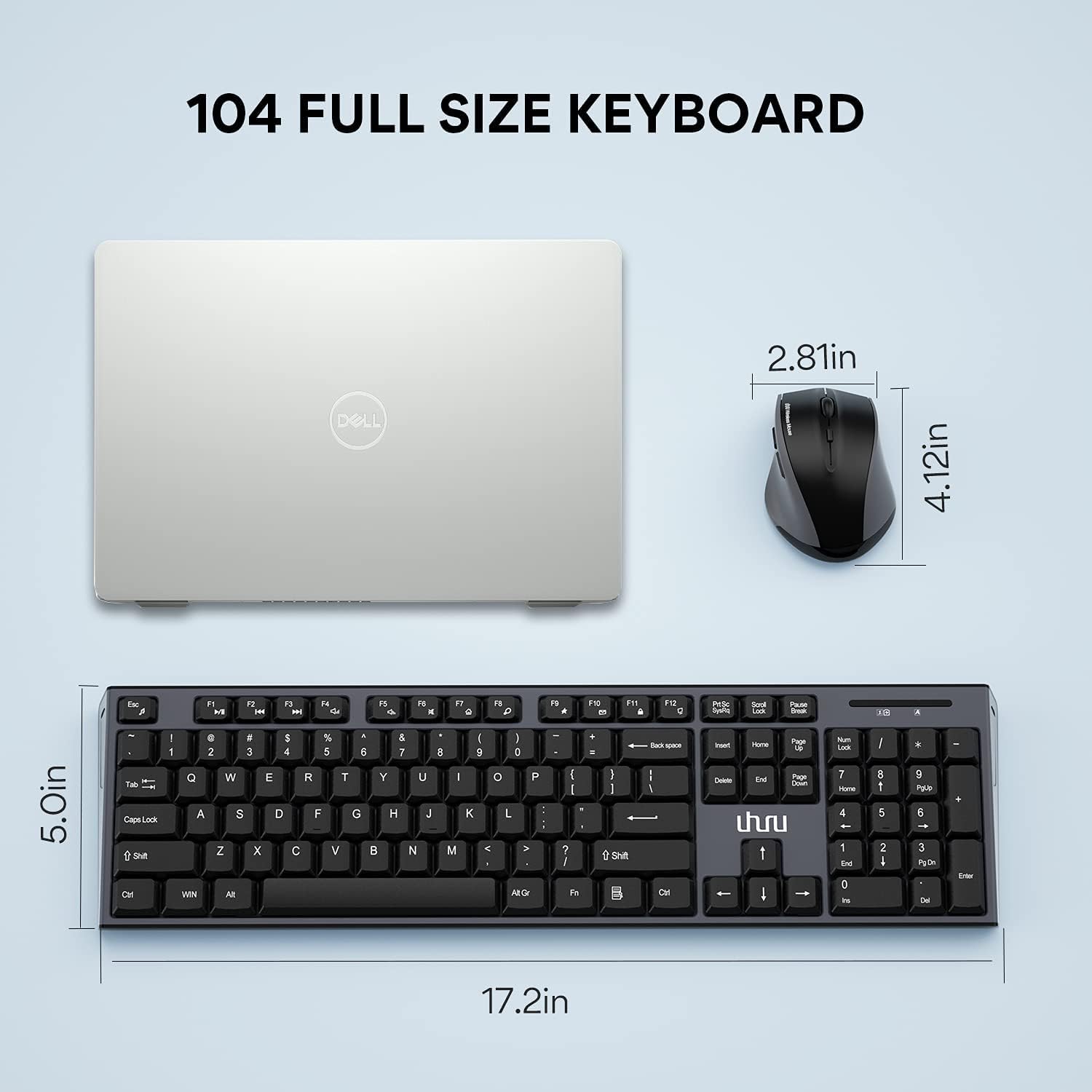
Image: Diagram illustrating the approximate dimensions of the UHURU wireless keyboard (17.2in x 5.0in) and mouse (4.12in x 2.81in).
9. Compatibility
The UHURU Wireless Keyboard and Mouse Combo is widely compatible with various operating systems and devices:
- Operating Systems: Windows 10, Windows 8, Windows 7, Windows Vista, Windows XP.
- Compatible Devices: PC, Laptop, Smart TV, Surface Pro.

Image: Visual representation of the product's wide compatibility with Windows 10, 8, 7, Vista, XP, and various devices including PCs, laptops, smart TVs, and Surface Pro.
10. Warranty and Support
UHURU provides a 12-month warranty for this product. For any questions, technical support, or warranty claims, please contact UHURU customer service. You can find contact information on the official UHURU website or through your purchase platform.
For more information, visit: UHURU Contact Page


