
1. Setup
1.1 Power Source
The OS-130T calculator is designed for dual power operation, utilizing both solar energy and a single AAA battery (included). This ensures continuous functionality even in low-light conditions.
- Solar Power: The solar panel located at the top of the calculator provides power in well-lit environments.
- Battery Power: A single AAA battery provides backup power when solar power is insufficient.
1.2 Battery Installation
To install or replace the battery:
- Locate the battery compartment cover on the back of the calculator.
- Slide the cover open in the direction indicated.
- Insert one AAA battery, ensuring the correct polarity (+/-) as marked inside the compartment.
- Slide the cover back into place until it clicks securely.

2. Operating Instructions
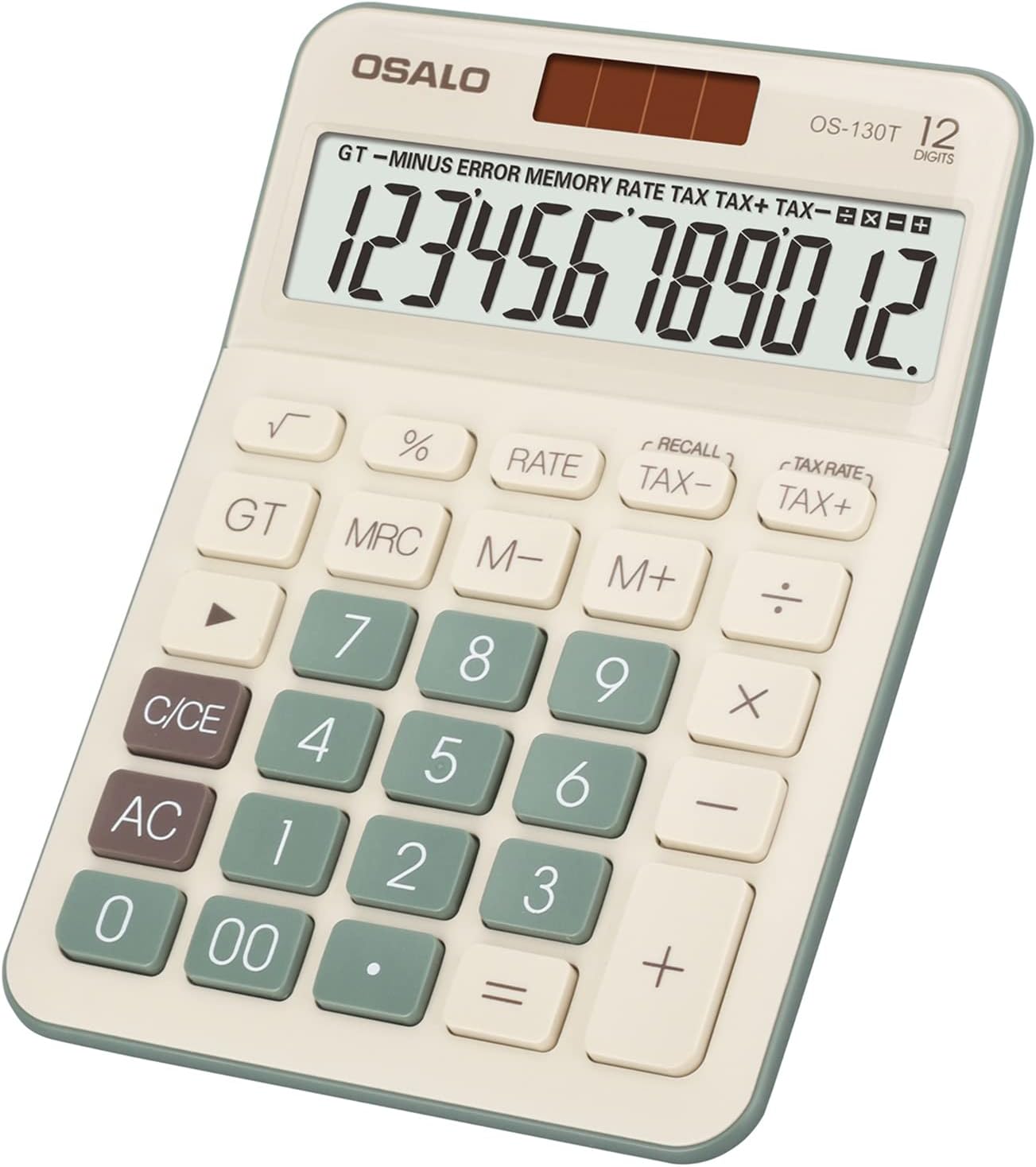
The OS-130T calculator features a large LCD display and big, comfortable buttons for ease of use. Its 30-degree angled screen is designed for optimal viewing.
2.1 Basic Operations
Perform standard arithmetic calculations:
- Addition (+): Press the '+' button.
- Subtraction (-): Press the '-' button.
- Multiplication (×): Press the '×' button.
- Division (÷): Press the '÷' button.
- Equals (=): Press the '=' button to display the result.
- All Clear (AC): Clears all entries and memory.
- Clear Entry (C/CE): Clears the last entered number.
- Back Space (►): Deletes the last digit entered.

2.2 Special Functions
The calculator includes several advanced functions:

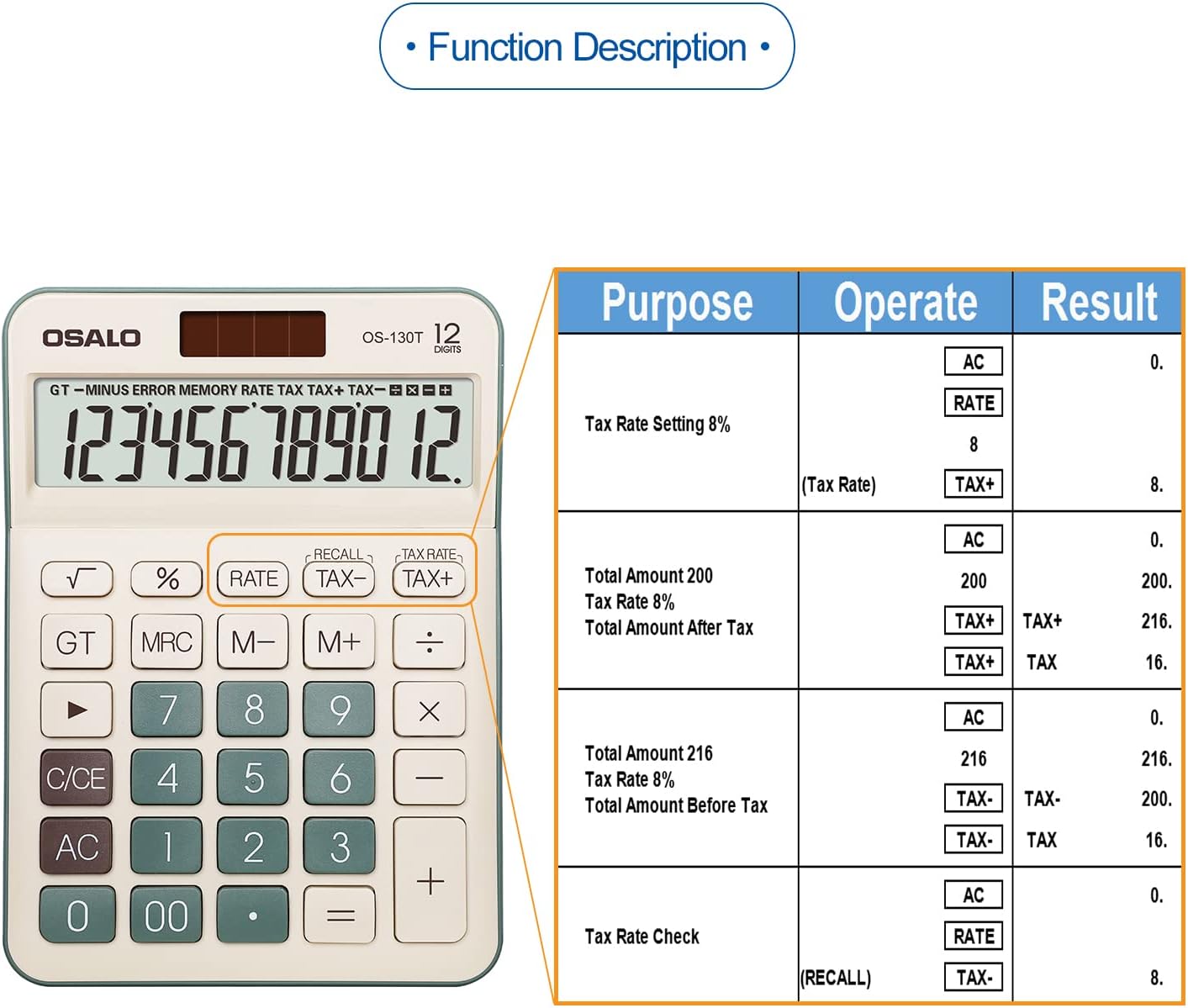
- RATE: Used for setting tax rates.
- TAX+: Adds tax to a value.
- TAX-: Subtracts tax from a value.
- RECALL: Recalls the stored tax rate.
- GT (Grand Total): Accumulates the results of multiple calculations.
- M+ (Memory Plus): Adds the displayed value to memory.
- M- (Memory Minus): Subtracts the displayed value from memory.
- MRC (Memory Recall/Clear): Recalls memory with the first press, clears memory with the second press.
- √ (Square Root): Calculates the square root of the displayed number.
- % (Percentage): Calculates percentages.
2.3 Tax Function Example
The tax function allows for quick calculation of amounts with or without tax. The calculator displays operation symbols on the screen during continuous operations for easy verification.

3. Maintenance
3.1 Cleaning
To maintain the calculator's appearance and functionality:
- Wipe the calculator with a soft, dry cloth.
- Do not use abrasive cleaners or solvents.
3.2 Storage
When not in use for extended periods, store the calculator in a cool, dry place away from direct sunlight and extreme temperatures.
4. Troubleshooting
4.1 Display Issues
- Blank Display: Ensure the calculator is in a well-lit area for solar power. Check if the AAA battery is correctly installed and has sufficient charge. Replace the battery if necessary.
- Faint Display: This may indicate low battery power or insufficient light for the solar panel. Move to a brighter area or replace the battery.
4.2 Incorrect Calculations
- Error Message: Press the 'AC' button to clear any error states and restart your calculation.
- Unexpected Results: Double-check your input and the sequence of operations. Ensure memory (M+, M-, MRC) is cleared if not intended for the current calculation.
5. Specifications
| Feature | Detail |
|---|---|
| Model Number | OS-130T |
| Display Type | Large LCD Display |
| Digits | 12 Digits |
| Power Source | Solar and 1 x AAA Battery (included) |
| Item Weight | 6 ounces (approx. 170g) |
| Screen Size | 4.5 Inches (approx. 110 x 25 mm) |
| Overall Size | 175 x 126 x 40 mm (approx. 6.9 x 5 x 1.6 inches) |
| Manufacturer | pendancy Co.,Ltd |

6. Warranty & Support
For warranty information, technical support, or any inquiries regarding your pendancy OS-130T Desktop Calculator, please contact the manufacturer, pendancy Co.,Ltd. Refer to your purchase documentation for specific warranty terms and contact details.