
1. Introduction
This manual provides detailed instructions for the setup, operation, and maintenance of your Ebitcam 812F 1080P Indoor Security Camera. Please read this manual thoroughly before using the product to ensure proper functionality and safety. This camera is designed for indoor monitoring of pets, babies, or general home security.

Image: Multiple Ebitcam 812F cameras, showcasing the product design.
2. Package Contents
Please verify that all items are present in your package:
- Ebitcam 812F 1080P Indoor Security Camera(s)
- Power Adapter(s)
- Mounting Accessories (screws, wall anchors)
- User Manual (this document)
3. Product Overview
Key Features
- 1080P Full HD Resolution: Provides clear and crisp video at 1920*1080.
- 125° Wide-Angle Lens: Offers a broad field of view for comprehensive monitoring.
- 24/7 Live Streaming: Access real-time video feed from anywhere.
- Two-Way Audio: Built-in microphone and speaker for communication.
- Motion and Sound Detection: Receive real-time alerts for detected activity.
- Night Vision: Infrared (IR) technology for clear viewing in low-light conditions up to 32 ft.
- Flexible Storage: Supports Cloud Storage and local Micro SD card storage (up to 128GB).
- Multi-User & Multi-Device Support: Share access and view on iOS, Android, Windows, and Mac devices.
- Easy Setup: Quick plug-and-play setup with QR code scanning.

Image: Overview of the Ebitcam 812F's core functionalities.
4. Setup Guide
4.1. Download the App
Search for the official Ebitcam application on your mobile device's app store (iOS or Android) and install it. Follow the on-screen instructions to create an account or log in.
4.2. Power On the Camera
Connect the provided power adapter to the camera's power port and plug it into a standard electrical outlet. The camera will power on and initiate its startup sequence. Wait for the indicator light to flash, indicating it is ready for pairing.
4.3. Connect to Wi-Fi
- Open the Ebitcam app and tap to add a new device.
- Select your camera model or scan the QR code located on the camera or its packaging.
- Ensure your mobile device is connected to a 2.4GHz Wi-Fi network. The camera does not support 5GHz Wi-Fi.
- Enter your Wi-Fi network password into the app.
- The app will generate a QR code. Position your mobile device screen in front of the camera lens (approximately 4-8 inches away) until the camera scans the code. You may hear a confirmation sound from the camera.
- Once connected, the camera's indicator light will turn solid, and you will see the camera online in your app.
4.4. Mounting the Camera
The Ebitcam 812F camera can be placed on a flat surface or mounted to a wall or ceiling. Use the provided mounting accessories for secure installation. Ensure the camera has a clear line of sight to the area you wish to monitor and is within range of your Wi-Fi signal.

Image: Examples of various installation methods for the camera.
5. Operating Instructions
5.1. Live View Monitoring
Open the Ebitcam app and select your camera from the device list to access the live video feed. You can view your home in real-time, 24/7, from anywhere with an internet connection.

Image: Live streaming view of the camera feed on a mobile phone.
5.2. Two-Way Audio Communication
The camera features a built-in microphone and speaker. In the live view interface of the app, tap the microphone icon to speak through the camera, and listen to audio from the camera's surroundings. This allows for direct communication with individuals or pets in the monitored area.

Image: Demonstrating two-way audio functionality between a user and a child.

Image: Example of using two-way audio to interact with a pet.
5.3. Motion and Sound Detection
The Ebitcam 812F can detect motion and sound within its field of view. Configure alert settings in the app to receive real-time notifications on your phone when activity is detected. This feature helps you stay informed about events in your home.

Image: Visual representation of smart motion and sound detection.

Image: Motion detection capturing a child's activity.
5.4. Night Vision
The camera is equipped with infrared (IR) night vision, allowing it to capture clear video footage in complete darkness up to 32 feet. The camera automatically switches between day and night modes based on ambient light conditions.

Image: Comparison of day and night vision capabilities.

Image: Day and night vision comparison for monitoring a baby.
5.5. Storage Options (Cloud & Local SD Card)
The Ebitcam 812F offers two methods for video recording storage:
- Cloud Storage: Secure, encrypted cloud storage service is available (subscription may be required).
- Local SD Card Storage: Insert a Micro SD card (up to 128GB, not included) into the camera's designated slot for local recording.
5.6. Multi-User and Multi-Device Access
You can share access to your camera's live feed with family members or other trusted individuals through the Ebitcam app. The camera supports simultaneous viewing across multiple devices, including iOS, Android, Windows, and Mac platforms.

Image: Illustrating multi-user sharing of the camera's view.

Image: Multi-terminal viewing support for various operating systems.
5.7. Smart Home Integration
The Ebitcam 812F camera may be integrated with certain smart home platforms, allowing for voice commands to view your camera feed on compatible smart displays. Refer to the app's settings or Ebitcam's official website for specific integration details.
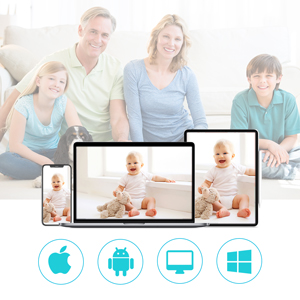
Image: Example of smart home voice control integration.
6. Troubleshooting
- Camera not connecting to Wi-Fi: Ensure your Wi-Fi network is 2.4GHz. Check that the Wi-Fi password is correct. Move the camera closer to your router. Restart the camera and your router.
- No live video feed: Check your internet connection. Ensure the camera is powered on and connected to Wi-Fi. Restart the app.
- Poor video quality: Ensure your internet speed is sufficient. Check for obstructions in front of the camera lens.
- Motion alerts not received: Verify motion detection is enabled in the app settings. Check your phone's notification settings for the Ebitcam app.
- Two-way audio issues: Ensure your phone's microphone is enabled for the app. Check the volume settings on both your phone and within the app.
7. Specifications
| Feature | Specification |
|---|---|
| Model Name | 812F |
| Video Capture Resolution | 1080p (1920x1080) |
| Connectivity Protocol | Wi-Fi (2.4GHz only) |
| Power Source | Wired (AC Power Adapter) |
| Indoor/Outdoor Usage | Indoor |
| Special Features | Motion Sensor, Night Vision, Two-Way Audio |
| Storage Options | Cloud Storage, Micro SD Card (up to 128GB) |
| Compatible Devices | Android, iOS, Windows, Mac |
| Item Dimensions (L x W x H) | 3.94 x 1.97 x 1.97 inches |
| Item Weight | 1.52 pounds |
Note: While some specifications may indicate 'Battery Powered', this device primarily operates via a wired AC power adapter.
8. Warranty and Support
Warranty Information
Ebitcam provides a manufacture warranty for one year from the date of purchase, which includes free replacement for qualifying defects. Please retain your proof of purchase for warranty claims.
Customer Support
For technical assistance, troubleshooting, or warranty inquiries, please refer to the Ebitcam official website or contact their customer support channels. Ensure you have your product model number (812F) and purchase details ready when contacting support.

