1. Introduction
This manual provides comprehensive instructions for the Crucial 16GB DDR5 4800MHz UDIMM Desktop Memory (Model: CT16G48C40U5). It covers essential information regarding product features, detailed specifications, proper installation procedures, operating guidelines, maintenance tips, and troubleshooting common issues. Adhering to these instructions will help ensure optimal performance and longevity of your memory module.
This DDR5 memory module is designed to enhance system responsiveness and multitasking capabilities, making it suitable for demanding applications, gaming, and content creation. It is compatible with systems supporting 12th Gen Intel Core and AMD Ryzen 7000 series processors.
2. Product Overview
The Crucial 16GB DDR5 4800MHz UDIMM Desktop Memory module delivers advanced performance for modern computing needs. Key features include:
- Enhanced Speed: Operates at 4800MHz, providing faster data transfer rates compared to previous DDR generations.
- Increased Bandwidth: Offers significantly higher bandwidth for improved system responsiveness and smoother multitasking.
- Power Efficiency: Designed for lower power consumption, contributing to a more energy-efficient system.
- Stability Features: Incorporates On-Die ECC (Error-Correcting Code) for enhanced data integrity and system stability.
- Dual Channel Design: Features two independent 32-bit channels per module to maximize performance.
- Compatibility: Supports Intel XMP 3.0 and AMD EXPO for optimized performance with compatible motherboards and processors.
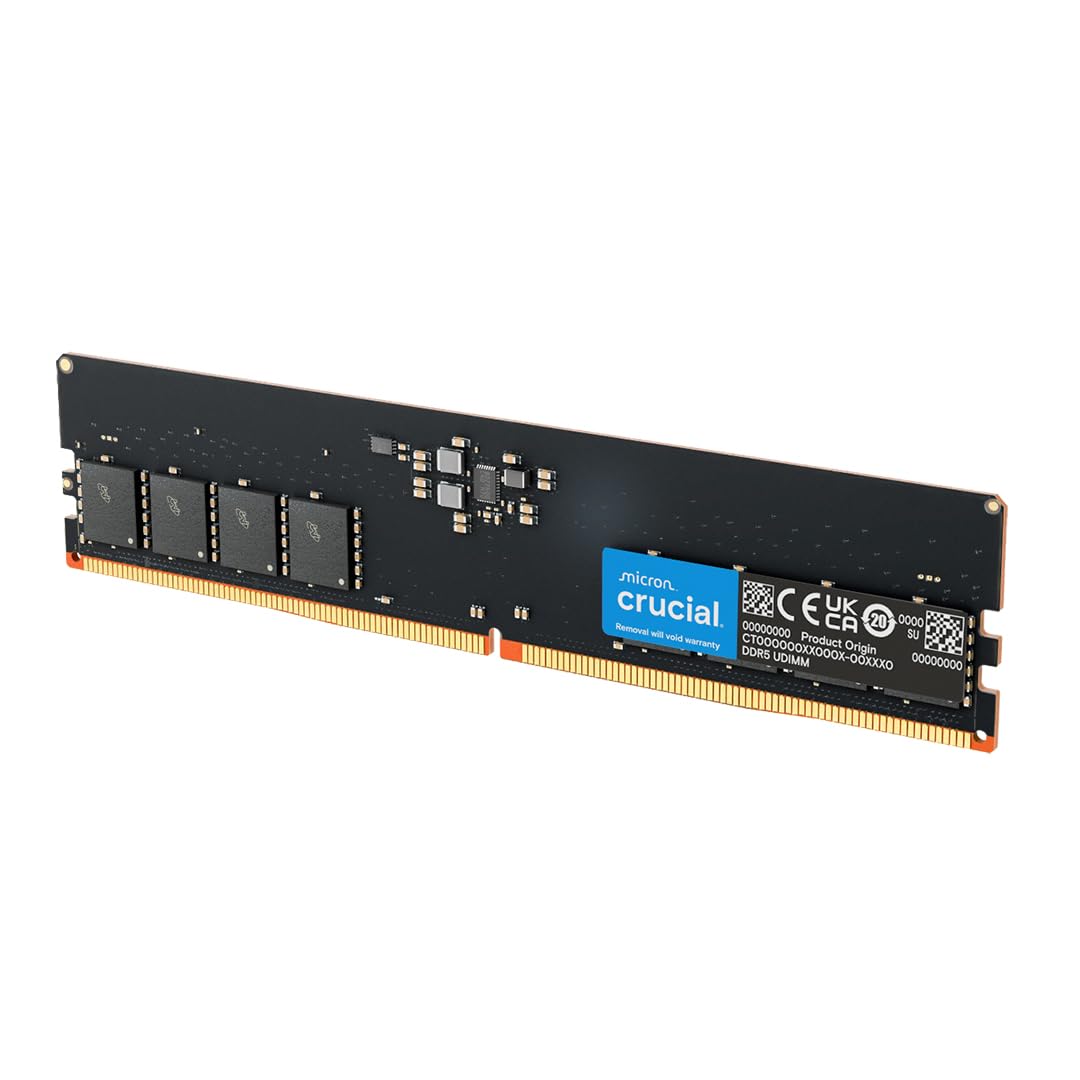
Figure 2.1: Crucial 16GB DDR5 4800MHz UDIMM Desktop Memory Module (CT16G48C40U5).

Figure 2.2: Two Crucial DDR5 RAM modules, emphasizing reliable performance for DDR5 systems.

Figure 2.3: Illustration of two Crucial DDR5 RAM modules, indicating faster memory for improved multitasking.
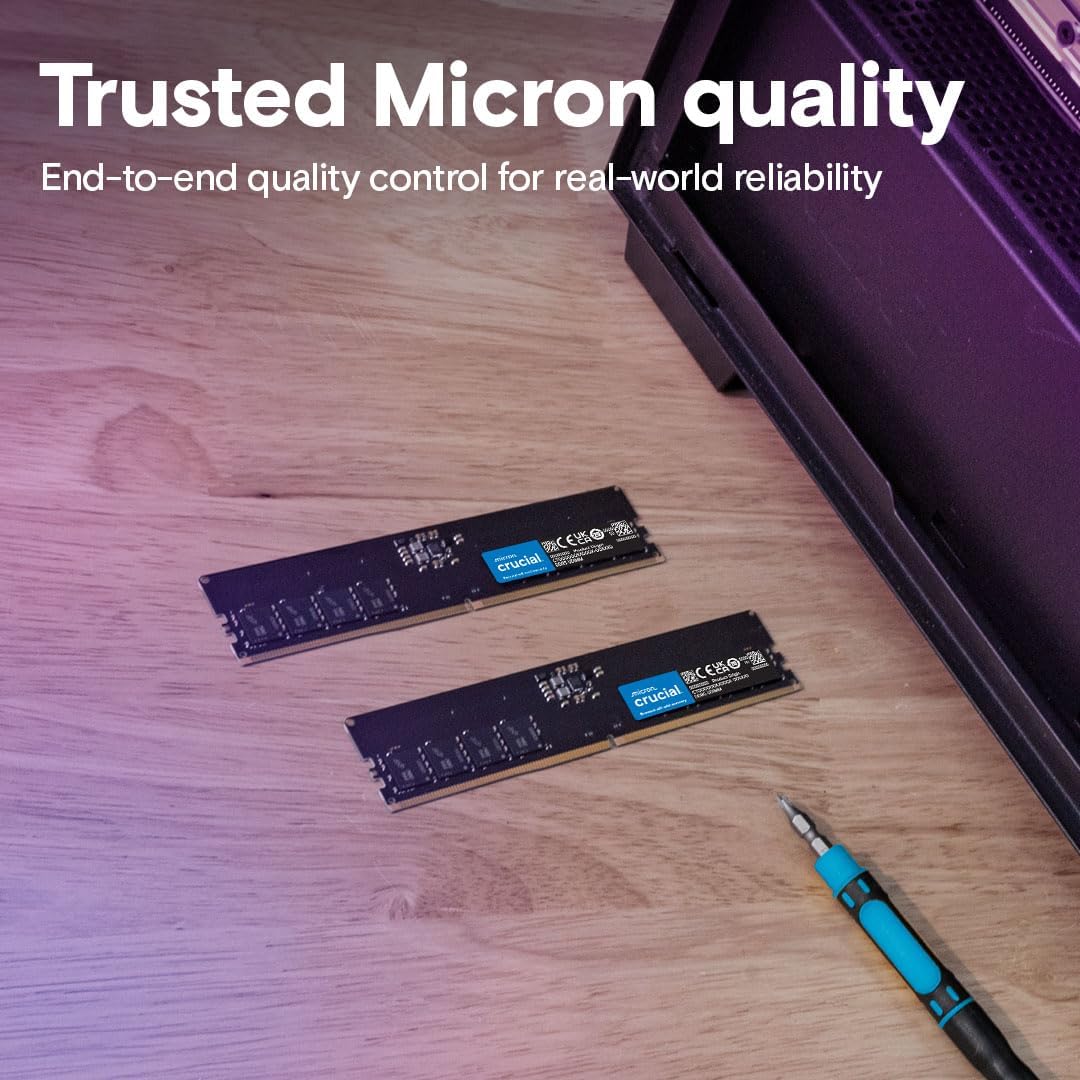
Figure 2.4: Two Crucial DDR5 RAM modules, symbolizing trusted Micron quality and reliability.
3. Specifications
| Feature | Detail |
|---|---|
| Model Number | CT16G48C40U5 |
| Memory Type | DDR5 SDRAM |
| Capacity | 16 GB |
| Speed | 4800 MHz (PC5-38400) |
| CAS Latency | CL40 |
| Form Factor | UDIMM (Unbuffered DIMM) |
| Pin Count | 288-pin |
| Voltage | 1.1V |
| ECC Type | Non-ECC (On-Die ECC for stability) |
| Compatibility | 12th/13th Gen Intel Core and AMD Ryzen 7000 Series CPUs |
| Dimensions (LxWxH) | 5.25 x 0.16 x 1.23 inches |
4. Installation Guide
Before beginning the installation, ensure your computer is powered off and unplugged from the wall outlet. It is recommended to wear an anti-static wrist strap to prevent electrostatic discharge (ESD) damage to components.
- Prepare Your System: Power down your computer, unplug the power cord, and open the computer case.
- Locate Memory Slots: Identify the DDR5 DIMM slots on your motherboard. Consult your motherboard manual for the correct slot configuration for single or dual-channel operation.
- Open Retention Clips: Gently push the retention clips at both ends of the memory slot outwards to open them.
- Align the Module: Hold the memory module by its edges, avoiding touching the gold contacts. Align the notch on the module with the key in the DIMM slot.
- Insert the Module: Apply even pressure to both ends of the module until it clicks into place and the retention clips snap shut. Do not force the module.
- Secure and Close: Once all modules are installed, close your computer case and reconnect the power cord.
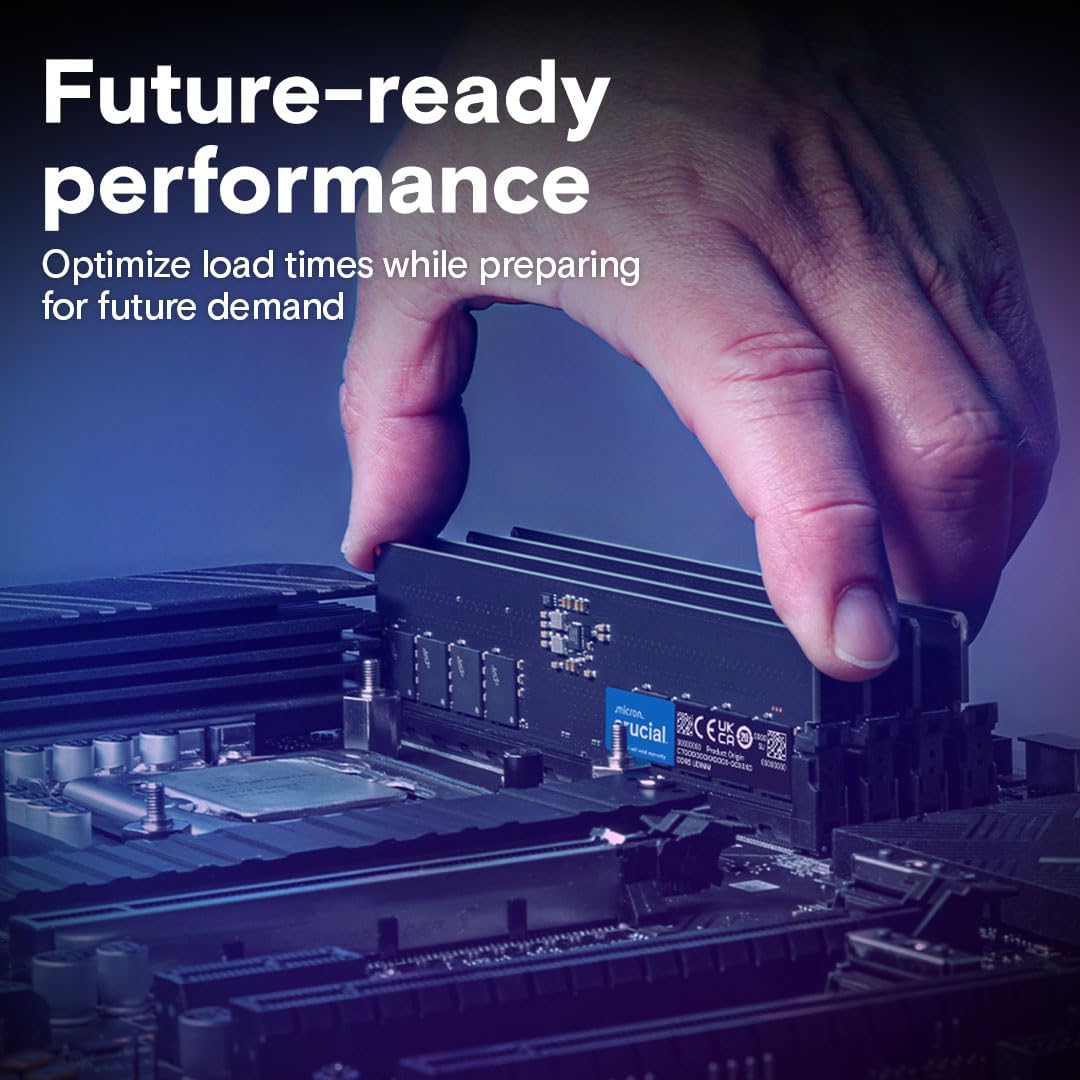
Figure 4.1: Proper installation of a Crucial DDR5 RAM module into a desktop motherboard.
Video 4.1: Official Crucial video demonstrating the features and benefits of Crucial DDR5 UDIMM DRAM, including aspects relevant to installation and performance.
5. Operating Guidelines
After successful installation, your system should automatically detect the new memory. For optimal performance, especially to achieve the advertised 4800MHz speed, you may need to adjust settings in your system's BIOS/UEFI.
- BIOS/UEFI Configuration: Access your motherboard's BIOS/UEFI settings during startup (usually by pressing DEL or F2). Look for memory-related settings, often under an 'Overclocking' or 'Advanced' menu.
- Enable XMP/EXPO: If your motherboard supports Intel XMP 3.0 or AMD EXPO, enable the corresponding profile to automatically configure the memory to its rated speed and timings (4800MHz, CL40). Save and exit the BIOS/UEFI.
- System Stability: After enabling XMP/EXPO, monitor your system for stability. If issues arise, revert to default memory settings and ensure your motherboard BIOS is updated to the latest version.
- Multitasking: The increased capacity and speed of this DDR5 module will significantly improve performance in memory-intensive applications and heavy multitasking scenarios.
6. Maintenance
DDR5 memory modules are generally maintenance-free. However, following these general computer maintenance practices can help ensure their longevity and optimal performance:
- Keep System Clean: Regularly clean the interior of your computer case to prevent dust buildup, which can impede airflow and lead to overheating.
- Ensure Proper Airflow: Verify that your case fans are functioning correctly and that there are no obstructions to airflow around the memory modules.
- BIOS/UEFI Updates: Keep your motherboard's BIOS/UEFI updated to ensure compatibility and access to the latest performance optimizations.
- Software Updates: Maintain updated operating system and driver software for overall system health.
7. Troubleshooting
If you encounter issues after installing your Crucial DDR5 memory, consider the following:
- System Not Booting/No Display:
- Ensure modules are fully seated in their slots and retention clips are closed.
- Verify that the modules are installed in the correct slots as per your motherboard manual.
- Try booting with only one module installed to identify a potentially faulty module or slot.
- Reset your motherboard's CMOS (refer to your motherboard manual).
- Incorrect Memory Speed Detected:
- Enter BIOS/UEFI and enable the Intel XMP 3.0 or AMD EXPO profile.
- Ensure your motherboard and CPU support DDR5 4800MHz.
- Update your motherboard's BIOS/UEFI to the latest version.
- System Instability/Crashes:
- Disable XMP/EXPO in BIOS/UEFI and test with default memory settings.
- Run a memory diagnostic tool (e.g., Windows Memory Diagnostic, MemTest86) to check for errors.
- Ensure adequate cooling within your computer case.
8. Warranty and Support
Crucial memory products are backed by a limited lifetime warranty, reflecting their commitment to quality and reliability. For detailed warranty information, product support, or technical assistance, please visit the official Crucial website or contact their customer service.
Official Crucial Website: www.crucial.com
For further assistance, refer to your motherboard's documentation or contact your system manufacturer.


