
1. Introduction
This manual provides comprehensive instructions for the FANGOR 10.1 Inch Android 11.0 Tablet, Model C10. It covers initial setup, operation, maintenance, and troubleshooting to ensure optimal performance and user experience. Please read this manual thoroughly before using your device.
2. What's in the Box
Upon unboxing your FANGOR C10 Tablet, verify that all the following items are included:
- FANGOR 10.1 Inch Android 11.0 Tablet (Model C10)
- USB Charging Cable
- Power Adapter (with various regional plugs)
- SIM Ejector Tool / Card Tray Pin
- User Manual (this document)

Figure 2.1: FANGOR C10 Tablet and its packaging, showing the tablet, user manual, and accessories.
3. Product Overview
The FANGOR C10 Tablet is designed for a versatile entertainment and productivity experience. It features a vivid 10.1-inch IPS display, powered by an octa-core processor and 3GB RAM for smooth performance.

Figure 3.1: Key features of the FANGOR C10 Tablet, including Android 11.0, 3GB RAM, 32GB Storage, Octa-Core Processor, and 2.4G+5G WiFi capabilities.
3.1 Components and Controls
- Front Camera: Located at the top center when held in landscape orientation.
- Power Button: Typically on the side, used to turn the device on/off or wake/sleep the screen.
- Volume Buttons: Located near the power button, for adjusting audio levels.
- USB Type-C Port: For charging and data transfer.
- Headphone Jack: Standard 3.5mm audio output.
- MicroSD Card Slot: For expanding storage up to 128GB.
- Rear Camera: Located on the back of the tablet.
- Speakers: Dual speakers for enhanced audio experience.

Figure 3.2: The tablet's 10.1-inch IPS Full HD display, offering a wide 178-degree viewing angle for an immersive experience.
4. Setup
4.1 Initial Charge
Before first use, fully charge your tablet using the provided USB charging cable and power adapter. The charging indicator will typically show progress on the screen.
4.2 Powering On/Off
- To power on: Press and hold the Power button until the FANGOR logo appears.
- To power off: Press and hold the Power button until the power options menu appears, then select "Power off".
4.3 Initial Setup Wizard
Upon first power-on, the tablet will guide you through an initial setup wizard. This includes:
- Language selection.
- Wi-Fi network connection.
- Google account sign-in (optional, but recommended for full access to Google services like Play Store).
- Date and time settings.
- Screen lock setup (optional).
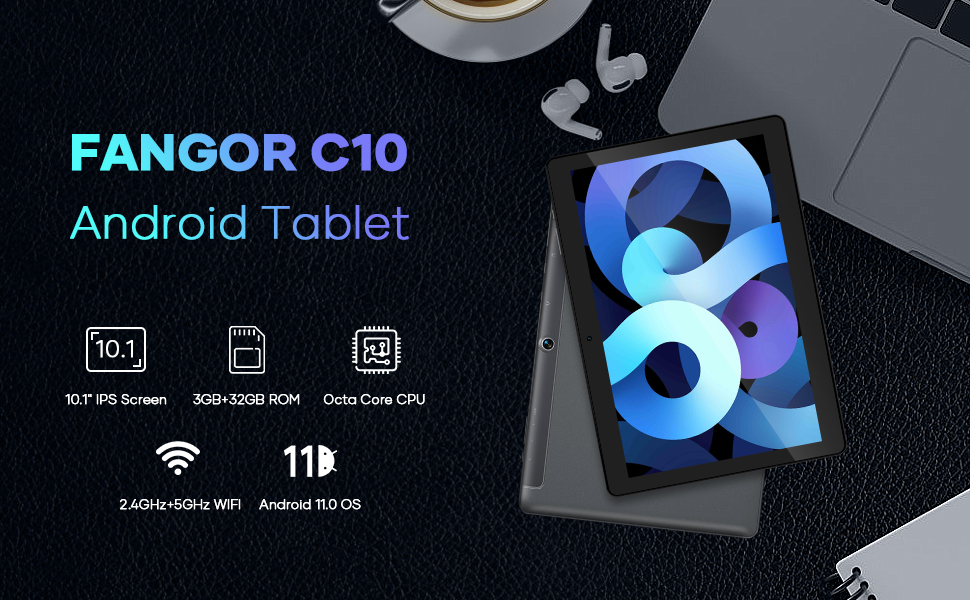
Figure 4.1: The FANGOR C10 Tablet ready for setup, showcasing its vibrant display and potential for smart entertainment.
5. Operating Instructions
5.1 Navigating the Android Interface
The FANGOR C10 runs on Android 11.0. Navigation is primarily touch-based:
- Tap: Select items, open apps, or activate buttons.
- Swipe: Scroll through pages, menus, or home screens.
- Pinch-to-Zoom: Enlarge or shrink content like photos or web pages.
- Long Press: Access contextual menus or move icons.
5.2 Connecting to Wi-Fi
- Go to Settings > Network & internet > Wi-Fi.
- Toggle Wi-Fi to "On".
- Select your desired network from the list.
- Enter the password if prompted and tap "Connect".
5.3 Installing Applications
The tablet is GMS certified, providing full access to the Google Play Store. To install apps:
- Open the Play Store app.
- Search for the desired app.
- Tap "Install" and follow the on-screen prompts.

Figure 5.1: The tablet's GMS certification allows access to a wide range of applications from the Google Play Store.
5.4 Storage Expansion
The tablet supports microSD cards up to 128GB. To insert a card:
- Locate the card slot on the side of the tablet.
- Use the provided SIM ejector tool to open the tray.
- Carefully place the microSD card into the designated slot.
- Gently push the tray back into the tablet until it clicks into place.

Figure 5.2: The tablet's 8000mAh battery provides extended use, and storage can be expanded with a microSD card.
6. Maintenance
To ensure the longevity and optimal performance of your FANGOR C10 Tablet, follow these maintenance guidelines:
- Cleaning: Use a soft, lint-free cloth to clean the screen and body. Avoid abrasive cleaners or solvents.
- Battery Care: Avoid extreme temperatures. Do not let the battery fully drain frequently. For long-term storage, charge the battery to about 50%.
- Software Updates: Regularly check for and install system updates to ensure security and performance improvements. Go to Settings > System > System update.
- Storage Management: Periodically clear unnecessary files and uninstall unused apps to free up storage space and maintain performance.
- Protection: Consider using a screen protector and a protective case to guard against scratches and accidental drops.
7. Troubleshooting
If you encounter issues with your FANGOR C10 Tablet, refer to the following common solutions:
| Problem | Possible Solution |
|---|---|
| Tablet won't turn on. | Ensure the tablet is charged. Connect it to the charger for at least 30 minutes, then try powering on again. If it still doesn't turn on, perform a hard reset by pressing and holding the power button for 10-15 seconds. |
| Wi-Fi connection issues. | Restart your Wi-Fi router. Forget the network on your tablet (Settings > Network & internet > Wi-Fi, tap network, then Forget) and reconnect. Ensure you are within range of the Wi-Fi signal. |
| Apps crashing or freezing. | Clear the app's cache (Settings > Apps > [App Name] > Storage & cache > Clear cache). If the problem persists, uninstall and reinstall the app. Ensure the tablet's software is up to date. |
| Slow performance. | Close unused apps running in the background. Clear cache data regularly. Consider uninstalling large or unnecessary applications. A factory reset can also resolve persistent performance issues (backup data first). |
| Screen not responding to touch. | Restart the tablet. If the issue continues, check for physical damage or consider a factory reset. |
8. Specifications
Detailed technical specifications for the FANGOR C10 Tablet:
| Feature | Specification |
|---|---|
| Screen Size | 10.1 Inches |
| Screen Resolution | 1920 x 1200 (Max 1920 x 1080) |
| RAM | 3 GB |
| Internal Storage | 32 GB |
| Expandable Storage | Up to 128 GB (MicroSD) |
| Operating System | Android 11 |
| Processor | Octa-Core ARM Processor |
| Wireless Type | 802.11ac (Wi-Fi) |
| Bluetooth | Bluetooth 5.0 |
| Rear Camera Resolution | 8 MP |
| Front Camera Resolution | 5 MP |
| Battery Capacity | 8000mAh Lithium Ion |
| Item Weight | 2.35 pounds |
| Color | Grey |
9. Warranty and Support
For warranty information and technical support, please refer to the official FANGOR website or contact their customer service directly. Keep your purchase receipt as proof of purchase for warranty claims.
Online Support: Visit the official FANGOR website for FAQs, driver downloads, and further assistance.
Customer Service: Contact details can typically be found on the product packaging or the official FANGOR website.