
Linksys MX5503-CA
Contents
Linksys MX5500 Velop Atlas WiFi 6 Mesh System (3-Pack) Instruction Manual
Model: MX5503-CA
Introduction
This instruction manual provides detailed guidance for the Linksys MX5500 Velop Atlas WiFi 6 Mesh System (3-Pack). It covers the installation process, operational features, maintenance tips, and troubleshooting steps to help you establish and manage a robust and reliable home wireless network.

Image: Three Linksys MX5500 Velop Atlas WiFi 6 mesh nodes.
Setup and Installation
Follow these steps to set up your Linksys Velop Atlas WiFi 6 Mesh System. The Linksys App is required for initial configuration.
- Download the Linksys App: Search for "Linksys" in your device's app store and install the official Linksys app.
- Connect the Primary Node:
- Connect one MX550x node to your modem (or existing router) using the provided Ethernet cable.
- Plug the power adapter into the node and an electrical outlet.
- Wait for the node's LED indicator to show a stable blue light, indicating it's ready for setup.
- Launch the App and Follow Instructions:
- Open the Linksys app on your smartphone or tablet.
- Follow the on-screen prompts to create your Linksys account (if you don't have one) and configure your new WiFi network name (SSID) and password.
- Add Additional Nodes:
- Place the remaining Velop nodes in desired locations within your home, ensuring they are within range of another node or the primary node.
- Plug in the power adapters for these nodes.
- In the Linksys app, select the option to "Add Another Node" and follow the instructions to integrate them into your mesh network.
- For optimal performance, consider using an Ethernet cable to connect nodes (Ethernet backhaul) if available.
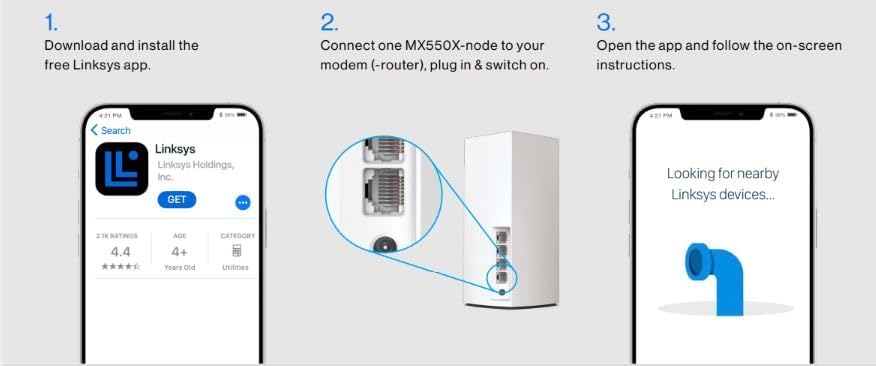
Image: Visual guide for initial setup using the Linksys App.

Image: Linksys App interface for easy setup and control.
Operation and Features
The Linksys Velop Atlas WiFi 6 Mesh System offers advanced features for managing your home network.
Intelligent Mesh Technology
The system utilizes Intelligent Mesh technology to provide seamless and consistent WiFi coverage throughout your home. Nodes communicate with each other to optimize network traffic and ensure devices connect to the strongest available signal as you move.

Image: Intelligent Mesh technology for expanded WiFi coverage.
Linksys App Control
The Linksys App provides comprehensive control over your mesh network:
- Parental Controls: Manage internet access for specific devices, schedule internet pauses, and block unwanted websites.
- Guest Access: Create a separate, secure WiFi network for guests without sharing your main network password.
- Device Prioritization: Allocate bandwidth to specific devices for critical activities like streaming or gaming.
- Network Monitoring: View connected devices, internet speed, and network status.

Image: Linksys App features for network management.
WiFi 6 Advantages
This system supports WiFi 6 (802.11ax), offering several benefits:
- Higher Speeds: Experience faster data transfer rates for all your connected devices.
- Increased Capacity: Efficiently handles more devices simultaneously, reducing congestion in busy networks.
- Improved Efficiency: Better battery life for WiFi 6 compatible devices.

Image: Ultra-Fast WiFi 6 for enhanced streaming and gaming.

Image: WiFi 6 supporting more devices simultaneously.
Maintenance
Regular maintenance ensures the longevity and optimal performance of your Linksys Velop system.
- Automatic Firmware Updates: The system is designed to receive automatic firmware updates. Ensure this feature is enabled in the Linksys App to benefit from the latest security patches and performance enhancements.
- Physical Cleaning: Keep the nodes free from dust and obstructions. Use a soft, dry cloth to clean the exterior. Do not use liquid cleaners.
- Optimal Placement: Ensure nodes are placed in open areas, away from large metal objects, thick walls, and other electronic devices that may cause interference.
- Rebooting: Periodically rebooting your nodes (unplugging and replugging after 30 seconds) can help resolve minor network issues and refresh connections.

Image: Security features including automatic updates.
Troubleshooting
If you encounter issues with your Linksys Velop system, try the following steps:
- No Internet Connection:
- Check if your modem is working correctly.
- Ensure the Ethernet cable from the modem to the primary Velop node is securely connected.
- Reboot your modem and then your primary Velop node.
- Weak WiFi Signal or Slow Speeds:
- Relocate nodes to improve coverage, ensuring they are not too far apart.
- Minimize interference from other electronic devices (e.g., microwaves, cordless phones).
- Check for obstructions like thick walls or large metal objects.
- Ensure all nodes are powered on and their LED indicators are solid blue.
- Device Not Connecting:
- Verify the WiFi password.
- Reboot the device attempting to connect.
- Temporarily disable and re-enable WiFi on the device.
- Node LED Status:
- Solid Blue: Good connection, working normally.
- Solid Red: No internet connection.
- Pulsing Blue: Starting up or searching for a node.
- Pulsing Red: Node is too far from another node or has a weak connection.
- Factory Reset: If issues persist, a factory reset may be necessary. Refer to the Linksys support website for specific instructions on how to perform a factory reset, as this will erase all custom settings.
Specifications
Key technical specifications for the Linksys MX5500 Velop Atlas WiFi 6 Mesh System (Model MX5503-CA):
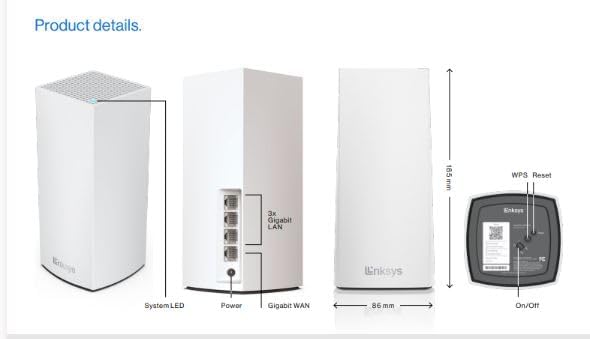
Image: Product details including dimensions and port configuration.
| Feature | Detail |
|---|---|
| Brand | Linksys |
| Model Number | MX5503-CA |
| Model Name | AX5400 |
| Wireless Standard | 802.11ax (WiFi 6) |
| Frequency Band Class | Dual-Band |
| Data Transfer Rate | Up to 5.4 Gigabits Per Second (AX5400) |
| Number of Ports | 3 Gigabit Ethernet ports per node (1 WAN, 2 LAN or 3 LAN if used as child node) |
| Coverage (3-Pack) | Up to 8,100 Sq. ft. |
| Supported Devices | 90+ devices |
| Antenna Type | Internal |
| Special Features | Intelligent Mesh, 160 MHz channels, Qualcomm Immersive Home 214 Platform chipset, Easy setup via Linksys App |
| Included Components | Linksys MX5503 nodes, Power Adapters, Ethernet Cable, Quick Installation Guide |
Warranty and Support
For detailed warranty information, please refer to the warranty documentation included with your product or visit the official Linksys website.
If you require further assistance or technical support, please visit the Linksys support portal or contact their customer service. The Linksys App also provides access to support resources.
Documents and downloads
Ask a question about this manual
Ask about setup, troubleshooting, compatibility, parts, safety, or missing instructions. Manuals+ will review the question and use this page’s manual context to help answer it.