
Introduction
Thank you for choosing the Logickeyboard Astra 2 Backlit Keyboard for macOS. This keyboard is specifically engineered to enhance your workflow on macOS systems with clearly labeled shortcut keys and a comfortable typing experience. This manual provides essential information for setting up, operating, maintaining, and troubleshooting your new keyboard.

Image: The Logickeyboard Astra 2 Backlit Keyboard, showcasing its full layout and sleek design.
Setup
Follow these steps to connect your Logickeyboard Astra 2 to your macOS device.
- Unpack the Keyboard: Carefully remove the keyboard and the included USB cable from its packaging.
- Connect the USB Cable: Locate an available USB port on your macOS computer or a powered USB hub. Insert the USB connector from the keyboard cable into the port. The keyboard features a USB 3.0 hub, which requires a stable connection to function optimally.
- System Recognition: Your macOS system should automatically detect and install the necessary drivers for the keyboard. No additional software installation is typically required.
- Verify Functionality: Once connected, test the keyboard by typing in a text editor to ensure all keys are responsive.

Image: The USB cable provided with the Logickeyboard Astra 2, showing the two USB connectors for power and data.
Operating Instructions
The Logickeyboard Astra 2 is designed for intuitive use with macOS. Here are its primary operational features:
Adjustable Backlit Illumination
The keyboard features five selectable brightness levels for its backlight. Use the dedicated brightness control keys, typically located on the function row (F1-F12), to cycle through the illumination settings. This allows for comfortable typing in various lighting conditions.
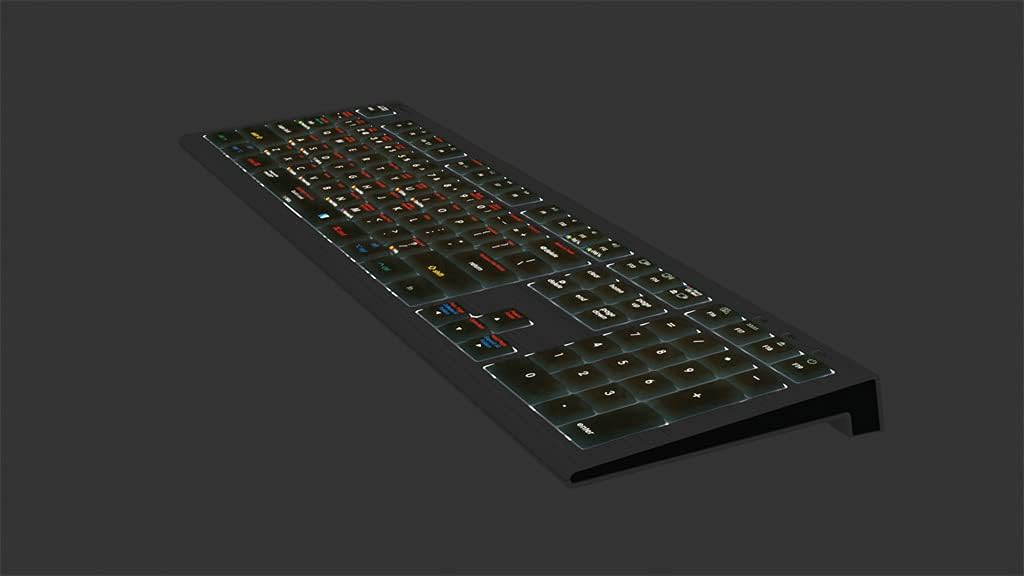
Image: The Logickeyboard Astra 2 with its keys illuminated, demonstrating the backlit feature.
macOS Optimized Design and Shortcut Keys
The keycaps are clearly labeled with macOS-specific shortcuts and color-coded commands, streamlining your workflow in various applications. Familiarize yourself with these labels to maximize productivity.
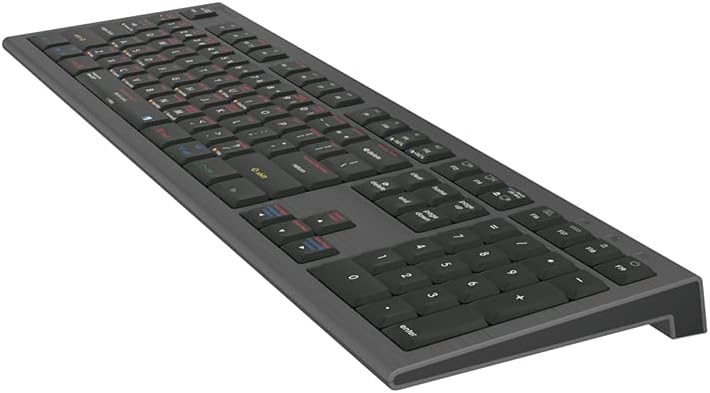
Image: A close-up view of the Logickeyboard Astra 2 keys, highlighting the macOS-specific shortcut legends and color coding.
Integrated USB 3.0 Hub
The keyboard includes a built-in USB 3.0 hub. This allows you to connect peripheral devices such as a mouse, smartphone, or USB dongle directly to the keyboard, reducing cable clutter and providing convenient access to additional USB ports.
Maintenance
Proper care will ensure the longevity and optimal performance of your Logickeyboard Astra 2.
- Cleaning: Use a soft, lint-free cloth slightly dampened with water or a mild, non-abrasive cleaning solution to wipe the surface of the keyboard. Avoid spraying liquids directly onto the keyboard.
- Dust Removal: Use compressed air to remove dust and debris from between the keys.
- Avoid Spills: Keep liquids away from the keyboard to prevent damage to internal components.
- Storage: When not in use for extended periods, store the keyboard in a clean, dry environment.
Troubleshooting
If you encounter issues with your Logickeyboard Astra 2, refer to the following common solutions:
- Keyboard Not Responding:
- Ensure the USB cable is securely connected to both the keyboard and your computer.
- Try connecting the keyboard to a different USB port on your computer.
- Restart your macOS device.
- Backlight Not Working:
- Press the backlight control keys (usually F1-F12) to ensure the brightness is not set to the lowest level or turned off.
- Verify the keyboard is receiving sufficient power, especially if connected via a non-powered USB hub.
- USB Hub Not Functioning:
- Ensure the main keyboard USB cable is connected to a USB 3.0 port on your computer for optimal performance.
- Test the connected peripheral directly to your computer to rule out issues with the device itself.
- Avoid connecting high-power-draw devices to the keyboard's USB hub without an external power source for the hub.
- Incorrect Key Layout:
- Check your macOS system settings for keyboard input sources and ensure the correct layout (e.g., U.S. English) is selected.
Specifications
| Brand | Logickeyboard |
| Model Number | LKB-OSX-A2M-US |
| Connectivity Technology | USB-C, USB |
| Compatible Devices | PC, Laptop (macOS) |
| Keyboard Description | Multimedia |
| Switch Type | Scissor-Switch |
| Number of Keys | 104 |
| Keyboard Layout | QWERTY |
| Color | Black |
| Product Dimensions (L x W x H) | 17.63" x 6" x 2.75" |
| Included Components | USB Cable |
| Special Feature | Ergonomic, Backlit, Integrated USB Hub |
Warranty and Support
Logickeyboard products are manufactured to high-quality standards. For information regarding warranty coverage, please refer to the warranty card included with your product or visit the official Logickeyboard website. For technical support or further assistance, please contact Logickeyboard customer service through their official channels.
You can find more information and support resources by visiting the Logickeyboard Store on Amazon.


