
Introduction
Thank you for choosing the Knup KP-2054 Gaming Keyboard and Mouse Kit. This manual provides essential information for setting up, operating, and maintaining your new gaming peripherals. Please read this manual carefully before use to ensure optimal performance and longevity of your product.
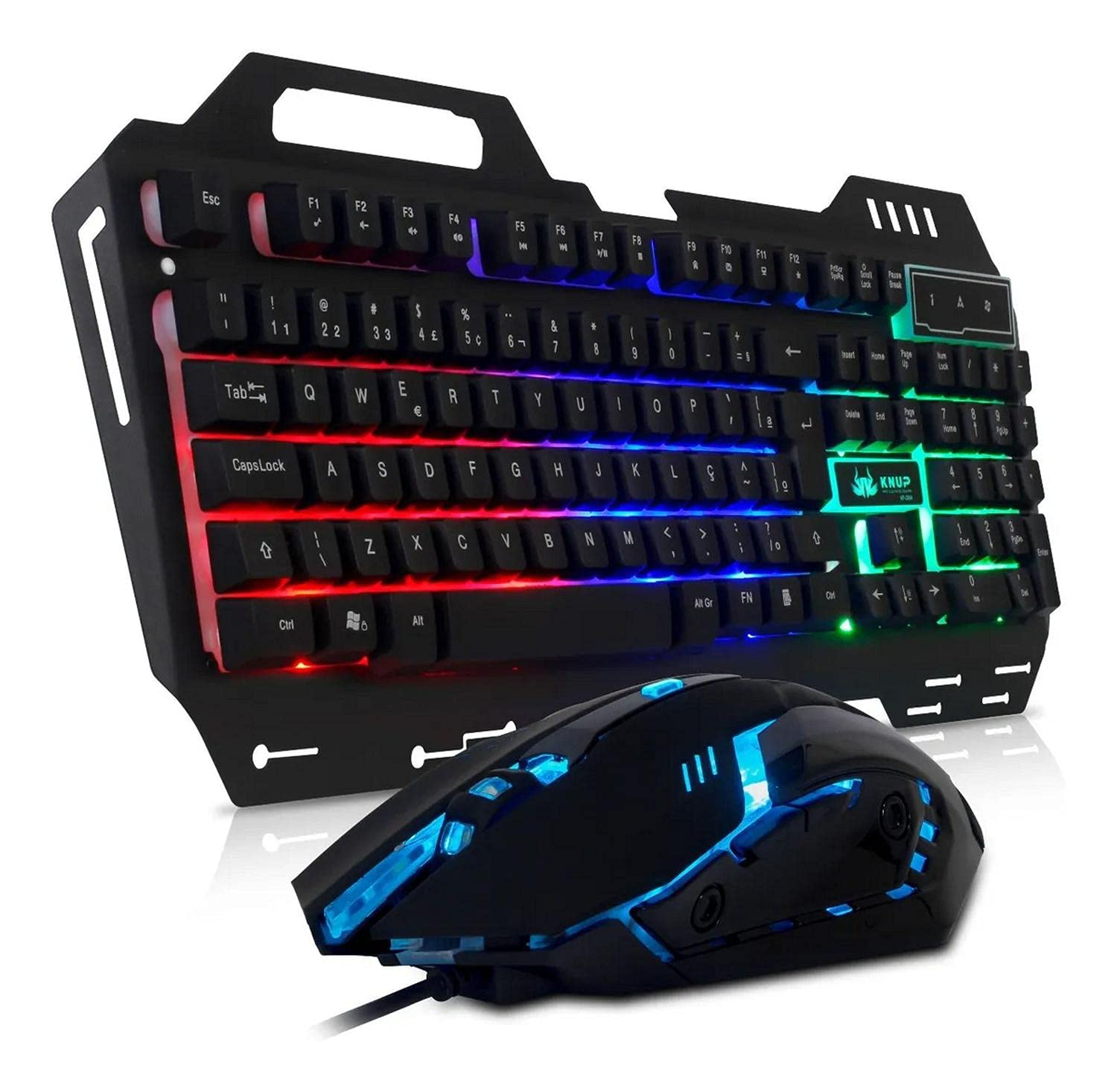
Image: The Knup KP-2054 Gaming Keyboard and Mouse Kit, showcasing the keyboard with RGB lighting, an ergonomic mouse, and a smartphone resting in the keyboard's integrated stand.
Setup Instructions
The Knup KP-2054 Gaming Kit is designed for plug-and-play functionality, requiring no additional drivers for basic operation.
- Connect the Keyboard: Locate an available USB port on your computer, game console (Playstation 4, Xbox One), or notebook. Insert the USB connector of the keyboard into the port.
- Connect the Mouse: Locate another available USB port on your device. Insert the USB connector of the mouse into the port.
- System Recognition: Your operating system (Windows 2000/XP/2003/Vista/7/8/10 or Linux) will automatically detect and install the necessary generic drivers. This process may take a few moments.
- Verify Functionality: Once installed, test the keyboard by typing and the mouse by moving the cursor and clicking buttons to ensure proper operation.

Image: A top-down view of the Knup KP-2054 gaming keyboard and mouse, highlighting the metal base, ABNT2 layout, and RGB lighting on both devices.
Operating Instructions
Keyboard Operation
- Standard Typing: Use the ABNT2 standard layout for typing. The keyboard includes the 'ç' key.
- Multimedia Keys: The keyboard features 12 multimedia keys. These keys typically require the Fn (Function) key to be pressed simultaneously with the corresponding F-keys (F1-F12) to activate their special functions (e.g., volume control, media playback).
- Chroma Lighting: The keyboard features Chroma lighting with 3 static colors. The lighting is automatically active upon connection. Specific controls for changing lighting modes or colors are not detailed in the product description, suggesting a fixed or automatic cycle.
Mouse Operation
- Basic Functions: The mouse has 6 buttons, including left-click, right-click, and a scroll wheel. The scroll wheel also functions as a clickable button for easy navigation.
- DPI Adjustment: The mouse features an adjustable optical sensor with DPI settings of 1200, 1600, and 2400. A dedicated DPI button (usually located near the scroll wheel) allows you to cycle through these sensitivity settings.
- LED Lighting: The mouse features 3 LED colors that cycle through up to 7 chroma-style colors. This lighting is automatic and enhances the aesthetic.
- Ergonomic Design: The ergonomic design is intended for comfortable use during extended gaming sessions.
Maintenance
Proper maintenance ensures the longevity and performance of your Knup KP-2054 kit.
- Cleaning:
- Disconnect both the keyboard and mouse from your computer before cleaning.
- Use a soft, slightly damp cloth to wipe down the surfaces of the keyboard and mouse.
- For dust and debris between keyboard keys, use compressed air.
- Avoid using harsh chemicals, abrasive cleaners, or excessive moisture, as these can damage the components.
- Storage: Store the kit in a dry, cool place away from direct sunlight and extreme temperatures.
- Cable Care: Avoid bending or twisting the USB cables excessively to prevent internal damage.
Troubleshooting
If you encounter issues with your Knup KP-2054 kit, try the following solutions:
- Device Not Responding:
- Ensure both the keyboard and mouse USB cables are securely plugged into the USB ports.
- Try plugging the devices into different USB ports on your computer.
- Restart your computer or game console.
- Test the devices on another computer to determine if the issue is with the kit or your system.
- Keyboard Keys Not Working:
- Check for any physical obstructions under the keys.
- Ensure the keyboard is clean and free of debris.
- Mouse Cursor Jumps or is Unresponsive:
- Clean the optical sensor on the bottom of the mouse with a soft, dry cloth.
- Ensure you are using the mouse on a suitable surface (e.g., a mouse pad, not a reflective or transparent surface).
- Adjust the DPI settings using the DPI button on the mouse.
- Lighting Issues:
- Ensure the devices are properly connected.
- The lighting is typically automatic; if it's not working, try reconnecting the device or restarting your system.
Specifications
| Feature | Detail |
|---|---|
| Brand | Knup |
| Model Number | KP-2054 |
| Color | Black |
| Connectivity | USB 2.0 (Plug & Play) |
| Compatible Devices | PC, Notebook, Playstation 4, Xbox One |
| Operating Systems | Windows (2000/XP/2003/Vista/7/8/10), Linux |
| Keyboard Specifications | |
| Type | Semi-Mechanical |
| Base Material | High-resistance metal |
| Layout | ABNT2 (Brazilian standard with 'ç' key) |
| Multimedia Keys | 12 (Fn function) |
| Lighting | Chroma with 3 static colors |
| Cable Length | Approx. 135 cm (PVC) |
| Dimensions (L x H x D) | 48 cm x 19 cm x 2.2 cm |
| Weight | Approx. 725 g |
| Mouse Specifications | |
| Design | Ergonomic |
| Buttons | 6 (including scroll wheel) |
| Sensor Type | Optical, adjustable |
| DPI Settings | 1200 / 1600 / 2400 |
| Lifespan | Up to 5 million clicks |
| Material | High-resistance ABS plastic |
| LED Lighting | 3 LED colors, cycles up to 7 chroma-style colors |
| Cable Length | 1.7 meters |
| Dimensions (H x L x D) | 13.1 cm x 7.1 cm x 4 cm |
| Weight | 138 g |
Warranty Information
The Knup KP-2054 Gaming Keyboard and Mouse Kit comes with a 3-month warranty provided by the manufacturer. This warranty covers manufacturing defects from the date of purchase. Please retain your proof of purchase for any warranty claims.
The warranty does not cover damage caused by misuse, accidents, unauthorized modifications, or normal wear and tear.
Support
For technical support, warranty claims, or further assistance with your Knup KP-2054 Gaming Kit, please contact your retailer or the manufacturer directly.
Please have your product model number (KP-2054) and proof of purchase ready when contacting support.