
ASUS RT-AX53U
ASUS RT-AX53U AX1800 Dual Band WiFi 6 Router User Manual
Model: RT-AX53U
1. Introduction
This manual provides detailed instructions for setting up, operating, and maintaining your ASUS RT-AX53U AX1800 Dual Band WiFi 6 Router. The RT-AX53U is designed to deliver high-speed, efficient, and secure wireless connectivity for your home or small office network.

Image: Front view of the ASUS RT-AX53U AX1800 Dual Band WiFi 6 Router with four external antennas.
2. What's in the Box
Verify that all items are present in your product package:
- ASUS RT-AX53U Router
- RJ45 Ethernet Cable (x1)
- Power Adapter (x1)
- Quick Start Guide (QSG) (x1)
- Warranty Card (x1)
3. Setup Guide
3.1. Physical Installation and Connections
Before powering on your router, ensure all necessary cables are connected securely. Refer to the diagram below for port identification.
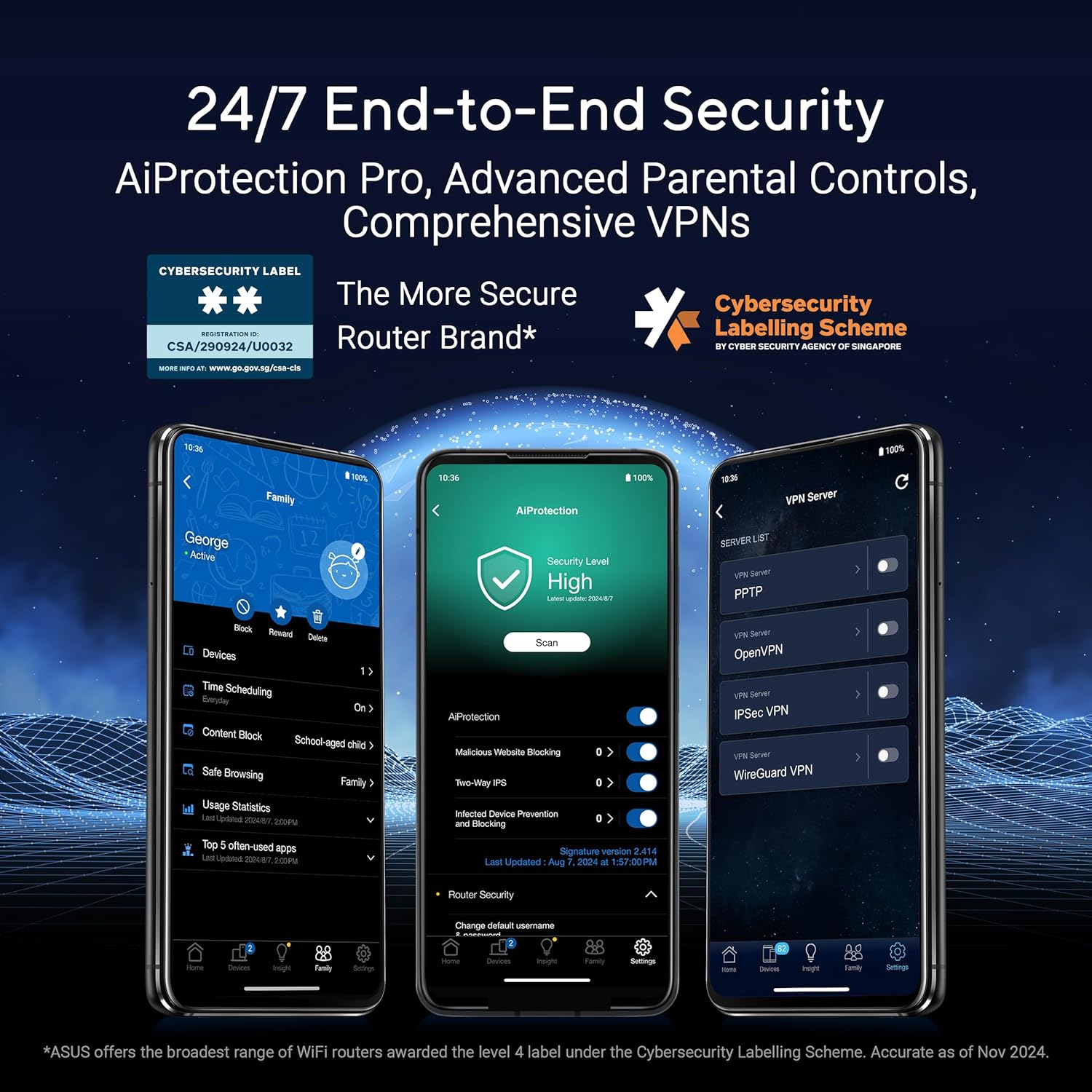
Image: Rear view of the ASUS RT-AX53U router showing the Power switch, DC socket, WPS button, USB 2.0 port, WAN port (blue), and three Gigabit LAN ports (yellow).
- Connect your modem's Ethernet cable to the blue WAN port on the RT-AX53U.
- Connect your computer or other wired devices to any of the yellow LAN ports using an RJ45 Ethernet cable.
- Plug the power adapter into the DC socket and then into a power outlet.
- Press the Power switch to turn on the router.
- Observe the LED indicators on the front panel to ensure proper operation. The Power, Wi-Fi, Internet, and LAN LEDs should be illuminated.
3.2. Initial Configuration (Web Interface or ASUS Router App)
You can configure your router using a web browser or the ASUS Router mobile application.
Using the Web Interface:
- Connect your computer to the router via an Ethernet cable or wirelessly using the default Wi-Fi network name (SSID) and password found on the router's label.
- Open a web browser and navigate to http://router.asus.com.
- Follow the on-screen instructions for the Quick Internet Setup (QIS) to configure your internet connection and Wi-Fi settings.
Using the ASUS Router App:
- Download the "ASUS Router" app from your device's app store (Google Play Store or Apple App Store).
- Connect your mobile device to the router's default Wi-Fi network.
- Open the ASUS Router app and follow the instructions to set up your router.
Video: This video demonstrates how to set up AiProtection on your ASUS router using both the web interface and the ASUS Router app, including how to test its functionality and configure email alerts.
4. Operating Your Router
4.1. WiFi 6 (802.11ax) Features
The RT-AX53U supports the latest WiFi 6 standard, offering enhanced performance and efficiency:
- MU-MIMO and OFDMA Technology: Allows the router to communicate with multiple devices simultaneously, improving network efficiency and reducing latency, especially in busy network environments.
- Ultra-fast WiFi Speed: Supports 1024-QAM for dramatically faster wireless connections, with a total networking speed of about 1800Mbps (574 Mbps on the 2.4GHz band and 1201 Mbps on the 5GHz band).
- Improved Battery Life: Target Wake Time (TWT) technology allows devices to negotiate when to send and receive data, reducing power consumption and extending battery life for mobile devices.
- Increased Capacity and Efficiency: Ideal for homes with multiple connected devices, ensuring smooth gaming, streaming, and smart home operations.

Image: Infographic highlighting the benefits of New-Gen WiFi 6 (802.11ax) including 4X capacity for multi-devices, 1.5X WiFi speed, 7X battery life, and 80% increased WiFi range.
4.2. USB Port Functionality
The router features a USB 2.0 port for versatile connectivity:
- 3G/4G Dongle Support: You can share internet from a 3G/4G dongle by plugging it into the USB port, providing a backup internet connection or primary access in areas without wired broadband.
- File Sharing: Connect a USB storage device to create a network-attached storage (NAS) for easy file sharing among devices on your network.
- Media Server: Stream media content from a connected USB drive to compatible devices.
4.3. AiMesh Compatibility
The RT-AX53U is AiMesh compatible, allowing you to create a seamless whole-home Wi-Fi system by adding other AiMesh-compatible ASUS routers. This eliminates Wi-Fi dead zones and provides consistent, strong Wi-Fi coverage throughout your property.

Image: Diagram illustrating an AiMesh network extending Wi-Fi coverage across multiple floors of a building using two ASUS routers.
4.4. AiProtection Classic Network Security
AiProtection Classic, powered by Trend Micro, provides commercial-grade security for your home network, offering subscription-free protection against online threats.
- Parental Control: Manage and schedule internet access for connected devices, filter content, and monitor usage.
- Internet Security: Blocks malicious websites, detects and blocks infected devices, and prevents intrusions.
- Instant Guard VPN: Provides a one-click secure VPN connection when you are away from home, protecting your data on public Wi-Fi networks.

Image: Visual representation of AiProtection Classic providing a protective shield around the router and connected devices, with icons for Parental Control and Internet Security.
Video: This video provides an overview of the ASUS RT-AX53U AX1800 Dual Band WiFi 6 Router, highlighting its features such as MU-MIMO, OFDMA, 4 Gigabit ports, USB port, and AiProtection Classic network security.
5. Maintenance
5.1. Firmware Updates
Regularly updating your router's firmware ensures optimal performance, security, and access to new features. You can check for and apply updates via the router's web interface (usually under "Administration" -> "Firmware Upgrade") or through the ASUS Router app.
Important: Always reset the router to factory default settings after a major firmware update to prevent potential configuration conflicts.
5.2. General Care
- Place the router in a central location, away from obstructions and sources of interference (e.g., microwave ovens, large metal objects).
- Ensure adequate ventilation around the router to prevent overheating.
- Keep the router clean and free from dust.
6. Troubleshooting
6.1. Improving Wi-Fi Signal
If you experience frequent Wi-Fi disconnections or weak signals, consider the following steps:
- Transmission Distance: Reduce the distance between your wireless devices and the router. Place the router in a central location to minimize signal travel distance and obstacles.
- Interference and Barriers: Avoid placing the router near objects that can interfere with wireless signals, such as thick walls, metal cabinets, microwave ovens, or refrigerators.
- Adjust Antenna Direction: For optimal signal strength, adjust the router's antennas. For many models, setting the outer antennas at a 45-degree angle and the middle antenna vertically (90 degrees) can improve coverage. Refer to your router's specific manual for recommended antenna positions.
- Change Wireless Control Channel: In the router's web interface (under Wireless settings), try changing the 2.4GHz and 5GHz control channels from "Auto" to a different, less congested channel. This can reduce interference from neighboring Wi-Fi networks.
- Update Device Drivers/Firmware: Ensure that the wireless device drivers (for laptops, smartphones, USB Wi-Fi adapters) are updated to their latest versions.
Video: This video provides troubleshooting steps to improve your Wi-Fi signal, including adjusting router placement, avoiding interference, configuring antenna direction, changing wireless channels, and updating device drivers.
6.2. Fixing Internet Connection Problems
If your devices cannot access the internet after connecting to the router, follow these steps:
- Check LED Indicators: Verify that the Power, Wi-Fi, Internet, and LAN LEDs on the router are working properly (usually solid or blinking, not off or red).
- Verify Cable Connections: Ensure that all RJ-45 cables connecting the modem, router, and devices are securely plugged in. Power cycle both your modem and router.
- Check Internet Setup Information: Access the router's web interface and navigate to the WAN settings page. Confirm that the WAN connection type (PPPoE, Static IP, Automatic IP) and related information are correctly configured according to your Internet Service Provider (ISP) details.
- Update Router Firmware: Ensure your router's firmware is up to date. Outdated firmware can cause connectivity issues. Remember to reset the router after a firmware update.
- Restore to Default Settings: As a last resort, you can restore the router to its factory default settings either through the web interface (under "Administration" -> "Restore/Save/Upload Setting") or by pressing the physical Reset button on the router's rear panel. Note that this will erase all your custom settings.
Video: This video guides you through troubleshooting common internet connection problems on your ASUS router, covering LED status checks, cable connections, WAN settings verification, firmware updates, and restoring default settings.
7. Specifications
| Feature | Detail |
|---|---|
| Brand | ASUS |
| Model | RT-AX53U |
| Wireless Standard | WiFi 6 (802.11ax) |
| Wireless Type | 802.11a, 802.11ac, 802.11ax, 802.11b, 802.11g |
| Frequency Band Class | Dual-Band (2.4GHz and 5GHz) |
| Total Networking Speed | Up to 1800Mbps (574 Mbps on 2.4GHz, 1201 Mbps on 5GHz) |
| Ethernet Ports | 1x Gigabit WAN, 3x Gigabit LAN |
| USB Ports | 1x USB 2.0 Port |
| Connectivity Type | 3G, 4G, Wi-Fi |
| Operating System | ASUSWRT |
| Special Features | AiProtection Classic, AiMesh Compatible, Parental Control, Instant Guard VPN |
| Product Dimensions | 19 x 12.3 x 4.8 cm |
| Item Weight | 346 g |
8. Warranty and Support
Your ASUS RT-AX53U router comes with a manufacturer's warranty. Please refer to the included Warranty Card for detailed terms and conditions, including warranty period and coverage.
For technical support, driver downloads, firmware updates, and further product information, please visit the official ASUS support website or contact ASUS customer service.
Related documentsRT-AX53U


Ask a question about this manual
Ask about setup, troubleshooting, compatibility, parts, safety, or missing instructions. Manuals+ will review the question and use this page’s manual context to help answer it.