
1. Introduction
The Potensic P5 GPS Drone is a high-performance quadcopter designed for both adults and beginners, offering advanced features for an enhanced flying experience. It is equipped with a 2.7K HD FPV camera, providing clear and stable video and picture quality. The drone supports 5GHz WiFi FPV transmission for smooth image transmission.
Key features include GPS-assisted flight modes such as Auto Return, Waypoints, Follow Me, and Point of Interest, allowing for creative and safe flight operations. With two intelligent flight batteries, the drone offers an extended flight time of up to 40 minutes, doubling your enjoyment.
2. What's in the Box
- Potensic P5 GPS Drone
- Remote Control
- 2 x Intelligent Flight Batteries
- USB Charging Cable
- User Manual (this document)
- Propeller Guards (set of 4)
- Spare Propellers (set of 4)
- Screwdriver
- Carrying Bag

Image: Contents of the Potensic P5 GPS Drone package, including the drone, remote control, two batteries, and a carrying bag.
3. Setup and Calibration
3.1. Drone and Remote Control Connection
Follow these steps to connect your drone and remote control:
- Insert the intelligent flight battery into the drone and press the power button to turn it on. The drone's footlights will begin flashing.
- Turn on the power of the remote control. The remote control will automatically connect to the drone, indicated by the remote control light remaining solid.
- The drone's blue footlights will flash alternately, indicating it is searching for GPS satellites.
3.2. App Connection and GPS Signal
To connect the drone to the PotensicFly App:
- Go to your smartphone's "Settings".
- Open the "Wi-Fi" option.
- Select the Wi-Fi network named "Potensic XXXX" to connect.
- Enter the PotensicFly App.
- The APP interface will show the real-time image from the drone, confirming a successful connection.
Important Note:
- The drone will automatically enter the GPS satellite search state.
- Only when the GPS signal is more than 8 satellites can the drone fly normally.
- Once GPS signal search is successful, two blue footlights of the drone will flash slowly together.
3.3. Horizontal Calibration
To perform horizontal calibration:
- Click the horizontal calibration button on the remote control.
- The drone will automatically calibrate horizontally, and its lights will flash rapidly.
- After calibration is complete, the flash of the blue footlights will slow down.
- The APP will indicate successful calibration.
3.4. Geomagnetic Calibration
To perform geomagnetic calibration:
- Long press the geomagnetic calibration button on the remote control for 3 seconds.
- The APP interface will prompt you to rotate the drone horizontally. The red and blue footlights on the left side will keep flashing.
- Rotate the drone horizontally according to the APP interface tips.
- Then the APP interface will prompt you to rotate the drone vertically. The red and blue footlights on the right side will keep flashing.
- Rotate the drone vertically according to the APP interface tips.
- The APP interface will display that the geomagnetic calibration is complete. At this time, the blue footlights of the drone will resume flashing together.
Video: Comprehensive tutorial covering drone and remote control connection, app setup, horizontal calibration, and geomagnetic calibration for the Potensic P5 GPS Drone.
4. Operating the Drone
4.1. Takeoff Modes
The Potensic P5 offers two takeoff methods:
4.1.1. Takeoff Mode 1 (Manual)
- Unlock the motor by pushing both the left and right joysticks inward at the same time.
- Push up the throttle rocker to take off.
4.1.2. Takeoff Mode 2 (One-Key Takeoff)
- Long press the "one key takeoff" button on the remote control.
- The drone will take off automatically and hover at a safe altitude.
Video: Demonstration of both manual and one-key automatic takeoff procedures for the Potensic P5 GPS Drone.
4.2. Intelligent Flight Functions
The Potensic P5 GPS drone offers several intelligent flight functions for enhanced control and creative possibilities:
- Waypoint Flight: Plan your flight path by setting multiple waypoints on the map within the PotensicFly App. The drone will automatically follow the designated route.
- Follow Me: The drone will automatically follow the remote controller (and thus the user's smartphone) as it moves, capturing dynamic footage.
- Point of Interest: Select a point on the map, and the drone will circle around it at a specified radius and altitude, providing a cinematic view.
- Altitude Hold: The drone maintains a stable altitude, making it easier to control and capture steady photos or videos.
- GPS Auto Return: The drone automatically returns to its takeoff point under three circumstances: low battery, loss of signal, or when the Return-to-Home (RTH) button is pressed.

Image: Visual representation of the drone's GPS-assisted flight functions, including Follow Me, Circle Fly, and Altitude Hold.

Image: The drone executing GPS customized flight paths, demonstrating the TapFly feature for setting a track.
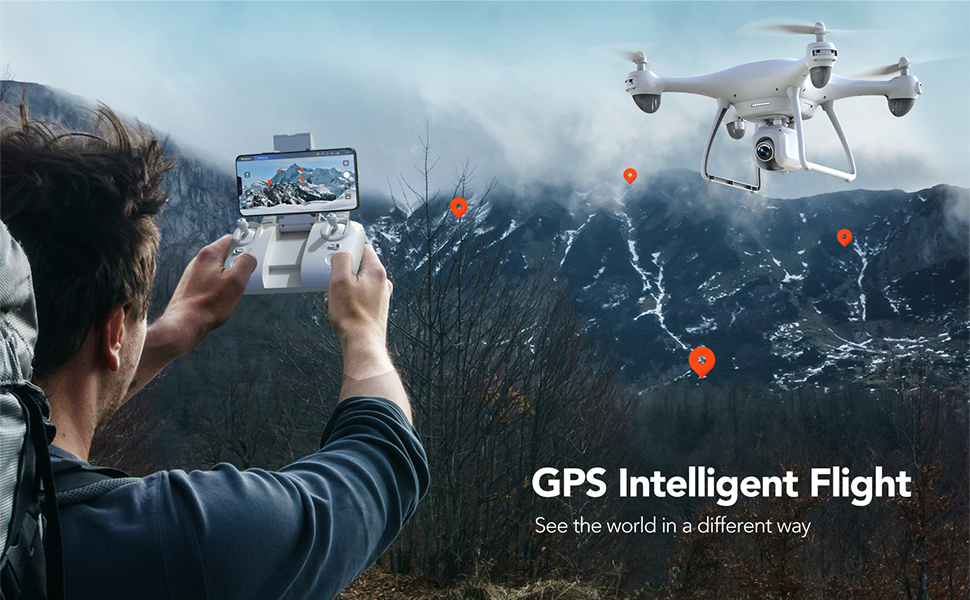
Image: The Potensic P5 drone in flight, showcasing its GPS Intelligent Flight capabilities over a scenic mountain landscape.
5. Maintenance
Proper maintenance ensures the longevity and optimal performance of your Potensic P5 GPS Drone:
- Cleanliness: Regularly clean the drone's body, propellers, and camera lens with a soft, dry cloth. Avoid using harsh chemicals.
- Propeller Inspection: Check propellers for any cracks, bends, or damage before each flight. Replace damaged propellers immediately using the provided spare parts.
- Battery Care: Store batteries in a cool, dry place. Do not overcharge or over-discharge. If storing for extended periods, charge them to about 50-60% capacity.
- Motor Inspection: Ensure motors are free from debris and can spin freely.
- Storage: When not in use, store the drone and its components in the provided carrying bag to protect them from dust and physical damage.
6. Troubleshooting
This section addresses common issues you might encounter with your Potensic P5 GPS Drone:
6.1. Aircraft Drifting
If you notice the aircraft is unstable or drifting during flight (e.g., drifting to the right), you can use the fine-tuning button on the remote control to correct it.
- Solution: Long press the return button on the remote control.
- Pull the steering lever in the opposite direction from which the aircraft is deviating. For example, if the aircraft is drifting to the right, pull the lever to the left until the fuselage is stable.
Video: Guide on fine-tuning the drone to correct drifting during flight, demonstrating how to use the remote control's steering lever.
6.2. Connection Issues
If the drone or remote control fails to connect, or the app does not display the real-time image:
- Ensure both the drone and remote control are fully charged.
- Verify that the drone's Wi-Fi network is selected in your smartphone's Wi-Fi settings.
- Perform the horizontal and geomagnetic calibrations as described in Section 3.3 and 3.4.
- Ensure you are in an open outdoor area with a strong GPS signal (more than 8 satellites).
- Restart both the drone, remote control, and the PotensicFly App.
7. Specifications
| Feature | Detail |
|---|---|
| Brand | Potensic |
| Model Name | P5 |
| Video Capture Resolution | 2.7K (2704x1520) |
| Connectivity Technology | Wi-Fi (5GHz FPV transmission) |
| Special Features | GPS Assisted Flight, Auto Return, Advanced Camera, Intelligent Flight Modes |
| Flight Time | Up to 20 minutes per battery (40 minutes with 2 batteries) |
| Battery Type | Lithium Polymer |
| Skill Level | Beginner |
| Material | Plastic |
| Item Weight | 3.12 pounds |
| Recommended Age | 14 years and up |
8. Warranty and Support
For detailed warranty information and customer support, please refer to the official Potensic website or contact their customer service directly. You can also find additional resources and FAQs on the Potensic Brand Store on Amazon.
A comprehensive User Manual in PDF format is also available for download: Download User Manual (PDF).