
1. Introduction
The WEWATCH V50 is a Native 1080P portable projector designed for home theater and outdoor movie experiences. It features 230 ANSI lumens brightness, a high contrast ratio, and supports a large projection size up to 200 inches. The projector offers versatile connectivity options including 2.4G/5G dual-band WiFi and Bluetooth, along with multiple wired interfaces. Its diffuse reflection technology aims to provide a soft and uniform light, reducing eye fatigue during extended viewing.

Image: The WEWATCH V50 Portable Projector in a home setting, projecting a vibrant movie scene onto a large screen.
Key Features:
- Native 1080P Resolution: Delivers sharp and detailed images (1920x1080).
- High Brightness & Contrast: 230 ANSI lumens (over 15000 LED Lux) and a 15000:1 dynamic contrast ratio for clear visuals.
- Large Screen Projection: Adjustable screen size from 36" to 200" with a projection distance of 3.8 ft to 19 ft.
- Dual-band WiFi (2.4G+5G): Supports wireless screen mirroring from iOS/Android devices.
- Bluetooth 5.0: For connecting external audio devices.
- Flexible Installation: Supports front, rear, and ceiling projection.
- Eye-Friendly Technology: Diffuse reflection for reduced eye strain.
2. Setup
2.1 Unpacking and Initial Placement
Carefully remove the projector and all accessories from the packaging. Place the projector on a stable, flat surface or mount it according to your preferred projection method (table, tripod, or ceiling). Ensure adequate ventilation around the device.

Image: The WEWATCH V50 projector, remote control, and a smartphone, illustrating the product's components.
2.2 Power Connection
Connect the power adapter to the projector's DC input port and then plug it into a power outlet.
2.3 Connecting External Devices
The WEWATCH V50 projector offers multiple input interfaces for various devices:
- HDMI: Connect TV sticks (e.g., Amazon Fire Stick), laptops, gaming consoles (PS5), or other HDMI-enabled devices.
- VGA: Connect older computers or laptops.
- USB: For media playback from USB drives.
- AV: For connecting older video sources.
- 3.5mm Audio: For connecting external speakers or headphones.
- SD Card: For media playback from SD cards.

Image: Close-up of the WEWATCH V50 projector's side panel, highlighting the DC, AUX, SD, HDMI, and USB input ports.
Connecting a Fire TV Stick:
Connect your Fire TV stick using an HDMI extender cable (if needed) and plug it into one of the projector's HDMI ports. Select the corresponding HDMI input source using the remote control.
Video: Demonstrates how to connect a Fire TV Stick to the WEWATCH V50 projector and navigate the input source menu.
3. Operating Instructions
3.1 Power On/Off
Press the power button on the projector or the remote control to turn the device on or off.
3.2 Focus and Keystone Correction
Adjust the focus ring on the projector lens until the image is clear. Use the ±15° keystone correction feature to correct distorted images if the projector is not perfectly perpendicular to the screen.

Image: Visual guide for adjusting manual focus and ±15° keystone correction on the projector.
3.3 Screen Mirroring (Wireless Projection)
The V50 supports wireless screen mirroring from both Android and iOS devices using its 2.4G/5G dual-band WiFi.
For Android Devices:
- Press the source button on the projector or remote and select "Screen Mirroring".
- Turn on the WiFi switch on your Android phone.
- Open the wireless display function on your phone (e.g., "Smart View", "Screen Cast", "Wireless Display").
- Find the device named "WEWATCH V50xxxx" and connect to it.
Video: Step-by-step guide on how to wirelessly mirror an Android phone screen to the WEWATCH V50 projector.
For iOS Devices (iPhone/iPad):
- Press the source button on the projector or remote and select "Screen Mirroring".
- Open the WiFi setting on your iPhone or iPad and connect to the same WiFi network as the projector.
- Open the "Screen Mirroring" setting on your iPhone or iPad and search for the projector's device name ("WEWATCH V50xxxx"). Connect to it.
Video: Instructions for wirelessly mirroring an iOS device (iPhone/iPad) screen to the WEWATCH V50 projector.
Note: Due to HDCP copyright, screen mirroring from smartphones does not support protected apps like Netflix, Amazon Prime Video, Hulu, etc. To play copyrighted videos, connect an Amazon Fire Stick, Roku, PC, or laptop via HDMI.
3.4 Bluetooth Audio Connection
The V50 has built-in Bluetooth 5.0 for connecting external Bluetooth speakers or headphones for enhanced audio experience.
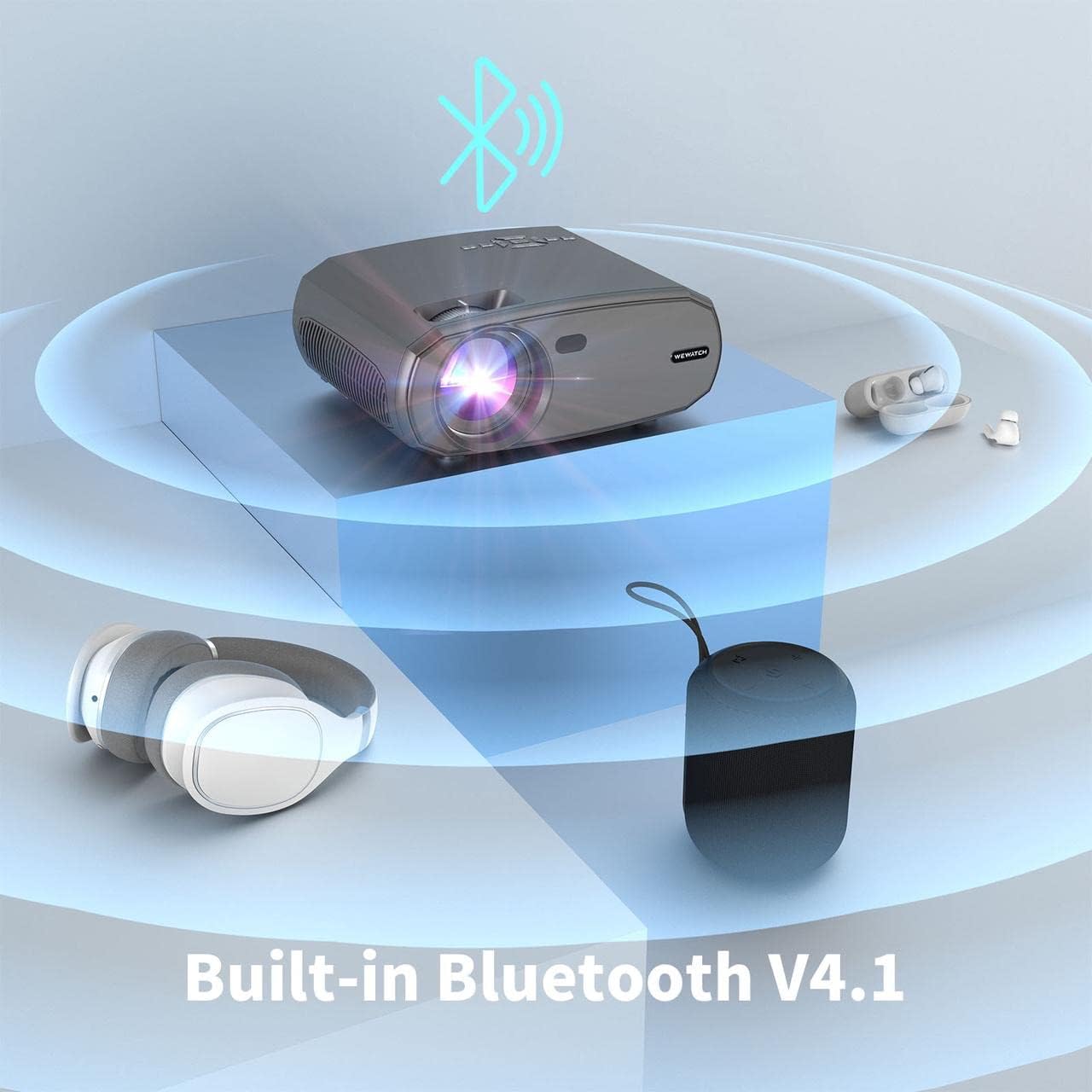
Image: The WEWATCH V50 projector wirelessly connected to Bluetooth headphones and a portable speaker.
3.5 Projection Modes and Screen Size
The projector supports front, rear, and ceiling projection. The screen size can be adjusted from 36 inches to a maximum of 200 inches, with a zoom function from 75% to 100%.

Image: Illustrations of the WEWATCH V50 projector's screen size capabilities (36"-200") and supported projection types (Front/Rear/Ceiling).
4. Maintenance
4.1 Cleaning the Lens
If you notice black spots on the screen, it may be due to dust on the lens. Open the cover at the bottom of the projector and clean the lens gently with a cotton swab. Avoid using abrasive materials or harsh chemicals.
4.2 General Care
- Keep the projector in a clean, dust-free environment.
- Avoid exposing the projector to extreme temperatures or humidity.
- Ensure proper ventilation to prevent overheating.
- When not in use, cover the lens to protect it from dust and scratches.
5. Troubleshooting
Common Issues and Solutions:
- No Sound when using Fire TV Stick: Some movies may default to Dolby sound. The V50 projector does not support Dolby sound due to copyright reasons. Change the sound setting to PCM. Steps: Menu > Setting > Display & Sounds > Audio > Surround Sound > PCM.
- Sound Delay: If experiencing sound delay, open the Bluetooth connection in the projector settings and disconnect any active connections. Then, insert the TV stick and use its Bluetooth settings to connect to your Bluetooth speaker.
- Cannot Connect to WiFi / Phone: Refer to the detailed connection steps in the manual or contact WEWATCH after-sales support for assistance.
- Black Spots on Screen: This is typically caused by dust on the lens. Open the cover at the bottom of the projector and clean it with a cotton swab.
6. Specifications
| Feature | Specification |
|---|---|
| Brand | WEWATCH |
| Model Name | V50 |
| Native Resolution | 1920 x 1080 (Full HD) |
| Brightness | 230 ANSI Lumens (Over 15000 LED Lux) |
| Contrast Ratio | 15000:1 (Dynamic) |
| Connectivity Technology | Wireless (2.4G/5G WiFi, Bluetooth 5.0), HDMI, VGA, USB, AV |
| Projection Size | 36" - 200" |
| Throw Distance | 3.8 ft - 19 ft |
| Light Source Operating Life | Up to 40,000 hours |
| Keystone Correction | ±15° |
| Zoom Function | 75% - 100% |
| Built-in Speakers | Yes |
| Item Weight | 2 Kilograms |
7. Warranty and Support
7.1 Warranty Information
Please refer to the product packaging or the official WEWATCH website for specific warranty details and registration procedures. Keep your purchase receipt as proof of purchase.
7.2 Customer Support
For any technical assistance, troubleshooting, or product-related inquiries, please contact the WEWATCH after-sales team. They can provide detailed operation steps and support for any issues you may encounter.
Contact information can typically be found on the WEWATCH official website or through your purchase platform.


