
XFX RX-66XL8LFDQ
XFX Speedster SWFT 210 Radeon RX 6600 CORE Gaming Graphics Card User Manual
Model: RX-66XL8LFDQ | Brand: XFX
Introduction
This manual provides comprehensive instructions for the installation, operation, maintenance, and troubleshooting of your XFX Speedster SWFT 210 Radeon RX 6600 CORE Gaming Graphics Card. Please read this manual carefully before proceeding with installation to ensure proper functionality and to prevent damage to your system components.
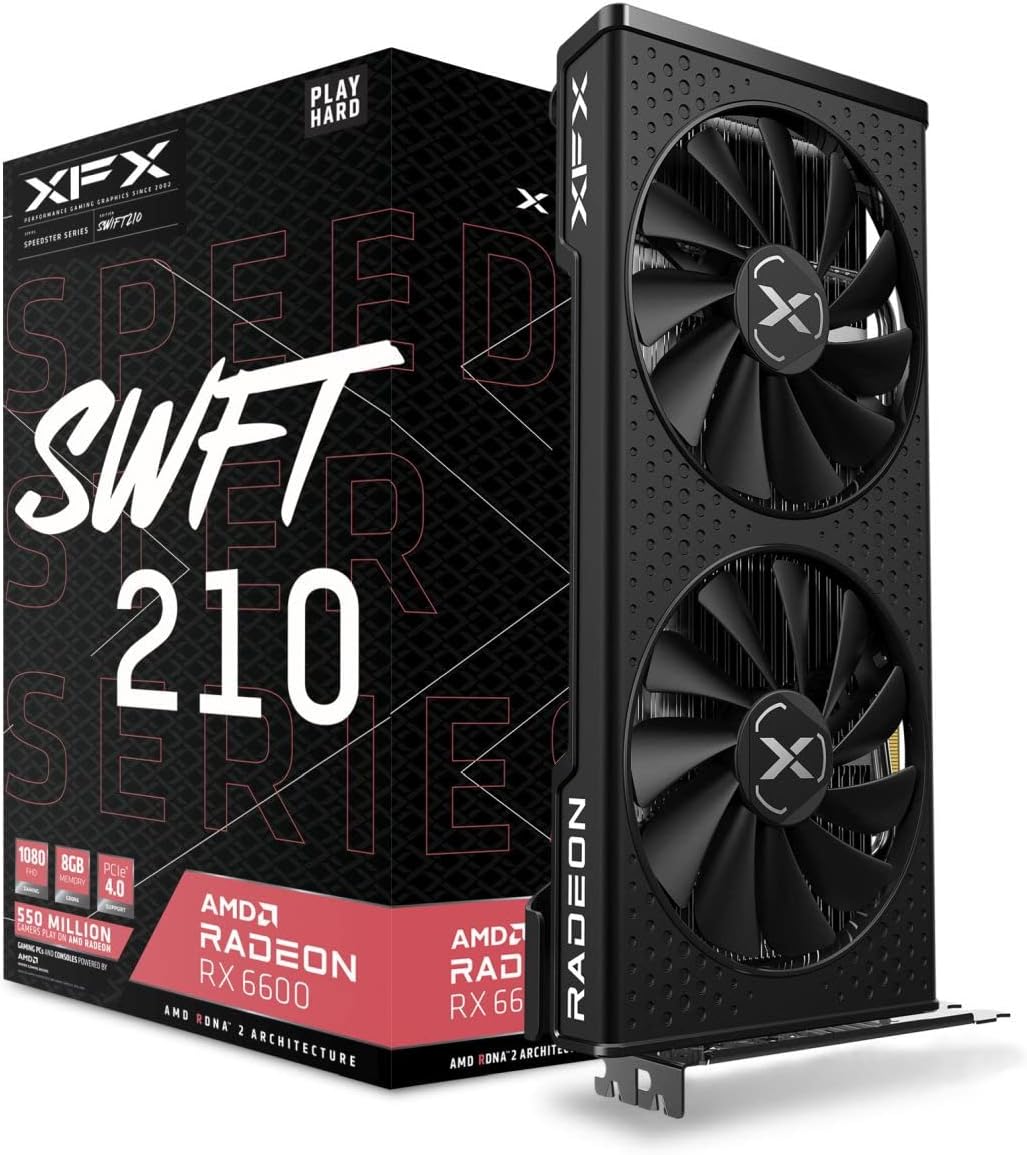
Figure 1: XFX Speedster SWFT 210 Radeon RX 6600 CORE Gaming Graphics Card and Retail Packaging.
Package Contents
Verify that all items listed below are present in your product packaging:
- XFX Speedster SWFT 210 Radeon RX 6600 CORE Gaming Graphics Card
- Driver CD (Note: Latest drivers are recommended to be downloaded from the official AMD website.)
Setup
System Requirements
Before installing your new graphics card, ensure your system meets the following minimum specifications:
- Minimum Power Supply: 550 Watts
- Memory Speed: 14 GBPS (Graphics Card Memory)
- Graphics Card RAM Size: 8 GB GDDR6
- Chipset: AMD RX 6600
- Operating System: Compatible with Windows 10/11 (64-bit recommended)
- PCI Express Slot: One PCI Express x16 slot available on the motherboard
Physical Installation
Follow these steps to physically install the graphics card into your computer system:
- Prepare Your System:
- Power off your computer and unplug all cables from the power outlet.
- Open your computer case.
- Ground yourself by touching a metal part of the case to discharge any static electricity.
- Locate PCIe Slot:
- Identify an available PCI Express x16 slot on your motherboard. This is typically the longest slot.
- Remove any expansion slot covers from the back of your computer case that correspond to the slot you will use.
- Install the Graphics Card:
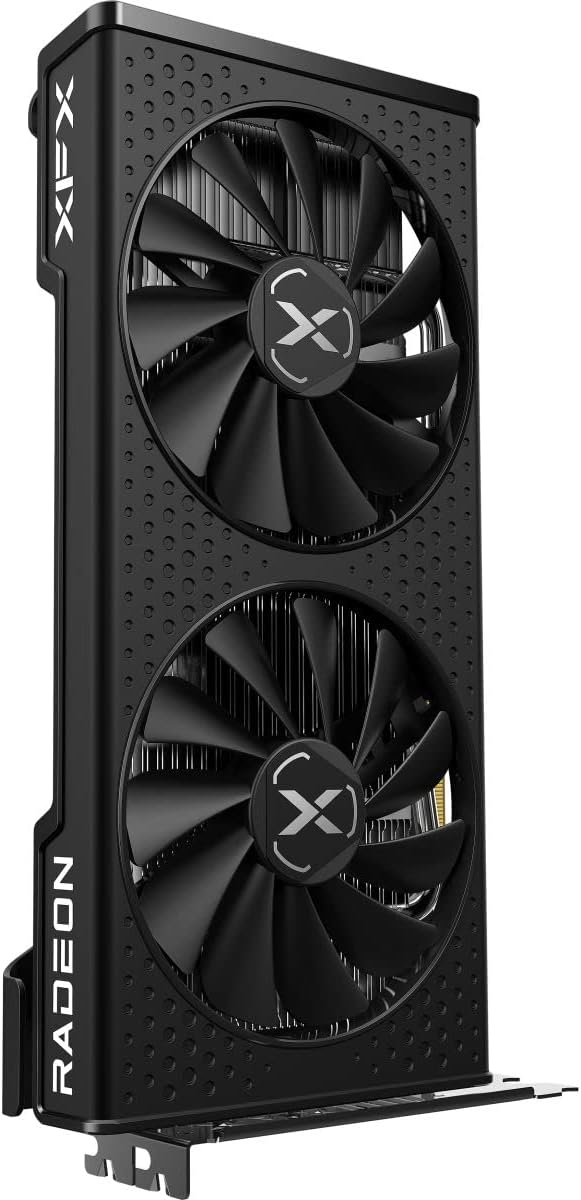
Figure 2: Angled view of the graphics card, showing its dual fans and sleek design.

Figure 3: Side view of the graphics card, highlighting the power connector and PCIe interface.
- Carefully align the graphics card with the PCI Express x16 slot.
- Press down firmly and evenly on both ends of the card until it is securely seated in the slot. You should hear a click as the retention clip engages.
- Secure the card to the case with the screws removed earlier.
- Connect Power:
- Connect the appropriate PCIe power connector(s) from your power supply to the graphics card. The XFX Speedster SWFT 210 Radeon RX 6600 CORE typically requires one 8-pin PCIe power connector. Ensure the connection is firm.
- Close Case and Reconnect:
- Close your computer case.
- Reconnect all cables (monitor, keyboard, mouse, power) to your computer.
Driver Installation
After physical installation, you must install the necessary drivers for your graphics card to function correctly.
- Power On: Turn on your computer. It may boot into a basic display mode.
- Download Drivers: Navigate to the official AMD website (www.amd.com/en/support) and download the latest Radeon Software Adrenalin Edition drivers for the RX 6600 series. While a driver CD may be included, it is highly recommended to use the most current drivers available online for optimal performance and stability.
- Install Drivers: Run the downloaded driver installer and follow the on-screen prompts. It is often recommended to perform a clean installation to avoid conflicts with previous drivers.
- Restart: Restart your computer after the driver installation is complete.
Operating
Connecting Displays
The XFX Speedster SWFT 210 Radeon RX 6600 CORE Gaming Graphics Card features multiple display outputs:
- 1 x HDMI Port
- 3 x DisplayPort (DP)
Connect your monitor(s) to the appropriate ports on the graphics card. Ensure your display cables are securely connected.
Software Configuration (AMD Radeon Software)
AMD Radeon Software provides a comprehensive interface for managing your graphics card settings, including:
- Gaming: Optimize game settings, create custom profiles, and monitor performance.
- Display: Configure resolution, refresh rate, FreeSync, and color settings.
- Performance: Monitor GPU usage, temperature, and fan speeds. Advanced users can adjust clock speeds and voltage (overclocking) with caution.
- Streaming & Recording: Utilize built-in tools for capturing gameplay and streaming.
Access AMD Radeon Software from your desktop by right-clicking and selecting "AMD Radeon Software" or by searching for it in the Windows Start Menu.
Maintenance
Cleaning
Regular cleaning helps maintain optimal performance and extends the lifespan of your graphics card:
- Frequency: Clean your graphics card every 3-6 months, or more frequently if your environment is dusty.
- Procedure:
- Power off your computer and unplug it from the wall.
- Carefully remove the graphics card from its PCIe slot.
- Use compressed air to blow dust out of the heatsink fins and fan blades. Hold the fan blades gently to prevent them from spinning rapidly during cleaning, which can damage the bearings.
- Wipe the exterior of the card with a soft, lint-free cloth.
Firmware Updates
Occasionally, XFX or AMD may release firmware (BIOS) updates for the graphics card. These updates can improve performance, stability, or add new features. Check the official XFX or AMD support websites periodically for any available firmware updates and follow their instructions carefully.
Troubleshooting
This section addresses common issues you might encounter:
| Problem | Possible Cause | Solution |
|---|---|---|
| No display on monitor | Graphics card not seated correctly, power cables not connected, monitor cable loose, incorrect input selected on monitor. | Ensure card is fully seated in PCIe slot. Verify all power cables are connected to the card and PSU. Check monitor cable connections and ensure correct input source is selected on the monitor. |
| Driver installation failure or errors | Corrupted download, conflicting old drivers, incompatible OS version. | Download drivers again from official AMD website. Use a driver uninstaller utility (e.g., DDU) to remove old drivers before installing new ones. Ensure your OS is up-to-date and compatible. |
| System crashes or freezes during gaming/heavy load | Insufficient power supply, overheating, unstable overclock, driver issues. | Verify PSU meets minimum requirements. Monitor GPU temperatures using AMD Radeon Software. Ensure proper case airflow. Reinstall drivers. If overclocked, revert to default settings. |
| Fans are loud or not spinning | Dust buildup, fan curve settings, fan failure. | Clean fans and heatsink. Check fan settings in AMD Radeon Software. If fans are not spinning at all under load, contact support. Note: Fans may not spin at low temperatures (0 RPM mode). |
Specifications
Detailed technical specifications for the XFX Speedster SWFT 210 Radeon RX 6600 CORE Gaming Graphics Card:
| Feature | Detail |
|---|---|
| Brand | XFX |
| Series | RX 6600 CORE Gaming Graphics Card |
| Model Number | RX-66XL8LFDQ |
| Graphics Coprocessor | AMD Radeon RX 6600 |
| Chipset Brand | AMD |
| Graphics Card Ram Size | 8 GB GDDR6 |
| Memory Speed | 1626 MHz (Base), 14 GBPS (Effective) |
| Video Output Interface | 1 x HDMI, 3 x DisplayPort |
| Card Description | Dedicated |
| Item Weight | 2.2 pounds |
| Product Dimensions (LxWxH) | 9.49 x 5.16 x 1.61 inches |
| Minimum Power Supply Requirement | 550 watt |
| Cooling | XFX Speedster SWFT210 Dual Fan Cooling |
Warranty and Support
Warranty Information
Your XFX Speedster SWFT 210 Radeon RX 6600 CORE Gaming Graphics Card is covered by a manufacturer's warranty. Please refer to the warranty card included with your product or visit the official XFX website for detailed warranty terms and conditions, including duration and coverage.
Technical Support
For technical assistance, driver updates, or further information, please visit the official XFX support website or the AMD support website:
When contacting support, please have your product model number (RX-66XL8LFDQ) and serial number ready.
Related documentsRX-66XL8LFDQ


Ask a question about this manual
Ask about setup, troubleshooting, compatibility, parts, safety, or missing instructions. Manuals+ will review the question and use this page’s manual context to help answer it.