1. Introduction
Thank you for choosing the Srihome SH052 5MP 4K UHD WiFi IP Camera. This manual provides detailed instructions to help you set up, operate, and maintain your security camera effectively. Please read this manual thoroughly before use and retain it for future reference.

Image: The Srihome SH052 camera, a white PTZ unit with two antennas, shown alongside a smartphone displaying a live feed of a house, illustrating remote monitoring capabilities.
2. Product Overview
2.1 Key Features
- High Resolution: 5 Megapixel (5MP) sensor, providing 4K UHD (3840 x 2160p) video quality.
- Pan & Tilt Functionality: Offers a 355° horizontal pan and 70° vertical tilt for comprehensive area coverage.
- Wireless Connectivity: Supports 2.4G Wi-Fi for flexible placement and connection.
- AP Hotspot Mode: Allows direct connection to a smartphone without a router for initial setup or local access.
- Local Storage: Supports MicroSD cards up to 128GB for video recording.
- Two-Way Audio: Built-in microphone and speaker enable real-time communication.
- Advanced Detection: Features Motion Tracking, Motion Detection Alerts, and Human Detection to minimize false alarms.
- Versatile Night Vision: Includes Day Vision, Infrared Night Vision, and Color Night Vision with a starlight lens and warm light.
- Weatherproof Design: IP65 rated for outdoor use, resistant to dust and water.

Image: An infographic showcasing the Srihome SH052 camera's main features, including 5MP resolution, Wi-Fi connectivity, IP65 waterproof rating, two-way audio, motion detection, and MicroSD card support.
2.2 Package Contents
Verify that all items are present in the package:
- Srihome SH052 IP Camera
- User Manual
- Mounting Screws
- Power Adapter

Image: A visual representation of the Srihome SH052 camera's packing list, including the camera, user manual, mounting screws, and power adapter.
3. Setup Instructions
3.1 Powering On the Camera
- Connect the provided power adapter to the camera's power input port.
- Plug the power adapter into a standard electrical outlet.
- The camera will power on and initiate its self-test sequence. Wait for the indicator light to show a stable status, typically a flashing blue or green light, indicating it's ready for connection.
3.2 Installing the Srihome App
- Download the "Srihome" app from your smartphone's app store (Google Play Store for Android or Apple App Store for iOS).
- Install the app and create a new user account if you don't already have one.
3.3 Connecting the Camera to Wi-Fi
Ensure your smartphone is connected to a 2.4GHz Wi-Fi network. The Srihome SH052 camera supports 2.4GHz Wi-Fi only.
- Open the Srihome app and tap the "+" icon to add a new device.
- Follow the on-screen instructions to select your camera model and connection method (e.g., Wi-Fi configuration, QR code scan).
- Enter your 2.4GHz Wi-Fi network name (SSID) and password when prompted.
- Position your phone near the camera during the pairing process. The camera will confirm successful connection verbally.
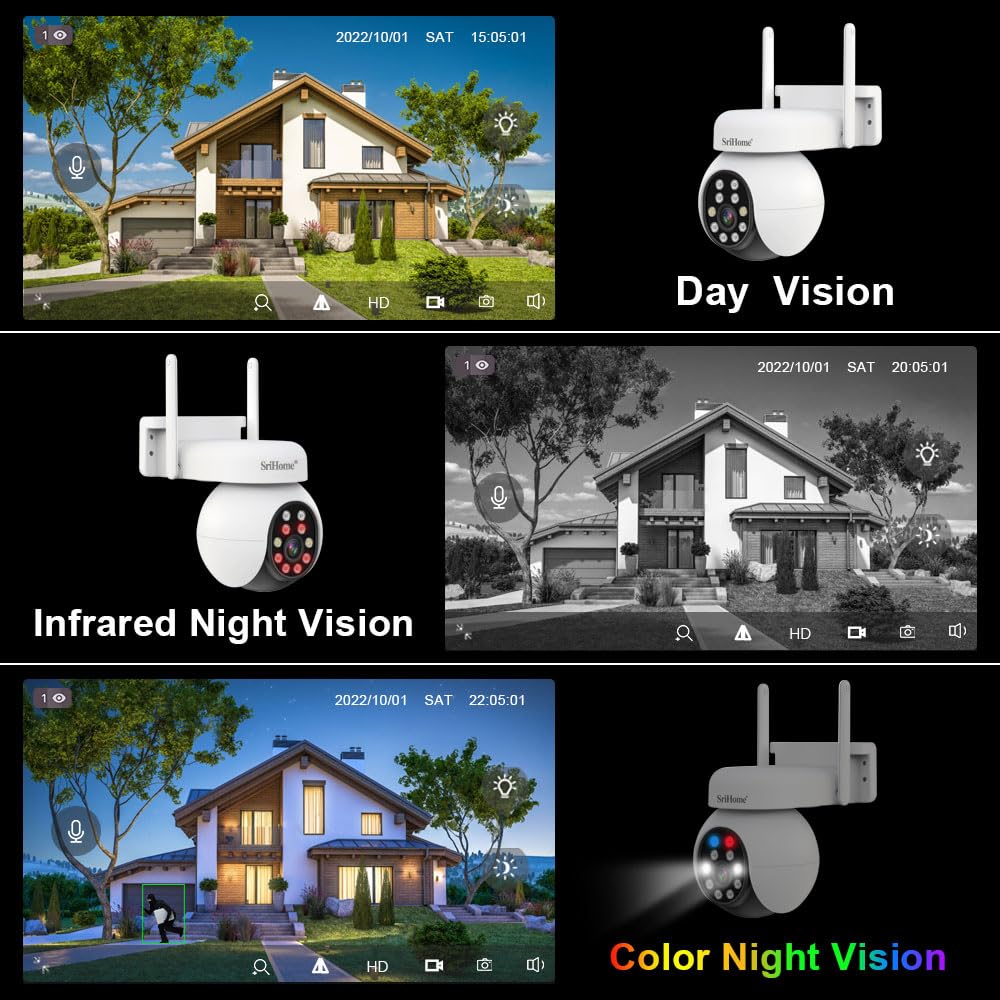
Image: The Srihome SH052 camera with visual indicators of 2.4GHz Wi-Fi signal strength, demonstrating its wireless connectivity feature.
3.4 MicroSD Card Installation (Optional)
To enable local video recording, install a MicroSD card (up to 128GB, Class 10 or higher recommended).
- Locate the MicroSD card slot on the camera (refer to the camera's physical diagram if available).
- Gently insert the MicroSD card into the slot until it clicks into place.
- In the Srihome app, navigate to the camera settings and format the MicroSD card for optimal performance.
4. Operating Instructions
4.1 Live View and Pan & Tilt Control
Access the live video feed through the Srihome app. Use the on-screen controls to adjust the camera's viewing angle.
- Pan: Swipe horizontally on the live view screen or use the directional controls to rotate the camera 355°.
- Tilt: Swipe vertically on the live view screen or use the directional controls to tilt the camera 70°.

Image: A smartphone screen displaying the live view from the Srihome SH052 camera, with overlayed arrows indicating the pan (300°) and tilt (90°) rotation capabilities controlled by touch gestures.
4.2 Two-Way Audio Communication
The camera's built-in microphone and speaker allow for two-way communication.
- In the live view interface, tap the microphone icon to speak through the camera.
- Tap the speaker icon to listen to audio from the camera's location.

Image: A depiction of the two-way audio function, showing a user speaking to a courier at their door and a family interacting through the camera's app interface.
4.3 Night Vision Modes
The Srihome SH052 offers multiple night vision options:
- Day Vision: Standard color video during daylight hours.
- Infrared Night Vision: Automatically switches to black and white video in low light using infrared LEDs.
- Color Night Vision: Utilizes a starlight lens and warm light LEDs to provide full-color video even in very low light conditions. This mode can be activated manually or set to 'Smart Mode' to turn on automatically upon motion detection.

Image: A visual comparison demonstrating the camera's Day Vision (full color), Infrared Night Vision (black and white), and Color Night Vision (full color in low light) capabilities.
4.4 Motion Detection and Human Detection
Configure motion detection settings in the app to receive alerts for activity.
- Motion Detection: The camera detects movement within its field of view and sends real-time alerts to your smartphone.
- Human Detection: An advanced feature that distinguishes human shapes from other moving objects (like pets or swaying branches) to reduce false alarms.

Image: An illustration of the Human Detection feature, showing the camera successfully identifying a human figure (triggering an alarm) while ignoring a cat (no alarm).

Image: A smartphone displaying a real-time alarm notification from the Srihome SH052 camera, indicating motion detection.
5. Maintenance
5.1 Cleaning the Camera
Regularly clean the camera lens and housing to ensure clear image quality and proper operation.
- Use a soft, dry cloth to wipe the camera body.
- For the lens, use a lens cleaning cloth and specialized lens cleaning solution to avoid scratches.
- Do not use harsh chemicals or abrasive cleaners.
5.2 Firmware Updates
Periodically check the Srihome app for available firmware updates. Keeping your camera's firmware updated ensures optimal performance, security, and access to new features.
- Navigate to the camera settings within the Srihome app.
- Look for a "Firmware Update" or "Device Upgrade" option.
- Follow the on-screen instructions to download and install any available updates. Ensure the camera remains powered on during the update process.
5.3 Environmental Considerations
The Srihome SH052 camera is IP65 waterproof and dustproof, making it suitable for outdoor use. However, extreme weather conditions can still impact performance.
- Ensure the camera is securely mounted to prevent damage from strong winds.
- While waterproof, avoid submerging the camera in water.
- Operating temperature range is typically -10°C to 50°C (13°F to 122°F).

Image: An illustration emphasizing the camera's IP65 waterproof and dustproof design, showing its resilience in sunny, thundery, and snowy weather conditions.
6. Troubleshooting
If you encounter issues with your Srihome SH052 camera, refer to the following common problems and solutions:
- Camera Not Connecting to Wi-Fi:
- Ensure your Wi-Fi network is 2.4GHz. The camera does not support 5GHz networks.
- Verify the Wi-Fi password is entered correctly in the app.
- Move the camera closer to the Wi-Fi router to improve signal strength.
- Restart both the camera and your router.
- Poor Image Quality:
- Clean the camera lens with a soft cloth.
- Ensure sufficient lighting for optimal day vision.
- Check your internet connection speed; a slow connection can affect streaming quality.
- In the app, ensure the video quality setting is set to HD or 4K if available.
- MicroSD Card Not Recording or Recognized:
- Ensure the MicroSD card is correctly inserted.
- Format the MicroSD card through the camera settings in the Srihome app.
- Use a high-quality MicroSD card (Class 10 or U1/U3 recommended) from a reputable brand. Some brands like Sandisk have been reported to have compatibility issues by users.
- Check if the card capacity exceeds 128GB, which is the maximum supported.
- No Audio or Two-Way Talk Issues:
- Ensure the microphone and speaker icons are enabled in the app's live view.
- Check your smartphone's volume settings.
- Verify that there are no obstructions blocking the camera's microphone or speaker.
- Frequent Disconnections:
- Improve Wi-Fi signal strength by relocating the camera or router.
- Reduce interference from other electronic devices.
- Ensure your router's firmware is up to date.
7. Specifications
| Feature | Description |
|---|---|
| Model Name | SH052 5MP CCTV Camera PTZ |
| Resolution | 5MP, 2160p (3840 x 2160) |
| Pan/Tilt Range | Pan 355°, Tilt 70° |
| Connectivity | 2.4GHz Wi-Fi (Wireless) |
| Storage | MicroSD Card (up to 128GB) |
| Audio | Two-Way Audio (Built-in Mic & Speaker) |
| Night Vision | Infrared, Color Night Vision (Starlight lens, warm light) |
| Detection | Motion Detection, Human Detection, Motion Tracking |
| Weather Resistance | IP65 Waterproof and Dustproof |
| Usage Environment | Indoor, Outdoor |
| Power Source | Corded Electric |
| Compatible Devices | Smartphone (Android, iOS) |
| Product Dimensions | 20 x 10 x 6 cm |
| Item Weight | 500 g |
8. Warranty and Support
8.1 Warranty Information
The Srihome SH052 camera comes with a 1-Year Warranty from the date of purchase. This warranty covers manufacturing defects and malfunctions under normal use. Please retain your proof of purchase for warranty claims.
8.2 Customer Support
For technical assistance, troubleshooting, or warranty inquiries, please contact Srihome customer support:
- Email: support@megaaelectronics.com or megaaelectronics@gmail.com
- WhatsApp: 8328671337


