1. Introduction
This manual provides instructions for the installation, operation, and maintenance of your KuWFi 8-Port Gigabit PoE Ethernet Switch. This device is designed to provide power and data connectivity for various network devices, such as IP cameras and wireless access points, through a single Ethernet cable.
Key Features:
- 8 x 10/100/1000 Mbps Power over Ethernet (PoE) ports.
- 2 x 10/100/1000 Mbps SFP (Small Form-Factor Pluggable) uplink ports.
- 48V PoE output, compliant with IEEE 802.3af standard.
- Automatic detection of PoE requirements, speed, duplex, and cable type (Auto Uplink).
- Durable metal casing for enhanced reliability.
- Plug and Play functionality for easy setup.
2. Package Contents
Please verify that all items are present in your package:
- KuWFi 8-Port Gigabit PoE Ethernet Switch
- Power Line
- User Manual (this document)
3. Product Overview
The KuWFi Gigabit PoE Ethernet Switch features 8 PoE-enabled RJ45 ports and 2 Gigabit SFP uplink ports. It is designed for expanding network connectivity and powering compatible devices.

Figure 3.1: Front view of the KuWFi 8-Port Gigabit PoE Ethernet Switch, highlighting the 8 PoE RJ45 ports and 2 Uplink SFP ports.

Figure 3.2: Port configuration diagram showing 8 Gigabit PoE ports and 2 Gigabit SFP ports.
LED Indicators:
- Power LED: Indicates the power status of the switch.
- PoE Port LEDs (1-8): Indicate data activity and PoE status for each respective port.
- Uplink Port LEDs (9-10): Indicate data activity for the SFP uplink ports.
VLAN Switch:
The switch includes a physical VLAN (Virtual Local Area Network) switch. When enabled, this feature isolates the PoE ports from each other, enhancing security and preventing broadcast storms. The uplink ports remain connected to all PoE ports. When disabled, all ports operate as a standard switch.

Figure 3.3: Front panel detail showing the VLAN On/Off switch.
4. Setup and Installation
Follow these steps to set up your KuWFi PoE Ethernet Switch:
- Placement: Place the switch on a stable, flat surface or mount it in a suitable location. Ensure adequate ventilation around the device.
- Power Connection: Connect the provided power line to the power input port on the switch and then to a standard electrical outlet. The Power LED should illuminate.
- Uplink Connection: Connect your router, NVR, or main network device to one of the 2 Gigabit SFP uplink ports using an appropriate SFP module and fiber cable, or an RJ45 Ethernet cable if using a compatible SFP-to-RJ45 module.
- PoE Device Connection: Connect your PoE-compatible devices (e.g., IP cameras, wireless access points) to the 8 PoE RJ45 ports using standard Cat-5 or Cat-6 Ethernet cables. The switch will automatically detect and provide power to these devices.
- VLAN Configuration (Optional): If network segmentation is desired, set the VLAN switch to the 'ON' position. This will isolate the PoE ports from each other while maintaining connectivity to the uplink ports.

Figure 4.1: Example connection diagram for the KuWFi switch.

Figure 4.2: The switch expanding network ports for various devices.
5. Operating the Switch
Once connected, the KuWFi PoE Ethernet Switch operates automatically. It is a plug-and-play device that requires no complex configuration for basic network extension and PoE functionality.
PoE Functionality:
The switch automatically detects and supplies power to IEEE 802.3af compliant devices connected to its PoE ports. If a non-PoE device is connected, only data transmission will occur, without power being supplied, protecting your equipment.
Gigabit Speed:
All ports support Gigabit Ethernet (10/100/1000 Mbps) for high-speed data transfer, ensuring efficient performance for connected devices.
Application Scenarios:

Figure 5.1: The switch is suitable for home, gaming, and business environments.
6. Maintenance
To ensure optimal performance and longevity of your KuWFi PoE Ethernet Switch, follow these maintenance guidelines:
- Cleaning: Regularly clean the exterior of the switch with a soft, dry cloth. Do not use liquid or aerosol cleaners.
- Ventilation: Ensure that the ventilation openings are not blocked. Proper airflow prevents overheating.
- Environment: Operate the switch within its specified temperature and humidity ranges. Avoid exposure to direct sunlight, excessive heat, or moisture.
- Cable Management: Keep network cables organized and free from kinks or excessive bending to prevent signal degradation.
7. Troubleshooting
If you encounter issues with your KuWFi PoE Ethernet Switch, refer to the following common troubleshooting steps:
- No Power:
- Check if the power cable is securely connected to both the switch and the power outlet.
- Verify that the power outlet is functional.
- Ensure the Power LED on the switch is illuminated.
- No Network Connection:
- Ensure Ethernet cables are securely connected to both the switch and the connected devices.
- Check the Link/Act LEDs on the switch ports for activity. If no LED is lit, try a different cable or port.
- Verify that the connected devices (router, NVR, IP camera) are powered on and functioning correctly.
- PoE Device Not Powering On:
- Confirm that the connected device is PoE-compatible (IEEE 802.3af standard).
- Try connecting the device to a different PoE port on the switch.
- Ensure the total power consumption of all connected PoE devices does not exceed the switch's power budget.
- Slow Network Speed:
- Verify that all connected devices and cables support Gigabit Ethernet (1000 Mbps).
- Check for network congestion or issues with the uplink connection.
8. Specifications
| Feature | Detail |
|---|---|
| Model Number | KF-08G20GB-US |
| Ports | 8 x 10/100/1000 Mbps PoE RJ45 Ports, 2 x 10/100/1000 Mbps SFP Uplink Ports |
| PoE Standard | IEEE 802.3af |
| PoE Output Voltage | 48 Volts |
| Data Transfer Rate | 1 Gigabits Per Second |
| Case Material | Metal |
| Dimensions (L x W x H) | 10.47 x 6.57 x 2.28 inches (Package Dimensions) |
| Item Weight | 2.18 pounds |
| Manufacturer | KuWFi |
| Compatible Devices | IP Cameras, Wireless Access Points, IP Phones, etc. |
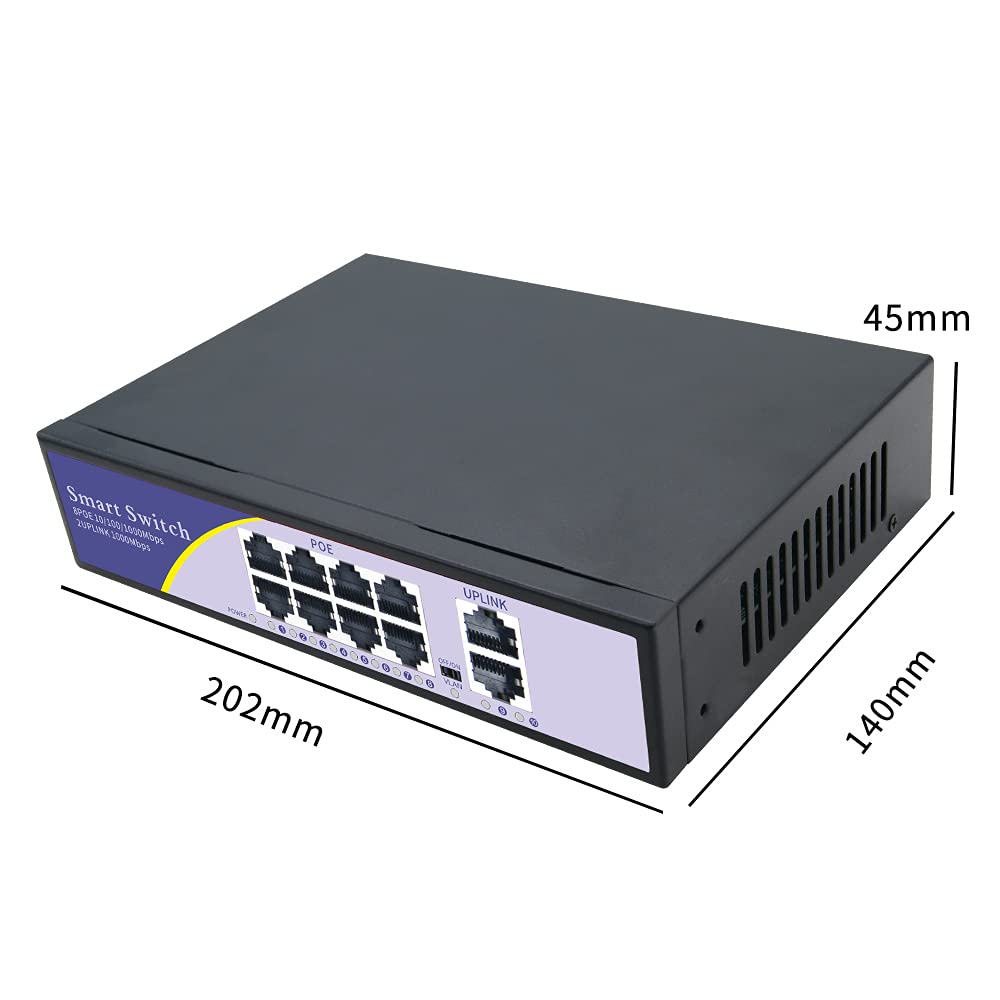
Figure 8.1: Physical dimensions of the switch.
9. Warranty and Support
Warranty:
Your KuWFi 8-Port Gigabit PoE Ethernet Switch is covered by a 12-month warranty from the date of purchase. This warranty covers product quality issues and ensures a prompt technical solution or device replacement if necessary.
Customer Support:
For any questions, technical assistance, or warranty claims, please contact our dedicated support team:
Email: support@kuwfi.com
Our team is committed to providing timely and effective support.


