
Merkury Innovations MI-CW024-101W
Contents
Merkury Innovations Smart Doorbell Camera User Manual
Model: MI-CW024-101W
Introduction
Thank you for choosing the Merkury Innovations Smart Doorbell Camera. This 1080p HD doorbell camera provides enhanced home security with features like night vision, motion detection, two-way audio, and remote access via Wi-Fi. This manual will guide you through the installation, operation, and maintenance of your new smart doorbell camera.

Image: The Merkury Innovations Smart Doorbell Camera shown with its retail packaging.
Key Features
- 1080p HD Video: Clear and crisp video resolution for monitoring your doorstep.
- Two-Way Audio: Communicate with visitors from anywhere using the built-in speaker and microphone.
- Night Vision: Enhanced visibility in low-light conditions.
- Motion Detection & Zones: Receive real-time alerts for detected movement and customize activity areas.
- Wi-Fi Connectivity: Requires 2.4 GHz Wi-Fi for seamless integration with your home network.
- Voice Control: Compatible with Google Assistant and Alexa for hands-free operation.
- Weatherproof Design: Built to withstand various weather conditions.
- Local & Cloud Storage: Supports microSD card for local storage and optional cloud storage.
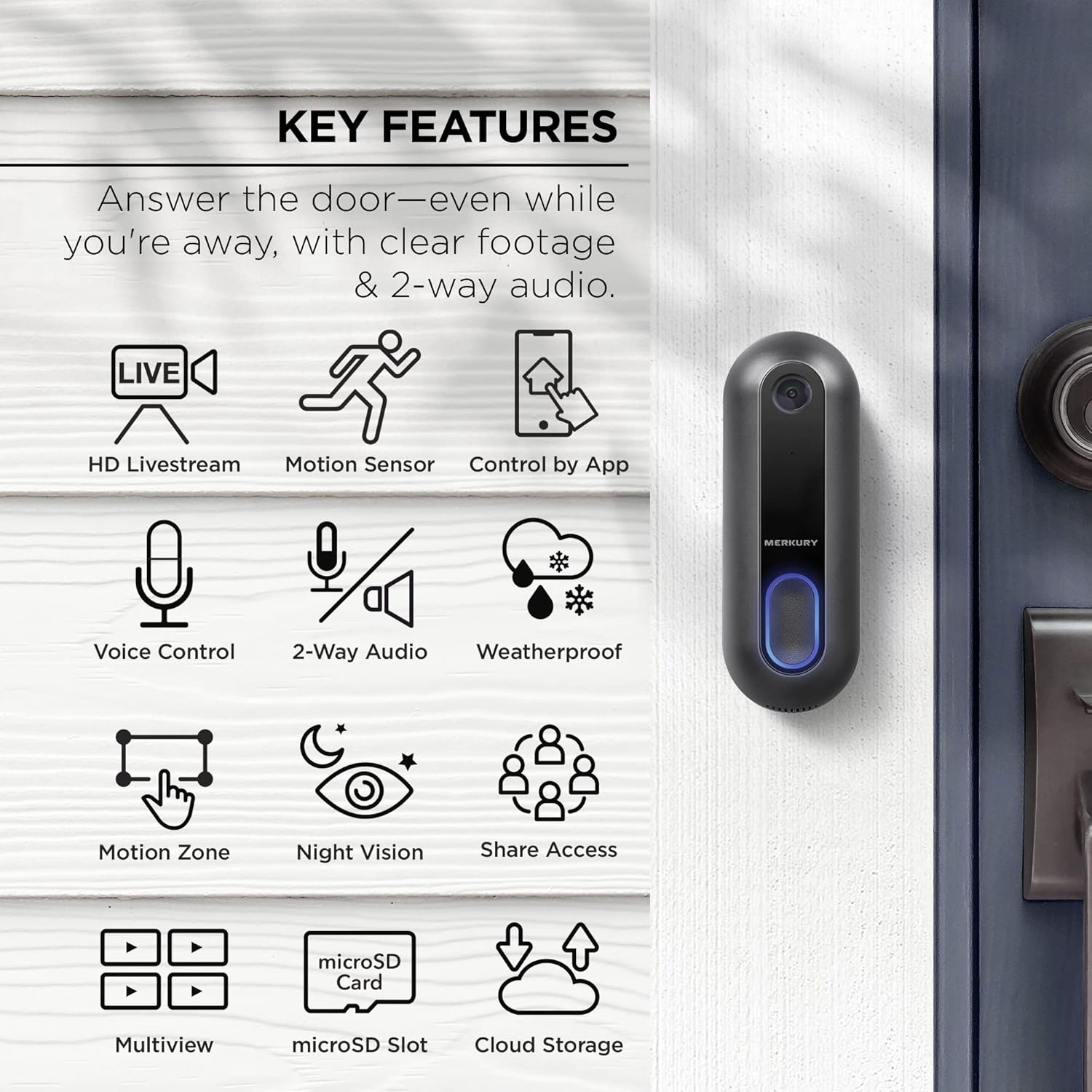
Image: An infographic highlighting key features such as HD Livestream, Motion Sensor, Control by App, Voice Control, 2-Way Audio, Weatherproof, Motion Zone, Night Vision, Share Access, Multiview, microSD Slot, and Cloud Storage.
Package Contents
Ensure all items are present in your package:
- Merkury Innovations Smart Doorbell Camera
- Angled Mounting Bracket
- Flat Mounting Bracket
- Mounting Screws and Anchors
- Wiring Harness
- User Manual (this document)
Setup and Installation
Before installation, ensure your existing doorbell wiring is compatible (typically 8-24V AC). It is recommended to turn off power to your doorbell circuit at the breaker before beginning installation.
Component Identification

Image: A diagram illustrating the doorbell camera components including the camera, microphone, button, reset button, Micro USB port, speaker, microSD slot, and the angled and flat mounting brackets with wiring terminals.
Installation Steps
- Turn off Power: Locate your doorbell's circuit breaker and turn off the power to prevent electrical shock.
- Remove Old Doorbell: Carefully remove your existing doorbell button from the wall. Disconnect the two wires.
- Choose Mounting Bracket: Select either the flat mounting bracket or the angled mounting bracket depending on your desired viewing angle.
- Mount Bracket: Position the chosen bracket over the existing doorbell wires. Mark the drill holes. Drill pilot holes if necessary and secure the bracket to the wall using the provided screws and anchors.
- Connect Wires: Connect the two doorbell wires to the wiring terminals on the back of the Merkury Smart Doorbell Camera. Ensure a secure connection.
- Attach Doorbell Camera: Align the doorbell camera with the mounted bracket and slide it into place until it clicks securely.
- Restore Power: Turn the power back on at your circuit breaker. The doorbell camera should power on.
- Download Geeni App: Download the Geeni app from the App Store (iOS) or Google Play Store (Android).
- Pair Device: Open the Geeni app, create an account or log in, and follow the on-screen instructions to add your new Smart Doorbell Camera. Ensure your phone is connected to a 2.4 GHz Wi-Fi network during pairing.
Operating Your Smart Doorbell Camera
Using the Geeni App
The Geeni app is the primary interface for controlling and monitoring your doorbell camera.
- Live View: Tap on the doorbell camera in the app to view a live feed of your doorstep at any time.
- Two-Way Talk: While in live view, tap the microphone icon to speak to visitors. Tap again to end.
- Record & Screenshot: Capture video recordings or still images directly from the live view.
- Playback: Access recorded footage from your microSD card or cloud storage (if subscribed).

Image: A smartphone displaying an incoming call notification from the Merkury Smart Doorbell, allowing the user to answer remotely.
Motion Detection and Alerts
The doorbell camera can detect motion and send real-time notifications to your phone.
- Enable/Disable Alerts: Go to the doorbell camera settings in the Geeni app to turn motion detection alerts on or off.
- Motion Zones: Define specific areas within the camera's view where you want motion to be detected. This helps reduce false alerts from busy streets or trees.

Image: A smartphone displaying a list of motion detection alerts from the doorbell camera, showing timestamps and preview images of detected activity.

Image: A smartphone screen demonstrating the process of defining a custom motion detection zone within the camera's live view, highlighted by a red frame.
Voice Control Integration
The Merkury Smart Doorbell Camera can be integrated with Google Assistant and Amazon Alexa for convenient voice control.
- Linking Accounts: Follow the instructions in the Geeni app or your smart assistant's app to link your Geeni account.
- Voice Commands: Once linked, you can use commands like "Alexa, show me the doorbell camera" or "Hey Google, show me the front door" on compatible smart displays.

Image: A smart display showing a live feed from the doorbell camera, with "works with Alexa" and "works with Hey Google" logos indicating compatibility. A caption reads: "Alexa, show me the doorbell camera."
Maintenance
To ensure optimal performance and longevity of your Merkury Smart Doorbell Camera, follow these maintenance guidelines:
- Cleaning: Gently wipe the camera lens and body with a soft, damp cloth. Avoid using harsh chemicals or abrasive cleaners.
- Firmware Updates: Regularly check the Geeni app for available firmware updates. Updates often include performance improvements and new features.
- Weather Protection: While weatherproof, extreme conditions (e.g., direct prolonged exposure to heavy rain or snow) can be mitigated by ensuring proper installation and drainage around the unit.

Image: The weatherproof doorbell camera with water droplets on its surface, demonstrating its resistance to rain and harsh weather conditions.
Troubleshooting
If you encounter issues with your doorbell camera, refer to the following common solutions:
| Problem | Solution |
|---|---|
| Doorbell not powering on. |
|
| Cannot connect to Wi-Fi. |
|
| Motion alerts are too frequent/infrequent. |
|
| Two-way audio is unclear. |
|
| Night vision is poor. |
|
Specifications
| Feature | Detail |
|---|---|
| Model Number | MI-CW024-101W |
| Video Resolution | 1080p HD |
| Connectivity | 2.4 GHz Wi-Fi (802.11 b/g/n) |
| Power Input | 8-24V AC (existing doorbell wiring) |
| Night Vision | Yes, Night Color technology |
| Audio | Two-Way Audio |
| Storage | microSD card slot (up to 128GB), Cloud Storage (optional subscription) |
| Dimensions (L x W x H) | 7.6 x 4 x 4.1 inches (Product Dimensions) |
| Item Weight | 11.7 ounces |
| Weather Rating | IP54 |
| Compatible Devices | Google Assistant, Amazon Alexa |

Image: A diagram illustrating the compact design of the doorbell camera with its dimensions: 4.52 inches (115 mm) in height, 1.65 inches (42 mm) in width, and 1.02 inches (26 mm) in depth.
Warranty and Support
For warranty information and technical support, please visit the Merkury Innovations official website or contact their customer service.
- Official Website: www.merkuryinnovations.com
- Customer Support: Refer to the contact information provided on the official website or product packaging.
Documents and downloads
Ask a question about this manual
Ask about setup, troubleshooting, compatibility, parts, safety, or missing instructions. Manuals+ will review the question and use this page’s manual context to help answer it.