
1. Introduction and Overview
The Microsoft Surface Duo 2 is a revolutionary dual-screen mobile device designed to enhance productivity and entertainment. It features two high-resolution screens that can be used independently or together, offering limitless possibilities for multitasking, communication, and content consumption. This manual provides essential information on setting up, operating, maintaining, and troubleshooting your Surface Duo 2.
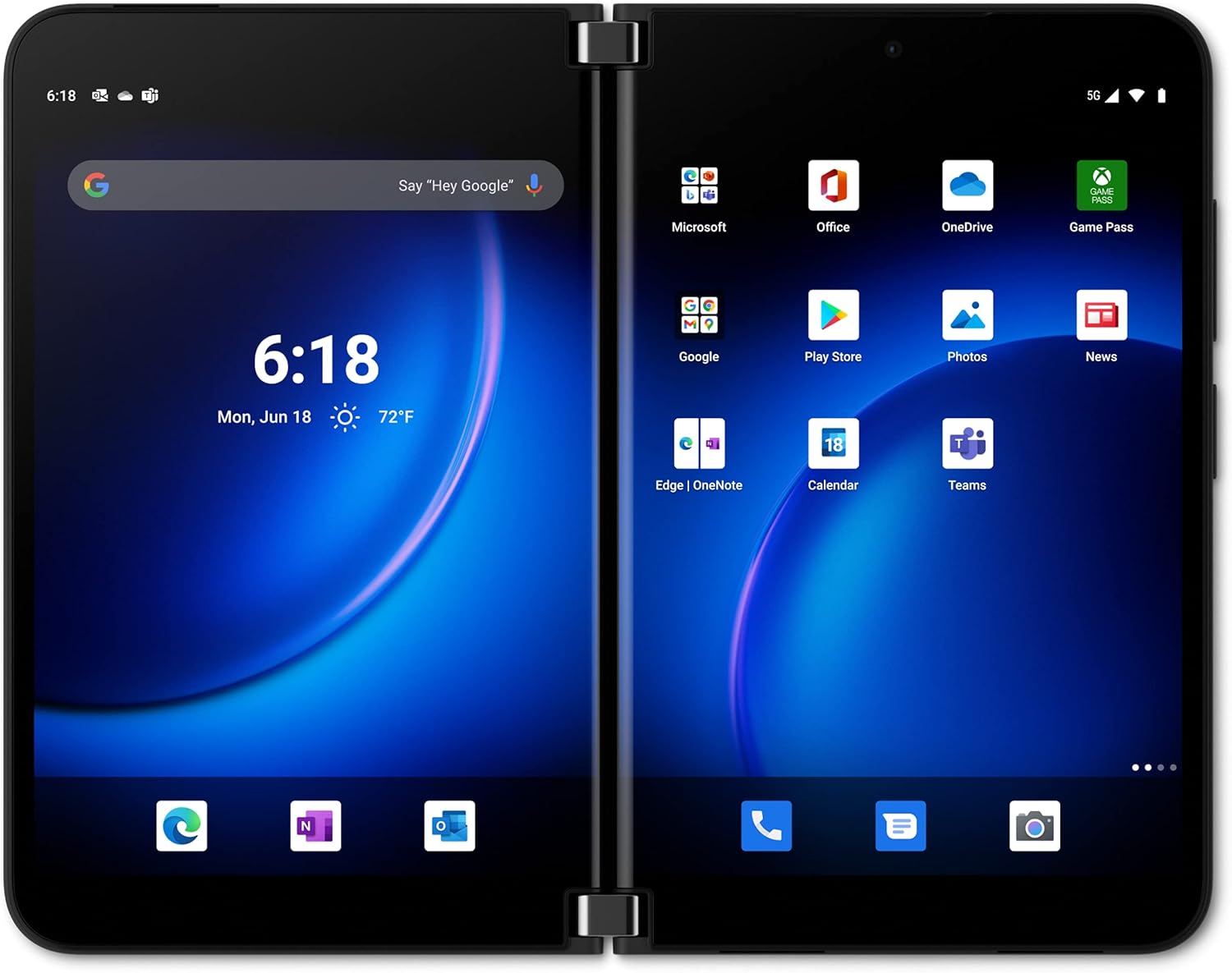
Figure 1.1: Microsoft Surface Duo 2 in its open, dual-screen configuration.
2. Key Features
- Dual-Screen Productivity: Open two screens for enhanced multitasking, allowing simultaneous use of different applications.
- Lightning-Fast 5G Connectivity: Experience high-speed internet for seamless streaming, gaming, and communication.
- Dynamic Triple Lens Camera: Capture high-quality photos and videos with advanced camera capabilities.
- Optimized Audio: Enjoy clear and immersive sound in every usage mode.
- Microsoft 365 Integration: Seamlessly work across Microsoft 365 apps with dual-screen experiences.
- Xbox Gaming: Access Xbox games with Game Pass for an immersive mobile gaming experience.
- Android App Compatibility: Utilize a vast library of applications from the Google Play Store.
- Revolutionary Hinge: Designed for versatile usage modes, including book, tent, and laptop modes.
3. Setup
3.1. Unboxing and Initial Inspection
Carefully remove all components from the packaging. Verify that all items listed in the product's 'What's in the box' section are present. Inspect the device for any visible damage before proceeding.
3.2. Charging the Device
- Connect the USB-C cable to the charging port on your Surface Duo 2.
- Connect the other end of the cable to a compatible power adapter (sold separately) and plug it into a wall outlet.
- Allow the device to charge until the battery indicator shows a full charge.
3.3. Initial Power On and Setup Wizard
- Press and hold the power button located on the side of the device until the Microsoft logo appears.
- Follow the on-screen instructions to complete the initial setup, including language selection, Wi-Fi connection, Google account sign-in, and security settings.
- You will be prompted to set up your fingerprint for secure unlocking.

Figure 3.1: Surface Duo 2 in single-screen mode.
4. Operating Instructions
4.1. Using Dual Screens
The Surface Duo 2's primary advantage is its dual-screen functionality. You can open two different apps simultaneously, one on each screen, or span a single app across both screens for an expanded view.
- App Grouping: Create custom app groups to launch two preferred applications with a single tap.
- Drag and Drop: Easily move content like images, text, or files between applications by dragging them from one screen to the other.
- Multiple Modes: The device supports various physical orientations, including book mode, tent mode, and laptop mode, adapting to your usage needs.

Figure 4.1: Surface Duo 2 in tent mode for media viewing.
4.2. Camera Features
The Surface Duo 2 features a dynamic triple-lens camera system, including Ultra Wide, Wide, and Telephoto lenses, allowing for versatile photography and videography.
- Taking Photos: Open the Camera app and tap the shutter button. Utilize the dual screens for previewing shots on one screen while adjusting settings on the other.
- Editing: Access advanced editing tools directly on the device to refine your images.

Figure 4.2: Rear camera module of the Surface Duo 2.
4.3. Notifications and Glance Bar
The innovative Glance Bar on the hinge provides quick access to notifications, battery status, and incoming calls without fully opening the device.

Figure 4.3: The Glance Bar displaying notifications.
4.4. Pen Usage (Accessory Sold Separately)
Pairing the Surface Slim Pen 2 (sold separately) with your Surface Duo 2 allows for natural on-screen writing, drawing, and note-taking across various applications, especially within Microsoft 365.

Figure 4.4: Surface Duo 2 with Surface Slim Pen 2.
5. Maintenance
- Cleaning: Use a soft, lint-free cloth to clean the screens and exterior. Avoid abrasive materials or harsh chemicals.
- Software Updates: Regularly check for and install system updates to ensure optimal performance and security. Navigate to Settings > System > System update.
- Battery Care: To prolong battery life, avoid extreme temperatures and do not leave the device fully charged or fully discharged for extended periods.
- Storage: Keep the device in a cool, dry place when not in use. Avoid placing heavy objects on it.
6. Troubleshooting
| Issue | Possible Solution |
|---|---|
| Device not powering on | Ensure the device is charged. Connect to a power source and wait a few minutes before attempting to power on again. |
| Screens unresponsive | Perform a force restart by holding the power button for approximately 10-15 seconds. |
| Apps crashing or freezing | Clear the app's cache (Settings > Apps > [App Name] > Storage > Clear cache) or reinstall the app. Ensure the operating system is up to date. |
| Poor battery life | Adjust screen brightness, close unused apps, disable unnecessary background processes, and review battery usage in settings. |
| Network connectivity issues | Toggle Wi-Fi/Cellular data off and on. Restart the device. Check router/modem for Wi-Fi issues or contact your carrier for cellular issues. |
7. Specifications
| Feature | Detail |
|---|---|
| Product Dimensions | 4.26 x 6.42 x 1.79 inches |
| Item Weight | 1.16 pounds |
| Item Model Number | HZ1-00006 |
| Batteries | 2 Lithium Ion batteries (included) |
| RAM | 8 GB |
| Memory Storage Capacity | 128 GB |
| Standing Screen Display Size | 5.8 Inches (per screen) |
| Form Factor | Foldable Screen |
| Color | Obsidian |
| Battery Power Rating | 4449 mAh |
| Operating System | Android (TBC) |
| Wireless Carrier | Unlocked |
| Cellular Technology | 5G |
8. Warranty and Support
For detailed warranty information and support options, please refer to the official Microsoft Surface website or the documentation included with your purchase. You can also find frequently asked questions and contact customer service through the Microsoft Support portal.
For additional assistance, visit: Microsoft Surface Support


