Introduction
This manual provides comprehensive instructions for the Microsoft Office Home & Business 2021 software suite. Designed for families and small businesses, this one-time purchase includes classic versions of essential Office applications: Word, Excel, PowerPoint, and Outlook. This perpetual license means you pay once and own the software, without recurring subscription fees.
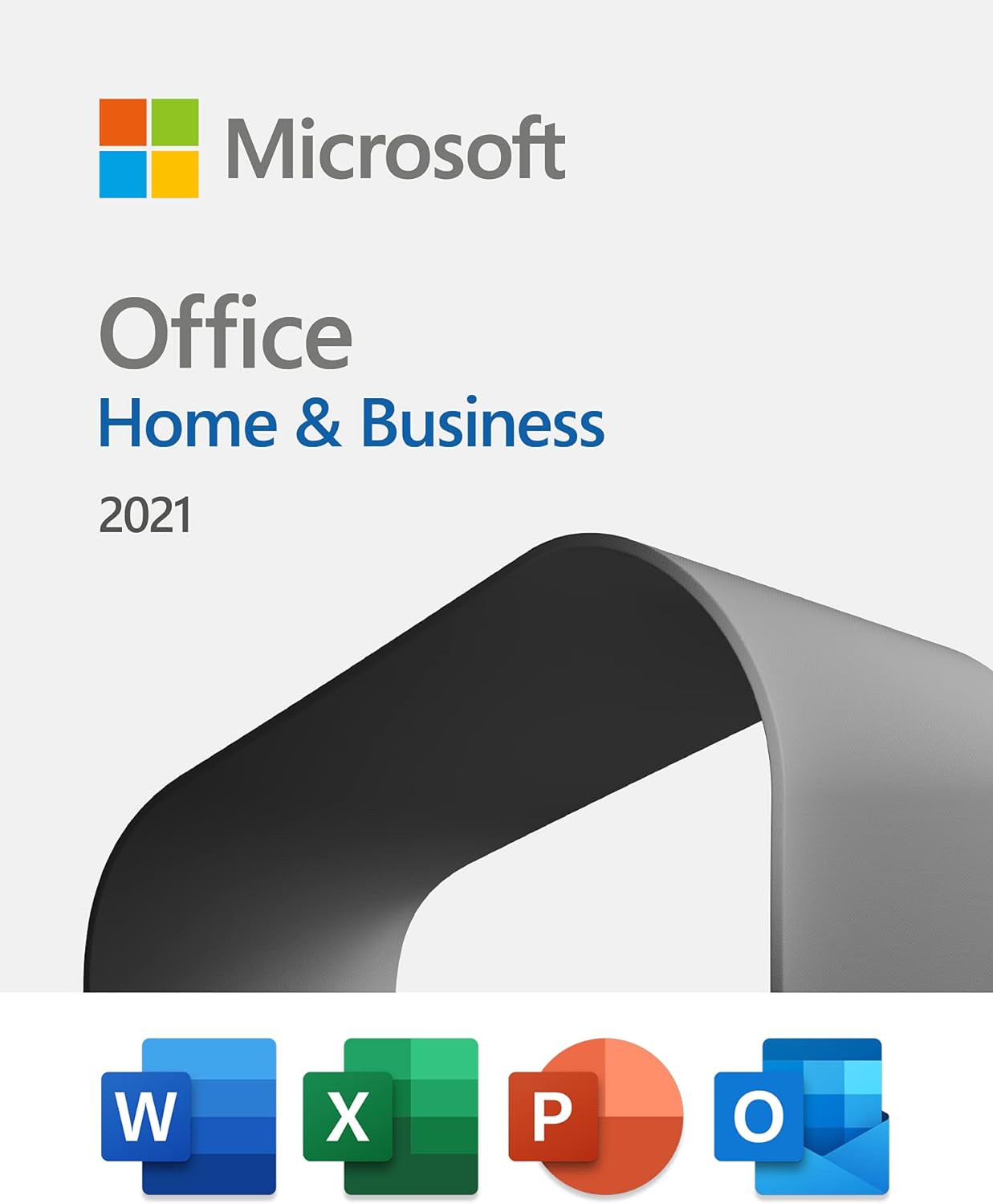
Image: Microsoft Office Home & Business 2021 product packaging showcasing the included applications.
Setup and Installation
Microsoft Office Home & Business 2021 is provided as a digital license. Follow these steps to download and install your software:
- Purchase and License Key Retrieval: After purchasing, your digital license key will be provided. This key is essential for activation.
- Access Microsoft Account: Go to the official Microsoft Office setup website (typically setup.office.com) and sign in with your Microsoft account. If you do not have one, you will be prompted to create one.
- Enter Product Key: Input the 25-character product key you received.
- Download Installer: Follow the on-screen prompts to download the Office installer file for your operating system (PC or Mac).
- Run Installation: Locate the downloaded file (e.g., "Setup.exe" on Windows or "Microsoft_Office_Installer.pkg" on Mac) and run it.
- Follow On-Screen Instructions: The installation wizard will guide you through the process. Accept the license agreement and choose your installation preferences.
- Launch and Activate: Once installation is complete, open any Office application (e.g., Word). You may be prompted to sign in with your Microsoft account to activate the product. Ensure you are connected to the internet during activation.
This license is valid for installation on one PC or Mac at a time. If you need to transfer the license to a new device, you can deactivate it from the old device through your Microsoft account and then activate it on the new one.
Operating the Software
Microsoft Office Home & Business 2021 provides a suite of powerful applications to enhance your productivity.
Microsoft Word
Word is a word processing program designed for creating professional-quality documents, reports, letters, and more. It offers extensive formatting options, collaboration tools, and integration with other Office applications.

Image: Microsoft Word displaying a document, highlighting the capabilities of Microsoft Editor for improved writing.
Microsoft Excel
Excel is a spreadsheet program used for organizing, analyzing, and visualizing data. It features powerful calculation tools, charting capabilities, and data management functions.

Image: Microsoft Excel demonstrating its ability to learn patterns and organize data efficiently, saving user time.
Microsoft PowerPoint
PowerPoint is a presentation program that allows you to create dynamic slideshows with text, graphics, audio, and video. It includes a variety of design templates and animation effects.

Image: Microsoft PowerPoint showcasing premium templates to kickstart creativity in presentations.
Microsoft Outlook
Outlook is a personal information manager from Microsoft, available as a part of the Microsoft Office suite. It is primarily used as an email application, but also includes a calendar, task manager, contact manager, note taking, journal, and web browsing.

Image: Microsoft Outlook demonstrating its ability to organize time across work and life with integrated email and calendar features.
Maintenance
To ensure optimal performance and security of your Microsoft Office Home & Business 2021, it is important to keep the software updated.
- Automatic Updates: By default, Office applications are configured to receive automatic updates. Ensure your internet connection is active to allow these updates to download and install.
- Manual Update Check: You can manually check for updates by opening any Office application, going to File > Account > Update Options > Update Now.
- Security Updates: Microsoft provides security updates for the lifetime of the product to protect against vulnerabilities.
- System Requirements: Ensure your operating system (Windows 10/11 or macOS) and hardware meet the minimum requirements for continued smooth operation.
Troubleshooting
If you encounter issues with your Microsoft Office Home & Business 2021, consider the following common troubleshooting steps:
- Activation Problems:
- Verify your internet connection.
- Ensure you are signed in with the correct Microsoft account associated with the license.
- Double-check the product key for any typos.
- If transferring a license, ensure it has been deactivated from the previous device.
- Application Crashing/Freezing:
- Ensure your software is up to date (see Maintenance section).
- Try repairing your Office installation via your operating system's Add/Remove Programs (Windows) or Applications folder (Mac).
- Disable any third-party add-ins that might be causing conflicts.
- Performance Issues:
- Close unnecessary applications running in the background.
- Ensure your computer meets the recommended system specifications.
For more detailed assistance, refer to the official Microsoft support website or contact their support team.
Specifications
| Feature | Detail |
|---|---|
| Product Name | Microsoft Office Home & Business 2021 |
| Included Applications | Word, Excel, PowerPoint, Outlook (Classic 2021 versions) |
| License Type | One-time purchase (Perpetual Digital License) |
| Installation Limit | 1 PC or Mac |
| Manufacturer | Microsoft |
| ASIN | B09H7F77JR |
| First Available | October 5, 2021 |
| Package Dimensions | 5.75 x 4.49 x 0.75 inches; 1.76 ounces (Digital product, physical dimensions refer to packaging if applicable) |

Image: An overview comparing different Microsoft Office plans, highlighting the one-time purchase model of Office Home & Business 2021.
Warranty and Support
Microsoft Office Home & Business 2021 includes support directly from Microsoft for 60 days at no extra cost from the date of activation. Beyond this initial period, you will continue to receive security updates for the lifetime of the product, ensuring your software remains protected and functional as long as Microsoft supports this version.
For further assistance or to access support resources, please visit the official Microsoft Support website: support.microsoft.com.


