
1. Introduction
This manual provides detailed instructions for the TOTU 9-in-1 USB-C Docking Station (Model TT-HB019). This docking station is designed to expand the connectivity of your USB-C enabled laptop, offering multiple display outputs, high-speed data transfer, and power delivery capabilities. Please read this manual thoroughly before using the product to ensure proper operation and to maximize its functionality.
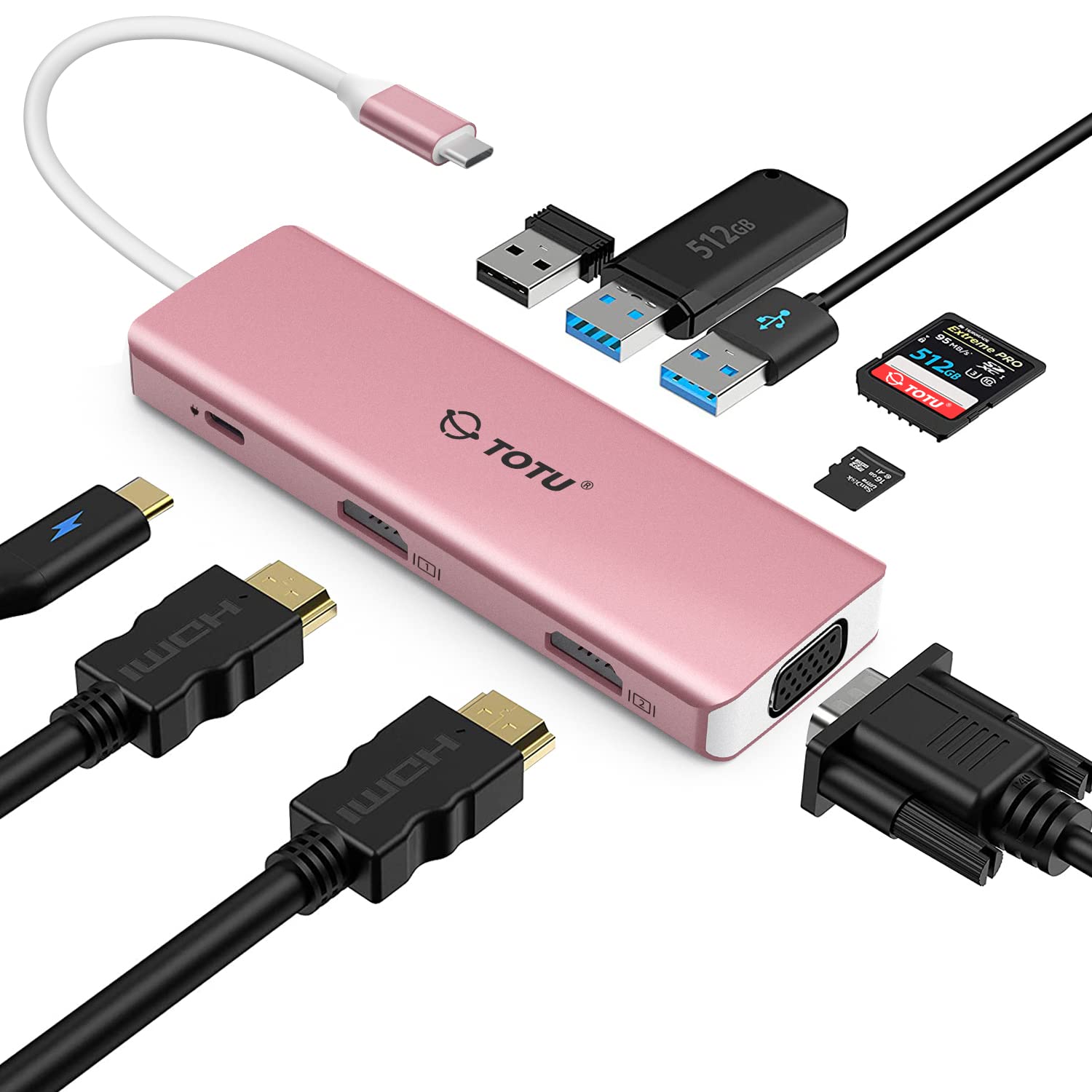
Image 1.1: Overview of the TOTU 9-in-1 USB-C Docking Station.
2. Product Features
The TOTU 9-in-1 USB-C Docking Station offers a comprehensive set of features to enhance your laptop's connectivity:
- Triple Display Output: Supports dual HDMI outputs up to 3840x2160@30Hz and one VGA output up to 1920x1080@60Hz, enabling multi-monitor setups for increased productivity.
- 100W Power Delivery (PD): The USB-C PD port allows for fast charging of your laptop while using the docking station.
- Super-Speed Data Transfer: Three USB 3.0 ports provide data transfer speeds up to 5 Gbps, ideal for external drives and peripherals.
- Memory Card Readers: Integrated TF (MicroSD) and SD card readers for convenient access to memory cards. Note: SD and TF card slots cannot be used simultaneously.
- Wide Compatibility: Compatible with MacBook/MacBook Pro (2016 or above), MacBook Air (2018 or above), Mac Pro 2019, Google Chromebook Pixel, Huawei MateBook/MateBook Pro, Dell, Surface Book2/Pro7/Go, HP, Lenovo, Samsung S9/S8 series, and other Type-C laptops supporting Display Alt mode and Power Delivery.
- Collage Display Mode (Windows Only): Offers a unique display mode for Windows systems, allowing a single continuous image across multiple panels with bezel correction.
- Compact and Portable Design: Lightweight aluminum enclosure, making it suitable for travel and business trips.

Image 2.1: Detailed view of the docking station ports.
3. Package Contents
The package should contain the following items:
- TOTU 9-in-1 USB-C Docking Station (Model: TT-HB019)
- User Manual (this document)
If any items are missing or damaged, please contact customer support.
4. Setup Instructions
Follow these steps to set up your TOTU 9-in-1 USB-C Docking Station:
- Connect to Laptop: Plug the USB-C connector cable from the docking station into an available USB-C port on your laptop. Ensure your laptop's USB-C port supports Display Alt Mode and Power Delivery for full functionality.
- Connect Power Adapter (Optional but Recommended): For optimal performance and to charge your laptop, connect your laptop's original USB-C power adapter to the PD (Power Delivery) port on the docking station. This is especially important when connecting external high-power devices.
- Connect External Displays:
- For HDMI displays, connect HDMI cables from your monitors to the HDMI ports on the docking station.
- For VGA displays, connect a VGA cable from your monitor to the VGA port on the docking station.
- Connect USB Peripherals: Plug your USB devices (e.g., keyboard, mouse, external hard drives, USB flash drives) into the USB 3.0 ports on the docking station.
- Insert Memory Cards: If needed, insert your SD or TF (MicroSD) cards into the corresponding slots. Remember, only one card can be used at a time.

Image 4.1: Example setup of the docking station with a laptop and connected devices.
Video 4.1: A brief demonstration of connecting the TOTU 9-in-1 USB-C docking station and its features.
5. Operating Instructions
5.1 Display Modes
The docking station supports various display modes depending on your operating system.
Windows System Display Modes:
Windows systems support Mirror, Extend, and Collage display modes.
- Mirror Mode: Duplicates your laptop screen onto external monitors.
- Extend Mode: Extends your desktop across multiple monitors, allowing for different content on each screen.
- Collage Mode: (Windows Only) Combines multiple displays into a single, continuous image. Your laptop screen will typically be black in this mode. This mode is ideal for creating a large, unified display area.

Image 5.1: Illustration of Horizontal and Vertical Collage Display Modes for Windows. Note: MAC OS does not support Collage Mode.

Image 5.2: Examples of Triple Display configurations for Windows, showing PC+HDMI1+HDMI2, PC+HDMI1+VGA, and PC+HDMI1+HDMI2+VGA setups.
Mac OS System Display Modes:
Mac OS systems support Mirror and Non-mirror (Extend) modes. Please note that Mac OS does not support Multi-Stream Transport (MST) for extended displays across multiple external monitors, meaning all external monitors will mirror each other in extended mode.
- Mirror Mode: Duplicates your MacBook screen onto all connected external monitors.
- Non-mirror Mode (Extend): Extends your desktop, but all external monitors will display the same content, distinct from your MacBook screen. Do not click "Mirror Displays" in Display Settings for this mode.

Image 5.3: Depiction of Mirror Mode and Non-mirror Mode (Extended) for Mac OS, showing how external displays behave.

Image 5.4: Summary of multiple display mode compatibility, indicating Windows supports MST for distinct extended displays, while Mac OS does not.
5.2 Power Delivery and Data Transfer
The docking station's PD port supports up to 100W power delivery to your laptop. The USB 3.0 ports offer high-speed data transfer for connected devices.

Image 5.5: Illustration of USB 3.0 data transfer speeds. Note: SD and TF card slots cannot work at the same time.
6. Maintenance
To ensure the longevity and optimal performance of your TOTU 9-in-1 USB-C Docking Station, follow these maintenance guidelines:
- Cleaning: Use a soft, dry cloth to clean the surface of the docking station. Avoid using liquid cleaners or aerosols, as they may damage the device.
- Storage: Store the docking station in a cool, dry place away from direct sunlight and extreme temperatures.
- Handling: Avoid dropping or subjecting the device to strong impacts. Do not attempt to disassemble or repair the docking station yourself, as this will void the warranty.
- Cable Management: Ensure cables are not excessively bent or tangled to prevent damage to the connectors and internal wiring.
7. Troubleshooting
If you encounter issues with your docking station, refer to the following common problems and solutions:
| Problem | Possible Cause | Solution |
|---|---|---|
| No display output or flickering screen. | Loose cable connection; incompatible laptop USB-C port; incorrect display settings; insufficient power. | 1. Ensure all HDMI/VGA cables and the USB-C cable to the laptop are securely connected. 2. Verify your laptop's USB-C port supports Display Alt Mode. 3. Check your laptop's display settings (e.g., Windows Display Settings, Mac System Preferences > Displays) to ensure the external monitors are detected and configured correctly (Extend, Mirror, or Collage mode). 4. Connect your laptop's power adapter to the docking station's PD port. |
| USB devices not recognized. | Loose USB connection; driver issues; insufficient power. | 1. Reconnect the USB device to a different USB 3.0 port on the docking station. 2. Ensure the docking station is properly connected to your laptop. 3. Connect your laptop's power adapter to the docking station's PD port, especially for high-power USB devices. 4. Update your laptop's USB drivers. |
| SD/TF card not detected. | Incorrect card insertion; only one card can be used at a time. | 1. Ensure the card is fully and correctly inserted into the slot. 2. Remove any other memory card from the adjacent slot, as simultaneous use is not supported. |
| Laptop not charging via PD port. | Power adapter not connected or insufficient wattage; laptop not compatible with USB-C PD. | 1. Ensure your laptop's original USB-C power adapter is connected to the docking station's PD port. 2. Verify your laptop supports USB-C Power Delivery. |
| Docking station feels warm during use. | Normal operation, especially under heavy load. | This is normal. The aluminum casing helps dissipate heat. Ensure adequate ventilation around the device. If it becomes excessively hot, disconnect and allow it to cool. |
8. Specifications
| Feature | Detail |
|---|---|
| Model Number | TT-HB019 |
| Brand | TOTU |
| Color | Pink |
| Hardware Interface | 2x HDMI, 1x VGA, 3x USB 3.0 Type-A, 1x USB Type-C (PD), 1x MicroSD, 1x SDXC |
| HDMI Resolution | Up to 3840x2160@30Hz (Dual 4K) |
| VGA Resolution | Up to 1920x1080@60Hz |
| Power Delivery | Max. 100W via USB-C PD port |
| USB 3.0 Data Transfer Rate | Up to 5 Gbps |
| Memory Card Slots | TF (MicroSD) and SD (Note: Cannot be used simultaneously) |
| Compatible Devices | MacBook Air, MacBook Pro, and other Type-C laptops supporting Display Alt mode and Power Delivery |
| Operating System Support | Windows 7/10, Mac OS 9 and above |
| Enclosure Material | Aluminum |
| Item Weight | 0.12 kg (approximately 2.48 oz) |

Image 8.1: Dimensions and portable design of the docking station.
9. Warranty Information
The TOTU 9-in-1 USB-C Docking Station (Model TT-HB019) comes with a 1-year warranty from the date of purchase. This warranty covers manufacturing defects and malfunctions under normal use. It does not cover damage caused by misuse, accidents, unauthorized modifications, or improper installation.
Please retain your proof of purchase for warranty claims.
10. Customer Support
For technical support, warranty claims, or any questions regarding your TOTU 9-in-1 USB-C Docking Station, please contact TOTU customer service through the retailer where you purchased the product or visit the official TOTU website for contact information.
Online Resources:
- Official TOTU Store on Amazon: TOTU Store


