
1. Product Overview
The CarlinKit Tbox Ambient is an advanced adapter designed to enhance your in-car entertainment and connectivity. It features an Android 13.0 system, powered by a Qualcomm QCM6225 8-core CPU, offering improved performance and speed. With 8GB RAM and 128GB ROM (expandable up to 512GB via TF card), it ensures smooth operation of multiple applications. The device supports 4G-LTE connectivity and includes a built-in GPS for high-accuracy positioning, even in challenging environments like tunnels or mountainous areas.
A distinctive feature is its vibrant LED illumination, which can be customized to your preference. This device transforms your wired CarPlay into a wireless CarPlay and Android Auto experience, allowing seamless access to your smartphone's features on your car's display.
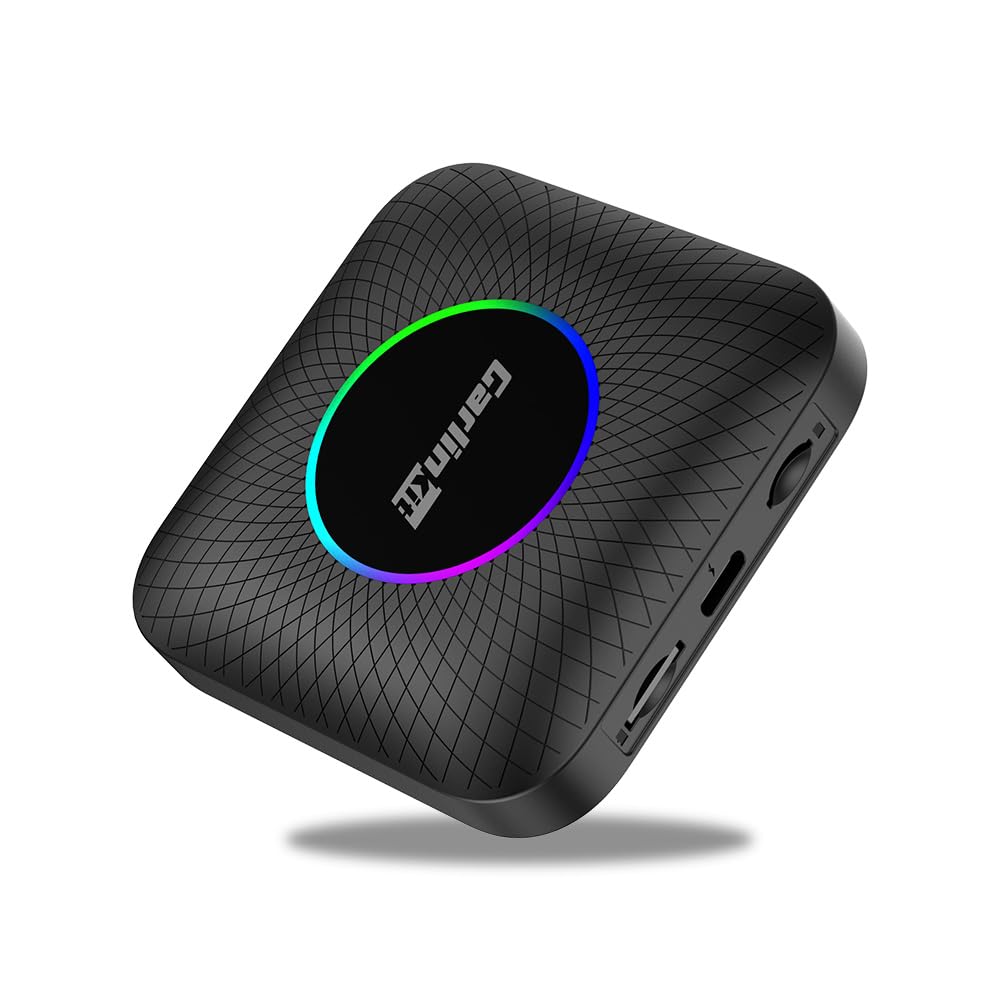
Image: The CarlinKit Tbox Ambient device, showcasing its compact design and customizable LED lighting.
Video: An overview demonstrating the CarlinKit Tbox Ambient's features and user interface in a vehicle.
2. Setup Instructions
2.1 Compatibility Requirements
- Requires a car with a factory-installed wired Apple CarPlay function and a touchscreen display.
- Not compatible with third-party Android car navigation systems.
- Not compatible with BMW, Nissan Murano, Nissan GT-R, Nissan Leaf, Nissan Aiways, or BYD vehicles.
- This product is a Japan-specific version, compatible with all frequency bands within Japan.
2.2 Package Contents
- CarlinKit Tbox Ambient Product Unit x 1
- USB Cables x 2
- User Manual x 1

Image: The CarlinKit Tbox Ambient device, its dimensions, and the included accessories.
2.3 Connection Method
- Connect the Tbox Ambient to your car's USB port (the one used for wired CarPlay).
- On your car's display, navigate to and click the 'AutoKit' application.
- Enable Bluetooth and Wi-Fi on your smartphone.
- Pair your smartphone with the Tbox Ambient via Bluetooth.
- Once connected, you can begin using wireless CarPlay or Android Auto.

Image: Step-by-step guide on how to connect the CarlinKit Tbox Ambient to your car's system.
2.4 SIM/SD Card Installation
The device supports a SIM card for 4G network connectivity and a Micro SD/TF card for storage expansion up to 512GB. Insert the cards into their respective slots on the side of the device.

Image: Close-up view of the CarlinKit Tbox Ambient showing the SIM card and SD card slots.
3. Operating Instructions
3.1 Wireless CarPlay & Android Auto
After successful connection, the Tbox Ambient allows you to seamlessly switch between wireless CarPlay and wireless Android Auto modes. Access your phone's navigation, music, calls, and messages directly on your car's screen.

Image: The CarlinKit Tbox Ambient in use, displaying wireless CarPlay and Android Auto interfaces on a car screen.
3.2 Multimedia Playback & App Access
The device supports various multimedia applications such as YouTube, Netflix, and other streaming services. You can also download your favorite apps from the Google Play Store directly onto the Tbox Ambient.

Image: A car's infotainment screen showing popular video streaming applications available through the Tbox Ambient.

Image: The Google Play Store interface displayed on a car screen, allowing users to download additional applications.
3.3 Split-Screen Functionality
Utilize the split-screen feature to display two applications simultaneously. For example, you can have navigation running on one side while a video plays on the other, without interrupting either function.

Image: A car's display in split-screen mode, showing a navigation map on one side and a video on the other.
3.4 Voice Control & Original Car Controls
The Tbox Ambient supports hands-free voice control via Google Assistant and Siri. You can also continue to use your car's original controls, including joystick, steering wheel buttons, and touchscreen, for seamless interaction.

Image: A driver interacting with the system using voice commands for hands-free operation.

Image: Examples of how the device integrates with the car's existing controls, such as steering wheel buttons, rotary knobs, and the touchscreen.
3.5 LED Illumination Customization
The Tbox Ambient features a beautiful LED illumination ring. You can customize the color and effect of this LED light through the device's settings menu.

Image: The CarlinKit Tbox Ambient connected in a car, demonstrating the customizable LED light settings on the screen.
4. Maintenance
4.1 Software Updates
Software updates are primarily intended for vehicles experiencing specific issues. If your current product experience is satisfactory, the existing setup and version are likely optimal for your car, and updates may not be necessary. Consult the manufacturer's support if you encounter issues that might require an update.
4.2 Cleaning
To clean the device, gently wipe it with a soft, dry cloth. Avoid using liquid cleaners or abrasive materials, as these may damage the device's surface or internal components.
5. Troubleshooting
5.1 Common Issues and Solutions
- Device Not Recognized by Car:
Ensure the USB cable is securely connected to both the Tbox Ambient and the car's CarPlay-enabled USB port. Try a different USB port if available. Verify your car model is compatible (refer to Section 2.1). - Slow Response or Freezing:
This can sometimes occur due to network conditions or heavy app usage. Try restarting the device by unplugging and re-plugging it. Ensure you have a stable 4G or Wi-Fi connection. If using a SIM card, verify it is active and has data. - SIM Card Not Detected:
Ensure the SIM card is correctly inserted into the slot. Test the SIM card in another device to confirm it is functional. - Audio Delay During Calls:
If experiencing audio delay when making calls while connected to your smartphone, ensure the Tbox Ambient's audio settings are configured correctly. Sometimes, using the car's native Bluetooth for calls while using the Tbox for other functions can help. - Cannot Download Apps from Google Play Store:
Ensure the device has an active internet connection (via SIM or Wi-Fi). Check your Google account settings and ensure sufficient storage space is available.
If you encounter persistent issues not covered here, please refer to the support section for assistance.
6. Specifications
| Brand | CarlinKit |
| Model Name | Tbox Ambient (8+128GB) |
| CPU | Qualcomm QCM6225 8-core |
| Operating System | Android 13.0 |
| RAM | 8GB |
| ROM | 128GB |
| Expandable Memory | Micro SD/TF card up to 512GB |
| Connectivity | Bluetooth, 4G-LTE, Wi-Fi |
| GPS | Built-in GPS |
| Features | Touchscreen support, Lane support, Hands-free voice control, LED illumination |
| Resolution | 4K (supported output) |
| Audio Output Mode | Stereo |
| Mounting Type | Handheld |
| Compatible Devices | iPhone and Android phones |
| Control Method | Touch, Voice |
| Technical Compliance | Radio Law Certified (Certification No.: R210-181448) |
7. Warranty & Support
7.1 Manufacturer's Warranty
The CarlinKit Tbox Ambient comes with a 1-year manufacturer's warranty from the date of purchase. This warranty covers defects in materials and workmanship under normal use.
7.2 Customer Support
If you have any questions, encounter issues, or require assistance with your product, please contact customer support through the following methods:
- Amazon Account Service: Go to 'Account Service' > 'Order History' > 'Contact Seller'.
- Email: Refer to the email address provided in the physical user manual included with your product.
Please provide your order number and a detailed description of the issue when contacting support to ensure a prompt resolution.