
ZARMST 256GB A-Sky Blue
ZARMST 256GB 4-in-1 Flash Drive User Manual
Model: 256GB A-Sky Blue
1. Product Overview
The ZARMST 256GB 4-in-1 Flash Drive is a versatile external storage solution designed for seamless data transfer between various devices. Featuring USB-C, iPhone, Micro USB, and Standard USB-A connectors, it eliminates the need for multiple adapters, offering a stable and efficient way to manage your files across iOS, Android, and computer platforms.

Image: ZARMST 4-in-1 Flash Drive in Sky Blue, showcasing its compact design and multiple connectors.
2. Key Features
- 4-in-1 Design: Integrated USB-C, iPhone Port, Micro USB, and Standard USB-A connectors for broad compatibility.
- High-Speed Transmission: Offers read speeds up to 80MB/s and write speeds up to 30MB/s, enabling quick file transfers.
- Extensive Compatibility: Supports most iOS devices (iPhone, iPad, Macbook), Android devices (Type C or Old Style Micro USB), and traditional USB interface devices (laptops, TVs, car audio systems).
- Easy File Management with App: For iOS devices, the "EasyFlash Pro" app (available on the App Store) provides one-click backup for albums and contacts, file viewing, access, and encryption functions. Android devices typically do not require an app for basic file transfer.
- Durable and Portable: Constructed from high-quality aluminum with a frosted finish, featuring a retractable design for protection and easy portability.
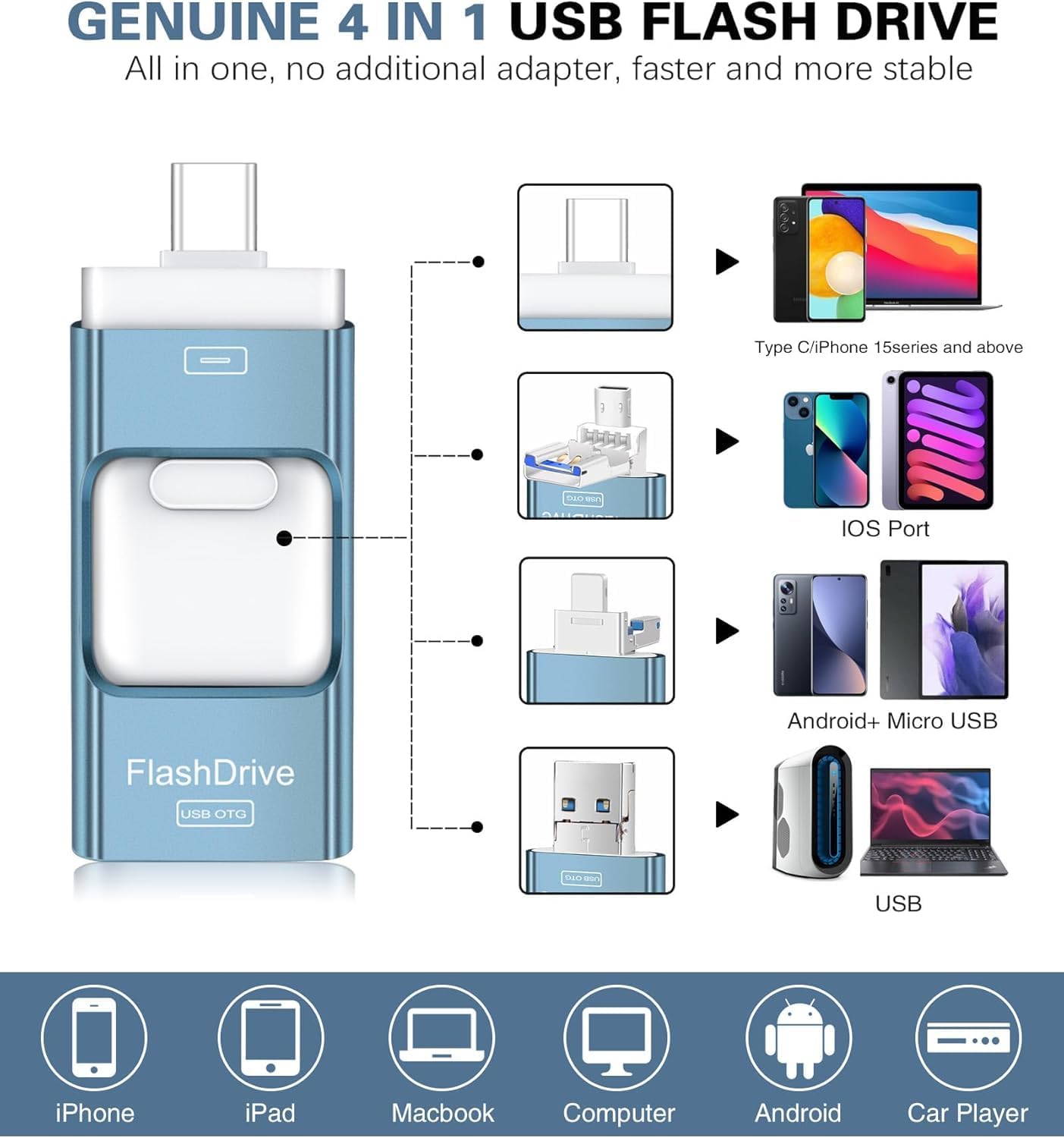
Image: The 4-in-1 design of the flash drive, illustrating its various connectors and the range of devices it can connect to, including iPhones, iPads, Macbooks, computers, Android phones, and car players.

Image: High-speed data transmission rates for the flash drive, detailing read and write speeds for both USB 3.0 and USB 2.0 connections.
3. Setup Guide
3.1 For iOS Devices (iPhone, iPad, Macbook)
- Connect the Flash Drive: Insert the appropriate connector (iPhone Port or USB-C for newer models) into your iOS device. Ensure correct orientation as shown in the diagram below.
- Download the App: Upon first connection, your iOS device may prompt you to download the "EasyFlash Pro" app from the App Store. If not, search for "EasyFlash Pro" directly in the App Store and install it.
- Grant Permissions: Open the app and grant any necessary permissions for accessing photos, videos, and contacts.
- Ready for Use: The app will display the internal storage of your device and the external storage of the flash drive, allowing you to begin managing files.
3.2 For Android Devices (Type C or Micro USB)
- Connect the Flash Drive: Insert the appropriate connector (USB-C or Micro USB) into your Android device. Ensure correct orientation.
- Access Files: Most Android devices support On-The-Go (OTG) functionality and do not require a dedicated app. You can typically access the flash drive through your device's native file manager (e.g., "Files," "My Files," or "Storage").
- Locate External Storage: Look for an option like "USB Storage," "OTG Device," or the name of the flash drive under your device's storage settings.
3.3 For Computers (Windows, macOS)
- Connect the Flash Drive: Insert the Standard USB-A connector into an available USB port on your computer.
- Access Files: The flash drive will appear as a removable disk or external drive in "This PC" (Windows) or "Finder" (macOS).
- Drag and Drop: You can drag and drop files directly to and from the flash drive.

Image: Correct insertion methods for the flash drive into both iPhone (front side) and Android (back side) devices.
4. Operating Instructions
4.1 File Transfer (iOS via EasyFlash Pro App)
- Open EasyFlash Pro: Launch the app on your iOS device.
- Select Source: Choose between "Internal Storage" (your phone's memory) or "External Storage" (the flash drive).
- Browse and Select: Navigate to the files or folders you wish to transfer. Select them by tapping the checkmark or selection icon.
- Transfer: Tap the "Copy" or "Move" icon, then select the destination (either internal or external storage). Confirm the transfer.
- One-Click Backup: The app offers a "One-Click Backup" feature for photos, videos, and contacts. Simply tap the respective icon within the app to initiate a full backup to the flash drive.
- File Encryption: Utilize the app's encryption function to protect sensitive files with a password or Touch ID.

Image: Screenshots of the EasyFlash Pro app, demonstrating its user interface for file management, backup, and encryption features.
4.2 Direct Recording (iOS via EasyFlash Pro App)
The EasyFlash Pro app allows you to record photos and videos directly to the flash drive, saving space on your iOS device. Look for the "Shoot & Record" option within the app.
4.3 File Transfer (Android & Computers)
For Android devices and computers, file transfer is typically done via standard drag-and-drop functionality within the device's file manager or operating system. Simply open the flash drive's folder and copy/move files as you would with any other external storage device.
5. Maintenance and Care
- Proper Ejection: Always safely eject the flash drive from your computer or device before removing it to prevent data corruption.
- Keep Dry: Avoid exposing the flash drive to water or excessive moisture.
- Avoid Extreme Temperatures: Do not expose the device to very high or low temperatures.
- Clean Gently: If needed, wipe the exterior with a soft, dry cloth. Do not use harsh chemicals.
- Protect Connectors: Utilize the retractable design to protect the connectors when not in use.

Image: The compact and retractable design of the ZARMST flash drive, emphasizing its portability and protective features.
6. Troubleshooting
| Problem | Possible Cause | Solution |
|---|---|---|
| Device not recognized (iOS) | Incorrect insertion; App not installed/updated; iOS version too old. | Ensure the flash drive is inserted correctly. Download/update "EasyFlash Pro" app. Ensure iOS 9.0 or above. |
| Device not recognized (Android/PC) | Incorrect insertion; USB port issue; Device not OTG compatible (Android). | Ensure correct insertion. Try a different USB port. Verify Android device supports OTG. |
| Slow transfer speeds | Using USB 2.0 port; Large file sizes; Background processes. | Use a USB 3.0 port if available. Transfer fewer large files at once. Close unnecessary applications. |
| Files not appearing/corrupted | Improper ejection; Software glitch. | Always safely eject the drive. Restart the app/device. If persistent, contact support. |
| App issues (iOS) | App not updated; Permissions not granted. | Update the EasyFlash Pro app. Check app permissions in iOS settings. |
7. Specifications
| Feature | Detail |
|---|---|
| Model | 256GB A-Sky Blue |
| Memory Storage Capacity | 256 GB |
| Read Speed | Up to 80 MB/s |
| Write Speed | Up to 30 MB/s |
| Connectivity Technology | USB |
| Hardware Interface | USB 3.0, USB 2.0 Micro B, USB Type A, USB Type C |
| Compatible Phone Models | iPhone, iPad, Android (Type C or Micro USB) |
| Hardware Platform | PC |
| Item Weight | 1.13 ounces |
| Product Dimensions | 1.69 x 0.87 x 0.2 inches |
| Special Features | Encrypted, Lightweight |
8. Warranty and Support
ZARMST products undergo rigorous testing to ensure quality. For any questions or issues regarding your ZARMST Flash Drive, please contact our customer support. We aim to respond to all inquiries within 24 hours.
While specific warranty details are not provided in this manual, additional protection plans for photo and data recovery may be available from your retailer. Please consult your purchase documentation for details on any extended service plans.
Ask a question about this manual
Ask about setup, troubleshooting, compatibility, parts, safety, or missing instructions. Manuals+ will review the question and use this page’s manual context to help answer it.