
NZXT PA-6B1BB-US
Contents
NZXT C650 Bronze Power Supply Unit User Manual
Brand: NZXT
Model: PA-6B1BB-US
Product Overview
The NZXT C Series Bronze power supplies are designed to provide safe and reliable power for your computer system, while maintaining quiet and efficient operation. This manual provides essential information for the installation, operation, and maintenance of your C650 Bronze Power Supply Unit.
Key features include:
- 80+ Bronze Certified: Ensures safe and reliable power delivery with reduced heat generation for quiet and efficient system operation.
- Silent Operation: Equipped with a 120mm FDB silent fan and treated components to minimize acoustic noise, even under high load.
- Compatible and Efficient: Designed to fit any ATX PSU compatible case and supports a wide range of modern GPUs, including NVIDIA 30 series and AMD 6000 series.
- Built for Builders: Features a semi-modular design for easier installation and improved cable management. Stylish matte black sleeved main cables offer enhanced durability.
- Maximum Efficiency: Achieves power conversion efficiency 2% higher than the 80 Plus Bronze Standard at 50% load.
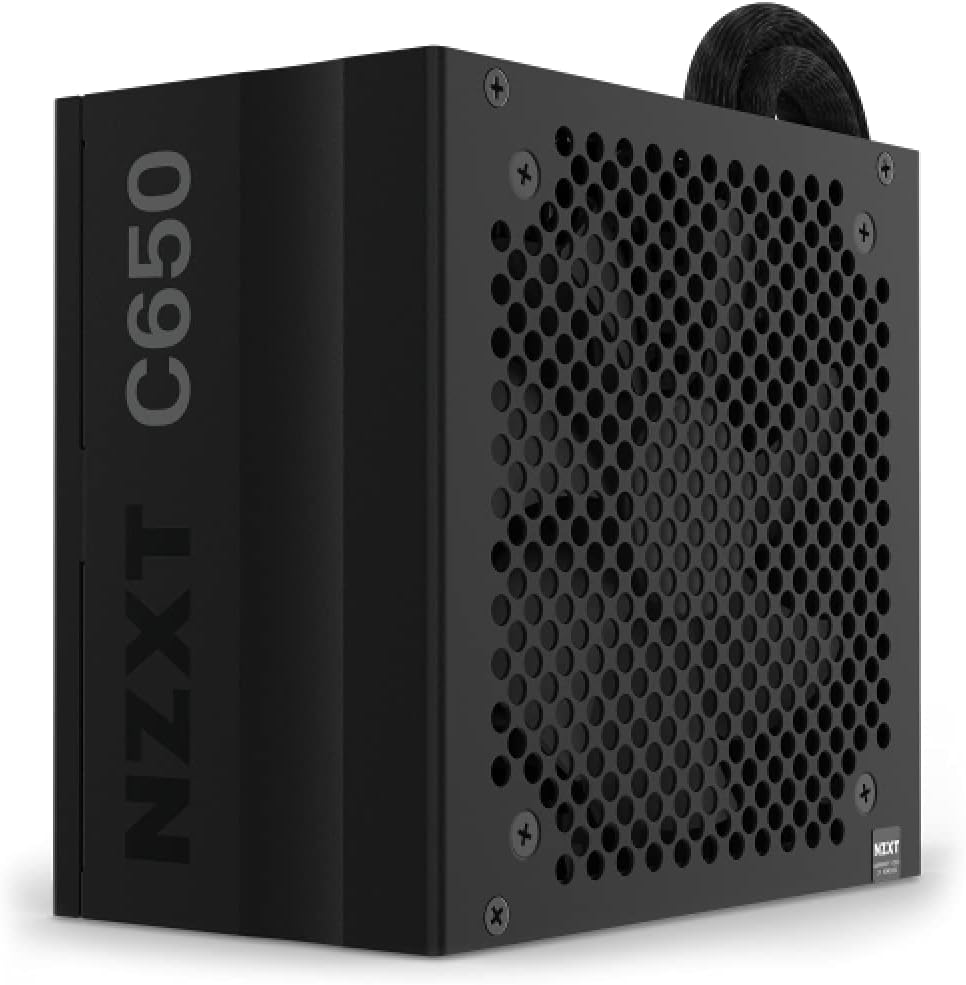
Figure 1: Front view of the NZXT C650 Bronze Power Supply Unit, showcasing its compact design and branding.
Setup and Installation
Proper installation of your power supply is crucial for system stability and safety. Follow these steps carefully.
1. Preparing for Installation
- Ensure your computer system is completely powered off and unplugged from the wall outlet.
- Discharge any static electricity by touching a grounded metal object before handling components.
- Gather necessary tools: Phillips head screwdriver.
2. Physical Installation
Locate the power supply mounting area in your computer case, typically at the bottom or top rear.

Figure 2: The NZXT C650 Bronze PSU seamlessly integrated into a computer case, demonstrating its compact form factor.
- Slide the NZXT C650 Bronze PSU into the designated bay.
- Align the screw holes on the PSU with those on the case.
- Secure the PSU using the provided screws.
3. Cable Connections
The C650 Bronze features a semi-modular design, allowing you to connect only the necessary cables.

Figure 3: Rear view of the NZXT C650 Bronze PSU, highlighting the semi-modular cable connection ports for CPU, PCIe, and Peripheral/SATA.
- Connect the 24-pin ATX motherboard power cable to your motherboard. This cable is permanently attached.
- Connect the 4+4 pin CPU power cable to your motherboard's CPU power connector. This cable is also permanently attached.
- Identify and connect the required modular cables for your components (e.g., PCIe for graphics card, SATA for storage drives, Peripheral for fans/accessories).
- Ensure all connections are firm and properly seated.

Figure 4: Close-up view of the durable, matte black sleeved cables, designed to resist heat damage and fraying for enhanced longevity.
Important: Only use modular cables provided with your NZXT C650 Bronze power supply. Using cables from other power supplies may cause damage to your components.
Operating Instructions
Once installed, the NZXT C650 Bronze PSU operates automatically to provide stable power to your system.
- Connect the AC power cord to the PSU's input socket and then to a wall outlet or surge protector.
- Ensure the power switch on the back of the PSU is in the 'ON' (I) position.
- Power on your computer system via the case's power button.
- The 120mm FDB fan will operate to cool the unit, adjusting its speed based on load to maintain silent operation.

Figure 5: Side view of the NZXT C650 Bronze PSU, showing the AC power input and the main power switch.

Figure 6: Top-down view of the NZXT C650 Bronze PSU, showcasing the 120mm FDB fan designed for silent and efficient cooling.
Maintenance
To ensure the longevity and optimal performance of your NZXT C650 Bronze PSU, periodic maintenance is recommended.
- Dust Removal: Regularly clean dust from the PSU's fan grille and vents using compressed air. Ensure the system is powered off and unplugged before cleaning.
- Airflow: Ensure adequate airflow around the PSU within your computer case. Avoid obstructing the intake and exhaust vents.
- Cable Management: Maintain tidy cable management to prevent obstruction of airflow inside the case, which can affect PSU cooling.
Troubleshooting
If you encounter issues with your NZXT C650 Bronze PSU, refer to the following common troubleshooting steps.
| Problem | Possible Cause | Solution |
|---|---|---|
| System does not power on. | Power cable not connected, PSU switch off, faulty component. | Check power cable connection. Ensure PSU switch is 'ON'. Verify all internal power connections. Test components individually if possible. |
| System powers on but shuts down immediately. | Overload, short circuit, overheating. | Ensure total power draw does not exceed PSU capacity. Check for loose screws or components causing short circuits. Ensure proper ventilation. |
| Unusual noises from PSU. | Fan obstruction, faulty fan. | Power off and unplug. Inspect fan for obstructions. If noise persists, contact support. |
If these steps do not resolve the issue, please contact NZXT customer support for further assistance.
Specifications
Detailed technical specifications for the NZXT C650 Bronze Power Supply Unit.
| Feature | Detail |
|---|---|
| Brand | NZXT |
| Series | C Series PSU 650W Bronze |
| Model Number | PA-6B1BB-US |
| Item Weight | 5.28 pounds (2.4 Kilograms) |
| Product Dimensions (LxWxH) | 5.9 x 3.39 x 6.3 inches |
| Color | Bronze |
| Compatible Devices | Personal Computer |
| Connector Type | ATX |
| Output Wattage | 650 Watts |
| Form Factor | ATX |
| Cooling Method | Air |
| Date First Available | September 24, 2021 |
Warranty and Support
For warranty information and technical support, please refer to the official NZXT website or contact their customer service directly.
- Online Support: Visit the NZXT Support Page for FAQs, troubleshooting guides, and driver downloads.
- Contact: For direct assistance, refer to the contact information provided on the official NZXT website.
Ask a question about this manual
Ask about setup, troubleshooting, compatibility, parts, safety, or missing instructions. Manuals+ will review the question and use this page’s manual context to help answer it.