
Brydge BRY70312
Brydge Microsoft Surface Pro+ Wireless Keyboard User Manual
Model: BRY70312
Introduction
This manual provides comprehensive instructions for the setup, operation, and maintenance of your Brydge Microsoft Surface Pro+ Wireless Keyboard. Designed specifically for the Microsoft Surface Pro 8, this keyboard enhances your device's functionality, transforming it into a versatile laptop-like experience.
Product Overview
The Brydge Microsoft Surface Pro+ Wireless Keyboard is engineered to provide a seamless and productive experience. Key features include:
- Seamless Compatibility: Specifically engineered for the Microsoft Surface Pro 8, ensuring a perfect fit and integration.
- Precision Touchpad: Equipped with a high-accuracy touchpad to facilitate smooth navigation and control.
- Backlit Keys: Features backlit keys to support typing in low-light environments.
- Wireless Connectivity: Utilizes Bluetooth technology for a cable-free and clutter-free setup.
- Durable Construction: Built with high-quality materials to provide durability and a premium feel.
- Enhanced Productivity: Transforms the Surface Pro 8 into a laptop-like device, boosting productivity and ease of use.
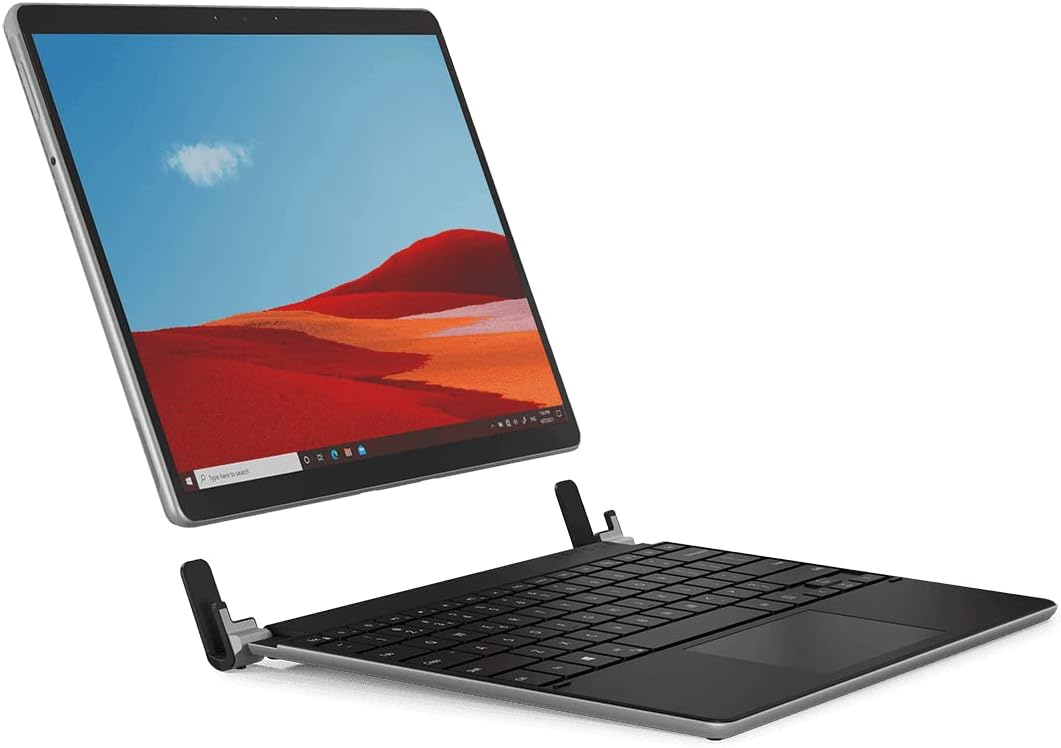
Image: The Brydge Wireless Keyboard seamlessly integrated with a Microsoft Surface Pro, demonstrating its laptop-like functionality.
Package Contents
Please ensure all items are present in your package:
- Brydge Microsoft Surface Pro+ Wireless Keyboard
- USB Cable (for charging)
- User Manual (this document)
Setup Instructions
1. Attaching Your Surface Pro
Carefully align your Microsoft Surface Pro 8 with the keyboard's hinges. Gently push the tablet into the hinges until it is securely seated. The design ensures a snug fit, transforming your tablet into a robust laptop setup.

Image: A side view illustrating how the Surface Pro tablet connects to the Brydge keyboard's hinges.
2. Bluetooth Pairing
- Ensure your Brydge keyboard is charged (refer to the Charging section).
- Turn on the keyboard by pressing the power button (usually located on the side or top right). The Bluetooth indicator light will begin to flash.
- On your Microsoft Surface Pro 8, navigate to Settings > Bluetooth & devices.
- Ensure Bluetooth is turned On.
- Select Add device > Bluetooth.
- Locate and select "Brydge Keyboard" (or similar name) from the list of available devices.
- Follow any on-screen prompts to complete the pairing process. The Bluetooth indicator light on the keyboard will turn solid when successfully paired.
Video: An official demonstration of the Brydge SP+ keyboard, showcasing its integration and use with the Microsoft Surface Pro 8. This video highlights the physical attachment and general functionality.
Operating Instructions
Keyboard Usage
The Brydge keyboard provides a full QWERTY layout with dedicated function keys for media control, screen brightness, and other common tasks. Typing on the keyboard is similar to a standard laptop keyboard, offering a comfortable and responsive experience.

Image: A user's hands actively typing on the Brydge keyboard, demonstrating its ergonomic design and ease of use.
Backlit Keys
The keyboard features adjustable backlighting for comfortable typing in various lighting conditions. Use the dedicated backlight keys (often found on the function row, e.g., Fn + F10/F11 or similar icons) to cycle through brightness levels or turn the backlight off.
Precision Touchpad
The integrated precision touchpad supports multi-touch gestures for intuitive navigation. Common gestures include:
- Single-finger tap: Left-click.
- Two-finger tap: Right-click.
- Two-finger scroll: Scroll up or down.
- Pinch-to-zoom: Zoom in or out.
For a full list of supported gestures, refer to your Microsoft Surface Pro's operating system settings.

Image: A detailed view of a hand interacting with the precision touchpad, highlighting its size and responsiveness.
Charging
To charge your Brydge Wireless Keyboard, connect the provided USB cable to the keyboard's charging port and the other end to a USB power source (e.g., a computer USB port or a USB wall adapter). The charging indicator light will show the charging status. A full charge typically takes approximately 2-3 hours.
Maintenance
To ensure the longevity and optimal performance of your Brydge keyboard:
- Cleaning: Use a soft, lint-free cloth to wipe down the keyboard and touchpad. For stubborn marks, slightly dampen the cloth with water or a mild, non-abrasive cleaner. Avoid excessive moisture.
- Storage: When not in use, store the keyboard in a clean, dry environment. If attached to your Surface Pro, ensure it is closed to protect the screen and keys.
- Avoid Liquids: Keep the keyboard away from liquids to prevent damage to internal components.
- Handle with Care: While durable, avoid dropping the keyboard or applying excessive force to the keys or hinges.
Troubleshooting
If you encounter issues with your Brydge Wireless Keyboard, please refer to the following common solutions:
| Problem | Possible Solution |
|---|---|
| Keyboard not connecting via Bluetooth. |
|
| Keys are not responding. |
|
| Touchpad is unresponsive or erratic. |
|
| Backlight not working. |
|
Specifications
| Feature | Detail |
|---|---|
| Product Dimensions | 11.77 x 9.17 x 1.26 inches |
| Item Weight | 2.35 pounds |
| Model Number | BRY70312 |
| Brand | Brydge |
| Compatible Devices | Microsoft Surface Pro 8 |
| Connectivity Technology | Bluetooth |
| Keyboard Description | Wireless |
| Number of Keys | 78 |
| Included Components | USB Cable |
Warranty and Support
Brydge products are designed for durability and performance. For warranty information and technical support, please visit the official Brydge website or contact their customer service. Keep your proof of purchase for warranty claims.
Official Brydge Website: www.brydge.com
Related documentsBRY70312


Ask a question about this manual
Ask about setup, troubleshooting, compatibility, parts, safety, or missing instructions. Manuals+ will review the question and use this page’s manual context to help answer it.