
1. Introduction
Welcome
Thank you for choosing the Metz MUC7000 Series 43-inch 4K UHD Smart TV. This manual provides essential information for setting up, operating, and maintaining your new television. Please read this manual thoroughly before using the TV and keep it for future reference.
Key Features
- 4K UHD Resolution: Experience stunning clarity with 3840 x 2160 pixels.
- HDR10/HLG & Dolby Vision Support: Enhanced contrast and vibrant colors for a realistic viewing experience.
- Android TV 10.0: Access a vast array of streaming content, apps, and games.
- Integrated Google Assistant: Control your TV and smart home devices with voice commands.
- Chameleon Extreme 2.0 Processor: Professional image processing for high performance and accurate colors.
- Dolby & DTS Audio Decoding: Immersive sound quality for movies and music.
- Multiple Connectivity Options: Wi-Fi, Bluetooth, HDMI, USB, DVB-C/T2/S2 tuners.

Image 1.1: Front view of the Metz MUC7000 Series 43-inch Smart TV, highlighting its Android TV capabilities and sleek design.
2. Safety Information
To ensure safe operation and prevent damage, please observe the following safety precautions:
- Power Supply: Connect the TV only to an AC power outlet with the correct voltage as indicated on the TV's label.
- Ventilation: Ensure adequate ventilation around the TV. Do not block ventilation openings or place the TV on soft surfaces that may impede airflow.
- Placement: Place the TV on a stable, level surface or mount it securely to a wall. Avoid placing it in direct sunlight, near heat sources, or in areas with high humidity or dust.
- Cleaning: Unplug the TV before cleaning. Use a soft, dry cloth to clean the screen and cabinet. Do not use liquid cleaners or aerosol sprays.
- Water and Moisture: Do not expose the TV to rain or moisture. Do not place objects filled with liquids, such as vases, on or near the TV.
- Foreign Objects: Never push objects of any kind into the TV through openings as they may touch dangerous voltage points or short-out parts that could result in fire or electric shock.
- Servicing: Do not attempt to service the TV yourself. Refer all servicing to qualified service personnel.
3. Package Contents
Please check that all the following items are included in your TV package:
- Metz MUC7000 Series 43-inch 4K UHD Smart TV
- Remote Control
- Power Cable
- TV Stand (2 pieces)
- Screws for Stand Assembly
- User Manual (this document)
- Quick Start Guide
4. Physical Setup
Attaching the Stand
- Carefully place the TV face-down on a soft, flat surface (e.g., a blanket or foam) to prevent screen damage.
- Align each stand piece with the corresponding slots on the bottom of the TV.
- Secure each stand piece with the provided screws, ensuring they are tightened firmly.

Image 4.1: The Metz MUC7000 Series Smart TV securely placed on its stand.
Wall Mounting (Optional)
If you prefer to wall-mount your TV, you will need a VESA-compatible wall mount kit (not included). The Metz MUC7000 Series 43-inch TV supports a VESA mount of 200 x 200 mm. Please refer to the wall mount kit's instructions for proper installation and ensure it can support the weight of your TV.
Connecting Your TV
Before connecting any cables, ensure the TV and all external devices are powered off and unplugged from the wall outlet.
- Power: Connect the power cable to the TV's power input and then to a wall outlet.
- Antenna/Satellite: Connect your terrestrial antenna or satellite dish cable to the appropriate input (DVB-C/T2/S2) on the TV.
- HDMI Devices: Connect external devices like Blu-ray players, game consoles, or set-top boxes to the HDMI ports. This TV has 3 HDMI 2.0 ports.
- USB Devices: Connect USB storage devices for media playback or software updates to the USB 2.0 ports (2 available).
- Network: For a wired internet connection, connect an Ethernet cable from your router to the LAN port on the TV.
- Audio Output: Use the Optical Digital Audio Out port to connect to a soundbar or home theater system for enhanced audio.

Image 4.2: Rear panel of the Metz MUC7000 Series Smart TV, illustrating the available connectivity ports.
5. Initial Setup
First Power On
After connecting all necessary cables, plug the TV's power cable into the wall outlet. Press the power button on the remote control or on the TV itself to turn it on.
Android TV Setup Wizard
Upon the first power-on, the TV will guide you through an initial setup wizard. Follow the on-screen instructions to:
- Select your preferred language.
- Connect to your Wi-Fi network or confirm your wired connection.
- Sign in with your Google Account to access the Google Play Store and other Android TV features.
- Accept terms of service and privacy policy.
Channel Scan
After completing the Android TV setup, the TV will prompt you to scan for available channels. Select your broadcast type (Antenna, Cable, or Satellite) and follow the instructions to perform an automatic channel scan. This will detect and store all available TV channels.
6. Operating the TV
Remote Control Overview
The included remote control allows you to navigate the TV's interface and access various functions. Familiarize yourself with the buttons:
- Power Button: Turns the TV on/off or into standby mode.
- Navigation Pad (Up/Down/Left/Right/OK): Used to move through menus and confirm selections.
- Home Button: Returns to the Android TV home screen.
- Back Button: Returns to the previous screen or menu.
- Volume Up/Down: Adjusts the audio volume.
- Channel Up/Down: Changes TV channels.
- Dedicated App Buttons: Quick access to Netflix, YouTube, Prime Video, and Google Play.
- Google Assistant Button: Activates voice control.

Image 6.1: Layout of the Metz Smart TV remote control.
Navigating Android TV
The Android TV home screen provides access to your installed apps, recommended content, and settings. Use the navigation pad on your remote to browse and select items. You can customize the home screen by adding or rearranging apps.

Image 6.2: The Android TV interface, showing various streaming applications and content suggestions.
Using Google Assistant
Press the Google Assistant button on your remote and speak into the microphone to use voice commands. You can ask questions, search for content, control smart home devices, and more.
Picture and Sound Settings
Access the TV's settings menu to adjust picture and sound preferences. Your Metz MUC7000 TV features:
- Picture Modes: Choose from various preset picture modes (e.g., Standard, Vivid, Movie, Sport) or customize settings like brightness, contrast, color, and sharpness. The 4K HDR10/HLG and Dolby Vision support ensures optimal visual quality.
- Sport Mode: Optimize your viewing experience for fast-paced sports action.
- Sound Modes: Select from different sound modes (e.g., Standard, Music, Movie) or adjust equalizer settings. The TV supports Dolby Digital Plus and DTS Studio Sound for rich audio.

Image 6.3: A detailed image on the TV screen, showcasing the clarity and color depth of 4K HDR technology.
7. Maintenance
Cleaning Your TV
To clean your TV, first unplug it from the power outlet. Use a soft, lint-free cloth to gently wipe the screen and cabinet. For stubborn marks, slightly dampen the cloth with water. Avoid using harsh chemicals, abrasive cleaners, or alcohol-based solutions, as these can damage the screen or finish.
Software Updates
Your Metz Smart TV runs on Android TV 10.0 and may receive periodic software updates to improve performance, add new features, or fix bugs. The TV will typically notify you when an update is available. Follow the on-screen prompts to download and install updates. Ensure the TV remains connected to power and the internet during the update process.
8. Troubleshooting
If you encounter issues with your TV, refer to the following common problems and solutions:
| Problem | Possible Solution |
|---|---|
| No power | Check if the power cable is securely plugged into the TV and the wall outlet. Try a different outlet. |
| No picture, but sound is present | Ensure the correct input source is selected. Check cable connections to external devices. |
| No sound, but picture is present | Check the volume level and mute status. Ensure external audio systems are properly connected and powered on. |
| Remote control not working | Replace the batteries. Ensure there are no obstructions between the remote and the TV's IR sensor. |
| Cannot connect to Wi-Fi | Check your router and modem. Restart the TV and your network equipment. Re-enter the Wi-Fi password. |
| Apps are slow or crashing | Clear the cache for the affected app in TV settings. Restart the TV. Ensure the TV's software is up to date. |
If the problem persists after trying these solutions, please contact customer support.
9. Specifications
Detailed technical specifications for the Metz MUC7000 Series 43-inch 4K UHD Smart TV (Model: 43MUC7000Y):
| Feature | Specification |
|---|---|
| Model Number | 43MUC7000Y |
| Screen Size | 43 inches (109 cm) |
| Display Technology | LCD / Direct LED |
| Resolution | 3840 x 2160 (4K UHD) |
| HDR Support | HDR10, HLG, Dolby Vision |
| Refresh Rate | 50/60 Hz |
| Operating System | Android 10.0 |
| Tuners | DVB-C/T2/S2 |
| HDMI Ports | 3 (HDMI 2.0) |
| USB Ports | 2 (USB 2.0) |
| Wireless Connectivity | Wi-Fi, Bluetooth |
| Audio Output Power | 2 x 8 W |
| Audio Decoders | Dolby Digital Plus, Dolby Digital, DTS Studio Sound |
| VESA Wall Mount | 200 x 200 mm |
| Dimensions (W x H x D) without stand | 96.0 x 56.3 x 7.6 cm |
| Dimensions (W x H x D) with stand | 96.0 x 62.4 x 23.0 cm |
| Weight with stand | 6.5 kg |

Image 9.1: Metz MUC7000 Series Smart TV dimensions.
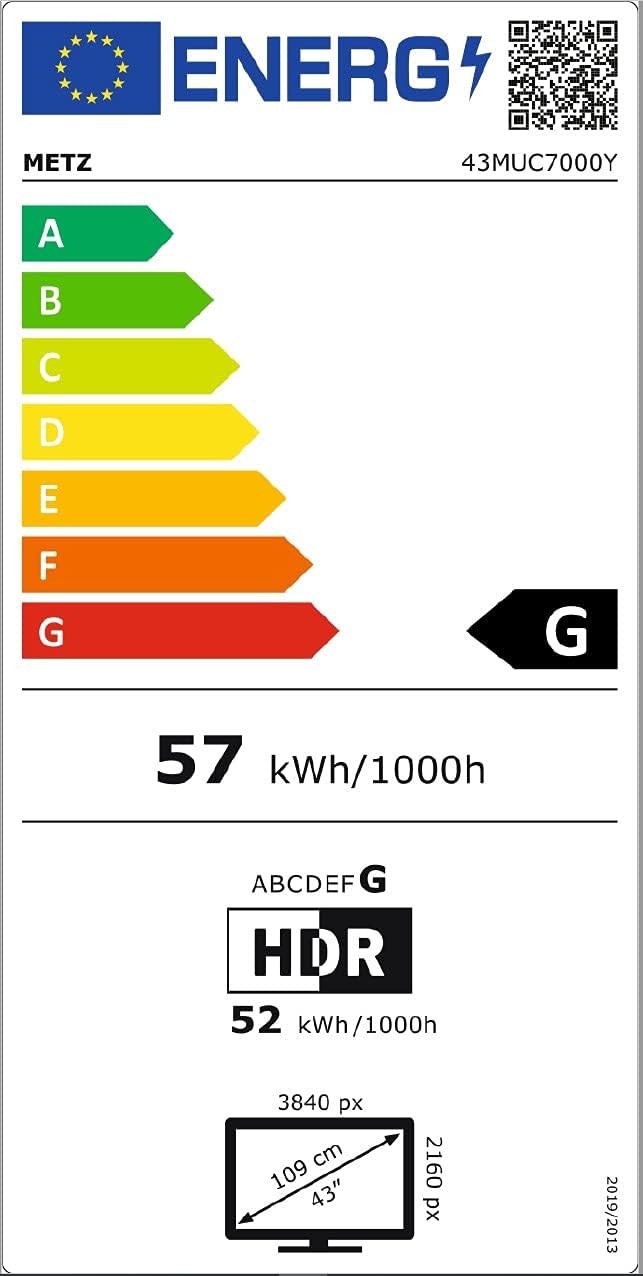
Image 9.2: EU Energy Label for Metz 43MUC7000Y. For more details, visit the EPREL database.

Image 9.3: Comprehensive technical data sheet for the MUC7000 series.
10. Warranty and Support
Warranty Information
Your Metz MUC7000 Series Smart TV is covered by a manufacturer's warranty. The specific terms and duration of the warranty may vary by region. Please refer to the warranty card included in your package or visit the official Metz website for detailed warranty information.
Customer Support
For technical assistance, troubleshooting beyond this manual, or warranty claims, please contact Metz customer support. You can typically find contact information on the official Metz website or in your product documentation.
- Website: www.metzblue.com
- Email: Refer to website for regional contact.
- Phone: Refer to website for regional contact.


