
Introduction
This manual provides detailed instructions for the setup, operation, and maintenance of your WiZ Squire Smart Table Lamp. Please read this manual thoroughly before using the product to ensure proper functionality and safety. The WiZ Squire lamp integrates smart lighting capabilities, offering customizable colors and control options via Wi-Fi.

Image: The WiZ Squire Smart Table Lamp shown next to its product packaging, highlighting its design and smart features.
Setup Guide
1. Unpacking and Initial Checks
- Carefully remove the WiZ Squire Smart Table Lamp from its packaging.
- Verify that all components are present: 1 WiZ Squire Lamp, 1 Power Plug.
- Inspect the lamp for any visible damage. If damaged, do not proceed with setup and contact customer support.
Image: A person reviewing phone settings, illustrating the initial preparation steps for smart device setup.
2. WiZ App Installation
- Download the WiZ Connected app from your device's app store (available on Google Play Store and Apple App Store).
- Create an account or log in if you already have one.
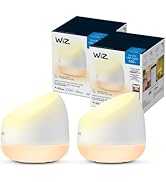
Image: The official WiZ Connected app icon, indicating the first step of downloading the application.
3. Device Installation and Power On
- Place the WiZ Squire lamp in your desired location.
- Connect the power plug to the lamp and then plug it into a power outlet. The lamp should illuminate.

Image: A user interacting with the WiZ app on a smartphone, demonstrating the straightforward 'Easy Plug & Play' setup process for the lamp.
4. Wi-Fi Connection and Initial Configuration
- Ensure your Wi-Fi network is set to 2.4GHz for pairing. WiZ devices connect to existing Wi-Fi networks.
- Follow the in-app instructions to connect your WiZ Squire lamp to your Wi-Fi network. This typically involves granting app permissions for location services and local network access.
- Once connected, you can choose your light settings and assign the lamp to a specific room within the app.

Image: A smartphone screen displaying the WiZ app's request for location service and local network permissions, crucial for device pairing.

Image: A smartphone screen displaying the WiZ app interface with various room settings and light control options, indicating successful setup.
Operating Your WiZ Squire Smart Table Lamp
Basic Functions
- App Control: Use the WiZ Connected app on your smartphone or tablet to turn the lamp on/off, adjust brightness, and change colors.
- Voice Control: The lamp is compatible with Google Home, Amazon Alexa, and Siri Shortcuts. Use voice commands to control the lamp (e.g., "Hey Google, turn on the Squire lamp").
- Wall Switch: Use a standard wall switch to toggle the lamp on/off. Some WiZ smart switches and sensors can also be integrated for enhanced control.

Image: A graphic illustrating the diverse control options for WiZ lights, including app control, scheduling, voice commands, and smart switches, along with compatibility logos for Siri Shortcuts, Alexa, Google Home, and Matter.
Advanced Features
- 16 Million Colors: Access a full spectrum of 16 million colors to create custom lighting environments.
- Preset Dynamic Modes: Utilize pre-programmed dynamic light modes for various moods and activities.
- SpaceSense™ Motion Detection: When two or more WiZ lights are placed at least 2 meters (6.56 feet) apart in the same room, activate the SpaceSense feature in the WiZ app. The lights will automatically turn on or off when motion is detected, without requiring additional sensors.
- Schedules: Set custom schedules for your lamp to turn on/off, dim, or change color according to your daily or weekly routines.
- Circadian Rhythm: Enable Circadian Rhythm to automatically adjust the light's color temperature and brightness throughout the day, mimicking natural light patterns.
- Custom Scenes: Save your favorite light settings as custom scenes for quick access and activation.

Image: A woman walking into a room, demonstrating the SpaceSense feature where lights automatically activate upon motion detection.

Image: Four distinct room settings showcasing various preset dynamic lighting modes, illustrating the lamp's versatility in creating different atmospheres.

Image: The WiZ Squire lamp demonstrating its capability to emit both vibrant colored light and clear white light, highlighting its dual functionality.
Maintenance
The WiZ Squire Smart Table Lamp requires minimal maintenance. Follow these guidelines to ensure its longevity:
- Cleaning: Disconnect the lamp from the power source before cleaning. Use a soft, dry cloth to wipe the surface. Do not use abrasive cleaners, solvents, or harsh chemicals, as these can damage the finish.
- Storage: If storing the lamp for an extended period, ensure it is clean and dry. Store it in a cool, dry place away from direct sunlight and extreme temperatures.
- Light Source: The LED light source is integrated and not user-replaceable.
Troubleshooting
If you encounter issues with your WiZ Squire Smart Table Lamp, refer to the following common solutions:
| Problem | Possible Cause | Solution |
|---|---|---|
| Lamp does not turn on | No power; loose connection | Check if the power plug is securely connected to both the lamp and the power outlet. Test the outlet with another device. |
| Cannot connect to Wi-Fi | Incorrect Wi-Fi band; weak signal; incorrect password | Ensure your router is broadcasting a 2.4GHz Wi-Fi signal. Move the lamp closer to the router. Double-check your Wi-Fi password. Restart your router and the lamp. |
| Voice control not working | Incorrect setup with voice assistant; microphone issue | Verify that the WiZ app is correctly linked to your Google Home, Alexa, or Siri Shortcuts account. Ensure your voice assistant device's microphone is active and listening. |
| Lamp is unresponsive | Temporary software glitch; network issue | Perform a soft reset by unplugging the lamp for 10 seconds and plugging it back in. Check your Wi-Fi connection. |
For further assistance, please refer to the WiZ Connected app's help section or contact customer support.
Product Specifications
| Feature | Detail |
|---|---|
| Model Number | 604249 |
| Brand | WiZ Connected |
| Lamp Type | Table Lamp |
| Light Source Type | LED |
| Color | 16 Million Colors |
| Wattage | 60 watts (equivalent) |
| Voltage | 100 Volts |
| Product Dimensions | 5.31"D x 5.91"W x 5.31"H |
| Item Weight | 1.5 pounds (0.68 Kilograms) |
| Material | Acrylic, Metal Base |
| Control Method | App, Remote, Voice |
| Connectivity | Wi-Fi (2.4GHz) |
| Special Features | Color Changing, Dimmable, Energy Efficient, SpaceSense™ |
| UPC | 046677604240 |

Image: A diagram illustrating the physical dimensions of the WiZ Squire Smart Table Lamp, showing its height and width.
Warranty Information
The WiZ Squire Smart Table Lamp comes with a 2-year manufacturer's warranty. This warranty covers defects in materials and workmanship under normal use. Please retain your proof of purchase for warranty claims. For specific terms and conditions, refer to the official WiZ Connected website or contact customer support.
Customer Support
For technical assistance, troubleshooting not covered in this manual, or warranty inquiries, please visit the official WiZ Connected support website or contact their customer service department. Contact information can typically be found on the product packaging or the WiZ Connected app.