
1. Introduction
This manual provides detailed instructions for the installation, operation, and maintenance of your WOLFBOX T10 Plus 2.5K Mirror Dash Cam. Please read this manual thoroughly before using the device to ensure proper functionality and safety. This device is designed to record video footage from your vehicle's front and rear perspectives, offering features such as GPS tracking, Wi-Fi connectivity, and parking monitoring.
2. Package Contents
Verify that all items listed below are included in your package:
- 1x WOLFBOX T10 Plus Mirror Dash Cam (Front Camera integrated)
- 1x WDR/HDR Rear Camera
- 1x GPS Antenna
- 1x 32GB TF Card
- 1x 21FT Backup Camera Cable
- 1x 11.5FT Car Charger
- 4x Rubber Mounting Straps
- 1x Car Wire Trim Tool
- 1x User Manual (This document)

Figure 2.1: Contents of the WOLFBOX T10 Plus package, including the mirror dash cam, rear camera, GPS module, and 32GB TF card.
3. Product Overview
The WOLFBOX T10 Plus integrates a high-resolution front camera into a 10-inch touch screen rearview mirror. It is accompanied by a separate rear camera and a GPS module for comprehensive vehicle monitoring.
3.1 Key Components
- Mirror Dash Cam Unit: The main unit featuring a 10-inch LCD touch screen, integrated front camera, and control buttons/ports.
- Rear Camera: A separate camera for recording the rear view, typically mounted on the license plate area or rear window.
- GPS Module: Connects to the main unit to record location and speed data.
- TF Card: Used for storing recorded video footage.

Figure 3.1: The front camera lens on the mirror dash cam is adjustable, allowing for optimal positioning to avoid obstructions from the vehicle's original rearview mirror.
4. Setup and Installation
Proper installation is crucial for optimal performance. It is recommended to consult a professional for installation if you are unsure.
4.1 Mounting the Mirror Dash Cam
- Attach the mirror dash cam to your vehicle's existing rearview mirror using the provided rubber mounting straps. Ensure it is securely fastened and does not obstruct your view.
- Adjust the integrated front camera lens to ensure it captures a clear view of the road ahead.
4.2 Connecting the Power Cable
- Connect the car charger to the dash cam's power input port.
- Plug the other end of the car charger into your vehicle's 12V power outlet (cigarette lighter socket).
- Route the power cable neatly along the vehicle's interior trim using the provided trim tool to avoid interference with driving.
4.3 Installing the Rear Camera
- Mount the rear camera at the rear of your vehicle, typically above the license plate or on the rear window. Ensure it has a clear, unobstructed view.
- Connect the rear camera cable to the rear camera input port on the main dash cam unit.
- For parking assist functionality, connect the red wire of the rear camera cable to the positive terminal of your vehicle's reversing light. This enables the parking guidelines to appear when shifting into reverse.
- Route the rear camera cable discreetly through the vehicle's interior to the main unit.
4.4 Connecting the GPS Module
- Connect the GPS antenna to the designated GPS port on the mirror dash cam.
- Mount the GPS antenna on your dashboard or windshield in a location with a clear view of the sky to ensure optimal signal reception.
5. Operating Instructions
5.1 Power On/Off
- The device will automatically power on and begin recording when your vehicle's ignition is turned on (if connected to a switched power source).
- To manually power off, press and hold the power button. The device will automatically power off when the vehicle's ignition is turned off.
5.2 Touch Screen Operations
The 10-inch touch screen allows for intuitive control:
- Swipe Left/Right: Switch between front camera view, rear camera view, or a split-screen display showing both.
- Swipe Up/Down (Left side of screen): Adjust the vertical viewing angle of the camera.
- Swipe Up/Down (Right side of screen): Adjust the screen brightness.
- Tap: Access menu options or confirm selections.

Figure 5.1: Demonstrates various touch screen gestures for switching camera views and adjusting display settings.
5.3 Menu Navigation
Tap the screen to reveal menu icons. Navigate through settings to configure recording resolution, loop recording duration, G-sensor sensitivity, parking monitor mode, Wi-Fi settings, and more.
6. Features Explained
6.1 High-Resolution Recording
The T10 Plus records in 2.5K (2560x1440P) for the front camera and 1080P (1920x1080P) for the rear camera, capturing clear details. Wide Dynamic Range (WDR) technology enhances image quality in varying light conditions, including low light and strong headlights, providing improved night vision.

Figure 6.1: Visual comparison highlighting the enhanced detail and clarity provided by 2.5K resolution compared to 1080P.

Figure 6.2: An example of video quality in low-light conditions, showcasing the effectiveness of WDR technology for clear night vision.
6.2 Built-in Wi-Fi
The integrated Wi-Fi allows you to connect your smartphone (iOS or Android) to the dash cam via the WOLFBOX app. This enables you to view live footage, download recorded videos, and share them directly from your phone.

Figure 6.3: The WOLFBOX app interface on a smartphone, demonstrating video playback and options for sharing recorded content.
6.3 Built-in GPS
The GPS module accurately records your driving route, speed, and location. This data can be reviewed using a dedicated GPS player on your computer, providing valuable evidence in case of incidents.

Figure 6.4: A computer screen showing a map with a recorded driving route and speed data, illustrating the GPS tracking feature.
6.4 Supercapacitor
The T10 Plus utilizes a supercapacitor instead of traditional lithium batteries. This enhances safety, especially in extreme temperatures (-4°F to 158°F), and significantly increases the device's lifespan and charging efficiency.

Figure 6.5: An illustration of a supercapacitor, highlighting its internal components and integration into electronic circuitry.
6.5 Parking Assist
When the rear camera's red wire is connected to the reversing light, the dash cam displays parking guidelines on the screen when the vehicle is in reverse. The 310° wide-angle view helps reduce blind spots, and the guidelines can be adjusted by swiping up or down on the screen.
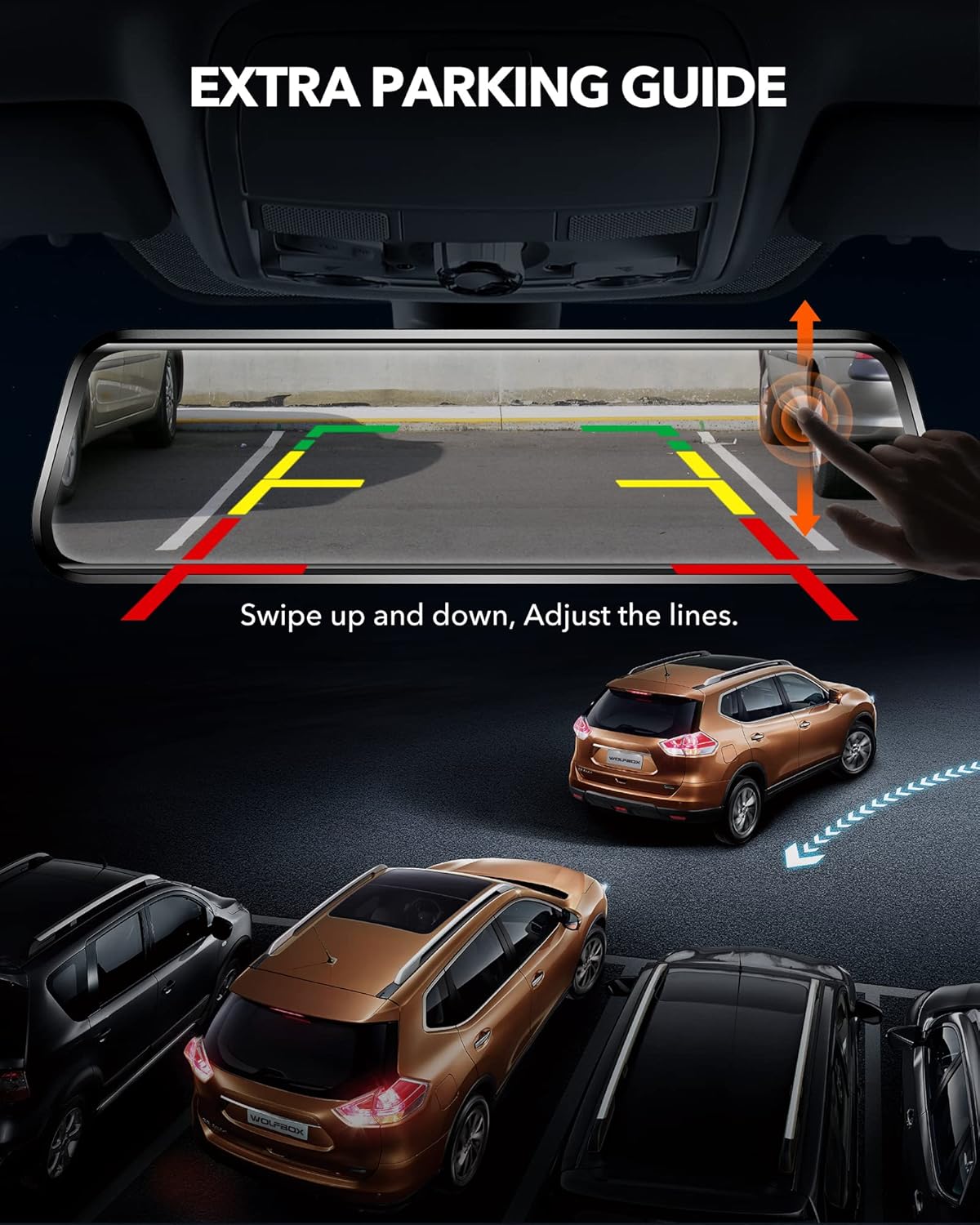
Figure 6.6: The dash cam display showing dynamic parking guidelines, which can be adjusted vertically to assist with precise parking maneuvers.
6.6 24-Hour Protection
- Loop Recording: Continuously records, overwriting the oldest unlocked footage when the TF card is full.
- G-Sensor: Automatically detects sudden impacts or collisions and locks the current video segment to prevent it from being overwritten.
- Manual Emergency Recording: Allows you to manually lock a video segment by pressing a button.
- Parking Monitoring: Provides continuous time-lapse recording or event-triggered recording when the vehicle is parked, offering surveillance against potential incidents.

Figure 6.7: A visual representation of the 24-hour parking monitoring feature, showing a vehicle under continuous surveillance in a parking environment.

Figure 6.8: An image depicting a police officer, representing the use of recorded footage as evidence in accident investigations.

Figure 6.9: An image illustrating a person peering into a car, symbolizing the dash cam's role in deterring theft and providing surveillance.
7. Maintenance
7.1 Cleaning the Device
Use a soft, dry cloth to clean the dash cam screen and lens. Avoid using abrasive cleaners or solvents that could damage the device.
7.2 Formatting the TF Card
It is recommended to format the TF card regularly (e.g., once a month) to maintain optimal recording performance and prevent data corruption. This can typically be done through the device's settings menu.
7.3 Firmware Updates
WOLFBOX may release firmware updates to improve performance or add new features. Check the official WOLFBOX website or contact customer support for information on available updates and installation instructions.
8. Troubleshooting
If you encounter issues with your WOLFBOX T10 Plus, refer to the following common problems and solutions:
- Device not powering on: Ensure the car charger is securely connected to both the dash cam and the vehicle's 12V power outlet. Check if the vehicle's power outlet is functioning.
- Recording issues: Verify that a TF card is inserted and properly formatted. Check the TF card's capacity and ensure it is not full. If the issue persists, try a different TF card.
- GPS signal problems: Ensure the GPS antenna is mounted in a location with a clear view of the sky. Avoid placing it under metal objects or tinted windows that may block the signal.
- Wi-Fi connection issues: Make sure Wi-Fi is enabled on the dash cam and your smartphone. Ensure you are within range of the dash cam's Wi-Fi signal. Restart both devices if necessary.
- Rear camera display problems: Check the connection of the rear camera cable to both the rear camera and the main unit. Ensure the cable is not damaged.
- Screen glare: Adjust the screen brightness using the touch screen gestures. Consider using an anti-glare film if glare remains an issue.
For further assistance, please contact WOLFBOX customer support.
9. Specifications
| Feature | Specification |
|---|---|
| Brand | WOLFBOX |
| Model Name | T10 |
| Item Model Number | T10 Plus |
| Front Camera Resolution | 2.5K (2560x1440P) |
| Rear Camera Resolution | 1080P (1920x1080P) |
| Display Size | 10 Inches |
| Display Type | LCD, Full Touch Screen |
| Front Viewing Angle | 170 Degrees |
| Rear Viewing Angle | 140 Degrees (approx.) |
| Storage | TF Card (32GB included) |
| Power Source | Car Charger (11.5FT) |
| Special Features | GPS Tracking, Wi-Fi, WDR Technology, Super Night Vision, G-sensor, Emergency Recording, Loop Recording, Parking Monitor, Supercapacitor |
| Operating Temperature | -4°F to 158°F (-20°C to 70°C) |
| Dimensions | 24.61 x 1.7 x 6.48 cm |
| Weight | 1.09 kg |
10. Warranty and Support
WOLFBOX stands behind its products with a 12-month after-sales guarantee. Additionally, 24/7 after-sales service is available to assist with any product-related questions or issues.
For technical support, warranty claims, or general inquiries, please refer to the contact information provided in your product packaging or visit the official WOLFBOX website.
