1. Setup Guide
This section provides instructions for the initial setup of your G-TiDE Klap T1 Kids Tablet.
1.1. Unboxing and Initial Charge
Upon unboxing, ensure all components are present: the G-TiDE Klap T1 tablet, a kid-proof case, a screen protector, and the charging cable with adapter. It is recommended to fully charge the tablet before first use.
- Connect the provided USB-C charging cable to the tablet's charging port.
- Plug the adapter into a power outlet.
- Allow the tablet to charge until the battery indicator shows full.

Figure 1: G-TiDE Klap T1 Tablet with its protective blue case.
1.2. Powering On and Initial Configuration
To power on the tablet, press and hold the power button located on the side. Follow the on-screen prompts for initial configuration.
- Language Selection: Choose your preferred language.
- Wi-Fi Connection: Select your Wi-Fi network and enter the password to connect to the internet.
- Google Account Sign-in: Sign in with an existing Google account or create a new one. This is necessary for downloading apps from Google Play.
- Date and Time: Set the correct date and time, or allow the device to set it automatically via network.
- Wallpaper Selection: Customize your tablet's appearance by choosing a wallpaper.

Figure 2: Tablet interface displaying setup options and key features.
2. Operating Instructions
This section covers the basic operation of your G-TiDE Klap T1 Kids Tablet.
2.1. Basic Navigation
- Home Screen: The main screen where you can access installed applications.
- App Drawer: Swipe up from the home screen to view all installed applications.
- Notifications Panel: Swipe down from the top of the screen to access notifications and quick settings.
- Back, Home, and Recent Apps: Use the navigation buttons at the bottom of the screen for these functions.
2.2. Using the Klap App (Pre-installed)
The Klap app is pre-installed and designed to provide a safe and engaging environment for children. It includes various categories such as Shows, Learning, Music, and Stories.
- Tap the "Klap" icon on the home screen to launch the application.
- Navigate through different content categories using the tabs at the top.
- Select content by tapping on its icon.

Figure 3: The Klap app interface, offering diverse content for children.
2.3. Parental Controls
The Klap app features robust parental controls to manage your child's usage. Access these settings via the parental control icon within the Klap app, usually requiring a password.
- Time Limits: Set daily time limits for tablet usage.
- Content Filtering: Control access to specific apps or content categories.
- Child Lock: Lock the tablet to prevent unauthorized access.
- Multiple Accounts: Create separate profiles for each child with customized settings.

Figure 4: Parental control interface for managing tablet usage.
2.4. Camera Functionality
The tablet is equipped with a 5MP front camera and an 8MP rear camera. Tap the "Camera" icon to open the camera application.
- Switch between front and rear cameras using the camera toggle icon.
- Tap the shutter button to take photos or start/stop video recording.

Figure 5: Demonstrating the tablet's dual camera capabilities.
3. Maintenance
Proper maintenance ensures the longevity and optimal performance of your tablet.
3.1. Cleaning
- Use a soft, lint-free cloth to clean the screen and body of the tablet.
- For stubborn smudges, slightly dampen the cloth with water or a screen-cleaning solution. Avoid harsh chemicals.
- Ensure the tablet is powered off and unplugged before cleaning.
3.2. Case Care
The durable EVA kid-proof case protects the tablet from drops and bumps. Regularly inspect the case for any damage and clean it as needed with mild soap and water.
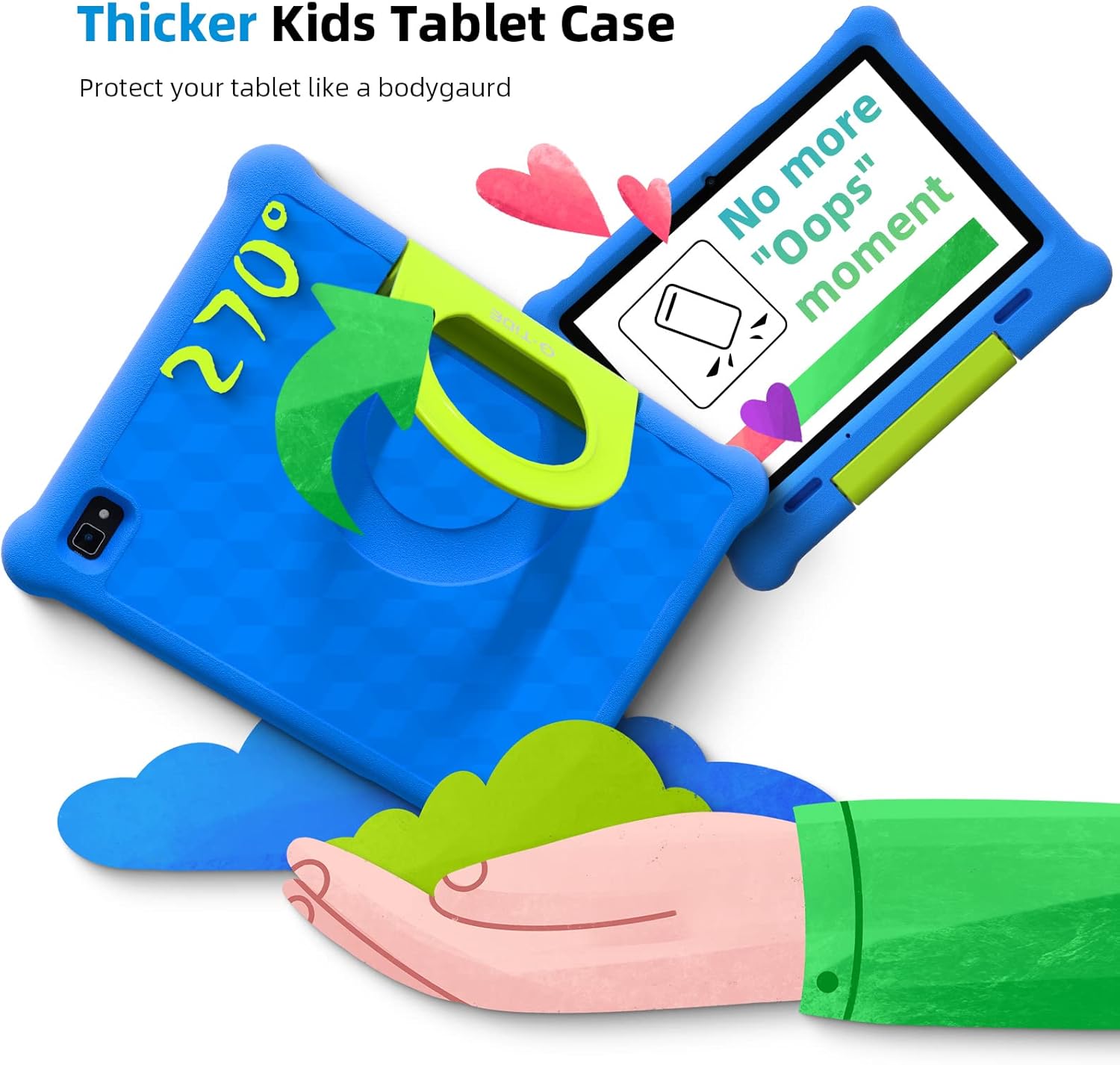
Figure 6: The tablet's protective case with adjustable stand.
3.3. Battery Management
The tablet features a 6000mAh battery providing up to 12 hours of average use. To maximize battery life:
- Avoid extreme temperatures.
- Do not leave the tablet charging for extended periods after it's full.
- Reduce screen brightness when not needed.
- Close unused applications running in the background.

Figure 7: Battery life illustration with different usage scenarios.
4. Troubleshooting
This section addresses common issues you might encounter with your G-TiDE Klap T1 tablet.
4.1. Tablet is Slow or Unresponsive
- Restart the Tablet: Press and hold the power button, then select "Restart."
- Close Background Apps: Close any applications not currently in use.
- Clear Cache: Go to Settings > Apps & notifications > See all apps, then select an app and choose Storage & cache > Clear cache.
- Free Up Storage: Delete unnecessary files, photos, or uninstall unused apps. The tablet has 32GB ROM, expandable up to 128GB with a TF Card.
4.2. Wi-Fi Connection Issues
- Check Router: Ensure your Wi-Fi router is on and functioning correctly.
- Reconnect to Network: Go to Settings > Network & internet > Wi-Fi, then forget the network and reconnect.
- Restart Tablet and Router: Power off both the tablet and your Wi-Fi router, then turn them back on.
4.3. Screen Not Responding
- Force Restart: Press and hold the power button for about 10-15 seconds until the tablet restarts.
- Check for Damage: Inspect the screen for any physical damage.
5. Specifications
| Feature | Specification |
|---|---|
| Brand | G-TiDE |
| Model Name | Klap T1 |
| Screen Size | 10.1 Inches |
| Screen Resolution | 1280 x 800 |
| Processor | 1.6 GHz Quad-Core Rockchip |
| RAM | 2 GB |
| Internal Storage | 32 GB |
| Expandable Storage | Up to 128 GB (TF Card) |
| Operating System | Android 11 |
| Rear Camera Resolution | 8 MP |
| Front Camera Resolution | 5 MP |
| Battery Life (Average) | 12 Hours |
| Wireless Type | 802.11n |
| Item Weight | 2.29 pounds |
| Product Dimensions | 9.65 x 6.3 x 0.39 inches |
| Color | Blue |

Figure 8: Key specifications including storage and battery.
6. Warranty and Support
For detailed warranty information and customer support, please refer to the official G-TiDE website or the documentation included with your product. You can also find a User Guide (PDF) and User Manual (PDF) available for download.
- Official User Guide (PDF): Download User Guide
- Official User Manual (PDF): Download User Manual
- Visit the G-TiDE Store: G-TiDE Amazon Store


