
1. Introduction
The ADAM elements Omnia Q5 is a versatile 5-in-1 wireless charging station designed to power multiple devices simultaneously. This station supports a wide range of devices, including iPhones (8 and newer), Apple Watch, AirPods (2nd Gen & Pro), Apple Pencil (2nd Gen), and Qi-Certified Android phones and tablets. Its modular design and efficient charging capabilities make it an ideal solution for organizing and powering your essential electronics.
2. Product Overview
The Omnia Q5 charging station integrates multiple charging points into a single, compact unit. It features a main stand for phones, dedicated spots for AirPods and Apple Watch, a slot for Apple Pencil, and a stand for tablets. The phone charging pad is detachable for flexible use.
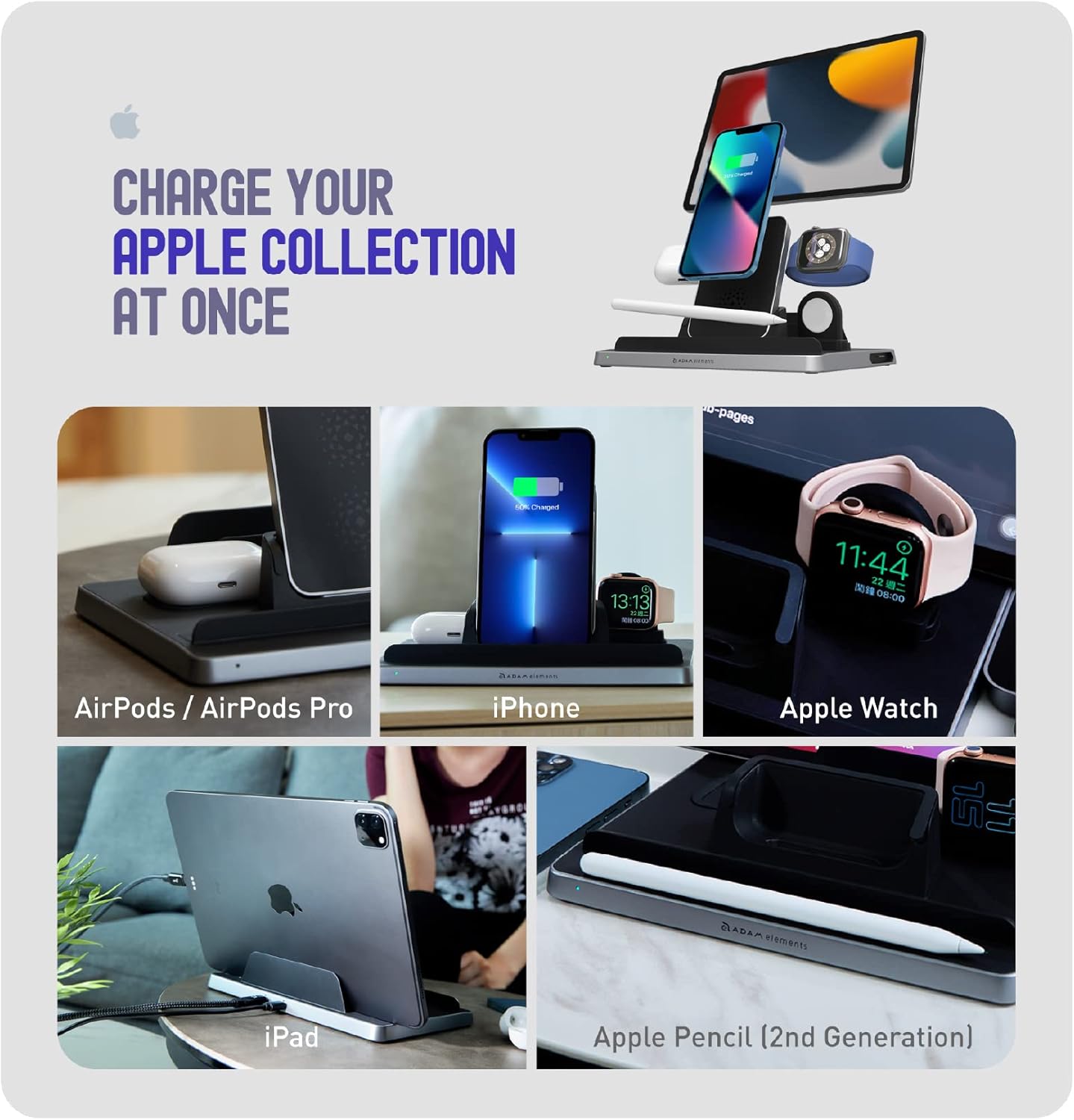
Image: The Omnia Q5 charging station showcasing its ability to charge an iPhone, Apple Watch, AirPods, Apple Pencil, and an iPad simultaneously. The station is designed to keep all your Apple devices organized and powered.

Image: A view of the Omnia Q5's modular design, demonstrating how an iPad can be placed in the rear stand, an iPhone on the vertical charging pad, an Apple Watch on its dock, and an Apple Pencil in its designated slot. This highlights the station's adaptability for various device arrangements.
Product Overview Video
Video: This video provides a comprehensive overview of the ADAM elements Omnia Q5 5-in-1 Wireless Charging Station, demonstrating its features and how various devices like iPhones, Apple Watches, AirPods, Apple Pencils, and iPads can be charged simultaneously and efficiently. It highlights the modularity and convenience of the charging station.
3. Setup
- Connect Power: Connect the provided USB-C to USB-C cable to the charging station and a compatible power adapter (not included). Ensure the power adapter meets the required wattage for optimal performance.
- Assemble Components: The phone charging pad is detachable. Ensure it is securely placed in its designated slot on the main station. The Apple Watch charging dock and iPad stand are integrated.
- Install Apple Watch Cable: Route your original Apple Watch magnetic charging cable (not included) through the designated slot in the Apple Watch charging dock. The station supports both USB-A and USB-C Apple Watch cables.
4. Operating Instructions
4.1 Charging an iPhone or Qi-Certified Android Phone

Image: The wireless phone charging pad with an iPhone placed vertically, displaying its charging status. The image also indicates charging speeds for Apple (7.5W) and Android (15W) devices, highlighting fast charging support.

Image: The independent wireless charging pad, detached from the main station, with a phone placed on it for charging. A USB-C charging port is visible, indicating its standalone functionality and power input.
Place your iPhone (8 or newer) or Qi-Certified Android phone on the vertical wireless charging pad. The dual-coil design supports both horizontal and vertical charging orientations. Ensure the phone is centered on the pad for optimal charging. The detachable pad can also be used independently.
4.2 Charging an Apple Watch

Image: The Apple Watch charging dock with an Apple Watch securely placed for charging. The image also illustrates the compatibility with both Apple Watch Magnetic Charger to USB-A Cable and Apple Watch Magnetic Charger to USB-C Cable (cables not included).
Place your Apple Watch on the dedicated charging dock. Ensure your original Apple Watch magnetic charging cable is properly installed within the dock. The dock supports all Apple Watch series.
4.3 Charging AirPods

Image: The AirPods charging base with an AirPods Pro case placed on it, showing a green LED indicator for charging. The image clarifies compatibility with AirPods/AirPods Pro with wireless charging cases and other earbuds with wireless charging cases.
Place your AirPods (2nd Gen & Pro) or other earbuds with a wireless charging case onto the dedicated AirPods charging base.
4.4 Charging an Apple Pencil (2nd Gen)

Image: The Apple Pencil charging base with an Apple Pencil (2nd Generation) placed in its slot, showing a green LED indicator. This confirms the base is actively charging the Apple Pencil.
Place your Apple Pencil (2nd Generation) into the designated charging slot on the station.
4.5 Charging an iPad or Tablet

Image: The iPad charging stand with an iPad positioned in it, connected via a USB-C to USB-C charging cable (optional). This demonstrates the wired charging capability for larger devices.
Place your iPad or compatible tablet in the rear stand. Connect it to the station using a USB-C to USB-C charging cable (optional, not included) for power delivery.
5. LED Indicators
The Omnia Q5 features LED indicators to communicate charging status and potential issues:
- Green Light: Indicates that a device is actively charging.
- Blue Light: Indicates the charging pad is ready to charge.
- Flashing Blue & Green Lights: Indicates Foreign Object Detection (FOD) mode. This means a foreign object (e.g., keys, coins) has been detected on the charging pad, or a device is not properly placed.
6. Troubleshooting
If you encounter issues with charging, please follow these troubleshooting steps:
6.1 Foreign Object Detection (FOD)
FOD mode is activated when the charging pad detects an improper placement or a foreign object. The indicator lights will flash blue and green.
6.2 Troubleshooting Steps for Charging Issues
Video: This instructional video demonstrates how to troubleshoot common charging issues with the ADAM elements Omnia Q5 Wireless Charging Station, specifically addressing Foreign Object Detection (FOD) and improper device placement. It shows the steps to resolve these issues and ensure proper charging.
- Remove Device/Charging Pad: If the indicator lights are flashing blue and green, remove the device or the detachable charging pad from its position.
- Wait for Indicator Light to Go Off: Wait approximately 3 seconds for the blue indicator light to turn off completely. This resets the charging mechanism.
- Properly Place Device: Place your phone or device back onto the charging pad, ensuring it is correctly aligned and centered. The green light should illuminate, indicating active charging.
- Check Charging Pad Installation: Ensure the detachable charging pad is properly installed and seated in its slot on the main station. An improperly installed pad can prevent charging.
- Remove Foreign Objects: Ensure there are no metal objects (e.g., keys, coins, credit cards) between your device and the charging pad.
- Check Power Connection: Verify that the power cable is securely connected to both the charging station and the power adapter, and that the adapter is plugged into a working power outlet.
7. Specifications
| Product Dimensions | 8.86 x 6.69 x 2.64 inches |
| Item Weight | 1 ounces |
| Model Number | APAADQ5OGBK |
| Brand | ADAM ELEMENTS |
| Connector Type | USB Type C |
| Compatible Devices | Smartphones, Smartwatches, Tablets (iPhone 8 and newer, Apple Watch, AirPods Gen 2 & Pro, Apple Pencil Gen 2, Android Phones (Qi-Certified)) |
| Special Features | Indicator Light, Magnetic, Wireless Charger |
| Amperage | 3 Amps |
| Total USB Ports | 1 (for main power input) |
| Wattage | 50.0 W |
8. Maintenance
- Cleaning: Use a soft, dry cloth to clean the surface of the charging station. Avoid using abrasive cleaners or solvents.
- Storage: Store the charging station in a cool, dry place when not in use.
- Cable Management: Ensure cables are not tangled or pinched to prevent damage.
9. Warranty and Support
For warranty information and customer support, please refer to the official ADAM elements website or contact their customer service directly. Keep your purchase receipt for warranty claims.


