
Introduction
This manual provides comprehensive instructions for the setup, operation, maintenance, and troubleshooting of your DR1TECH Raven TKL Gaming RGB Mechanical Keyboard. Please read this manual carefully before using the product to ensure optimal performance and longevity.

Figure 1: DR1TECH Raven TKL Gaming RGB Mechanical Keyboard. This image displays the full keyboard with its 87-key layout and vibrant RGB backlighting active.
Package Contents
Verify that all items listed below are present in your product packaging:
- DR1TECH Raven TKL Gaming RGB Mechanical Keyboard
- USB-A to USB-C Cable
- User Manual (this document)
Setup Instructions
- Unpack the Keyboard: Carefully remove the DR1TECH Raven keyboard and its accessories from the packaging.
- Connect to PC: Insert the USB-C end of the provided cable into the port on the keyboard. Connect the USB-A end of the cable to an available USB port on your computer.
- Driver Installation: The keyboard is plug-and-play. Your operating system (Windows, macOS, Linux) should automatically detect and install the necessary drivers. No additional software installation is typically required for basic functionality.
- Placement: Position the keyboard comfortably on your desk. The TenKeyLess (TKL) design provides more space for mouse movement.
Operating Instructions
Basic Keyboard Functions
The DR1TECH Raven is an 87-key mechanical keyboard designed for responsive input. All keys feature anti-ghosting technology, ensuring that multiple simultaneous key presses are registered accurately without conflict.

Figure 2: Illustration of the 87-key layout and the full anti-ghosting capability, highlighting the independent registration of each key press.
RGB Backlighting Control
The keyboard features customizable RGB backlighting with 14 distinct lighting effects. Control is typically managed directly from the keyboard using function key combinations.
- Changing Lighting Modes: Use the Fn key in combination with specific keys (often indicated by icons on the F-row or navigation cluster) to cycle through different RGB effects. Refer to the keycaps for specific indicators.
- Adjusting Brightness: Typically, Fn + Up Arrow or Down Arrow keys control the brightness level.
- Adjusting Speed/Direction: Some lighting effects allow for speed or direction adjustments, often controlled by Fn + Left Arrow or Right Arrow.
- Customizing Individual Key Colors: The product description mentions the ability to set the color of each individual key via keyboard commands. Consult the specific keycap legends or a detailed quick start guide (if provided separately) for these advanced customization options.

Figure 3: A close-up view of the DR1TECH Raven keyboard, highlighting the vibrant RGB backlighting and keycap legends.
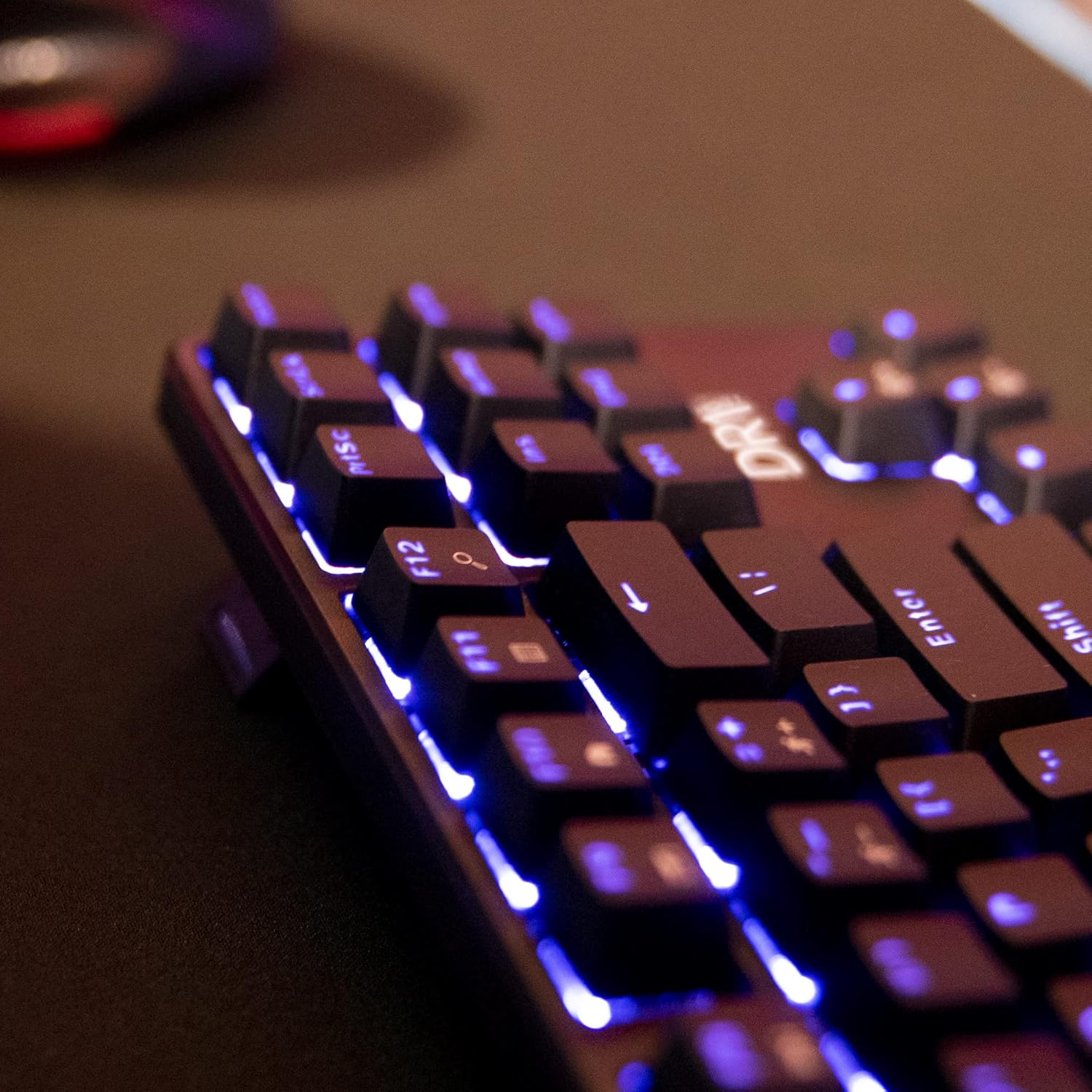
Figure 4: An angled perspective of the DR1TECH Raven keyboard, showcasing the illuminated keys with a blue backlight.
Multimedia and Hotkeys
The DR1TECH Raven keyboard includes multimedia and hotkey functionalities, typically accessed by holding the Fn key and pressing the corresponding F-row keys (F1-F12) or other designated keys. These functions may include:
- Volume Control (Mute, Volume Up, Volume Down)
- Media Playback (Play/Pause, Stop, Previous Track, Next Track)
- Web Browser, Email, My Computer shortcuts
- Calculator
Refer to the icons printed on the keycaps for the specific functions assigned to each Fn combination.
Maintenance
Proper maintenance ensures the longevity and optimal performance of your DR1TECH Raven keyboard.
- Cleaning:
- Disconnect the keyboard from your computer before cleaning.
- Use a soft, lint-free cloth slightly dampened with water or a mild cleaning solution to wipe the keycaps and chassis.
- For dust and debris between keys, use compressed air.
- The magnetic top cover can be removed for easier cleaning of dust and debris beneath the keycaps.
- Avoid using harsh chemicals, abrasive cleaners, or solvents.
- Storage: Store the keyboard in a dry, cool environment away from direct sunlight and extreme temperatures.
- Cable Care: Avoid sharp bends or excessive pulling on the USB cable to prevent damage.
Troubleshooting
| Problem | Possible Cause | Solution |
|---|---|---|
| Keyboard not responding | Loose USB connection, faulty USB port, driver issue. |
|
| RGB lighting not working or incorrect | Lighting settings, software conflict (unlikely for hardware control). |
|
| Keys are not registering or double-typing | Debris under keycap, switch malfunction, software issue. |
|
Specifications
| Brand | DR1TECH |
| Model Number | DR10031 |
| Style | Raven |
| Keyboard Type | Mechanical, TenKeyLess (TKL) 87-key |
| Connectivity | USB-A Wired |
| Backlighting | RGB (14 effects, customizable) |
| Special Features | Anti-Ghosting, Backlit, Ergonomic, Hotkeys and Media Keys |
| Compatible Devices | PC |
| Product Dimensions | 13.9 x 5.04 x 1.18 inches (35.3 x 12.8 x 3 cm) |
| Item Weight | 1.65 pounds (0.75 kg) |
| Key Durability | Over 20 million clicks |
Warranty and Support
DR1TECH products are designed for quality and performance. For warranty information or technical support, please refer to the documentation included with your purchase or visit the official DR1TECH website.
In case of questions or unforeseen issues, contact DR1TECH customer support for assistance.