
1. Introduction
This manual provides essential instructions for the safe and efficient operation of your Core Innovations 150" LCD Home Theater Mini Projector. Please read this manual thoroughly before using the product and retain it for future reference.
2. Product Overview
Key Features
- Adjustable screen size from 32 inches to 150 inches.
- Integrated speakers for audio output.
- Powerful LED bulb for rich and dynamic image details.
- Focus adjustment and keystone correction for clear and aligned projection.
- Multiple connectivity options: VGA, 2 HDMI inputs, USB input, Micro SD card slot, 3.5mm headphone jack, AV IN.
- Compatible with various devices including phones, gaming consoles, DVD players, USB drives, TV sticks, and external speakers.
Projector Components and Connections
Familiarize yourself with the various ports and controls on your projector.

Image: Rear view of the projector highlighting its various input and output ports.
- Headphone Jack: For connecting external headphones or audio systems.
- AV Input: For connecting devices using an AV cable.
- Micro SD Card Slot: For playing media directly from a Micro SD card.
- HDMI Inputs 1 & 2: For connecting devices via HDMI cables.
- USB Port: For connecting USB drives (up to 1000GB).
- DC IN: Power input for the projector.

Image: Visual representation of the bright LED projection quality, comparing it to a less vibrant display.
3. Setup
Placement
Position the projector on a stable, flat surface. Ensure there is adequate ventilation around the unit. The projection distance will determine the screen size. You can adjust the screen size from 32 inches to 150 inches.

Image: Visual guide demonstrating the adjustable screen sizes from 32 to 150 inches.
Power Connection
- Connect the power adapter to the DC IN port on the projector.
- Plug the power adapter into a standard electrical outlet.
Connecting Devices
The projector supports various input sources. Choose the appropriate cable for your device and connect it to the corresponding port on the projector.
- HDMI: Connect gaming consoles, TV sticks, laptops, or DVD players using an HDMI cable to one of the two HDMI input ports.
- USB: Insert a USB flash drive into the USB port to play media files.
- Micro SD: Insert a Micro SD card into the Micro SD card slot to play media files.
- AV: Use the included AV cable to connect older devices like DVD players.
- VGA: Connect a computer or laptop using a VGA cable.
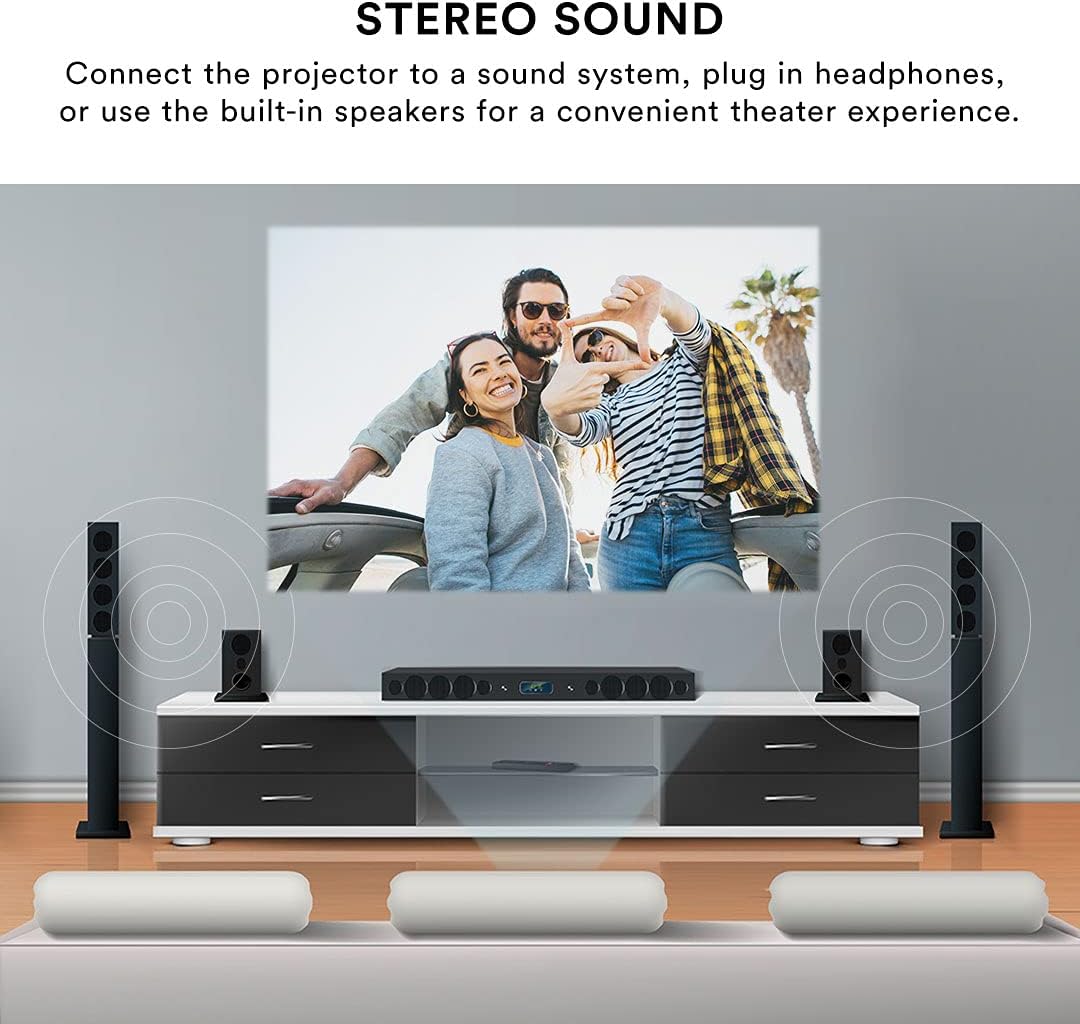
Image: A visual guide to the types of devices compatible with the projector, including gaming consoles, smartphones, and storage devices.
Focus and Keystone Adjustment
After powering on and selecting an input, adjust the image for clarity and shape.
- Focus Adjustment: Rotate the focus knob on the projector lens until the image appears sharp and clear.
- Keystone Correction: If the projected image appears trapezoidal (wider at the top or bottom), use the keystone correction dial to adjust the image geometry until it is rectangular.

Image: Demonstrates how to use focus adjustment for clarity and keystone correction to fix image distortion.
4. Operating Instructions
Powering On/Off
- To Power On: Press the power button on the projector or the remote control. The indicator light will illuminate.
- To Power Off: Press the power button again. Allow the projector to cool down before unplugging it.
Source Selection
After connecting your device, select the correct input source using the 'Source' button on the projector or the remote control. Navigate through the options (HDMI1, HDMI2, AV, USB, Micro SD, VGA) and select your desired input.
Audio Output
The projector features built-in speakers for convenient audio. For an enhanced audio experience, you can connect external speakers or headphones.
- Built-in Speakers: Audio will play automatically through the projector's internal speakers.
- External Speakers/Headphones: Connect your external audio device to the 3.5mm headphone jack on the projector. This will typically disable the built-in speakers.

Image: Demonstrates connecting the projector to an external sound system for an enhanced audio experience.
Remote Control
Use the included remote control to power on/off, select input sources, adjust volume, and navigate menus from a distance.
5. Maintenance
General Care
- Keep the projector in a clean, dust-free environment.
- Avoid exposing the projector to extreme temperatures or humidity.
- Do not block the ventilation openings, as this can lead to overheating.
Lens Cleaning
Use a soft, lint-free cloth specifically designed for optical lenses to gently wipe the projector lens. Do not use abrasive cleaners or solvents.
6. Troubleshooting
If you encounter issues with your projector, refer to the following common problems and solutions:
| Problem | Possible Cause | Solution |
|---|---|---|
| No image on screen | Incorrect input source selected; loose cable connection; device not powered on. | Verify the input source matches your connected device. Check all cable connections. Ensure the source device is powered on. |
| Image is blurry | Focus not adjusted; projector too close/far from screen. | Adjust the focus knob until the image is clear. Ensure the projector is within the recommended projection distance. |
| Image is distorted (trapezoidal) | Projector not perpendicular to the screen. | Adjust the keystone correction dial to square the image. Reposition the projector if necessary. |
| No sound | Volume too low; incorrect audio output selected; external speakers not connected properly. | Increase the volume. Check if external speakers or headphones are connected and functioning. Ensure the source device's volume is also up. |
| Projector fan is noisy | Normal operation; ventilation blocked; fan wearing down. | Ensure ventilation openings are clear. If noise is excessive or unusual, contact customer support. |
7. Specifications
| Feature | Detail |
|---|---|
| Model Number | CJR600WH |
| Display Resolution | 1280 x 720 |
| Product Dimensions (L x W x H) | 8.1 x 6.1 x 3.4 inches |
| Item Weight | 2 pounds |
| Connectivity Technology | USB, HDMI, AV, Micro SD, VGA |
| Special Features | Headphone Jack, Portable, Built-in Speakers, Keystone Correction |
| Recommended Uses | Gaming, Home Theater, Presentations |
| Manufacturer | DP Audio Video |

Image: Physical dimensions of the projector.
8. Warranty and Support
For warranty information or technical support, please contact the manufacturer, DP Audio Video, or your retailer. Keep your purchase receipt as proof of purchase.


