
TECLAST M40PRO Android Tablet
TECLAST M40 Pro Android Tablet User Manual
Model: M40PRO Android Tablet
1. Introduction
This manual provides comprehensive instructions for the setup, operation, and maintenance of your TECLAST M40 Pro Android Tablet. The TECLAST M40 Pro is a high-performance tablet featuring a 10-inch FHD display, Android 11 operating system, 6GB RAM, 128GB internal storage (expandable up to 512GB), an Octa-Core processor, dual cameras, dual-band Wi-Fi, Bluetooth, and GPS capabilities. It is designed for a wide range of uses, from study and entertainment to productivity.

Image: Front and back view of the TECLAST M40 Pro tablet, highlighting its sleek design and the Android 11 interface on the screen.
2. What's in the Box
Upon opening the package, please verify that all the following items are present:
- TECLAST M40 Pro Android Tablet
- USB Type-C Charging Cable
- Power Adapter (may vary by region)
- 128GB Micro SD Card (as specified in product details)
- User Manual (this document)
- SIM Ejector Tool (if applicable for SIM card slot)
3. Product Overview
Familiarize yourself with the physical components and ports of your TECLAST M40 Pro tablet.

Image: Detailed diagram of the TECLAST M40 Pro tablet, indicating the location of the headphone jack, Micro SD/SIM card slot, front camera, rear camera, power button, volume rocker, reset button, and Type-C port, along with speaker locations.
- Power Button: Press and hold to power on/off or restart. Short press to turn the screen on/off.
- Volume Rocker: Adjust the audio volume.
- Type-C Port: Used for charging the tablet and connecting to a computer for data transfer.
- Headphone Jack: Connect 3.5mm headphones.
- Micro SD/SIM Card Slot: Insert a Micro SD card for expandable storage (up to 512GB) or a SIM card for cellular data (if supported by your model).
- Front Camera: 5MP camera for video calls and selfies.
- Rear Camera: 8MP camera for photos and videos.
- Speakers: Quad speakers for enhanced audio experience.
- RESET: A small pinhole for factory reset in case of system unresponsiveness. Use a thin pin to press.
4. Setup
4.1 Initial Charging
Before first use, it is recommended to fully charge your tablet. Connect the provided USB Type-C cable to the tablet's Type-C port and the other end to the power adapter. Plug the adapter into a wall outlet. The charging indicator on the screen will show the charging status. It is suggested to charge for at least 30 minutes before turning it on for the first time.
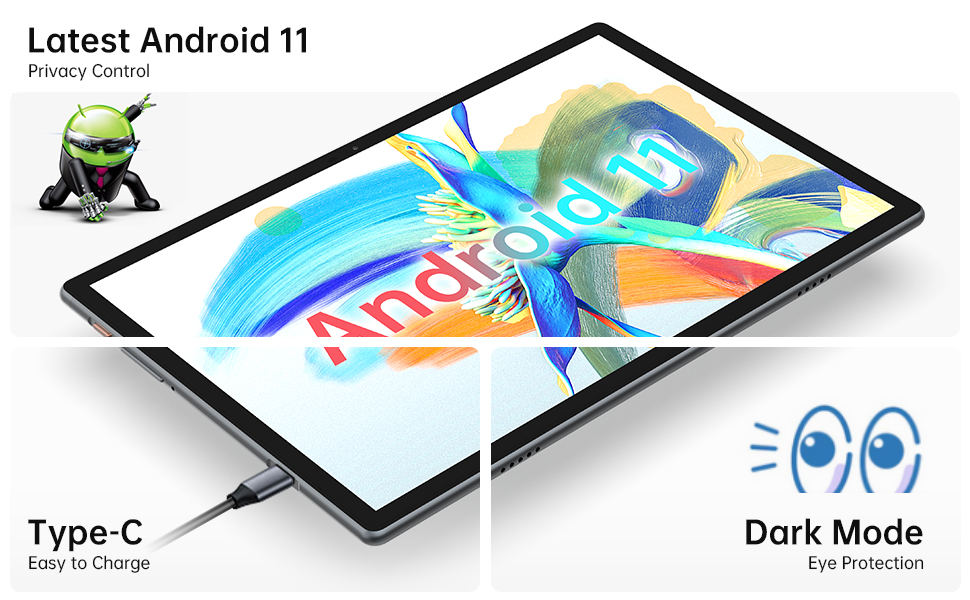
Image: Close-up of the tablet showing the Type-C charging port with a cable connected, illustrating the ease of charging.
4.2 Powering On/Off
- To Power On: Press and hold the Power Button until the TECLAST logo appears on the screen.
- To Power Off: Press and hold the Power Button until a power menu appears. Select "Power off" from the options.
- To Restart: From the power menu, select "Restart".
4.3 Initial Setup Wizard
The first time you power on the tablet, you will be guided through an initial setup wizard. Follow the on-screen prompts to:
- Select your language.
- Connect to a Wi-Fi network.
- Sign in with your Google account or create a new one.
- Set up screen lock (PIN, pattern, password, or face recognition).
- Review and accept terms and conditions.
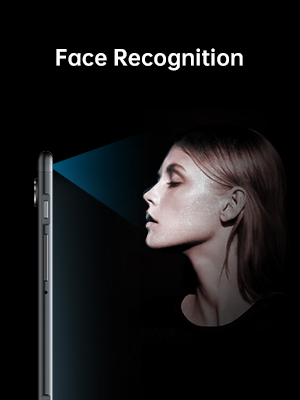
Image: Illustration of the tablet's face recognition feature in use, showing a user unlocking the device with their face.
5. Operating Your Tablet
5.1 Android 11 Features
Your TECLAST M40 Pro runs on Android 11, offering enhanced privacy controls, improved notification management, chat bubbles, and a system-wide dark mode for eye protection.
Image: The tablet screen prominently displaying the "Android 11" text, indicating the operating system version.
5.2 Connectivity
- Wi-Fi: Go to Settings > Network & internet > Wi-Fi. Turn on Wi-Fi and select your desired network. Enter the password if required. The tablet supports 2.4G and 5G dual-band Wi-Fi for stable and fast connections.
- Bluetooth: Go to Settings > Connected devices > Connection preferences > Bluetooth. Turn on Bluetooth and pair with compatible devices like headphones or keyboards. The tablet features efficient Bluetooth 5.0.
- GPS: The tablet includes GPS functionality for navigation and location-based services. Ensure location services are enabled in Settings > Location.

Image: A visual representation of the tablet's connectivity features, showing icons for Dual Band WiFi (2.4G+5G), Bluetooth 5.0, and Android 11, emphasizing its ability to stay connected.
5.3 Storage and Performance
The M40 Pro comes with 6GB RAM and 128GB ROM, providing smooth operation and ample space for apps, media, and documents. Storage can be expanded up to 512GB using a Micro SD card.

Image: A graphic comparing the TECLAST M40 Pro's 6GB RAM and 128GB ROM (expandable to 512GB) with other tablets, illustrating its superior storage and performance for video, music, photos, and apps.
The 2.0GHz Octa-Core processor ensures high performance and low power consumption, preventing crashes and overheating during intensive use.

Image: The tablet displaying a racing game, with text overlays highlighting its Octa Core Processor and 2.0 GHz Frequency, indicating high performance and low power consumption.
5.4 Display and Audio
The 10.1-inch FHD IPS display with 1920x1200 resolution provides a wide-angle viewing experience and exceptional color rendition. Coupled with quad speakers, it offers an immersive visual and audio experience.

Image: The tablet screen displaying vibrant colors, emphasizing its 1920x1200 FHD IPS resolution and 10.1-inch display size, along with dual camera specifications.
6. Maintenance
- Cleaning: Use a soft, lint-free cloth to clean the screen and body of the tablet. For stubborn smudges, slightly dampen the cloth with water or a screen cleaner. Avoid using harsh chemicals or abrasive materials.
- Storage: Store the tablet in a cool, dry place away from direct sunlight and extreme temperatures.
- Battery Care: To prolong battery life, avoid fully discharging the tablet frequently. Charge it regularly and avoid leaving it plugged in for extended periods after it's fully charged.
- Software Updates: Regularly check for system updates in Settings > System > System update to ensure optimal performance and security.
7. Troubleshooting
| Problem | Possible Solution |
|---|---|
| Tablet does not power on. | Ensure the tablet is sufficiently charged. Connect it to the charger for at least 30 minutes, then try powering on again. If unresponsive, press the RESET pinhole with a thin pin. |
| Wi-Fi connection issues. | Check if Wi-Fi is enabled in settings. Restart your Wi-Fi router. Forget the network and reconnect. Ensure you are within range of the Wi-Fi signal. |
| Slow performance or apps crashing. | Close unused apps. Clear cache for problematic apps (Settings > Apps > [App Name] > Storage & cache > Clear cache). Restart the tablet. Ensure sufficient free storage space. |
| Screen is unresponsive. | Restart the tablet by holding the power button. If unresponsive, use the RESET pinhole. |
| Battery drains quickly. | Reduce screen brightness. Disable unused features like Bluetooth, GPS, or Wi-Fi when not in use. Close background apps. Check battery usage in Settings > Battery to identify power-hungry apps. |
8. Specifications
| Feature | Detail |
|---|---|
| Brand | TECLAST |
| Model Name | Touch (M40PRO Android Tablet) |
| Operating System | Android 11 |
| Screen Size | 10 Inches |
| Screen Resolution | 1920 x 1200 pixels (FHD IPS) |
| Processor | 2.0 GHz Octa Core |
| RAM | 6 GB |
| Internal Storage (ROM) | 128 GB |
| Expandable Storage | Up to 512GB (Micro SD/TF Card) |
| Rear Webcam Resolution | 8 MP |
| Front Webcam Resolution | 5 MP |
| Connectivity | 2.4G+5G WiFi, Bluetooth 5.0, GPS |
| Battery Capacity | 7000mAh (Approx. 8 Hours Average Battery Life) |
| Charging Port | Type-C |
| Item Weight | 2.14 pounds |
| Product Dimensions | 9 x 6 x 1 inches |
9. Warranty and Support
9.1 Warranty Information
TECLAST provides a 1-year warranty for tablets, valid immediately after purchase. Please retain your proof of purchase for warranty claims.
9.2 Customer Support
For any questions, technical assistance, or warranty inquiries, please contact TECLAST customer service. We aim to provide professional service and answer any questions within 1 working day.
You can visit the official TECLAST store on Amazon for more information and support resources: TECLAST Amazon Store
Related documentsM40PRO Android Tablet


Ask a question about this manual
Ask about setup, troubleshooting, compatibility, parts, safety, or missing instructions. Manuals+ will review the question and use this page’s manual context to help answer it.