
1. Introduction
Welcome to the BIGGERFIVE Vigor 2 Kids Fitness Tracker Watch manual. This guide provides detailed instructions for setting up, operating, maintaining, and troubleshooting your new fitness tracker. The Vigor 2 is designed to help children aged 5-12 track their daily activity, monitor heart rate and sleep, and encourage healthy habits.
2. Safety Information
Please read all safety instructions before using the device.
- Do not attempt to disassemble or modify the device.
- Keep the device away from extreme temperatures.
- Supervise children during use, especially during charging.
- Consult a doctor before starting any new exercise program, especially for children with pre-existing health conditions.
- This device is not a medical device and should not be used for diagnostic or treatment purposes.
3. Package Contents
Verify that all items are present in the package:
- BIGGERFIVE Vigor 2 Fitness Tracker Watch
- Charging Cable
- Instruction Manual (this document)
4. Setup
4.1. Charging the Device
Before first use, fully charge the fitness tracker.
- Connect the charging cable to the charging port on the back of the tracker.
- Plug the USB end of the cable into a standard USB power adapter (not included) or a computer's USB port.
- The battery icon on the screen will indicate charging status. A full charge takes approximately 2 hours.

Image: The BIGGERFIVE Vigor 2 Fitness Tracker connected to its charging cable, illustrating the charging process.
4.2. Installing the BIGGERFIVE App
The BIGGERFIVE Vigor 2 requires the companion app for full functionality.
- Search for "BIGGERFIVE" in the Apple App Store (for iOS devices) or Google Play Store (for Android devices).
- Download and install the app.
4.3. Pairing the Device
- Ensure Bluetooth is enabled on your smartphone.
- Open the BIGGERFIVE app and follow the on-screen instructions to create an account.
- Select "Add Device" or similar option within the app.
- Choose "BIGGERFIVE Vigor 2" from the list of available devices.
- Confirm the pairing request on both the app and the fitness tracker if prompted.

Image: A smartphone screen displaying the BIGGERFIVE app interface, showing steps, distance, calories, and sleep data.
4.4. Setting Up a Family Account
The BIGGERFIVE app supports family accounts to manage multiple trackers.
- Within the app, navigate to the "Family Account" section.
- Create child profiles and link each Vigor 2 tracker to the respective child's profile.

Image: A smartphone screen showing the BIGGERFIVE app's family account feature, allowing parents to manage multiple child profiles and their fitness trackers.
5. Operating the Device
5.1. Basic Navigation
The Vigor 2 features a touch-sensitive button at the bottom of the screen for navigation.
- Single Tap: Short press to cycle through different screens (Time, Steps, Heart Rate, etc.).
- Long Press: Press and hold to activate certain functions or enter sub-menus (e.g., start a workout, confirm a selection).
5.2. Activity Tracking
The tracker automatically records daily activity.
- Steps: Displays the total number of steps taken.
- Distance: Shows the estimated distance covered.
- Calories: Indicates calories burned.
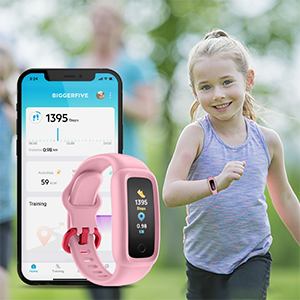
Image: The BIGGERFIVE Vigor 2 screen showing a step counter display.
5.3. Sport Modes
The Vigor 2 supports over 10 sport modes.
- Access sport modes through the device menu.
- Select the desired activity (e.g., Walking, Running, Cycling, Dancing, Basketball, Football, Tennis, Climbing, Workout).
- Long press to start and end a workout session.

Image: The BIGGERFIVE app displaying icons for various sport modes like walking, cycling, basketball, and tennis.
5.4. Heart Rate Monitoring
The device monitors heart rate automatically throughout the day.
- View real-time heart rate on the tracker screen or in the app.
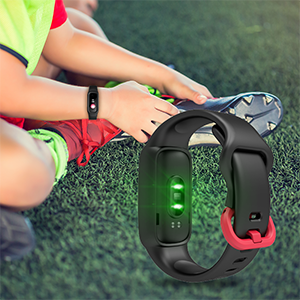
Image: The BIGGERFIVE Vigor 2 screen showing a heart rate display in beats per minute (BPM).
5.5. Sleep Tracking
The Vigor 2 automatically tracks sleep patterns.
- Wear the tracker to bed for accurate sleep data.
- Review sleep duration, deep sleep, light sleep, and awake times in the BIGGERFIVE app.
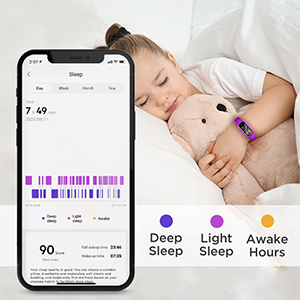
Image: A smartphone screen displaying the BIGGERFIVE app's sleep tracking feature, showing sleep duration and different sleep stages.
5.6. Silent Alarm Clock
Set silent alarms through the BIGGERFIVE app.
- Alarms vibrate gently on the wrist to wake the user without disturbing others.
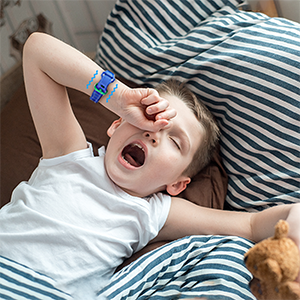
Image: The BIGGERFIVE Vigor 2 on a child's wrist, illustrating the silent alarm clock feature.
5.7. Stopwatch
The tracker includes a stopwatch function.
- Navigate to the stopwatch screen on the device.
- Use the touch button to start, pause, and reset the timer.
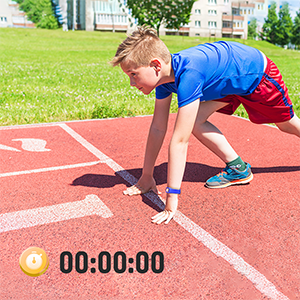
Image: The BIGGERFIVE Vigor 2 screen showing the stopwatch function with a timer displayed.
5.8. Custom Watch Faces
Personalize the tracker with different watch faces.
- Select and apply new watch faces through the BIGGERFIVE app.
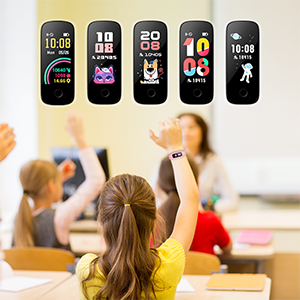
Image: A selection of customizable watch faces available for the BIGGERFIVE Vigor 2 Fitness Tracker.
6. Maintenance
6.1. Cleaning
- Regularly clean the tracker and strap with a soft, damp cloth.
- Avoid using harsh chemicals or abrasive materials.
- Ensure the charging contacts are clean and dry before charging.
6.2. Water Resistance (IP68)
The BIGGERFIVE Vigor 2 is IP68 waterproof, suitable for swimming and water activities.
- Do not use in hot water or saunas.
- Rinse with fresh water after exposure to salt water or chlorinated water.
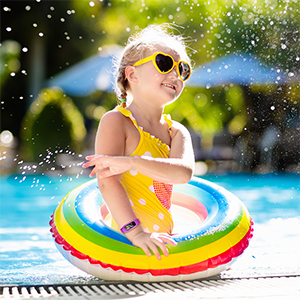
Image: A child wearing the BIGGERFIVE Vigor 2 Fitness Tracker while playing in water, highlighting its IP68 waterproof rating.
6.3. Battery Care
- Charge the device regularly to maintain battery health.
- Avoid completely draining the battery for extended periods.
- Battery life is approximately 7 days on a 2-hour charge.
7. Troubleshooting
7.1. Device Not Turning On
- Ensure the device is fully charged. Connect it to the charger for at least 10 minutes.
- Try a soft reset by pressing and holding the touch button for 10-15 seconds.
7.2. Not Pairing with App
- Confirm Bluetooth is enabled on your smartphone.
- Ensure the tracker is close to your phone during pairing.
- Restart both the tracker and your smartphone.
- Check if the app is updated to the latest version.
- If you have multiple trackers, ensure you are trying to pair the correct one.
7.3. Inaccurate Step Count
- Ensure the tracker is worn snugly on the wrist.
- Calibrate the tracker through the app if available.
- Movement of the arm not associated with walking (e.g., waving) may sometimes be counted as steps.
7.4. Heart Rate/Sleep Data Not Showing
- Ensure the tracker is worn correctly and snugly on the wrist.
- For sleep tracking, wear the device throughout the night.
- Sync the device with the app regularly to transfer data.
7.5. Screen Unresponsive
- Restart the device.
- Ensure the screen is clean and dry.
8. Specifications
| Feature | Detail |
|---|---|
| Model Name | BF200 |
| Brand | BIGGERFIVE |
| Screen Size | 0.96 Inches |
| Display Type | Electronic |
| Resolution | 128 x 128 |
| Connectivity | Bluetooth |
| Waterproof Rating | IP68 (up to 1.5 meters) |
| Battery Type | Lithium Polymer |
| Battery Life | Up to 7 days |
| Charge Time | Approx. 2 hours |
| Band Material | Silicone |
| Case Material | Plastic |
| Item Weight | 0.02 Kilograms |
| Dimensions | 20 x 1.5 x 1 cm |
| Target Audience | Unisex Kids (Ages 5-12) |
| Supported Applications | Sleep Monitor, Pedometer, Heart Rate Monitor |
| Compatible Devices | Most Android 6.0+ and iOS 9.0+ smartphones |
9. Warranty and Support
9.1. Warranty Information
The BIGGERFIVE Vigor 2 Fitness Tracker Watch comes with a 1-year warranty. Please retain your proof of purchase for warranty claims. The warranty covers manufacturing defects but does not cover damage caused by misuse, accidents, or unauthorized modifications.
9.2. Customer Support
For further assistance, technical support, or warranty inquiries, please contact BIGGERFIVE customer service.
- Visit the official BIGGERFIVE website for contact details.
- Refer to your purchase platform for seller contact information.


