
KUCACCI KU-N20
KUCACCI Smart Door Lock User Manual
Model: KU-N20
1. Introduction
Welcome to the KUCACCI Smart Door Lock user manual. This guide provides comprehensive instructions for the installation, setup, operation, and maintenance of your new smart door lock. Designed for convenience and security, the KUCACCI Smart Door Lock offers multiple unlocking methods including fingerprint, Bluetooth app, and traditional mechanical key.

Figure 1: KUCACCI Smart Door Lock and companion app.
2. Product Features
- Fingerprint Recognition: Unlock your door in approximately 0.3 seconds with a single touch. Your finger becomes your key, eliminating the need for physical keys.
- Smartphone Control (Bluetooth APP): Manage your lock remotely via the Bluetooth app. Grant permanent, temporary, or scheduled access to friends and family using e-keys. Monitor entry and exit logs from anywhere.
- Auto-Lock Functionality: The lock can be configured to automatically lock after the door is closed or after a set period, enhancing security and convenience.
- Smart Home Integration: Compatible with Amazon Alexa and Google Home for voice control (requires an additional gateway, sold separately).
- Easy Installation: Designed for quick replacement of existing door knobs using basic tools like a screwdriver. Suitable for various interior doors including bedrooms, offices, and garages.
- Durable Construction: Made from zinc alloy for enhanced durability and longevity.

Figure 2: One-touch fingerprint unlock.

Figure 3: Easy access via TTLock app.
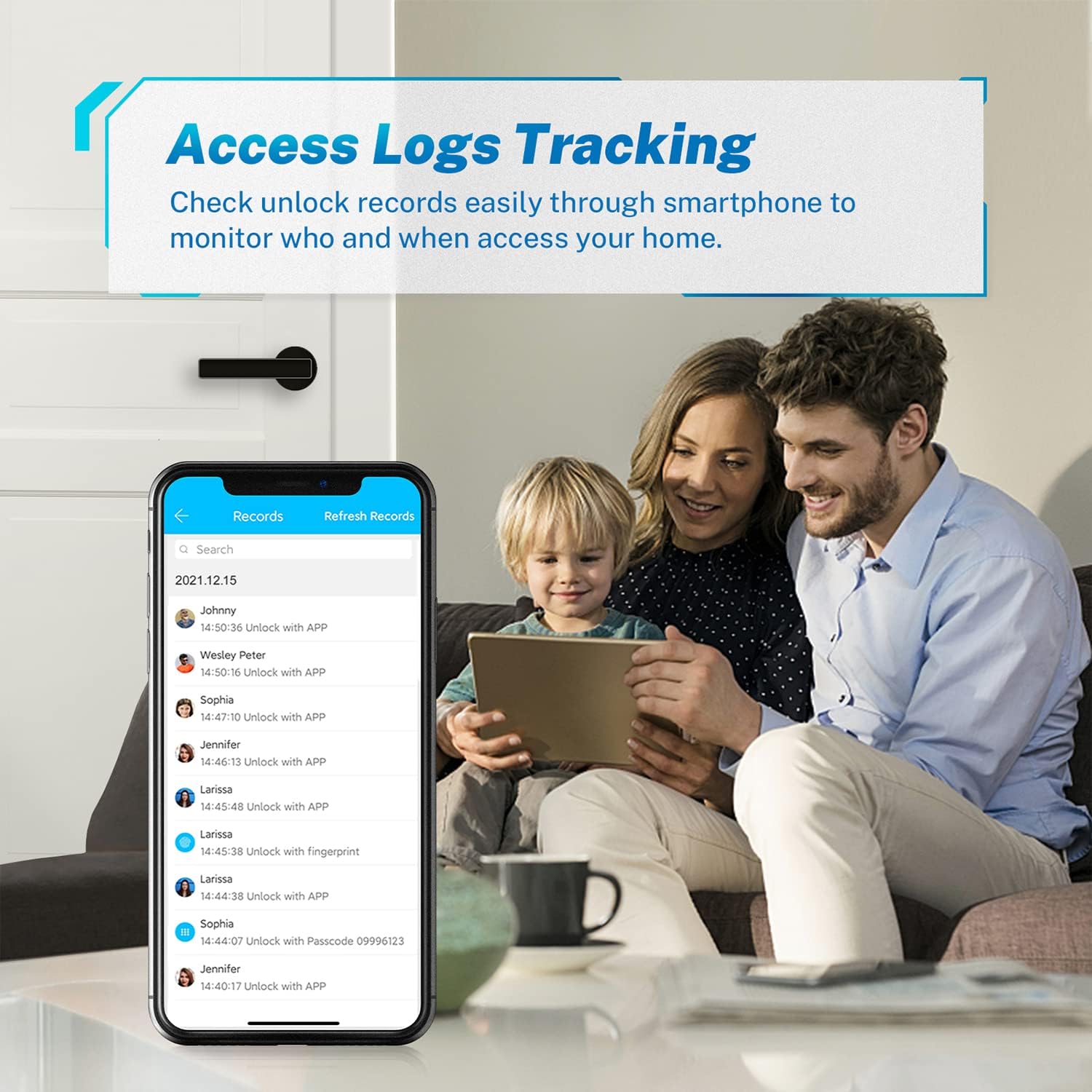
Figure 4: Access logs tracking.

Figure 5: Wide compatibility with smart home systems.
3. What's in the Box
Upon opening your KUCACCI Smart Door Lock package, please verify that all components are present and in good condition:
- 1 * Front Panel
- 1 * Back Panel
- 1 * Latch
- 1 * Instruction Manual (this document)
- 2 * Mechanical Keys
- 2 * Rubber Plates
- 2 * Screw Casings
- Screws Package

Figure 6: Package contents.
4. Installation Guide
Follow these steps to install your KUCACCI Smart Door Lock. A screwdriver is the only tool required for most installations.
- Prepare the Door: Ensure your door is compatible with the lock's dimensions. The lock fits doors with a thickness of 1⅜" to 2⅜" (35mm-55mm) and an adjustable bolt of 2⅜" (60mm) or 2¾" (70mm).
- Mark the Door: Use the provided template to mark the drilling points on your door.
- Install Latchbolt: Insert the latchbolt into the door edge. Ensure the latch's square hole is placed horizontally. Secure it with screws.
- Install Exterior Assembly: Carefully feed the IC wire through the door hole. Install the rubber plate and screw casing onto the exterior handle. Align the exterior assembly with the latchbolt and secure it.
- Connect IC Wire: Carefully connect the IC wire from the exterior assembly to the interior assembly.
- Install Interior Assembly: Align the interior assembly with the exterior assembly and secure it with screws.
- Install Batteries: Loosen the screw on the battery cover, open it, and install 4 AAA batteries (not included). Close the cover and tighten the screw.

Figure 7: Door compatibility dimensions.

Figure 8: Simple DIY installation.
Installation Video Guide
Video 1: KUCACCI N20 Installation Guide. This video provides a visual step-by-step guide for installing the smart door lock.
5. Initial Setup
5.1 Resetting the Smart Lock
Before initial setup or if you encounter issues, you may need to reset the smart lock to factory settings:
- Loosen the screw on the back cover of the interior handle.
- Long press the reset button for 5 seconds to reset the lock.
- Reinstall the screw of the back cover.
5.2 App Download and Pairing
To utilize the smart features, download the TTLock app and pair it with your lock:
- Download the "TTLock" app from Apple's App Store (iOS) or Google Play Store (Android).
- Log in to your account. If you don't have one, register first.
- Ensure your phone is within 2 meters of the smart lock during the pairing process.
- In the app, click "+" to add a lock, then select "All Lock" or "Door Lock".
- The app will scan for nearby locks. Select your lock from the list and rename it for easy identification.
5.3 Adding Fingerprints
Add user fingerprints for quick and secure access:
- In the TTLock app, navigate to the "Fingerprints" section.
- Click "Add Fingerprint". You can choose between Permanent, Timed, or Recurring access.
- Follow the on-screen prompts to place and remove your finger on the sensor multiple times (typically 3 times) until the fingerprint is successfully registered.
6. Operating Instructions
6.1 Unlocking Methods
- Fingerprint Unlock: Place your registered finger on the fingerprint sensor. The lock will unlock automatically.
- Bluetooth App Unlock: Open the TTLock app on your smartphone. Tap the unlock icon to unlock the door via Bluetooth.
- Mechanical Key Unlock: In case of battery depletion or electronic malfunction, insert the mechanical key into the keyhole and turn to unlock.
- Remote Unlock (with Gateway): If you have an optional gateway (G2 Wi-Fi Gateway recommended), you can remotely unlock the door from anywhere with an internet connection. Enable "Remote Unlock" in the app settings.

Figure 9: Multiple unlocking methods.

Figure 10: Remote and voice control with gateway.
Operation Video Guide
Video 2: KUCACCI N20 Operation Guide. This video demonstrates various unlocking methods and app functionalities.
6.2 Auto-Lock Feature
The auto-lock feature automatically secures your door. You can configure the auto-lock delay in the TTLock app settings under "Auto Lock".
7. Maintenance
7.1 Battery Replacement
The lock is powered by 4 AAA batteries. When the battery level is low, the lock will provide an audible warning. Replace all four batteries promptly to ensure continuous operation. Refer to the installation guide for battery compartment access.
7.2 Cleaning
Clean the lock surface with a soft, dry cloth. Avoid using abrasive cleaners or solvents that may damage the finish or electronic components.
7.3 Fingerprint Sensor Care
Keep the fingerprint sensor clean and dry for optimal performance. Avoid scratching the sensor surface.
8. Troubleshooting
| Problem | Possible Cause | Solution |
|---|---|---|
| Fingerprint not recognized. | Finger is dirty, wet, or improperly placed. Fingerprint not registered correctly. | Ensure finger is clean and dry. Reposition finger on sensor. Re-register fingerprint in the app. |
| Lock does not respond. | Batteries are low or depleted. | Replace all four AAA batteries. Use the mechanical key to unlock if necessary. |
| Bluetooth connection issues. | Phone too far from lock. Bluetooth disabled. App malfunction. | Move closer to the lock. Ensure Bluetooth is enabled on your phone. Restart the app or your phone. |
| Remote unlock not working. | Gateway not connected or configured. Internet issues. Remote unlock disabled in app. | Verify gateway connection and configuration. Check internet connection. Enable "Remote Unlock" in app settings. |
9. Specifications
| Brand | KUCACCI |
| Model Name | Kucacci Fingerprint Door Lock |
| Part Number | KU-N20 |
| Lock Type | Biometric |
| Special Feature | Fingerprint |
| Material | Zinc Alloy |
| Color | Black |
| Power Source | 4 x AAA Batteries (not included) |
| Connectivity | Bluetooth |
| Control Method | App, Fingerprint, Mechanical Key |
| Recommended Use | Interior doors (bedroom, office, home) |
| Item Weight | 16 ounces (1 pound) |
| Package Dimensions | 8.74 x 7.68 x 3.66 inches |
| UPC | 794471874573 |
10. Warranty & Support
10.1 Warranty Information
The KUCACCI Smart Door Lock comes with a One Year Product Warranty from the date of purchase. This warranty covers manufacturing defects and malfunctions under normal use. Please retain your proof of purchase for warranty claims.
10.2 Customer Support
For technical assistance, troubleshooting, or warranty inquiries, please contact KUCACCI customer support. Refer to the contact information provided on the product packaging or the official KUCACCI website.
You can also visit the KUCACCI Store on Amazon for additional product information and resources.
Related documentsKU-N20


Ask a question about this manual
Ask about setup, troubleshooting, compatibility, parts, safety, or missing instructions. Manuals+ will review the question and use this page’s manual context to help answer it.