
Keychron K3-D3
Keychron K3 Wireless Mechanical Keyboard User Manual
Model: K3-D3
1. Introduction
This manual provides detailed instructions for setting up, operating, maintaining, and troubleshooting your Keychron K3 75% Layout 84-Key Ultra-Slim Hot-Swappable Wireless Bluetooth Mechanical Keyboard. Please read this manual thoroughly before using the product to ensure optimal performance and longevity.

The Keychron K3 keyboard, featuring a compact 75% layout with 84 keys and white LED backlight.
2. Setup
2.1 What's in the Box
- Keychron K3 Keyboard
- USB Type-C Cable
- Keycap Puller
- User Manual (this document)
2.2 Initial Charging
Before first use, connect the keyboard to a power source using the provided USB Type-C cable. The keyboard is equipped with a Lithium Polymer battery. A full charge is recommended for optimal battery life.
2.3 Connecting Your Keyboard
The Keychron K3 supports both wireless Bluetooth and wired USB Type-C connections.

The Keychron K3 offers versatile connectivity, supporting both wireless Bluetooth and wired USB Type-C connections for various devices.
2.3.1 Bluetooth Connection
- Locate the toggle switch on the back of the keyboard. Slide it to the Bluetooth position.
- On your device (laptop, PC, tablet, phone), enable Bluetooth and search for new devices.
- Select "Keychron K3" from the list of available devices to pair.
- The K3 can connect with up to 3 devices simultaneously. Use Fn + 1, Fn + 2, or Fn + 3 to switch between paired devices.
2.3.2 Wired Connection
- Connect the provided USB Type-C cable to the keyboard and your computer.
- Slide the toggle switch on the back of the keyboard to the Cable position.
- The keyboard will automatically be recognized by your computer.
2.4 Operating System Switch
The Keychron K3 is compatible with both macOS and Windows operating systems. Use the dedicated toggle switch on the back of the keyboard to select your operating system for optimal key mapping.

The Keychron K3 is designed for seamless compatibility with both macOS and Windows, with extra keycaps provided for both systems.

Side view of the keyboard highlighting the toggle switches for Wireless/Wired mode and Mac/Windows operating system selection.
2.5 Adjustable Feet
The keyboard features two-level adjustable rubber feet, allowing you to set the typing angle to 6° or 9° for ergonomic comfort.
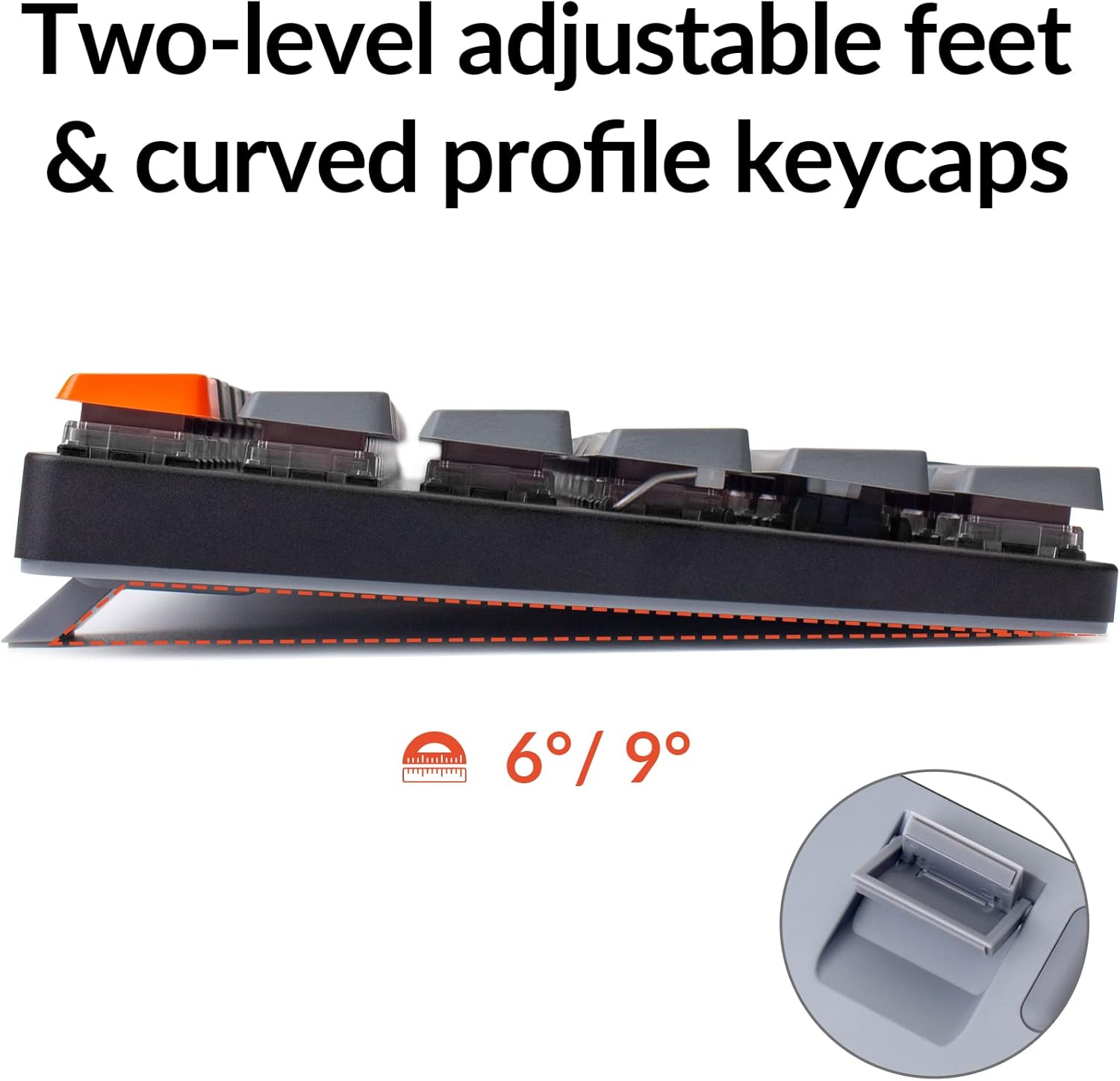
The keyboard's adjustable feet allow for 6° or 9° typing angles, enhancing ergonomic comfort.
3. Operating Instructions
3.1 Keyboard Layout and Keys
The Keychron K3 features a compact 75% layout with 84 keys, including dedicated Mac multimedia keys. Extra keycaps for both Windows and Mac operating systems are included for full compatibility.
3.2 Hot-Swappable Switches
The K3 is equipped with low-profile Keychron optical brown switches, which are hot-swappable. This allows you to customize your typing experience without soldering. Note: This keyboard is NOT compatible with any conventional MX style mechanical switch.

Detail of the low-profile Keychron optical brown switches, highlighting their hot-swappable nature and specifications such as operating force, pre-travel, total travel, behavior (tactile), sound level (gentle), and lifespan (70 million keystrokes).
3.3 Backlight Control
The keyboard features a white LED backlight. Use the dedicated backlight key (usually located near the F12 key) to cycle through different backlight modes or adjust brightness.
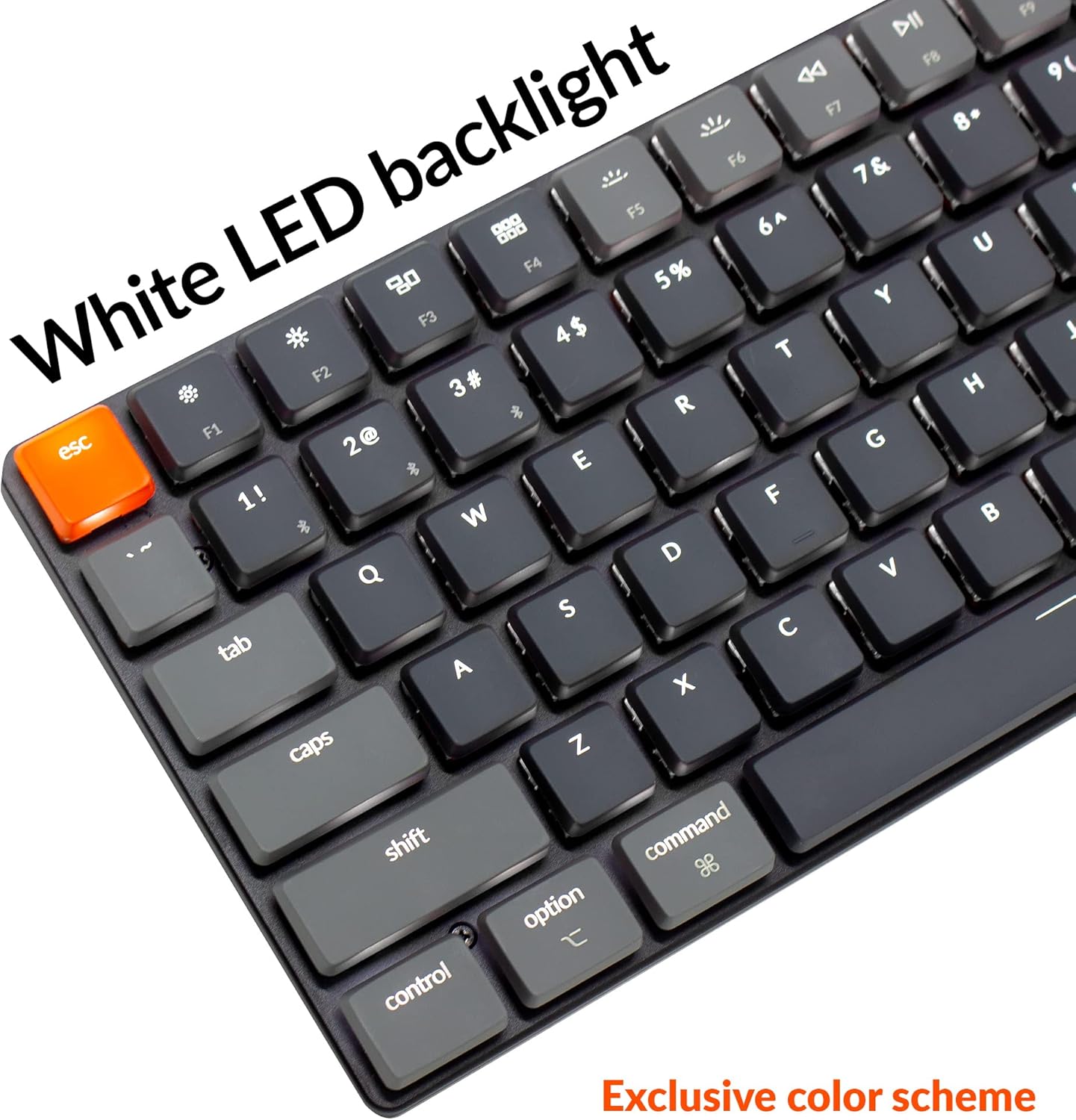
The keyboard features a white LED backlight for enhanced visibility in various lighting conditions.
3.4 N-Key Rollover (NKRO) and 6-Key Rollover (6KRO)
The Keychron K3 supports N-Key Rollover (NKRO) in wired mode, allowing all keys to be registered simultaneously. In wireless mode, it supports 6-Key Rollover (6KRO), meaning up to 6 keys can be registered at once.
4. Maintenance
4.1 Cleaning Your Keyboard
To clean your keyboard, first disconnect it from all power sources. Use a soft, lint-free cloth slightly dampened with water or a mild cleaning solution. Avoid spraying liquids directly onto the keyboard. For dust and debris between keycaps, use compressed air.
4.2 Keycap and Switch Replacement
Use the provided keycap puller to carefully remove keycaps. To replace switches, use a switch puller (not included, but compatible with low-profile optical switches) to gently remove the switch. Align the new switch correctly and press it firmly into place until it clicks.
5. Troubleshooting
5.1 Connectivity Issues
- Bluetooth not connecting: Ensure the keyboard is in Bluetooth mode and fully charged. Remove "Keychron K3" from your device's Bluetooth list and try pairing again.
- Wired connection not recognized: Check if the USB Type-C cable is securely connected to both the keyboard and your computer. Ensure the keyboard is in wired mode via the toggle switch. Try a different USB port or cable.
5.2 Backlight Not Working
Ensure the keyboard is powered on and charged. Press the backlight key to cycle through modes or adjust brightness. If the issue persists, a factory reset might be necessary (refer to Keychron's official support for specific instructions).
5.3 Keys Not Responding
If individual keys are not responding, try removing the keycap and switch (if hot-swappable) and re-seating them. Ensure no debris is obstructing the switch mechanism. If multiple keys are affected, try resetting the keyboard or updating firmware (check Keychron's official website).
5.4 General Issues
For any persistent issues not covered here, please refer to the official Keychron support website or contact their customer service for assistance.
6. Specifications
| Feature | Detail |
|---|---|
| Product Dimensions | 12.05 x 4.57 x 0.87 inches (30.6 x 11.6 x 2.2 cm) |
| Item Weight | 1.7 pounds (0.77 kg) |
| Manufacturer | Keychron |
| Model Number | K3-D3 |
| Batteries | 1 Lithium Polymer battery (included) |
| Compatible Devices | macOS, Windows |
| Connectivity Technology | Bluetooth 5.1, USB Type-C |
| Keyboard Description | 75% Layout, 84-Key, Ultra-Slim, Hot-Swappable Wireless Bluetooth Mechanical Keyboard |
| Switch Type | Low-profile Keychron Optical Brown Switch |
| Special Features | Reinforced body structure, Two-level adjustable rubber feet, Wireless & Wired modes |
| Backlight | White LED (Single Color) |
| Style | Modern |
| Key Rollover | NKRO (Wired), 6KRO (Wireless) |

The low-profile optical switch is significantly slimmer than conventional switches, contributing to the keyboard's ultra-slim design.
7. Warranty and Support
For detailed warranty information, please refer to the warranty card included with your product or visit the official Keychron website. For technical support, firmware updates, or further assistance, please visit Keychron's official support page or contact their customer service directly.
Related documentsK3-D3


Ask a question about this manual
Ask about setup, troubleshooting, compatibility, parts, safety, or missing instructions. Manuals+ will review the question and use this page’s manual context to help answer it.