
Sarevile M99+
Sarevile M99+ Bluetooth Headset User Manual
Model: M99+
Introduction
This manual provides detailed instructions for the Sarevile M99+ Bluetooth Headset. Please read this manual carefully before using the product to ensure proper operation and to maximize its performance.
Product Overview

The Sarevile M99+ is an upgraded Bluetooth headset designed for clear communication in various environments. It features advanced noise-canceling technology, a rotatable microphone, and versatile connectivity options including a USB dongle for computers without Bluetooth. Its comfortable design ensures suitability for extended wear.
Description: This image displays the Sarevile M99+ Bluetooth Headset alongside its USB dongle, showcasing the complete product package.
Key Features:
- Industry-leading noise cancellation for clear calls.
- Includes USB dongle for quick plug-and-play connectivity with computers.
- Bluetooth 5.0 technology for stable and fast connections.
- Supports simultaneous connection to two devices.
- Long battery life: up to 34 hours playtime.
- 270° rotatable microphone for left or right ear use.
- Comfortable design with soft ear pad and adjustable headband.

Description: This image visually represents the 96% noise reduction capability of the headset in a busy city environment.

Description: This image highlights the comfort features including soft ear pads, adjustable headband, anti-slip pad, and 270° rotatable microphone.
Package Contents
- 1 x Sarevile Wireless Mono Headset (M99+)
- 1 x Micro-USB Charging Cable
- 1 x User Guide (This Manual)
- 1 x PC Adapter (USB Dongle)
Setup
Charging the Headset
Connect the Micro-USB charging cable to the headset's charging port and the other end to a USB power source. The LED indicator will show charging status. A full charge takes approximately 2 hours and provides up to 34 hours of playtime.
Powering On/Off
- Power On: Press and hold the Multifunction Button for 3 seconds until the LED indicator flashes blue.
- Power Off: Press and hold the Multifunction Button for 3 seconds until the LED indicator turns off.
Operating Instructions
Connecting to a Device
Way 1: USB Dongle Connection (for PC/Laptop without Bluetooth)

- Ensure the headset is powered on.
- Insert the USB Dongle into an available USB 2.0 or above port on your computer.
- The dongle will automatically pair with the headset. The LED indicator on the dongle will flash blue during pairing and become solid blue once paired.
- On your PC, navigate to Settings > Sound.
- Set "M99+" as both the input and output device.
Description: This image illustrates the USB dongle being inserted into a laptop's USB port, highlighting its plug-and-play functionality for computers without built-in Bluetooth.
Way 2: Bluetooth Connection (for Bluetooth-enabled devices)
- Ensure the headset and your Bluetooth device are within 3 feet (1 meter) of each other.
- With the headset powered off, press and hold the Multifunction Button for 5 seconds to enter pairing mode. The LED indicator will flash blue and red alternately.
- Activate Bluetooth on your device (e.g., smartphone, computer) and search for nearby Bluetooth connections.
- Find "M99+" in the search results and tap to connect.
- Once connected, the LED indicator will flash blue once every 5 seconds.
- For PC connection, navigate to Settings > Bluetooth & other devices > Add Bluetooth or other device, then select "M99+". After connecting, go to Sound Settings and set "M99+" as input and output.
Connecting with Two Devices Simultaneously
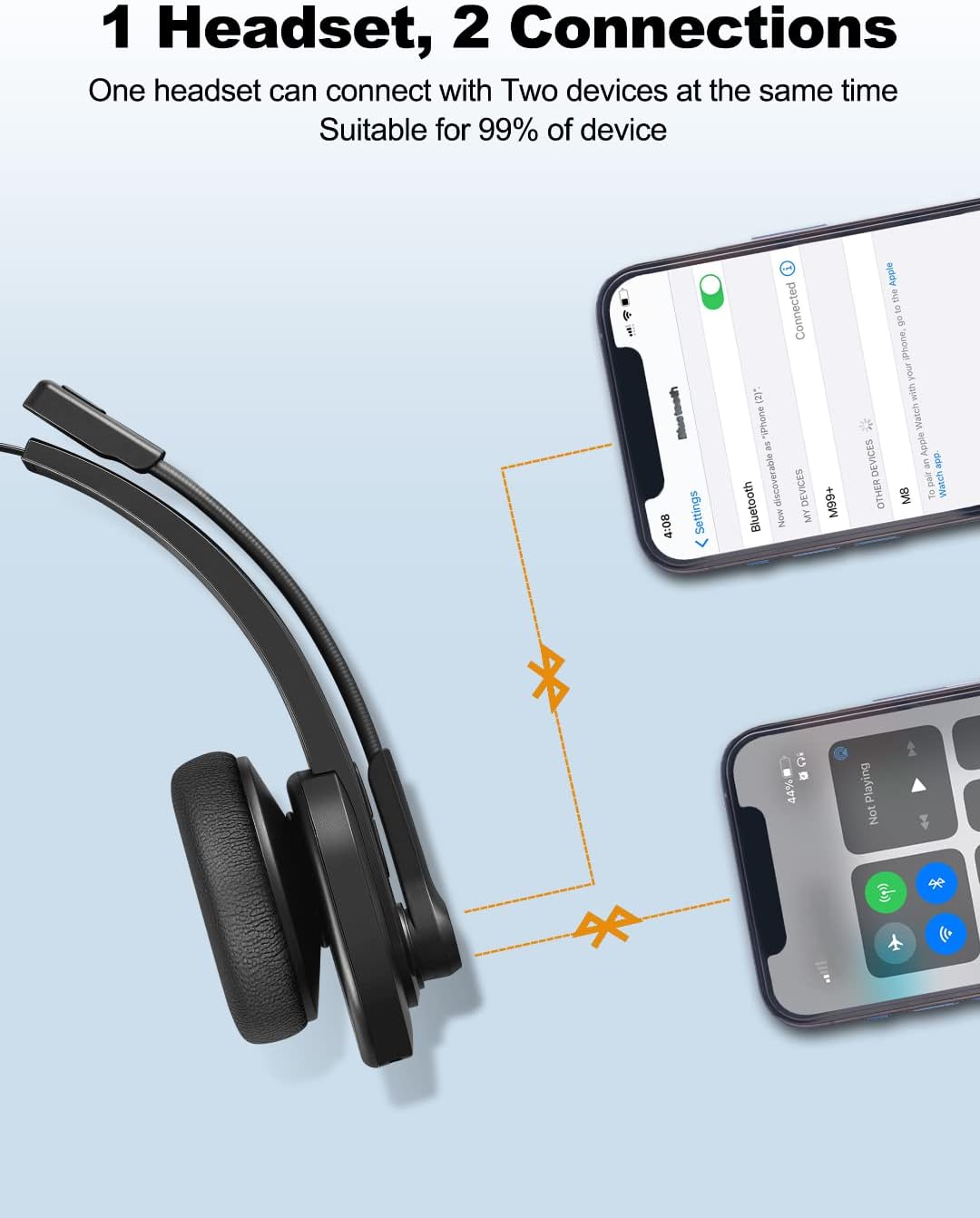
The M99+ headset supports connecting to two devices at the same time.
- First, pair the headset with your primary device (e.g., smartphone) using the Bluetooth connection method described above.
- To pair with a second device, press the Multifunction Button twice. This will put the headset back into pairing mode without disconnecting the first device.
- On your second device, search for "M99+" in the Bluetooth settings and connect.
Description: This image shows the Sarevile M99+ headset visually connected via Bluetooth to both a smartphone and a tablet, demonstrating its dual-device connectivity feature.
Call Functions
- Answer/End Call: Press the Multifunction Button once.
- Reject Call: Press and hold the Multifunction Button for 1 second.
- Mute/Unmute Microphone: During a call, press the Microphone Button once.
- Activate Voice Control: Press and hold the Multifunction Button for 1 second to activate your device's voice assistant (e.g., Siri, Google Assistant).
Compatibility
The Sarevile M99+ headset is compatible with a wide range of devices and applications:
- Devices: Bluetooth-enabled smartphones, computers (Windows, macOS), laptops, tablets.
- Applications: Skype, Microsoft Teams, Zoom, Facetime, Google Meet, and other communication platforms.

Description: This image shows a person wearing the Sarevile M99+ headset while working on a laptop in an office environment, emphasizing its suitability for professional use.

Description: This image depicts a truck driver using the Sarevile M99+ headset, highlighting its AI-powered noise reduction for noisy environments.
Troubleshooting
Microphone Not Working (No Sound)
If you experience no sound from the M99+ headset microphone after pairing, follow these steps:
- Verify Pairing: Ensure the M99+ and dongle (if used) are successfully paired. The dongle's light should be solid blue. If not, try:
- Resetting the headset (power cycle by turning off and on).
- Unplugging and re-plugging the dongle into a different USB port.
- Check Sound Settings (PC):
- Right-click the Speakers icon in the bottom right corner of your taskbar, then click "Open Sound settings".
- Ensure "[M99+]" is selected as both the Input and Output device.
- If still no sound, right-click the Speakers icon again, then click "Sound". Go to the "Recording" and "Playback" tabs and set "[M99+]" as the default device, ensuring it is enabled.
- Grant Microphone Access (Windows 10 Example):
- Go to Start > Settings > Privacy > Microphone.
- Select "Change", then turn on "Allow apps to access your microphone".
- Under "Choose which Microsoft Store apps can access your microphone", ensure relevant apps are enabled.
- Ensure "Allow desktop apps to access your microphone" is set to "On".
- Application-Specific Settings (Skype Example):
- Open the application (e.g., Skype) and go to its settings.
- In the "Audio & Video" section, set "[M99+]" as both the Microphone and Speakers.
Specifications
| Feature | Detail |
|---|---|
| Bluetooth Version | 5.0 |
| Bluetooth Chip | QCC3020 Chipset |
| Communication Distance | 10 Meters / 33 Feet |
| Long Playtime | 34 Hours |
| Charging Time | 2 Hours |
| Battery Capacity | 400mAh |
| Microphone | Noise-canceling, 270° Rotatable |
| Weight | 7.05 Ounces (approx. 199.86 g) |
| Material | Plastic |
| Headphones Jack | USB (for dongle) |
| Noise Control | Active Noise Cancellation |
Maintenance and Care
- Keep the headset dry. Do not expose it to water or excessive moisture.
- Clean the headset with a soft, dry cloth. Avoid using harsh chemicals or abrasive materials.
- Store the headset in a cool, dry place away from direct sunlight and extreme temperatures.
- Avoid dropping or subjecting the headset to strong impacts.
Warranty and Support
For warranty information or technical support, please refer to the contact details provided with your purchase or visit the official Sarevile website.
Ask a question about this manual
Ask about setup, troubleshooting, compatibility, parts, safety, or missing instructions. Manuals+ will review the question and use this page’s manual context to help answer it.