
LeapFrog LF925-2HD
LeapFrog LF925-2HD Video Baby Monitor User Manual
Model: LF925-2HD
Introduction
This user manual provides comprehensive instructions for the setup, operation, and maintenance of your LeapFrog LF925-2HD Video Baby Monitor. This system allows you to monitor your child using a 5-inch 720p High-Definition LCD Parent Unit and remotely via the LeapFrog Baby Care App on your smartphone or tablet. The monitor features 1080p camera resolution, 360-degree pan and tilt, 8x digital zoom, color night vision, and integrated temperature and humidity sensors.

Image: The LeapFrog LF925-2HD Video Baby Monitor system, showing the parent unit display and two baby camera units.
Package Contents
Ensure all items listed below are present in your package:
- (1) Parent Unit
- (2) Baby Units (Cameras)
- (3) A/C Adapters (for Parent Unit and two Baby Units)
- (1) Rechargeable Li-Polymer Battery (pre-installed in Parent Unit)
- (2) Wall Mount Kits (for Baby Units)
- User Manual (this document)
Setup
1. Charging the Parent Unit
Before first use, fully charge the Parent Unit battery for optimal performance.
- Connect the small plug of the Parent Unit power adapter to the power jack on the side of the Parent Unit.
- Connect the other end of the power adapter to a suitable electrical outlet.
- The battery icon on the screen will indicate charging status. A full charge typically takes several hours.
2. Installing the Baby Unit (Camera)
Place the Baby Unit in a location that provides a clear view of your child, ensuring it is out of reach of children.
- Place the Baby Unit on a flat surface, such as a dresser or shelf.
- For wall mounting, use the provided wall mount kit. Ensure the camera is securely fastened and positioned for the desired viewing angle.
- Connect the Baby Unit power adapter to the power jack on the unit and plug it into an electrical outlet.

Image: Illustration of the baby unit's 360-degree pan and tilt functionality, allowing for comprehensive room coverage.
3. Initial Pairing (if necessary)
The Parent Unit and Baby Units are pre-paired at the factory. If they lose connection or you add a new camera, follow these steps:
- Ensure both the Parent Unit and Baby Unit are powered on.
- On the Parent Unit, navigate to the camera settings menu.
- Select the "Add Camera" or "Pair" option.
- Press the PAIR button on the back of the Baby Unit within 10 seconds.
- The Parent Unit will display the camera feed once pairing is successful.
4. Connecting to Wi-Fi and App Setup
For remote viewing and advanced features, connect your monitor to your home Wi-Fi network and set up the LeapFrog Baby Care App.
- Download the "LeapFrog Baby Care" app from your smartphone's app store (iOS or Android).
- Open the app and follow the on-screen instructions to create an account or log in.
- Select "Add Device" and choose your LF925-2HD monitor.
- Follow the app's prompts to connect the Baby Unit to your Wi-Fi network. This typically involves scanning a QR code generated by the app with the camera.
- Once connected, you can view the live feed and control the camera remotely through the app.

Image: The LeapFrog Baby Care app interface shown on a smartphone and tablet, demonstrating remote access capabilities.
Operating Instructions
1. Parent Unit Overview
The Parent Unit is your primary interface for monitoring your child.
- Power Button: Press and hold to turn on/off. Press briefly to turn screen on/off.
- Volume Buttons: Adjust the listening volume.
- Navigation Buttons (Up/Down/Left/Right): Navigate menus and control camera pan/tilt.
- OK/Select Button: Confirm selections.
- Menu Button: Access settings and features.
- Talk Button: Press and hold to speak to your child through the Baby Unit.
- Zoom Button: Magnify the image up to 8 times.

Image: The parent unit display, showing a live feed of a baby and the various control buttons for navigation and features.
2. Baby Unit Overview
The Baby Unit houses the camera and various sensors.
- Camera Lens: Captures video.
- Microphone: Picks up audio from the room.
- Speaker: For two-way talk and lullabies.
- Night Light: Integrated multi-color night light.
- Temperature/Humidity Sensor: Monitors room conditions.
- PAIR Button: For pairing with the Parent Unit.
3. Monitoring Features
- Live Video Monitoring: View real-time video on the Parent Unit or app.
- Audio Monitoring: Listen to sounds from your child's room.
- Two-Way Talk: Press and hold the Talk button on the Parent Unit to speak to your child.

Image: A woman holding the parent unit, demonstrating the ease of using the two-way talk feature to communicate with her baby.
- Color Night Vision: The camera automatically switches to color night vision in low-light conditions, providing a clear view.
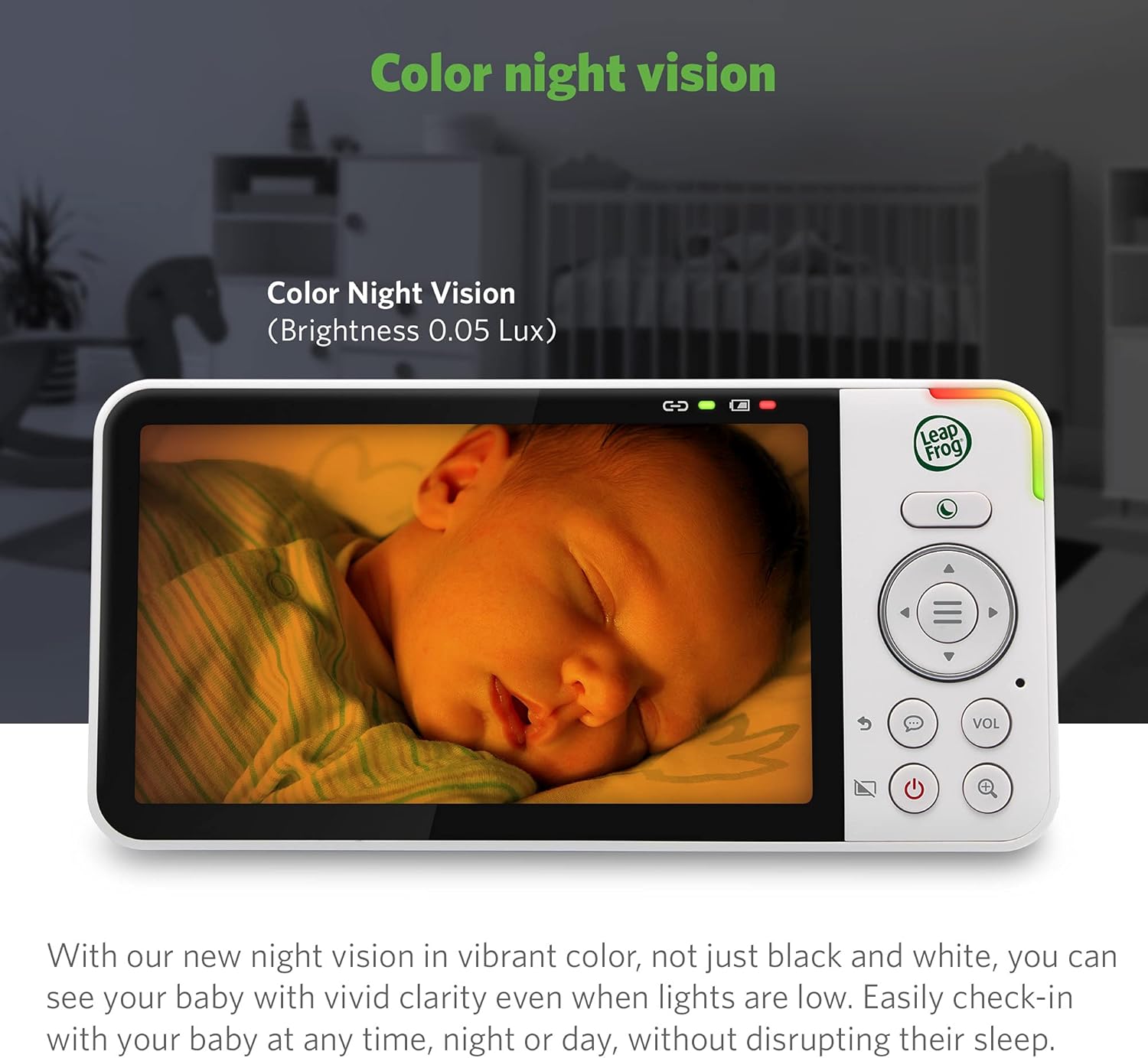
Image: The parent unit screen displaying a baby sleeping, illustrating the clarity and detail provided by the color night vision feature in low light.
- Digital Zoom: Use the zoom button on the Parent Unit to magnify the image up to 8 times.

Image: A visual representation of the 2x, 4x, and 8x digital zoom capabilities, showing increasing detail of a baby's face.
- Multi-Camera View: With two cameras, you can view one camera at a time, use a split-screen view, or set it to patrol mode to alternate between cameras every 10 seconds.
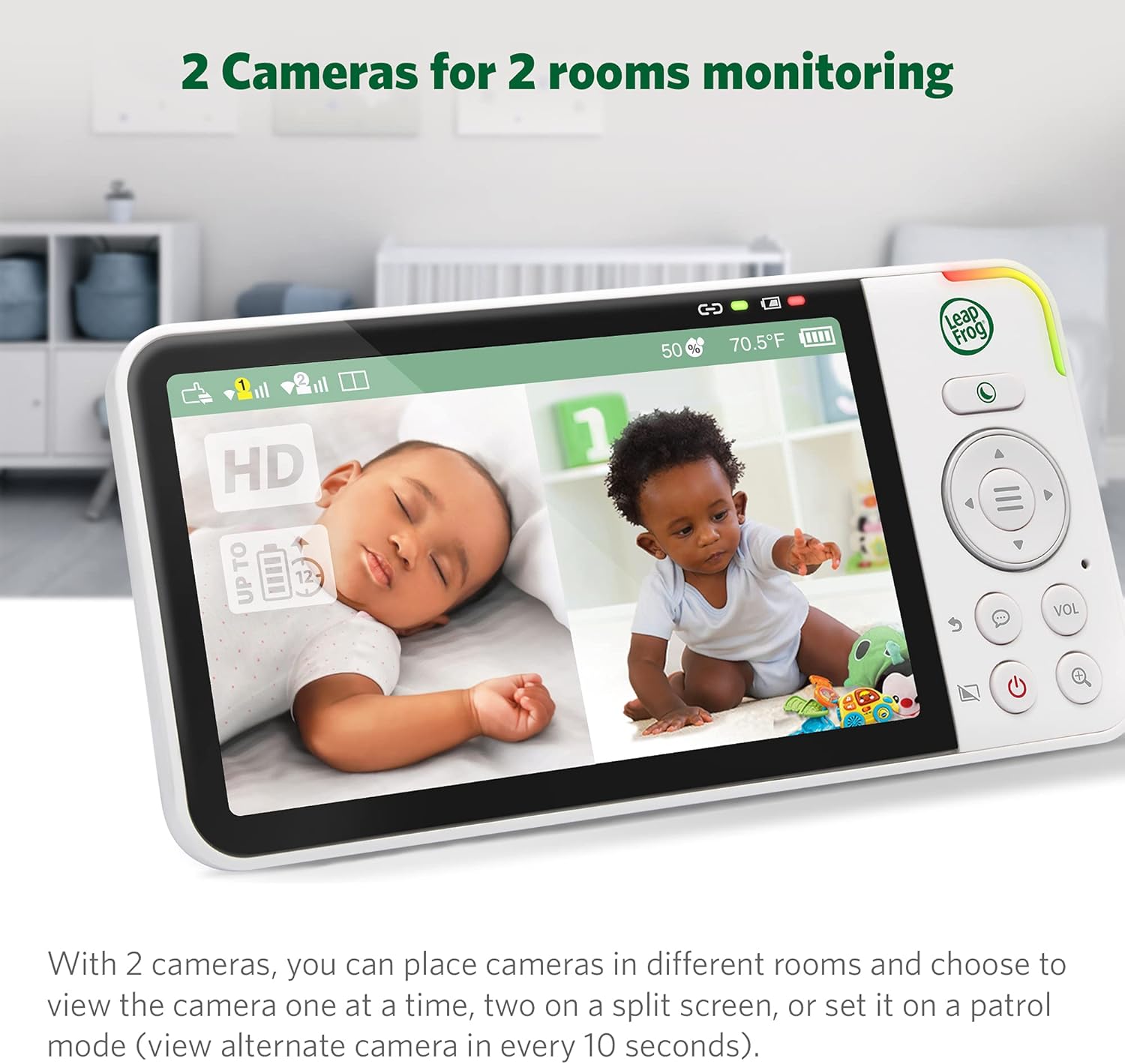
Image: The parent unit displaying a split-screen view from two separate baby cameras, allowing simultaneous monitoring of two rooms.
4. Advanced Features
- Temperature and Humidity Monitoring: The Parent Unit displays real-time room temperature and humidity levels from the Baby Unit. Alerts can be set for out-of-range conditions.

Image: A close-up of the parent unit screen highlighting the temperature and humidity display, indicating the environmental conditions of the baby's room.
- Lullabies and Soothing Sounds: Play pre-programmed lullabies or soothing sounds through the Baby Unit to comfort your child.

Image: The baby unit camera with musical notes emanating from it, symbolizing the soothing sounds and lullabies feature designed to comfort the baby.
- Motion and Sound Alerts: Receive notifications on the Parent Unit and app when motion or sound is detected in your child's room. Sensitivity levels are adjustable.
- Adaptive Night Light: The built-in night light on the Baby Unit adjusts to room brightness and can be controlled remotely.

Image: The baby unit with its base illuminated, surrounded by icons of various colored light bulbs, demonstrating the adaptive and dimmable night light feature.
- Privacy Parking Mode: The camera lens can be rotated downwards into a "parking" position for privacy when not in use.

Image: The baby unit camera in its privacy parking mode, with the lens tilted downwards to ensure privacy when monitoring is not desired.
Maintenance
- Cleaning: Clean the monitor units with a soft, damp cloth. Do not use cleaning sprays or liquid cleaners.
- Battery Care: To prolong battery life, avoid fully discharging the Parent Unit battery frequently. Store the unit in a cool, dry place if not used for extended periods.
- Lens Care: Gently wipe the camera lens with a soft, lint-free cloth to ensure clear image quality.
Troubleshooting
| Problem | Possible Solution |
|---|---|
| No image/sound on Parent Unit. |
|
| Poor image quality or blurry picture. |
|
| Cannot connect to Wi-Fi or app. |
|
| Parent Unit battery drains quickly. |
|
Specifications
| Feature | Detail |
|---|---|
| Model Number | LF925-2HD |
| Video Capture Resolution | 1080p (camera) |
| Parent Unit Display Size | 5 inches (720p HD) |
| Color | White |
| Wireless Communication Technology | Wi-Fi |
| Viewing Angle | 152 Degrees (vertical tilt) |
| Pan & Tilt | 360-degree horizontal pan, 152-degree vertical tilt |
| Digital Zoom | Up to 8x |
| Range | Up to 1,000 feet (line of sight) |
| Power Source | Corded Electric |
| Compatible Devices | Smartphone, Tablet (Android, iPhone) |
| Item Dimensions (L x W x H) | 23 x 13 x 16.8 cm |
| Item Weight | 1.64 kg |
| Battery (Parent Unit) | Rechargeable Li-Polymer (included) |
Warranty and Support
Your LeapFrog LF925-2HD Video Baby Monitor is covered by a manufacturer's warranty. Please refer to the warranty card included in your package or visit the official LeapFrog website for detailed warranty terms and conditions.
For technical support, troubleshooting assistance, or to inquire about replacement parts, please contact LeapFrog Customer Service. Contact information can typically be found on the LeapFrog website or in the product packaging. Online resources, including FAQs and video tutorials, may also be available.
Website: www.leapfrog.com
Related documentsLF925-2HD


Ask a question about this manual
Ask about setup, troubleshooting, compatibility, parts, safety, or missing instructions. Manuals+ will review the question and use this page’s manual context to help answer it.