
1. Introduction
Welcome to the user manual for your Epson Expression Home XP-2150 3-in-1 Multifunction Inkjet Printer. This document provides essential information to help you set up, operate, and maintain your printer, ensuring optimal performance and longevity. The Epson XP-2150 is designed for home and small office use, offering reliable printing, scanning, and copying functionalities.
Epson is a Japanese electronics company and one of the world's largest manufacturers of computer printers and information-related and imaging equipment. Based in Suwa, Nagano, Japan, the company has many subsidiaries worldwide and manufactures inkjet, dot matrix, and laser printers, scanners, desktop computers, professional, multimedia, and home cinema projectors, large home cinema televisions, robots and industrial automation equipment, point-of-sale printers and cash registers, laptops, integrated circuits, LCD components, and other related electronic components.
2. Safety Information
Please read all safety instructions carefully before using the printer to prevent injury or damage to the device. Keep this manual for future reference.
- Always place the printer on a stable, level surface.
- Do not block any ventilation openings.
- Use only the power cord supplied with the printer.
- Do not expose the printer to water or excessive humidity.
- Keep out of reach of children.
- Unplug the printer from the power outlet before cleaning or if it will not be used for an extended period.
3. Package Contents
Verify that all items are included in your package:
- Epson Expression Home XP-2150 Printer
- Power Cable
- USB Cable
- Setup Guide / User Manual
- Software CD
- Initial Ink Cartridges (Black, Cyan, Magenta, Yellow)
4. Product Overview
Familiarize yourself with the main components of your Epson XP-2150 printer.

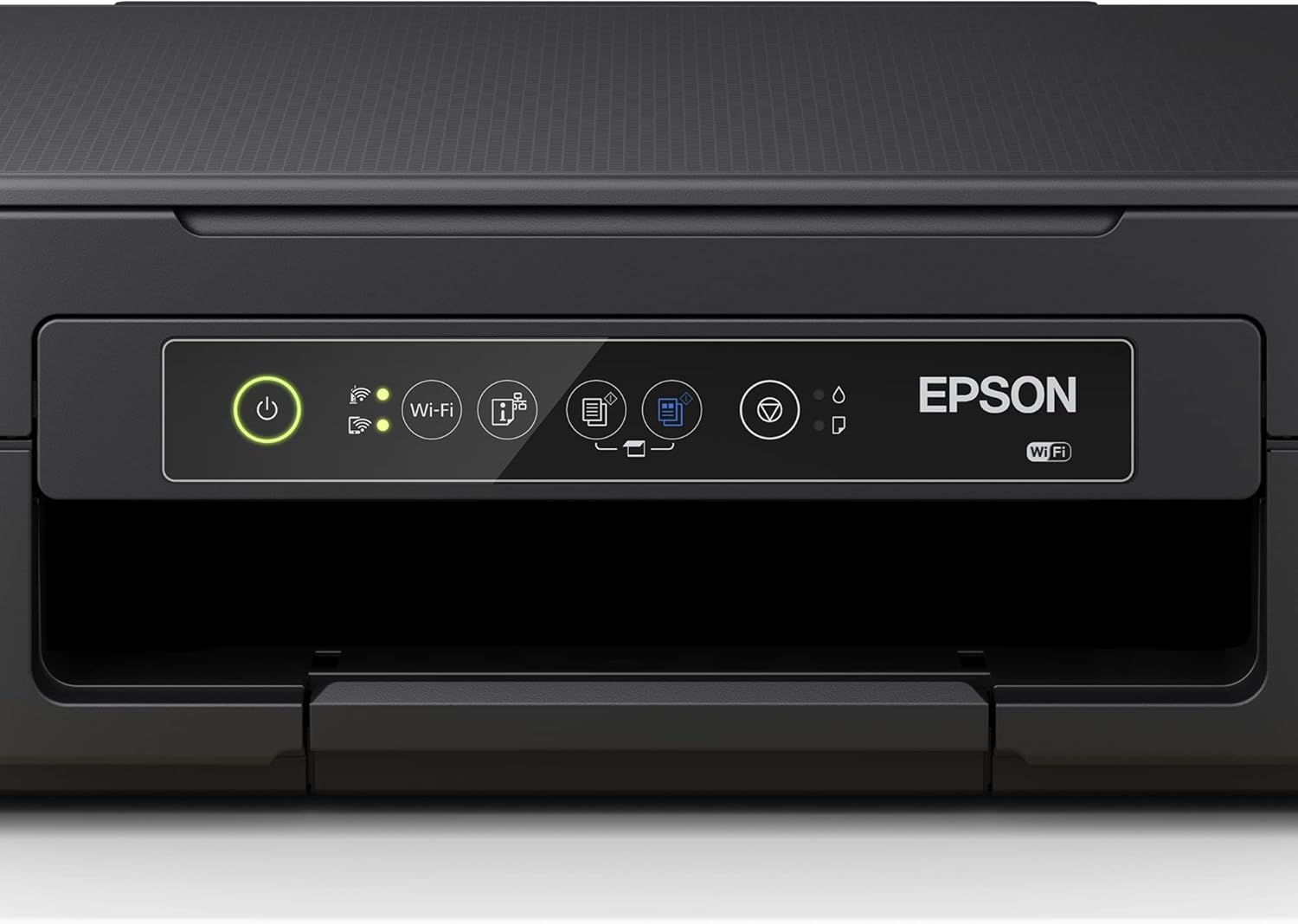
Control Panel Functions:
- Power Button: Turns the printer on or off.
- Wi-Fi Button: Activates or deactivates Wi-Fi connectivity.
- Ink Button: Indicates ink levels or initiates ink cartridge replacement.
- Paper Button: Indicates paper errors or initiates paper loading.
- Copy Buttons: Initiates black and white or color copies.
5. Setup
5.1 Unpacking and Placement
- Remove the printer from its packaging and remove all protective tapes and materials.
- Place the printer on a flat, stable surface near a power outlet. Ensure adequate space around the printer for ventilation and paper handling.
5.2 Connecting the Power
- Connect the supplied power cable to the printer's power port and then to a wall outlet.
- Press the power button to turn on the printer.
5.3 Installing Ink Cartridges
- Lift the scanner unit to access the ink cartridge compartment.
- Unpack each ink cartridge.
- Insert each cartridge into its corresponding color slot until it clicks into place.
- Close the scanner unit. The printer will begin an initial charging process.
5.4 Loading Paper

- Open the paper support and pull out the output tray.
- Fan the edges of the paper stack and load it into the rear paper feeder, print side up.
- Adjust the paper guides to fit the width of the paper.
5.5 Software Installation and Connectivity
Install the printer software from the supplied CD or download the latest drivers and utilities from the official Epson website. Follow the on-screen instructions for installation.
Wi-Fi Setup:
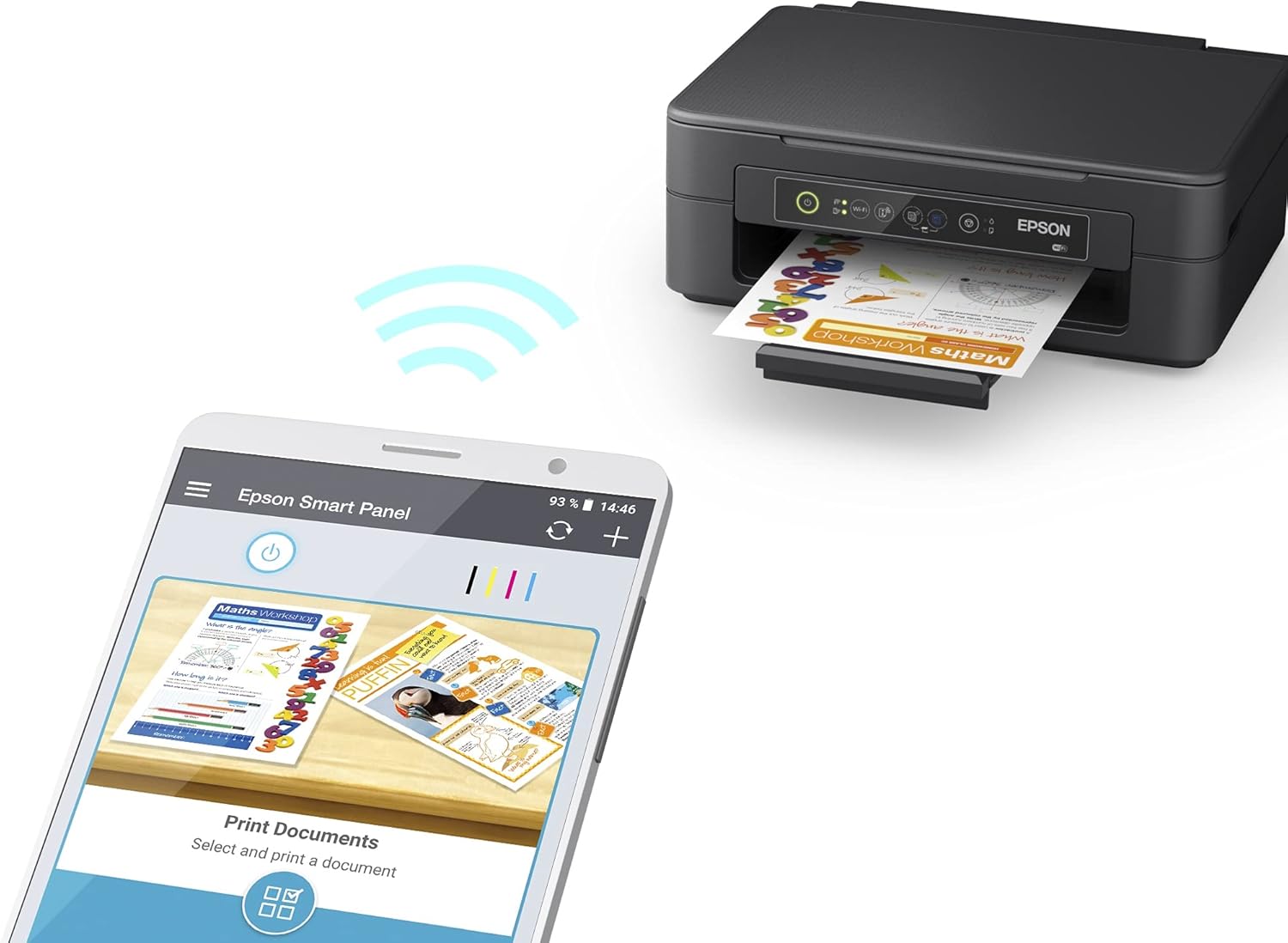
- For wireless connection, ensure your printer and computer/mobile device are on the same network.
- Use the Epson Smart Panel app for easy setup and mobile printing.
- Follow the Wi-Fi setup wizard in the printer software or use the Wi-Fi button on the control panel for direct connection (Wi-Fi Direct).
USB Connection:
- Connect the USB cable from the printer to your computer.
- The computer should automatically detect the printer and install basic drivers. For full functionality, install the Epson software.
6. Operating the Printer
6.1 Printing Documents
- Open the document or image you wish to print on your computer or mobile device.
- Select Print from the application's menu.
- Choose your Epson XP-2150 from the list of available printers.
- Adjust print settings such as paper size, print quality, and color/grayscale as needed.
- Click Print.
6.2 Scanning Documents

- Place the document face-down on the scanner glass, aligning it with the corner mark.
- Close the scanner lid gently.
- Open the Epson Scan software on your computer or use the Epson Smart Panel app.
- Select scan settings (e.g., document type, resolution, color mode).
- Click Scan to begin the scanning process.
6.3 Copying Documents
- Place the document face-down on the scanner glass.
- Close the scanner lid.
- On the printer's control panel, press the Black & White copy button or the Color copy button, depending on your desired output.
- The printer will automatically scan and print the copy.
7. Maintenance
7.1 Replacing Ink Cartridges
When an ink cartridge is low or empty, the ink light on the control panel will illuminate or flash. Replace cartridges as follows:
- Ensure the printer is on.
- Lift the scanner unit. The print head will move to the replacement position.
- Press the tab on the empty cartridge and lift it out.
- Unpack a new genuine Epson ink cartridge and remove the yellow tape.
- Insert the new cartridge into the correct slot until it clicks.
- Close the scanner unit. The printer will prepare the new cartridges.
7.2 Cleaning the Printer
- Exterior: Wipe the exterior of the printer with a soft, damp, lint-free cloth. Do not use abrasive cleaners or alcohol.
- Scanner Glass: Gently wipe the scanner glass with a soft, lint-free cloth moistened with a small amount of glass cleaner.
- Print Head Cleaning: If print quality declines (e.g., streaks, missing colors), perform a print head cleaning using the printer software utility.
- Nozzle Check: Run a nozzle check pattern to diagnose print quality issues before cleaning the print head.
8. Troubleshooting
This section addresses common issues you might encounter with your Epson XP-2150 printer.
8.1 Printer Not Responding
- Ensure the printer is powered on and the power cable is securely connected.
- Check the USB cable connection if using a wired setup, or verify Wi-Fi connectivity.
- Restart both the printer and your computer/device.
- Check for any error messages on the printer's control panel or computer screen.
8.2 Print Quality Issues
- Check ink levels and replace any empty or low cartridges.
- Perform a nozzle check to identify clogged nozzles.
- Run a print head cleaning cycle through the printer software.
- Ensure you are using appropriate paper for your print settings.
8.3 Paper Jams
- Turn off the printer and unplug it.
- Carefully remove any jammed paper from the input tray, output tray, or inside the printer. Avoid tearing the paper.
- Ensure paper is loaded correctly and not overfilled.
- Restart the printer.
9. Specifications
| Feature | Specification |
|---|---|
| Brand | Epson |
| Model Name | Expression Home XP-2150 |
| Model Number | C11CH02407 |
| Print Technology | Inkjet |
| Functions | Print, Scan, Copy |
| Max Media Size | A4 |
| Max Sheet Capacity | 100 sheets |
| Max Monochrome Print Speed | 27 Pages per minute |
| Max Color Print Speed | 15 Pages per minute |
| Max Color Print Resolution | 5760 x 1440 dpi |
| Max Black & White Print Resolution | 1440 dpi |
| Duplex Printing | Yes |
| Scanner Type | Contact Image Sensor |
| Max Copy Speed (Black & White) | 27 Pages per minute |
| Max Copies per Series | 27 (black and white), 15 (color) |
| Display Type | LCD |
| Connectivity | USB, Wi-Fi |
| Compatible Devices | Laptop, Computers, Smartphone, Tablet |
| Item Weight | 4 Kilograms |
10. Warranty and Support
10.1 Manufacturer's Warranty
The Epson Expression Home XP-2150 comes with a 2-year manufacturer's warranty. Please retain your proof of purchase for warranty claims. The warranty covers defects in materials and workmanship under normal use.
10.2 Customer Support
For technical assistance, driver downloads, or further information, please visit the official Epson support website. You can also find FAQs and troubleshooting guides online.
- Epson Support Website: www.epson.com/support (Please note: URL is a placeholder, refer to your region's specific Epson website for accurate support information.)
- Software Updates: Ensure your printer software and firmware are up to date for best performance.


