
GCSOAR BT-02
GCSOAR BT-02 Bluetooth Adapter Instruction Manual
Accessory for MPPT Solar Charge Controller via APP Monitoring & Setting Parameters
1. Product Overview
The GCSOAR BT-02 Bluetooth Adapter is designed to enable wireless monitoring and parameter setting for compatible MPPT Solar Charge Controllers via a mobile application. This accessory provides convenient access to system data and control functions, enhancing the user experience for solar power management.
Compatibility: This adapter is specifically designed for GCSOAR GCIT Series & iPandee Brand MPPT Solar Charge Controllers.

Image: The GCSOAR BT-02 Bluetooth Adapter with its connecting cable.
2. Package Contents
- 1 x GCSOAR BT-02 Bluetooth Adapter
- 1 x Operation Note (for reference)
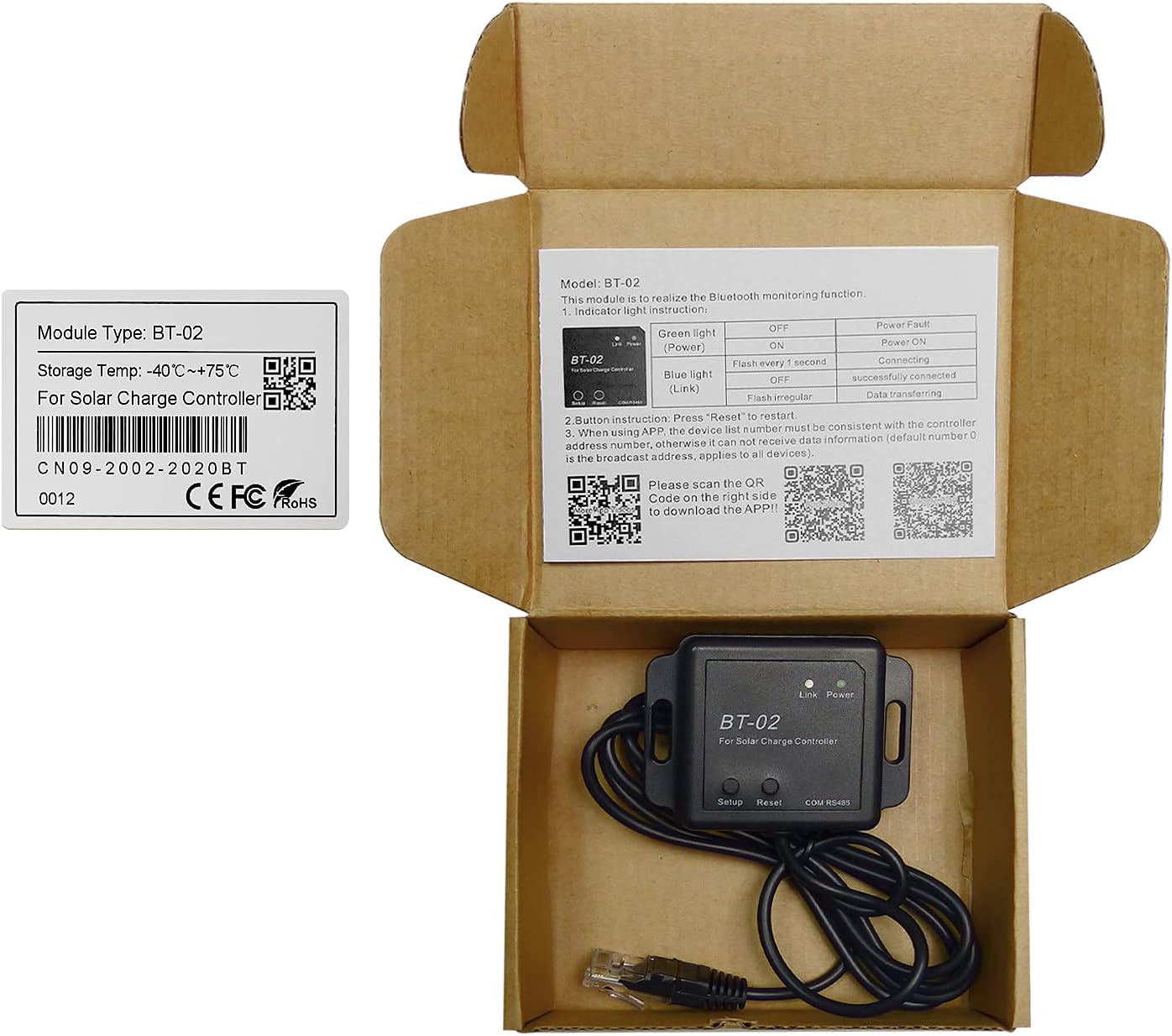
Image: The BT-02 Bluetooth Adapter as packaged, showing the device and included documentation.
3. Key Features
- Wireless monitoring and parameter setting via mobile APP.
- Supports Android and iOS systems.
- Communication distance up to 20 meters.
- Compatible with Lead-acid (Sealed/GEL(AGM)/Flooded), Lithium (LiFePO4/Li[NiCoMn]O2), and User-defined batteries.
- Four load control modes: Manual, Light Control, Time & Light Control, Dual-timer Interval Control.
- Historical data query for the last 30 days and the entire year.
4. Setup and Installation
4.1 APP Download and Installation
To begin, download the "SolarMate" application on your mobile device. You can find it by searching "SolarMate" on Google Play Store or iOS APP Store, or by scanning the QR codes provided below.

Image: MPPT Solar Controller with BT-02 adapter and QR codes for SolarMate APP download.
For Android devices: Download SolarMate from Google Play
For iOS devices: Download SolarMate from iOS APP Store
Please ensure you download the latest version (3.0.4) of SolarMate for optimal performance.
4.2 Connecting the BT-02 Module
- Connect the BT-02 module to your compatible GCSOAR MPPT Solar Charge Controller.
- If connecting the BT-02 module for the first time or if you wish to clear previous information, press the "Set up" key on the BT-02 module for 6 seconds.
- Turn on Bluetooth on your mobile phone.
- Open the SolarMate APP and connect to the BT-02 module via BLE (Bluetooth Low Energy).
- When using the APP, ensure the device list number is consistent with the controller address number. Otherwise, data may not be received. The default number 0 is the broadcast address and applies to all devices.

Image: Close-up of the BT-02 module showing indicator lights and buttons, along with a table explaining their functions.
Indicator Light Instruction:
| Light | Status | Meaning |
|---|---|---|
| Green light (Power) | OFF | Power Fault |
| Green light (Power) | ON | Power ON |
| Blue light (Link) | Flash every 1 second | Connecting |
| Blue light (Link) | OFF | Successfully connected |
| Blue light (Link) | Flash irregular | Data transferring |
Button Instruction: Press "Reset" to restart the module.
5. Operating Instructions (APP Functions)
The SolarMate APP allows you to monitor your solar system and adjust various parameters. For a detailed visual guide, please refer to the official product video below.
Video: GCSOAR MPPT 60A Setting by Bluetooth adapter BT-02. This video demonstrates how to connect the BT-02 adapter and use the SolarMate APP to monitor and set parameters for your MPPT solar charge controller.
5.1 Monitoring System Data
After successfully connecting the BT-02 module to the APP, you can monitor real-time system data. Navigate to the "Overview" page and click the refresh icon to update the data. You can browse PV information, battery information, and load information.
5.2 Load Control Modes
The APP allows you to set various load working modes. Remember to update the controller's time to your local time when first using these features.
- Mode 1: ON/OFF Mode (Manual Control)
Manually turn the load ON or OFF and save the setting. - Mode 2: Light(PV) Control Mode
The load turns ON or OFF based on PV voltage. For a 12V battery system, you can set PV voltage thresholds between 5V and 6V. For a 24V system, you can set between 5V and 6V. When PV voltage is lower than the set threshold (e.g., 5V), the controller recognizes it as night, and the load delays 8 minutes to turn on. When PV voltage reaches the higher threshold (e.g., 6V), the controller recognizes it as morning, and the load will be turned off after an 8-minute delay. - Mode 3: Time & Light(PV) Control Mode
Similar to Mode 2, but with an added time component. When PV voltage is lower than 5V (night), the light will stay on for a set duration (e.g., 6 hours). When PV voltage reaches 6V (morning), the light will turn off 3 hours earlier. Note: In this mode, the controller needs several days of learning to accurately record this setting rule. - Mode 4: Dual-timer Interval Control Mode
Allows setting specific ON/OFF times for two distinct periods. Remember to update the controller's time to your local real-time.
5.3 Charge and Protection Parameter Settings
You can set the battery type and various battery parameters. Pay attention to the difference between parameter settings for lead-acid batteries and lithium batteries. Note: Please set these parameters under professional guidance.
- Battery Type: Select from Gel lead-acid, Flooded lead-acid, Sealed lead-acid, Other lead-acid, or Lithium-ion.
- Charge Param Set: Adjust constant voltage charge, floating charge voltage, equalizing charge voltage, and equalizing charge time.
- Protection Param Set: Configure battery overcharge, overcharge recovery voltage, battery undervoltage, undervoltage recovery voltage, max discharge current, and max charging current.
- Lithium-ion Battery Settings:
- Li-NiCoM battery charging settings: 11.1V - 12.6V
- LiFePO4 battery charging settings: 12.8V - 14.4V
5.4 Price Set
This feature allows you to calculate the maximum use time at full power. Fill in the electricity price in combination with your local actual situation. Enter data in the box below (e.g., kWh) according to local currency without distinction.
5.5 Standby / Run Control (Realtime Setting)
The factory default time setting is China time. Please remember to set it to your local time for accurate operation.
5.6 Historical Data Query
You can check the status of your solar system for the last 30 days and the whole year through the historical data query function in the APP.
6. Troubleshooting
If you encounter issues with your GCSOAR BT-02 Bluetooth Adapter, please consider the following common solutions:
- Connection Issues: Ensure Bluetooth is enabled on your phone and the BT-02 module is powered on. Try pressing the "Set up" key for 6 seconds to clear previous connections and re-pair. Verify the device list number in the APP matches the controller address.
- Data Inaccuracy: Ensure the controller's internal clock is synchronized with your local time, especially for time-based load control modes.
- APP Functionality: Make sure you have the latest version of the SolarMate APP installed. If issues persist, try restarting the APP or your mobile device.
- Parameter Settings: Always exercise caution when adjusting charge and protection parameters. Incorrect settings can damage your battery or solar system. Consult a professional if unsure.
- Compatibility: Confirm that your MPPT Solar Charge Controller is a GCSOAR GCIT Series or iPandee Brand model, as the BT-02 is designed for these specific controllers.
For further assistance, please contact GCSOAR customer support.
7. Specifications
| Attribute | Detail |
|---|---|
| Model | BT-02 |
| Brand | GCSOAR |
| Manufacturer | GolandCentury |
| Communication Range | Up to 20m (Bluetooth) |
| Supported Systems | Android, iOS |
| Supported Battery Types | Lead-acid (Sealed/GEL(AGM)/Flooded), Lithium (LiFePO4/Li[NiCoMn]O2), User-defined |
| Display Type | No Display (relies on APP) |
| Voltage | 37 Volts (as per product spec, likely max input) |
| Material | Lithium (as per product spec, likely related to battery compatibility) |
8. Warranty and Support
GCSOAR is committed to providing high-quality products and excellent customer service. For any questions, technical assistance, or warranty inquiries, please contact our support team.
Email Support: mygreenservice@hotmail.com
Our professional US local team engineers are available to supply solar system solutions and services.
For more information about GCSOAR products, visit the GCSOAR Store on Amazon.
Ask a question about this manual
Ask about setup, troubleshooting, compatibility, parts, safety, or missing instructions. Manuals+ will review the question and use this page’s manual context to help answer it.