
1. Introduction
Thank you for choosing the HomeSpot Bluetooth 5.0 Audio Transmitter Adapter. This device is designed to provide high-quality wireless audio for your Nintendo Switch, Switch Lite, PS5, and PC, supporting aptX Low Latency for minimal audio delay and dual headphone streaming. This manual will guide you through the setup, operation, and troubleshooting of your adapter.
2. Safety Information
- Keep the adapter away from water and liquids.
- Do not attempt to disassemble or repair the device yourself.
- Avoid extreme temperatures.
- Ensure the adapter is fully inserted into the USB-C port to prevent damage.
- This product is not compatible with protective casings on the Nintendo Switch that obstruct the USB-C port.
3. Package Contents
- HomeSpot Bluetooth Audio Transmitter Adapter (HS3-NS002)
- USB-C to USB-A Adapter
- User Guide
- Pouch

Image: Contents of the HomeSpot Bluetooth Audio Transmitter Adapter package.
4. Product Overview
The HomeSpot Bluetooth Audio Transmitter Adapter features a compact design with intuitive controls and LED indicators for easy operation.

Image: Detailed view of the adapter's components and controls.
- P1 Button: Press to connect or toggle internal mic. Hold to pair.
- P1 LED: Indicates connection status and mic status for the first device.
- Codec LED: Indicates the active audio codec (Off = SBC, Blue = aptX, Amber = aptX Low Latency).
- P2 LED: Indicates connection status and mic status for the second device.
- P2 Button: Press to connect or toggle internal mic. Hold to pair.
- USB-C Plug: Connects to your device.
- Internal Mic: Built-in microphone for in-game voice chat.
5. Setup
5.1 Connecting to Nintendo Switch (Handheld Mode)
- Ensure your Nintendo Switch does not have a protective casing that obstructs the USB-C port.
- Insert the HomeSpot adapter firmly into the USB-C port at the bottom of your Nintendo Switch.
- The adapter will power on automatically.

Image: The HomeSpot adapter connected to a Nintendo Switch.
5.2 Connecting to Nintendo Switch (Docked Mode)
- Connect the included USB-C to USB-A adapter to the HomeSpot Bluetooth adapter.
- Insert the USB-A end into an available USB port on your Nintendo Switch dock.
- The adapter will power on automatically.
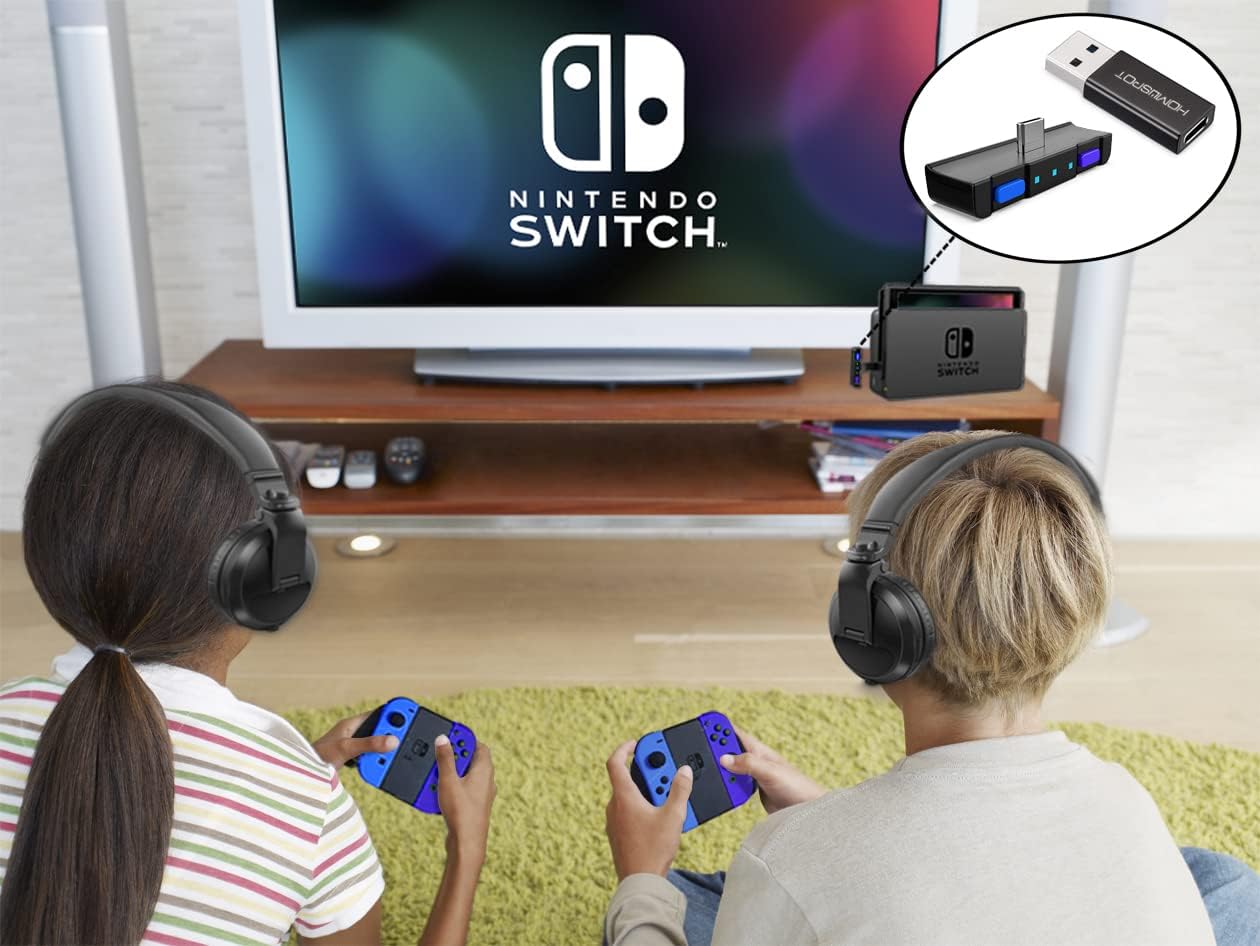
Image: Adapter used with Nintendo Switch in docked mode, enabling dual headphone audio.
5.3 Pairing Headphones
- With the adapter connected to your Switch, put your Bluetooth headphones into pairing mode. Refer to your headphone's manual for specific instructions.
- On the HomeSpot adapter, press and hold either the P1 or P2 button for 3 seconds until its corresponding LED flashes rapidly (Green for P1, Green for P2). This indicates pairing mode.
- Once paired, the LED for the connected channel will turn solid Green, and the Codec LED will illuminate (Blue for aptX, Amber for aptX Low Latency, Off for SBC).
5.4 Dual Headphone Pairing
The adapter supports connecting two Bluetooth headphones simultaneously.
- Pair the first headphone using the P1 button as described in section 5.3.
- Once the first headphone is connected, put your second Bluetooth headphone into pairing mode.
- Press and hold the P2 button on the HomeSpot adapter for 3 seconds until the P2 LED flashes rapidly.
- Once paired, the P2 LED will turn solid Green. Both headphones will now receive audio.
6. Operating Instructions
6.1 Using the Built-in Microphone
The adapter features a built-in microphone for in-game voice chat, primarily for handheld mode.
- After pairing headphones, press the P1 button to toggle the built-in microphone On/Off.
- P1 LED Solid Amber: Built-in mic is On.
- P1 LED Solid Green: Built-in mic is Off.
- The effective range of the built-in mic is approximately 4 feet (1.2 meters).

Image: In-game voice chat via the adapter's internal microphone.
6.2 Using Headphones Microphone (HFP Mode - Beta)
This beta feature allows voice chat through your headphones' microphone. Audio quality may be degraded in HFP mode.
- Turn on your Switch and navigate to the Home menu.
- While inserting the adapter into the Switch, press and hold the P2 button.
- Continue holding P2 until the LEDs light up after insertion.
- Connect your headphones as normal.
- Once HFP mode is enabled and headphones are connected:
- Press P1 to toggle the built-in mic (P1 LED Solid Amber = On, P1 LED Solid Green = Off).
- Alternatively, press the Play/Pause button on your headphones to toggle the headphones mic (P1 LED Flashing Amber = On, P1 LED Solid Green = Off).
- HFP mode automatically disables when the adapter is unplugged or the Switch enters Sleep/Off mode.
6.3 LED Indicators
- P1/P2 LED Flashing Green: Connecting or Pairing mode.
- P1/P2 LED Solid Green: Connected with mic Off.
- P1/P2 LED Solid Amber: Connected with built-in mic On.
- P1/P2 LED Flashing Amber: Connected with headphones mic On (HFP mode).
- Codec LED Off: SBC codec active.
- Codec LED Blue: aptX codec active.
- Codec LED Amber: aptX Low Latency codec active.
7. Maintenance
- Clean the adapter with a soft, dry cloth. Do not use liquid cleaners.
- Store the adapter in a cool, dry place when not in use, preferably in the included pouch.
- Avoid dropping or subjecting the adapter to strong impacts.
8. Troubleshooting
- Adapter not powering on: Ensure the adapter is fully inserted into the USB-C port of your Switch or the USB-A adapter is correctly connected to the dock.
- Cannot pair headphones:
- Ensure your headphones are in pairing mode.
- Ensure the adapter's P1 or P2 button is held for 3 seconds until the LED flashes rapidly.
- Try restarting both the Switch and your headphones.
- No audio or poor audio quality:
- Check that the headphones are properly paired and connected (solid Green LED).
- Ensure the volume on both your Switch and headphones is adjusted.
- Move closer to the adapter to improve signal strength.
- If using HFP mode, note that audio quality may be degraded.
- Mic not working:
- Ensure the built-in mic is toggled On (P1 LED Solid Amber).
- If using headphones mic (HFP mode), ensure it's activated (P1 LED Flashing Amber) and your headphones support this feature.
- Check in-game settings for voice chat activation.
- Adapter does not fit with protective casing: The adapter is designed for a flush fit and is not compatible with most protective casings. Remove the casing before use.
9. Specifications
| Feature | Detail |
|---|---|
| Model Number | HS3-NS002 |
| Bluetooth Version | 5.0 |
| Audio Codecs | SBC, aptX, aptX Low Latency |
| Connectivity | USB-C |
| Compatible Devices | Nintendo Switch, Switch Lite, PS5, PC, Gaming Console, Headphones, Speakers |
| Microphone | Built-in Digital Mic |
| Dual Streaming | Yes, to 2 headphones simultaneously |
| Item Weight | 2.29 ounces (64.9 grams) |
| Package Dimensions | 3.98 x 3.39 x 0.79 inches (10.1 x 8.6 x 2 cm) |
10. Warranty
HomeSpot products typically come with a standard manufacturer's warranty. Please refer to the product packaging or the official HomeSpot website for specific warranty terms and duration. Keep your proof of purchase for warranty claims.
11. Support
For further assistance, technical support, or customer service, please visit the official HomeSpot website or contact their customer support team through the contact information provided on their website or product packaging.
HomeSpot Official Website: HomeSpot Store on Amazon