
1. Introduction
Thank you for choosing the PRITOM Tronpad 7-inch Android 10 Tablet PC. This manual provides essential information to help you set up, operate, and maintain your new device. Please read these instructions carefully before use to ensure optimal performance and longevity of your tablet.
2. Product Overview
The PRITOM Tronpad tablet features a 7-inch HD IPS display, a Quad-Core processor, 32GB of internal storage, and runs on Android 10. It includes dual cameras, Wi-Fi, and Bluetooth connectivity, designed for general use and entertainment.
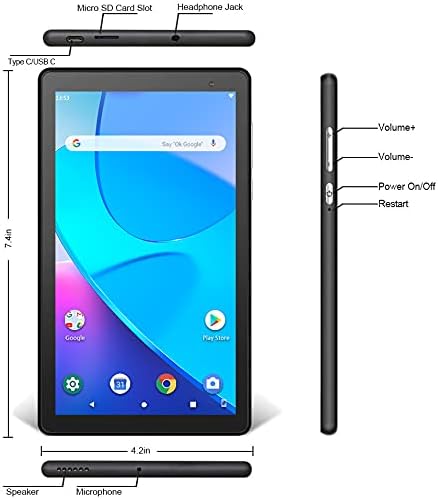
Image: Front and side view of the PRITOM Tronpad tablet, highlighting the location of its ports and buttons. These include the Micro SD Card Slot, Headphone Jack, Type C/USB C port, Speaker, Microphone, Volume Up and Down buttons, Power On/Off button, and a dedicated Restart button.
Physical Components:
- Micro SD Card Slot: For expanding storage capacity.
- Headphone Jack: For connecting wired headphones.
- Type C/USB C Port: For charging and data transfer.
- Speaker: Audio output.
- Microphone: For audio input.
- Volume Buttons (+/-): To adjust audio volume.
- Power On/Off Button: To power the device on or off, or to put it to sleep/wake it up.
- Restart Button: A dedicated button for restarting the tablet if it becomes unresponsive.
3. Setup
3.1 Initial Charging
Before first use, fully charge your tablet. Connect the provided USB-C cable to the tablet's USB-C port and the other end to a compatible power adapter. The charging indicator will typically show the charging status on the screen.
3.2 Powering On/Off
- To Power On: Press and hold the Power On/Off button until the PRITOM logo appears.
- To Power Off: Press and hold the Power On/Off button until a power menu appears on the screen. Select "Power off" and confirm.
- To Sleep/Wake: Briefly press the Power On/Off button to put the tablet to sleep or wake it up.
3.3 Initial Setup Wizard
Upon first power-on, the tablet will guide you through an initial setup process:
- Language Selection: Choose your preferred language.
- Wi-Fi Connection: Select your Wi-Fi network and enter the password to connect to the internet.
- Google Account: Sign in with your existing Google account or create a new one. This is necessary to download apps from the Google Play Store.
- Date & Time: Set the correct date and time, or allow the network to set it automatically.
- Security: Set up a screen lock (PIN, pattern, or password) for security.
4. Operating Instructions
4.1 Basic Navigation
The tablet uses touch gestures for navigation:
- Tap: To select an item or open an app.
- Tap & Hold: To access contextual menus or move icons.
- Swipe: To scroll through pages or lists.
- Pinch: To zoom in or out on images and web pages.
4.2 Wi-Fi Connection
- Go to Settings > Network & internet > Wi-Fi.
- Toggle Wi-Fi On.
- Select your desired network from the list and enter the password if prompted.
4.3 Bluetooth Pairing
- Go to Settings > Connected devices > Bluetooth.
- Toggle Bluetooth On.
- Ensure the device you want to pair is in pairing mode.
- Select the device from the list of available devices and follow any on-screen prompts to complete pairing.
4.4 Using the Camera
The tablet is equipped with dual cameras (front and rear).

Image: The PRITOM Tronpad tablet being used to capture a moment with its dual camera functionality.
- Open the Camera app.
- Tap the camera icon to switch between front and rear cameras.
- Tap the shutter button to take a photo or start/stop video recording.
4.5 App Management
- Installing Apps: Open the Google Play Store app, search for your desired app, and tap "Install".
- Uninstalling Apps: Tap and hold the app icon on the home screen or app drawer, then drag it to "Uninstall" or select "App info" and then "Uninstall". Alternatively, go to Settings > Apps & notifications, select the app, and tap "Uninstall".
4.6 Storage Management
The tablet comes with 32GB of internal storage. You can expand this using a Micro SD card.
- To Insert Micro SD Card: Gently insert the Micro SD card into the designated slot until it clicks into place.
- To Manage Storage: Go to Settings > Storage to view storage usage and manage files.
4.7 Battery Management
To optimize battery life:
- Adjust screen brightness to a comfortable level.
- Turn off Wi-Fi and Bluetooth when not in use.
- Close unused applications running in the background.
- Enable Battery Saver mode in Settings > Battery.
5. Maintenance
5.1 Cleaning the Tablet
Use a soft, lint-free cloth to clean the screen and body of the tablet. Avoid using harsh chemicals or abrasive materials, which can damage the screen or finish.
5.2 Software Updates
Periodically check for software updates to ensure your tablet has the latest features and security patches. Go to Settings > System > System update.
5.3 Data Backup
Regularly back up important data to a cloud service (like Google Drive) or an external storage device to prevent data loss.
6. Troubleshooting
If you encounter issues with your PRITOM Tronpad tablet, try the following solutions:
- Tablet is unresponsive: Press and hold the Power On/Off button for about 10-15 seconds to force a restart. Alternatively, use the dedicated Restart button if available (refer to Product Overview diagram).
- Slow performance: Close unused apps, clear cache (Settings > Storage > Cached data), or restart the tablet. Consider uninstalling rarely used apps to free up storage.
- Wi-Fi connection issues: Ensure Wi-Fi is enabled. Restart your Wi-Fi router and the tablet. Forget the network and reconnect.
- Battery not charging: Ensure the USB-C cable and power adapter are securely connected and functional. Try a different cable or adapter.
- Apps crashing: Clear the app's cache and data (Settings > Apps & notifications > [App Name] > Storage & cache). If the issue persists, uninstall and reinstall the app.
If these steps do not resolve the issue, please contact PRITOM customer support for further assistance.
7. Specifications
| Feature | Specification |
|---|---|
| Brand | PRITOM |
| Model Name | Tronpad Tablet |
| Screen Size | 7 Inches |
| Screen Resolution | 1024x600 |
| Operating System | Android 10 |
| Processor | Quad Core |
| RAM | 1 GB |
| Hard Drive / Flash Memory Size | 32 GB |
| Wireless Type | 802.11bgn (Wi-Fi) |
| Rear Webcam Resolution | 2.2 MP |
| Item Weight | 8.8 ounces |
| Product Dimensions | 7.5 x 4.3 x 0.4 inches |
| Average Battery Life | 6 Hours |
8. Warranty and Support
8.1 Warranty Information
PRITOM products are designed for quality and reliability. For specific warranty terms and conditions, please refer to the warranty card included with your product or visit the official PRITOM website.
8.2 Customer Support
If you have any questions, issues, or require technical assistance, please contact PRITOM customer support. The PRITOM team aims to provide attentive service and will respond to inquiries promptly, typically within 24 hours.
You can often find support contact information (such as email) on the PRITOM brand store page or within the product packaging.