
1. Introduction and Overview
The Logickeyboard Astra2 Backlit Keyboard is specifically engineered to enhance your editing workflow in Adobe Premiere Pro on Mac. This keyboard features dedicated shortcut commands and color-coded key definitions, designed to streamline your video editing process. Its backlit keys provide optimal visibility in various lighting conditions, adjustable across five levels. The integrated USB 3.0 hub offers convenient connectivity for additional peripherals, such as SSD drives or jog/shuttle wheels.
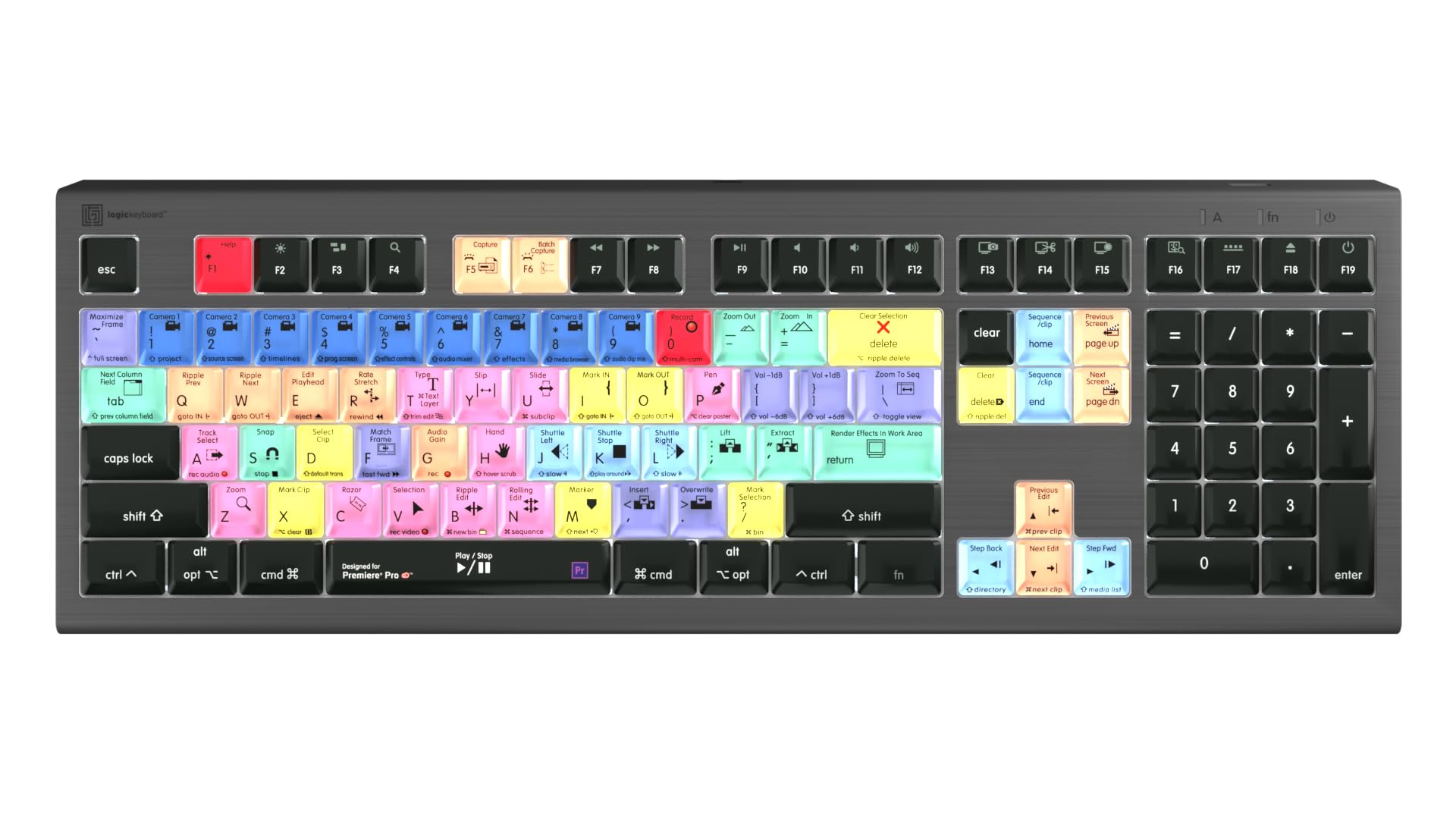
Figure 1: Overview of the Logickeyboard Astra2 Backlit Keyboard.
2. Setup
- Unpacking: Carefully remove the keyboard and the included USB cable from its packaging.
- Connecting to Mac: Connect the keyboard to your Mac using the provided USB cable. The keyboard features two USB connectors. One connector powers the keyboard's primary functions, and the other activates the integrated USB 3.0 hub. Ensure both are connected to available USB ports on your Mac for full functionality.
- Plug-and-Play: The Logickeyboard Astra2 is designed for plug-and-play compatibility with macOS. No additional drivers are typically required for basic keyboard operation.

Figure 2: Integrated USB 3.0 port for peripheral connections.
3. Operating Instructions
3.1. Color-Coded Shortcuts
The keys are color-coded and labeled with Adobe Premiere Pro shortcut commands and graphical icons. This visual system allows for quick identification and execution of functions, significantly speeding up your editing process. For example, common editing functions like 'Ripple Edit' or 'Trim Edit' are grouped by color and clearly marked.

Figure 3: Detailed view of color-coded keys and shortcut icons.
3.2. Backlight Adjustment
The keyboard features adjustable backlighting, ideal for low-light editing environments. You can adjust the illumination to one of five levels to suit your preference. Use the dedicated brightness control keys (typically located on the function row) to cycle through the brightness settings.

Figure 4: Backlit keys providing enhanced visibility.
3.3. USB 3.0 Hub
The built-in USB 3.0 hub allows for easy connection of additional USB devices directly to your keyboard. This is useful for connecting external storage, a mouse, or other peripherals without needing to reach for your computer's ports.
3.4. Standard Keyboard Functionality
When Adobe Premiere Pro is not the active application, or when using other software, the Logickeyboard Astra2 functions as a standard QWERTY keyboard, allowing for regular typing and computer use.
4. Maintenance
To ensure the longevity and optimal performance of your Logickeyboard Astra2, follow these maintenance guidelines:
- Cleaning: Use a soft, lint-free cloth slightly dampened with water or a mild, non-abrasive cleaner to wipe down the keys and surface. Avoid excessive moisture.
- Dust Removal: Use compressed air to remove dust and debris from between the keys.
- Avoid Spills: Keep liquids away from the keyboard to prevent damage to internal components.
- Storage: Store the keyboard in a clean, dry environment when not in use.
5. Troubleshooting
If you encounter issues with your Logickeyboard Astra2, consider the following troubleshooting steps:
- Keyboard Not Responding: Ensure both USB connectors are securely plugged into your Mac. Try connecting to different USB ports.
- Backlight Not Working: Check if the brightness level is set to maximum. Ensure both USB connectors are properly connected, as one may be responsible for powering the backlight.
- Peripherals Not Detected (USB Hub): Verify that the USB 3.0 hub's connector is properly plugged into your Mac. Try connecting the peripheral directly to your Mac to confirm it's functional.
- Incorrect Shortcuts: Ensure Adobe Premiere Pro is the active application. If issues persist, verify your Premiere Pro keyboard shortcut settings.
- General Issues: Restart your Mac. If problems persist, visit the Logickeyboard support website for further assistance.
6. Specifications
| Feature | Detail |
|---|---|
| Product Dimensions | 17.6 x 6 x 1.1 inches |
| Item Weight | 2.81 pounds |
| Manufacturer | Logickeyboard |
| ASIN | B09G3LBDDL |
| Item Model Number | LKB-PPROCC-A2M-US |
| Date First Available | September 2, 2021 |
| Compatible Devices | Adobe Premiere Pro Software |
| Connectivity Technology | USB |
| Keyboard Description | Multimedia |
| Recommended Uses For Product | Video Editing |
| Special Feature | Ergonomic, Backlit Keys, USB Hub |
| Color | Backlit Astra2 Mac (Single Color Backlighting) |
| Material | Acrylonitrile Butadiene Styrene |
| What's in the Box | USB Cable |
7. Official Product Videos
7.1. Adobe Premiere Pro Compatible 'ASTRA2' Backlit Logickeyboard
This video provides an overview of the Adobe Premiere Pro compatible Astra2 Backlit Logickeyboard, showcasing its features and benefits for video editing workflows.
7.2. Check out the 'TITAN' Logickeyboard made Adobe Premiere Pro
This video highlights the 'TITAN' Logickeyboard, also designed for Adobe Premiere Pro, demonstrating its design and functionality for professional use.
8. Warranty and Support
Logickeyboard products are designed for durability and performance. For detailed warranty information, product registration, and technical support, please visit the official Logickeyboard website. You can find FAQs, driver downloads, and contact information for customer service there.
Online Support: www.logickeyboard.com


