
CAME-TV P-1200R
CAME-TV Boltzen Perseus RGBDT 55W Lighting Screen User Manual
Model: P-1200R
1. Introduction
Thank you for purchasing the CAME-TV Boltzen Perseus RGBDT 55W Lighting Screen. This professional-grade LED light is designed for various photography and videography applications, offering versatile color control and powerful illumination. Please read this manual thoroughly before operating the device to ensure proper use and maintenance.
This manual provides essential information on setting up, operating, maintaining, and troubleshooting your lighting screen. Keep this manual for future reference.
2. Safety Precautions
- Do not expose the device to rain or moisture to prevent electric shock or fire.
- Do not disassemble or modify the device. Repairs should only be performed by qualified personnel.
- Ensure the power source matches the device's requirements (Electric, 55W).
- Avoid direct eye exposure to the light source, as it can cause eye damage.
- Keep the device away from flammable materials and ensure proper ventilation during operation.
- Handle the device with care to prevent physical damage.
3. Package Contents
Upon opening the package, please verify that all components are present and in good condition:
- CAME-TV Boltzen Perseus RGBDT 55W Lighting Screen (Model: P-1200R)
- Power Adapter/Cable
- Carrying Bag
- User Manual (this document)

Image: The CAME-TV Boltzen Perseus RGBDT 55W Lighting Screen (displaying blue light) shown alongside its dedicated carrying bag, illustrating the main product and its portable storage solution.
4. Setup Guide
4.1 Mounting the Light
The Boltzen Perseus P-1200R is designed to be mounted on a standard light stand. Locate the mounting bracket on the light and attach it securely to your light stand's spigot.
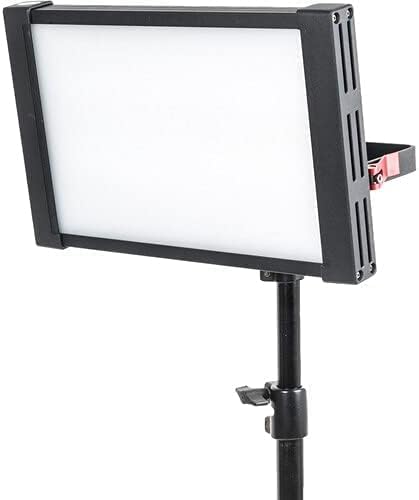
Image: The CAME-TV Boltzen Perseus RGBDT 55W Lighting Screen, emitting a white light, securely mounted on a professional light stand, demonstrating its typical setup for studio or location use.
4.2 Power Connection
- Connect the power adapter to the DC input port on the back of the light panel.
- Plug the power adapter into a suitable electrical outlet.
- Alternatively, if using a compatible battery (not included), attach it to the battery plate on the rear of the unit.

Image: A detailed view of the rear panel of the CAME-TV Boltzen Perseus RGBDT 55W Lighting Screen, highlighting the control knobs, buttons, and the battery mounting plate, essential for operation and power management.
5. Operating Instructions
5.1 Powering On/Off
Locate the power switch on the rear panel of the light. Flip the switch to the 'ON' position to power on the device. Flip it to the 'OFF' position to power off.
5.2 Adjusting Brightness (Dimmer)
Use the DIMMER knob on the control panel to adjust the light's intensity. Rotate clockwise to increase brightness and counter-clockwise to decrease it.
5.3 Color Temperature and Hue Control
The Boltzen Perseus P-1200R features RGBDT color space control, allowing for a wide range of color temperatures and hues.
- CCT Mode: Use the CCT knob to adjust the color temperature from 2000K to 10000K.
- RGB Mode: Press the COLOR button to switch to RGB mode. Use the corresponding knobs or buttons to adjust Red, Green, and Blue values to achieve desired colors.
- Special Effects: The light may include pre-programmed special effects. Refer to the on-screen display and control buttons for navigation and selection of these effects.
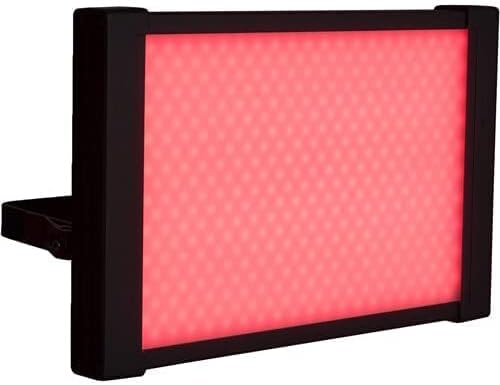
Image: The CAME-TV Boltzen Perseus RGBDT 55W Lighting Screen illuminated with a vibrant red light, showcasing its ability to produce various colors for creative lighting setups.
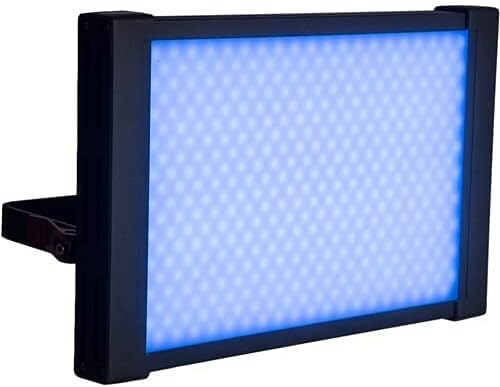
Image: The CAME-TV Boltzen Perseus RGBDT 55W Lighting Screen illuminated with a bright blue light, demonstrating another color option available through its RGBDT color control system.

Image: The CAME-TV Boltzen Perseus RGBDT 55W Lighting Screen illuminated with a rich purple light, further illustrating the extensive color palette achievable with this versatile lighting unit.
6. Maintenance
- Cleaning: Use a soft, dry cloth to clean the light panel and housing. Do not use abrasive cleaners or solvents.
- Storage: When not in use, store the light in its carrying bag in a cool, dry place, away from direct sunlight and extreme temperatures.
- Inspection: Regularly inspect the power cable and connections for any signs of damage. If damage is found, discontinue use and contact customer support.
7. Troubleshooting
| Problem | Possible Cause | Solution |
|---|---|---|
| Light does not turn on. | No power supply; loose connection; faulty power adapter. | Check power cable connection; ensure outlet is working; try a different power adapter if available. |
| Light flickers or dims unexpectedly. | Unstable power supply; overheating; faulty internal component. | Ensure stable power source; allow light to cool down; contact customer support if problem persists. |
| Color or brightness controls are unresponsive. | Software glitch; control panel issue. | Power cycle the device (turn off, wait 10 seconds, turn on); contact customer support. |
8. Specifications
| Feature | Detail |
|---|---|
| Model | P-1200R |
| Brand | CAME-TV |
| Power Output | 55W (Note: Some specifications may list 9W, but the primary output is 55W) |
| Color Temperature Range | 2000K - 10000K (RGBDT) |
| Power Source | Electric |
| Dimensions (Shipping) | 37.2 x 31.2 x 9.6 cm |
| Weight (Shipping) | 1 kg |
| Included Components | Lighting Screen, Power Adapter, Carrying Bag |
| First Available Date | September 14, 2021 |
9. Warranty and Support
For warranty information and technical support, please refer to the official CAME-TV website or contact your local distributor. Keep your purchase receipt as proof of purchase for warranty claims.
Manufacturer: CAME-TV Boltzen Perseus RGBDT 55W - P-1200R-1
ASIN: B09G3JLCSQ
Related documentsP-1200R

Ask a question about this manual
Ask about setup, troubleshooting, compatibility, parts, safety, or missing instructions. Manuals+ will review the question and use this page’s manual context to help answer it.