
1. Product Overview
The TELESIN Selfie Stick Tripod (Model TE-RCSS-001) is a versatile accessory designed for capturing photos and videos with GoPro action cameras and smartphones. It features a built-in extendable pole, a stable tripod base, and a detachable Bluetooth remote control for convenient operation.

Image 1.1: Overview of the TELESIN Selfie Stick Tripod with its remote control.
2. Package Contents
Please verify that all items listed below are included in your package:
- 1 x Selfie Stick Pole
- 1 x Bluetooth Remote Control
- 1 x Type-C Data Cable (for remote charging)
- 1 x Phone Clip Holder
- 1 x Locking Screw
- 1 x Screw for Smartphone Clip
- 1 x Adapter
- 1 x User Manual
- 1 x Packaging Box

Image 2.1: All components included in the TELESIN Selfie Stick Tripod package.
3. Setup Instructions
3.1 Charging the Remote Control
Before first use, ensure the Bluetooth remote control is fully charged using the provided Type-C data cable.
3.2 Attaching Your Device
The selfie stick is compatible with various GoPro models (Hero 8, 9, 10, 11, 12, Max, Mini) and most smartphones (iOS/Android).
- For GoPro Cameras: Attach your GoPro directly to the integrated mount at the top of the selfie stick using the locking screw.
- For Smartphones: Attach the phone clip holder to the adapter, then secure it to the selfie stick mount. Insert your smartphone into the clip. The phone clip can be adjusted for horizontal or vertical shooting.

Image 3.1: The selfie stick is compatible with various GoPro models and smartphones.
3.3 Extending the Pole and Deploying the Tripod
- To extend the pole, gently pull the sections outwards. It can extend up to 24 inches.
- To use as a tripod, unfold the legs at the base of the handle. Ensure the legs are fully spread for maximum stability.
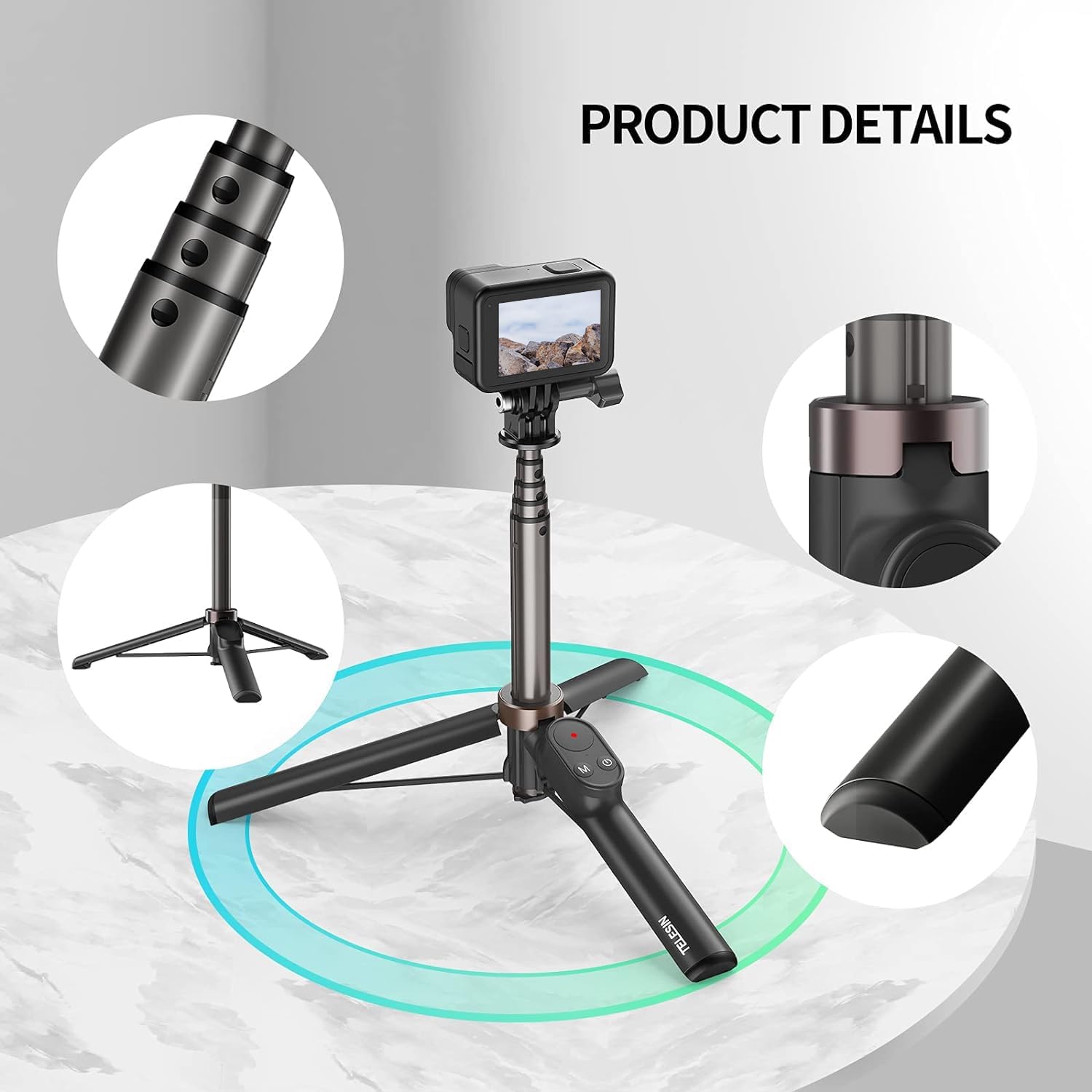
Image 3.2: Detailed view of the telescopic pole and the integrated tripod base.
4. Operating Instructions
4.1 Remote Control Functions
The remote control features a power button, a mode button, and a photo/video button. Indicator lights (green/red) show the current mode and pairing status.
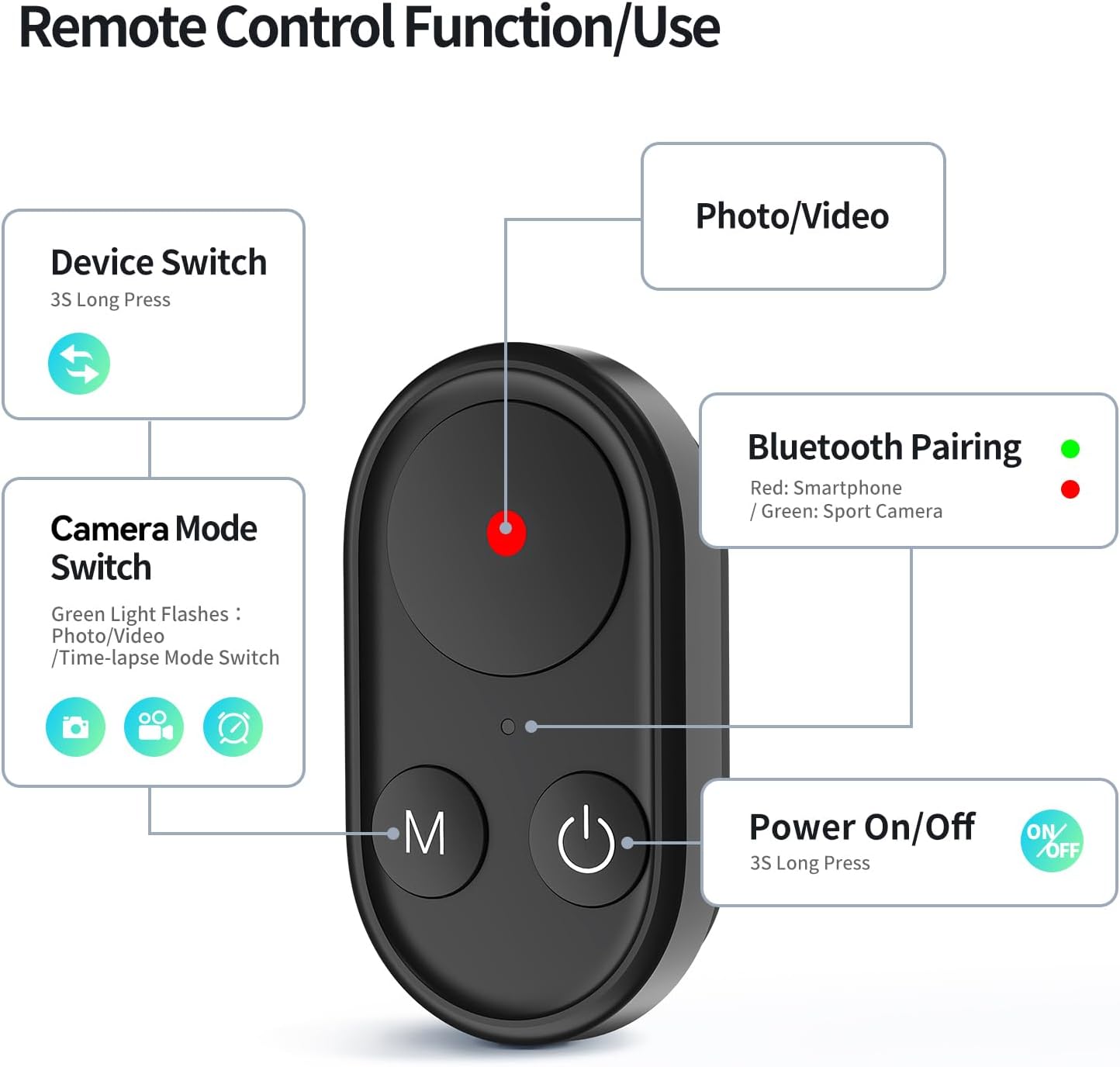
Image 4.1: Layout and functions of the Bluetooth remote control.
- Power On/Off: Long press the power button for 3 seconds.
- Device Switch (GoPro/Phone): Long press the 'M' (Mode) button to switch between GoPro (green light) and Phone (red light) modes.
- Photo/Video: Press the dedicated button to capture photos or start/stop video recording.
- Camera Mode Switch (GoPro only): In GoPro mode, press the 'M' button to cycle through photography, video recording, and time-lapse modes.
4.2 Connecting to GoPro Camera
- Long press the remote control's power button to turn it on. The indicator light will flash.
- Ensure the remote is in GoPro mode (green light flashing). If red, long press the 'M' button until the green light flashes.
- On your GoPro camera, swipe down, then left to access settings. Navigate to Connect » Connect Device » GoPro Application.
- Wait for the camera to confirm successful connection. The remote's green light will stop flashing and remain solid.
- Press the photo button to take photos. Press the 'M' button to switch between camera modes (photography, video, time-lapse).
4.3 Connecting to Smartphone
- Long press the remote control's power button to turn it on. The indicator light will flash.
- Ensure the remote is in Phone mode (red light flashing). If green, long press the 'M' button until the red light flashes.
- On your smartphone, enable Bluetooth and search for the device named "t-se". Tap to pair. The remote's red light will stop flashing and remain solid upon successful pairing.
- Open your mobile phone's camera application. Press the photo button on the remote to take photos or start/stop video recording.
5. Maintenance
- Cleaning: Wipe the selfie stick and remote with a soft, dry cloth. Avoid using harsh chemicals or abrasive materials.
- Storage: Store the product in a cool, dry place away from direct sunlight when not in use.
- Water Resistance: The selfie stick is designed to be waterproof. However, ensure the remote control's charging port cover is securely closed if exposed to water.
- Remote Security: The remote control is magnetically attached. For extreme sports or high-impact activities, consider securing it with a strap to prevent loss.
6. Troubleshooting
- Remote Control Not Turning On: Ensure the remote is fully charged. Connect it to a power source using the Type-C cable.
- Remote Control Not Pairing:
- Verify the remote is in the correct mode (green for GoPro, red for phone).
- Restart both the remote control and your camera/phone.
- Ensure Bluetooth is enabled on your device and that it is discoverable.
- If previously paired, try unpairing and re-pairing the device.
- Unstable Tripod: Ensure the tripod legs are fully extended and placed on a flat, stable surface. Avoid overloading the stick when fully extended.
- Difficulty Retracting Pole: Ensure no debris is obstructing the pole sections. Gently twist and push to retract.
- Remote Control Disconnects Frequently: Ensure the remote is within the effective control range (approximately 72 meters in open areas). Avoid obstructions between the remote and the device.
7. Specifications
| Feature | Detail |
|---|---|
| Model Number | TE-RCSS-001 |
| Material | High-quality Aluminum |
| Folded Size | 7 inches (approx. 17.8 cm) |
| Extended Length | Up to 24 inches (approx. 61 cm) |
| Item Weight | 3.84 ounces (approx. 109 grams) |
| Remote Control Battery | 1 Lithium Ion battery (included) |
| Remote Control Range | Approx. 72 meters (open area) |
| Compatibility | GoPro HERO8/9/10/11/12 Black, GoPro Max, GoPro Mini, iOS/Android Smartphones |
8. Warranty and Support
This product comes with a 90-day free return and refund policy, and a 12-month warranty period.
For any product issues, including shipping concerns, please contact GAOPOLO online customer service for assistance. You can typically find their contact information through your purchase platform or the TELESIN official website.