
ASUS ROG Falchion NX
ASUS ROG Falchion NX 65% Wireless RGB Gaming Mechanical Keyboard User Manual
Model: ROG Falchion NX
Introduction
The ASUS ROG Falchion NX is a compact 65% form-factor wireless mechanical keyboard designed for an optimized gaming and typing experience. It integrates an interactive touch panel, durable PBT doubleshot keycaps, and ROG-tuned ROG NX mechanical switches. This manual provides detailed instructions for setup, operation, maintenance, and troubleshooting to ensure optimal performance and longevity of your keyboard.
Setup
Package Contents
Ensure all items are present:
- ROG Falchion NX Keyboard
- USB Cable
- Keyboard Cover Case
- Wireless Dongle (2.4 GHz RF)
- Keycap Puller
- Switch Puller
- Additional ROG NX Switches
- Quick Start Guide & Warranty Card
Connectivity
The ROG Falchion NX supports dual-mode connectivity: wired USB and 2.4 GHz RF wireless. It also supports Bluetooth connectivity.
- Wired USB Mode: Connect the provided USB cable from the keyboard to your computer's USB port. The keyboard will automatically switch to wired mode and begin charging.
- 2.4 GHz RF Wireless Mode:
- Locate the 2.4 GHz wireless dongle, typically stored magnetically within the keyboard's chassis.
- Plug the dongle into an available USB port on your computer.
- Ensure the keyboard's mode switch (located on the side) is set to 2.4 GHz wireless. The keyboard should automatically pair.
- Bluetooth Mode:
- Ensure the keyboard's mode switch is set to Bluetooth.
- On your computer or device, navigate to Bluetooth settings and search for available devices.
- Select 'ROG Falchion NX' from the list to pair.
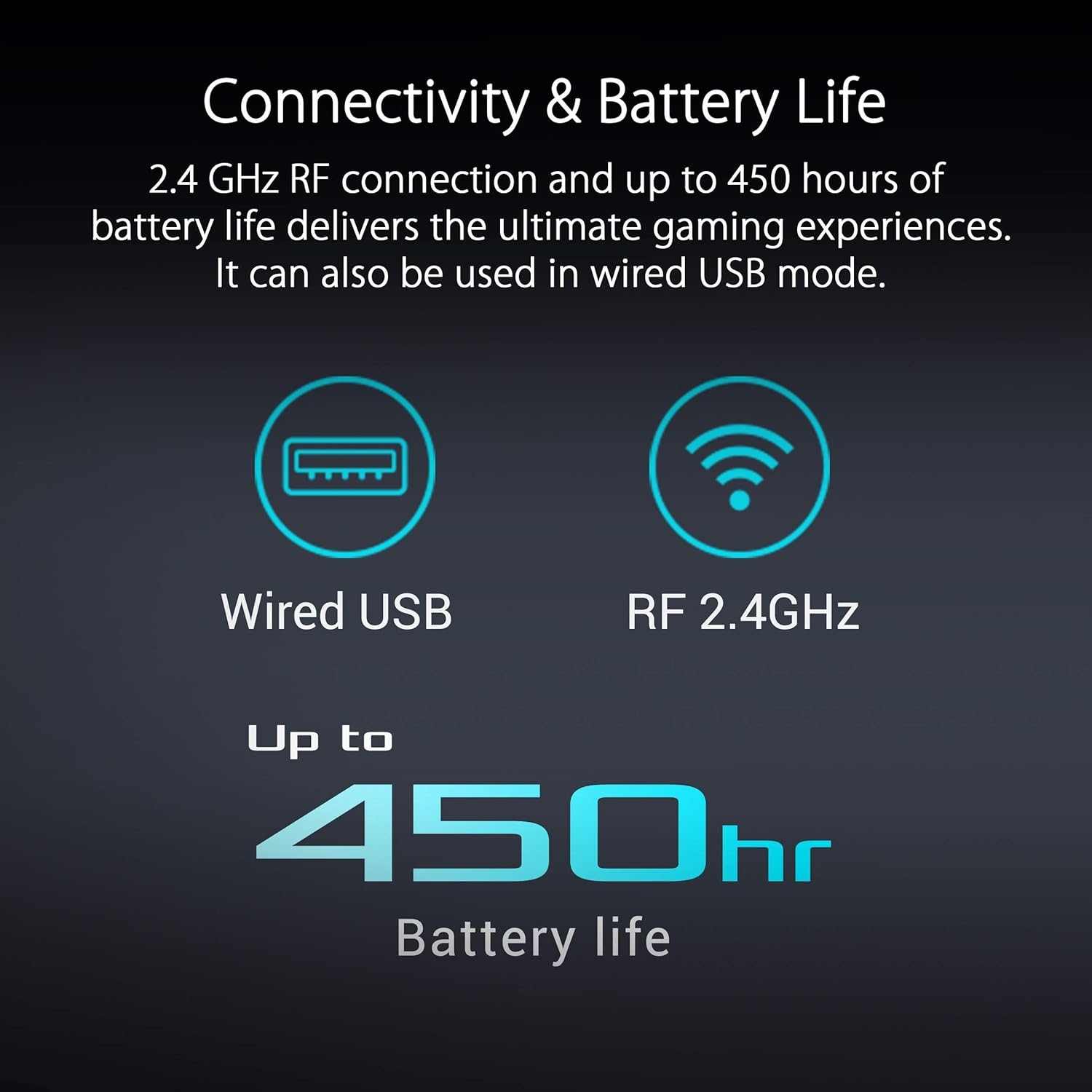
Figure 1: Connectivity Options and Battery Life
Description: This image illustrates the dual-mode connectivity of the ROG Falchion NX, showing icons for wired USB and 2.4 GHz RF wireless. It also highlights the impressive battery life of up to 450 hours when RGB lighting is off.
Software Installation (Armoury Crate)
For full customization of RGB lighting, macros, and user profiles, install the ASUS Armoury Crate software.
- Visit the official ASUS support website for the ROG Falchion NX.
- Download and install the latest version of Armoury Crate.
- Follow the on-screen instructions to complete the installation and update firmware if prompted.
Operating Instructions
Key Layout and Switches
The ROG Falchion NX features a 65% layout, masterfully incorporating arrow and navigation keys within a compact frame. It utilizes ROG NX Mechanical Switches (Red Linear in this model) for precise and tactile keystrokes.

Figure 2: Compact 65% Form Factor
Description: This image showcases the compact 65% form factor of the ROG Falchion NX, demonstrating how it provides full keyboard functionality without occupying excessive desk space.

Figure 3: ROG NX Mechanical Switches
Description: A detailed view of the ROG NX Mechanical Switches, emphasizing their design for fast actuation and consistent tactile feedback, crucial for gaming performance.
Interactive Touch Panel
The innovative touch panel on the left side of the keyboard allows for convenient adjustments and custom controls.
- Volume Adjustment: Swipe up or down on the touch panel to adjust system volume.
- Custom Shortcuts: Program the touch panel for various shortcuts, such as switching applications, copying, or pasting, via Armoury Crate.
- Macro Keys: Assign complex macros to the touch panel for intuitive in-game controls.
- Battery Status: The touch panel can display the keyboard's battery level in real-time.

Figure 4: Interactive Touch Panel
Description: This image highlights the interactive touch panel on the side of the ROG Falchion NX, demonstrating its illuminated indicators and potential for quick adjustments.
Wireless Aura Sync RGB Lighting
The ROG Falchion NX features wireless Aura Sync RGB lighting, allowing for extensive customization of lighting effects and colors.
- Customization: Use Armoury Crate to select from the entire color spectrum and a range of dynamic lighting effects.
- Synchronization: Synchronize the keyboard's RGB lighting with other Aura Sync compatible devices for a unified lighting scheme.
Onboard Memory and Function Lock
The keyboard includes onboard memory to save up to six profiles, allowing you to store custom settings and use them anywhere. The Function Lock key toggles between Media and Function (Fn) key inputs for different scenarios.

Figure 5: Key Features Overview
Description: An infographic summarizing important features such as quick charging, onboard memory for profiles, the touch panel with Windows lock, and the function lock key for mode switching.
Maintenance
Durable PBT Doubleshot Keycaps
The ROG Falchion NX is equipped with durable ROG PBT Doubleshot Keycaps, designed for longevity and a premium feel. These keycaps are optimized with mid-height and a shorter stem to reduce key wobble.

Figure 6: Durable PBT Doubleshot Keycaps
Description: This image provides a close-up view of the PBT doubleshot keycaps, illustrating their robust construction and how they can be removed for maintenance or customization.
Keyboard Cover Case
A transparent polycarbonate keyboard cover is included for protection.
- Protection: Use the cover to protect the keyboard from dust and spills when not in use or during transport.
- Under-keyboard Tray: The cover can be placed under the keyboard to diffuse the underside RGB lighting, enhancing aesthetics.
- Removing the Cover: To remove the cover, gently push on the two open spots on the sides of the keyboard to release it.
General Cleaning
To maintain your keyboard's appearance and functionality:
- Use a soft, lint-free cloth to wipe down the keycaps and chassis.
- For deeper cleaning, use the provided keycap puller to remove keycaps and clean underneath with compressed air.
- Avoid using harsh chemicals or abrasive materials.
Troubleshooting
Key Repeats or Input Lag
If you experience keys repeating or input lag in wireless mode:
- Ensure the 2.4 GHz wireless dongle is connected directly to a USB port on your computer, not a hub.
- Reduce the distance between the keyboard and the wireless dongle. Using a USB extension cable to bring the dongle closer can improve signal strength.
- Check for potential interference from other wireless devices.
Battery Not Charging or Low Battery Life
If the battery is not charging properly or battery life is shorter than expected:
- Ensure the USB cable is securely connected to both the keyboard and a powered USB port.
- Perform a firmware update via Armoury Crate. This can resolve known charging issues.
- Disable RGB lighting to extend battery life significantly (up to 450 hours with RGB off).
Software (Armoury Crate) Issues
If Armoury Crate is not detecting the keyboard or functions are not working:
- Ensure the keyboard's firmware is up to date.
- Restart Armoury Crate and your computer.
- Reinstall Armoury Crate if problems persist.
Specifications
| Feature | Detail |
|---|---|
| Brand | ASUS |
| Model Number | M601 ROG FALCHION NX/NXRD/US |
| Form Factor | 65% |
| Switches | ROG NX Red Mechanical Switches |
| Keycaps | PBT Doubleshot |
| Connectivity | Wired USB, 2.4 GHz RF Wireless, Bluetooth |
| Battery Life | Up to 450 hours (with RGB lighting off) |
| RGB Lighting | Wireless Aura Sync, Per-key RGB |
| Special Features | Interactive Touch Panel, Keyboard Cover Case, Macro Support, Onboard Memory |
| Operating System | Windows 10 |
| Item Weight | 2.1 pounds |
| Product Dimensions | 14.49 x 5.59 x 2.4 inches |
Official Product Videos
ASUS ROG Falchion NX 65% Wireless RGB Gaming Keyboard
Description: This video provides an overview of the ASUS ROG Falchion NX 65% Wireless RGB Gaming Keyboard, showcasing its compact design, interactive touch panel, and wireless RGB lighting features.
ASUS ROG Falchion NX 65% Wireless RGB Gaming Mechanical Keyboard
Description: A detailed video demonstrating the features and functionality of the ASUS ROG Falchion NX 65% Wireless RGB Gaming Mechanical Keyboard, including its switches, keycaps, and connectivity options.
Warranty and Support
Warranty Information
Your ASUS ROG Falchion NX keyboard comes with a manufacturer's warranty. Please refer to the 'Warranty Card' included in your product packaging for specific terms, conditions, and duration of coverage.
Technical Support
For technical assistance, driver downloads, and software updates:
- Visit the official ASUS support website.
- Utilize the Armoury Crate software for centralized control, customization, and firmware updates.
- Contact ASUS customer service for further assistance.
Ask a question about this manual
Ask about setup, troubleshooting, compatibility, parts, safety, or missing instructions. Manuals+ will review the question and use this page’s manual context to help answer it.