1. Introduction
This manual provides comprehensive instructions for the installation, operation, and maintenance of the Grandstream GRP2601 IP Phone. The GRP2601 is a carrier-grade IP phone designed for essential communication needs, featuring 2 lines, 2 SIP accounts, a 2.4-inch LCD display, and dual-port Gigabit Ethernet connectivity. It is built for the basic needs of on-site or remote desktop workers, offering an easy-to-use and easy-to-deploy voice endpoint.
2. Package Contents
Please verify that all items are included in your package:
- Grandstream GRP2601 IP Phone Unit
- Handset with Cord
- Ethernet Cable
- Phone Stand
- Quick Installation Guide (This manual serves as a detailed guide)
3. Product Overview
3.1 Key Features
- 2 SIP accounts, 2 lines
- GDMS online device management and provisioning support
- 5-way audio conferencing for easy conference calls
- Equipped with noise shield technology to minimize background noise
- Electronic Hook Switch (EHS) support for Plantronics, Jabra, and Sennheiser headsets
- The GRP2601P variant includes built-in Power over Ethernet (PoE)
- Enterprise-level protection including secure boot, dual firmware images, and encrypted data storage
- GRP2601W variant includes 2.4 GHz Wi-Fi support
3.2 Physical Components

Figure 1: Front view of the Grandstream GRP2601 IP Phone, showcasing the display, keypad, and handset cradle.

Figure 2: Angled view of the GRP2601, highlighting its ergonomic design and display angle.
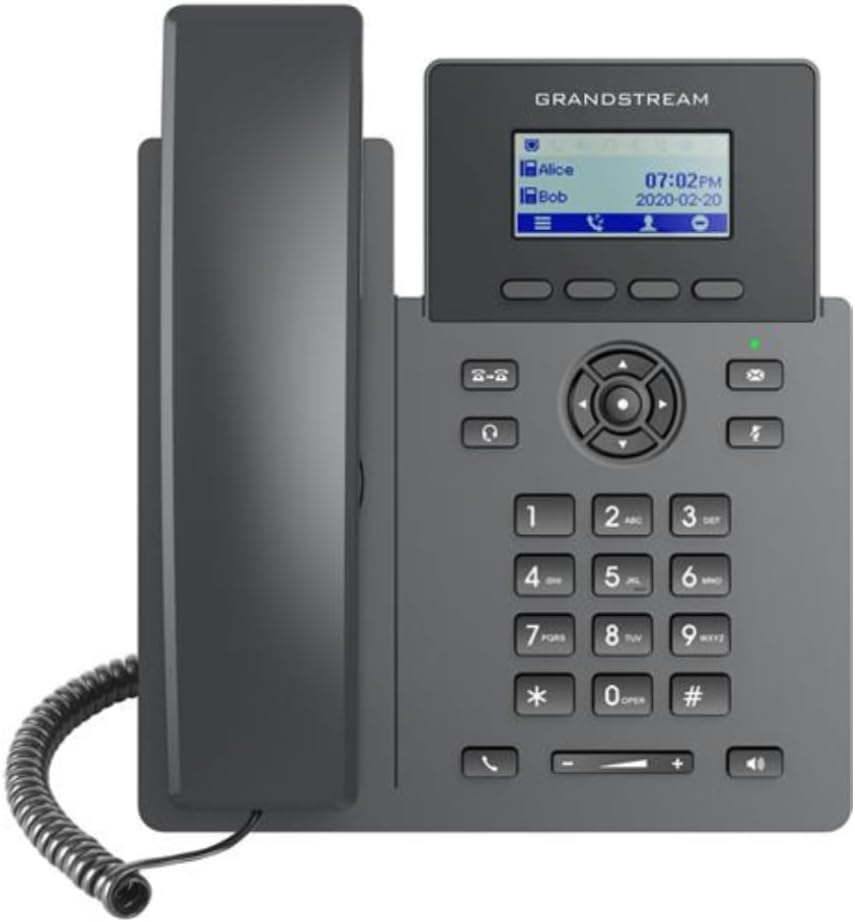
Figure 3: Straight-on front view of the GRP2601, providing a clear look at the LCD screen and button layout.

Figure 4: Rear view of the GRP2601, showing the various ports for power, network, and accessories.
4. Setup
4.1 Connecting the Phone
- Attach the Phone Stand: Align the stand with the slots on the back of the phone unit and snap it into place.
- Connect the Handset: Plug one end of the coiled handset cord into the handset and the other end into the handset port on the phone unit (marked with a handset icon).
- Connect to Network:
- For GRP2601P (PoE enabled): Connect one end of the Ethernet cable to the LAN port on the phone and the other end to a Power over Ethernet (PoE) enabled switch or injector.
- For GRP2601 (non-PoE): Connect one end of the Ethernet cable to the LAN port on the phone and the other end to your network switch/router. Then, connect the included power adapter to the DC5V power port on the phone and to a power outlet.
- (Optional) Connect PC: If you wish to connect a PC through the phone, connect an Ethernet cable from your PC to the PC port on the phone.
- (Optional) Connect Headset: If using an EHS-compatible headset, connect it to the headset port (marked with a headset icon).
4.2 Initial Configuration
Upon successful connection, the phone will boot up and attempt to obtain an IP address. Configuration can be performed via the phone's web user interface or through Grandstream's Device Management System (GDMS) for mass deployment. Consult your network administrator for specific SIP account details and provisioning settings.
5. Operating Instructions
5.1 Making Calls
- Lift Handset or Press Speakerphone Button: This will give you a dial tone.
- Dial Number: Enter the desired phone number using the keypad.
- Press Dial/Send Button: Or wait a few seconds for the call to automatically initiate.
5.2 Receiving Calls
When the phone rings, lift the handset or press the Speakerphone button to answer the call.
5.3 Using Call Features
- Hold: Press the Hold button during an active call to place it on hold. Press again to resume.
- Transfer: During an active call, press the Transfer button, dial the new number, and then press Transfer again to complete.
- Conference: During an active call, press the Conference button, dial the number of the party you wish to add, and then press Conference again to establish a 5-way conference call.
- Mute: Press the Mute button to mute your microphone during a call. Press again to unmute.
5.4 Navigating the Menu
Use the navigation cluster (up, down, left, right arrows) and the OK/Menu button to navigate through the phone's LCD menu for settings, call history, and other functions.
6. Maintenance
6.1 Cleaning
To clean the phone, use a soft, dry cloth. For stubborn marks, a slightly damp cloth with mild, non-abrasive cleaner can be used. Avoid excessive moisture and harsh chemicals.
6.2 Firmware Updates
Grandstream periodically releases firmware updates to improve performance and add features. These updates are typically managed by your system administrator via GDMS or a local provisioning server. Do not attempt to manually update firmware unless instructed by your administrator.
7. Troubleshooting
7.1 Common Issues and Solutions
| Issue | Possible Cause / Solution |
|---|---|
| No Dial Tone | Check all cable connections (handset, Ethernet, power). Ensure the phone is powered on. Verify network connectivity. |
| Cannot Make/Receive Calls | Verify SIP account registration status on the phone's display. Check network connection. Contact your service provider or administrator. |
| Display is Blank | Ensure the phone is receiving power (check power adapter or PoE connection). |
| Poor Call Quality | Check network bandwidth and stability. Ensure QoS (Quality of Service) is configured on your network. |
If you encounter issues not listed here, or if the suggested solutions do not resolve the problem, please contact your IT support or refer to the Grandstream official support resources.
8. Specifications
| Attribute | Value |
|---|---|
| Brand | Grandstream |
| Model Number | GRP2601 (Item model number: 6947273703105) |
| Product Dimensions (L x W x H) | 8.66 x 10.24 x 3.15 inches |
| Item Weight | 0.035 ounces (approx. 1 gram) |
| Color | Gray |
| Telephone Type | Corded |
| Material | Plastic |
| Power Source | Corded Electric (or PoE for GRP2601P) |
| Dialer Type | Single Keypad |
| Answering System Type | Digital |
| Visible Screen Diagonal | 2.4 inches (3" / 7 cm) |
| Compatible Devices | Grandstream's Device Management System (GDMS), Plantronics, Jabra, Sennheiser headsets |
9. Warranty and Support
The Grandstream GRP2601 IP Phone comes with a standard manufacturer's warranty. For detailed warranty information, terms, and conditions, please refer to the official Grandstream website or contact your point of purchase.
For technical support, firmware downloads, FAQs, and additional resources, please visit the official Grandstream support portal at www.grandstream.com/support. It is recommended to have your product model and serial number ready when contacting support.


